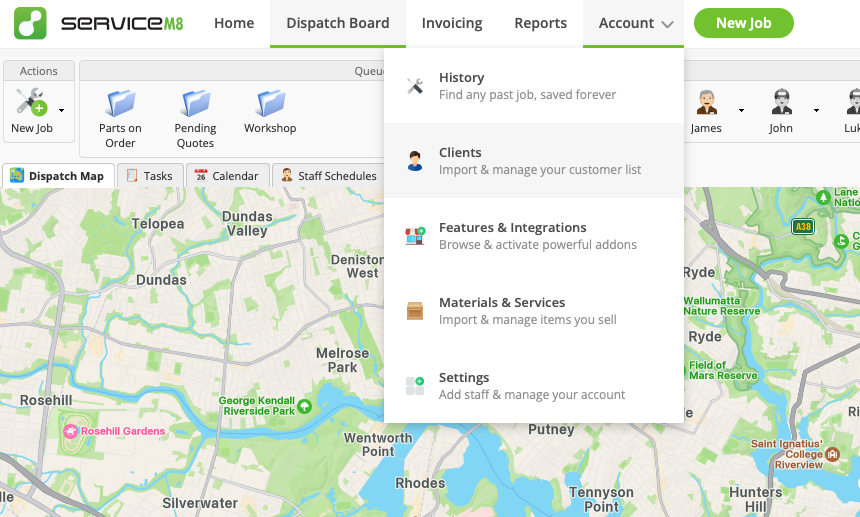
This article will show you how to import materials and clients into your account using a CSV spreadsheet. You may not need to do this task if you have connected your ServiceM8 account to Xero, QuickBooks Online, or MYOB, as your items & clients are automatically imported from your accounting software as part of the connection process.
How to Import Materials/Items
Go to Account > Materials & Services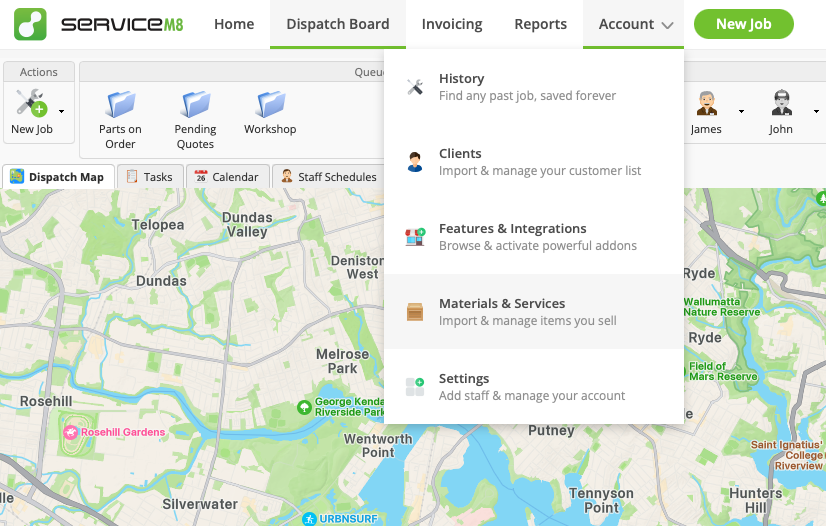
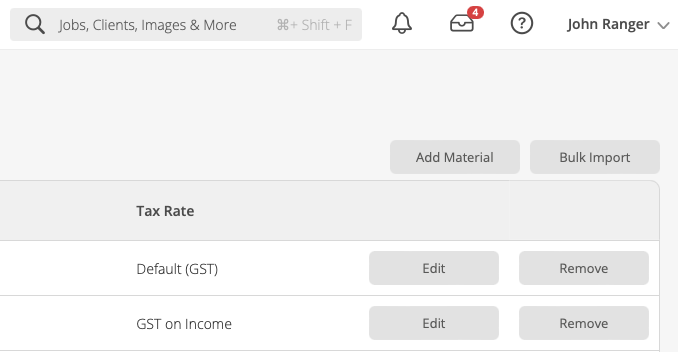
In the top-right corner, click ‘Bulk Import’
Download and open the import spreadsheet template
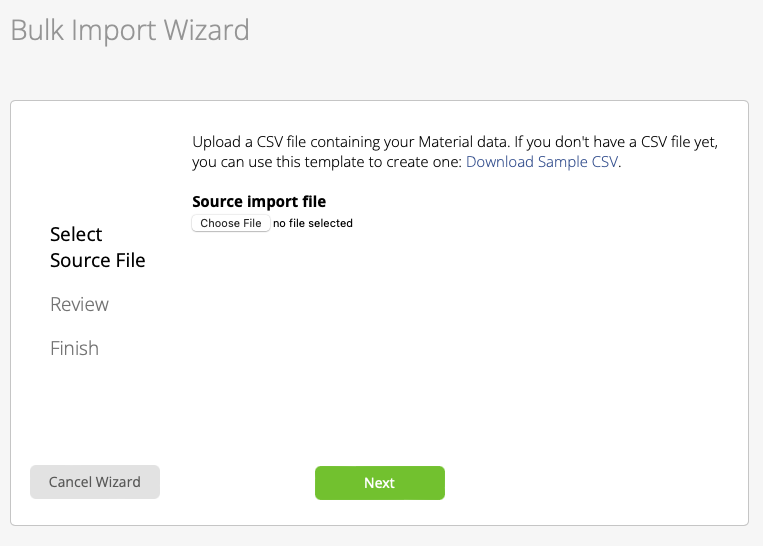
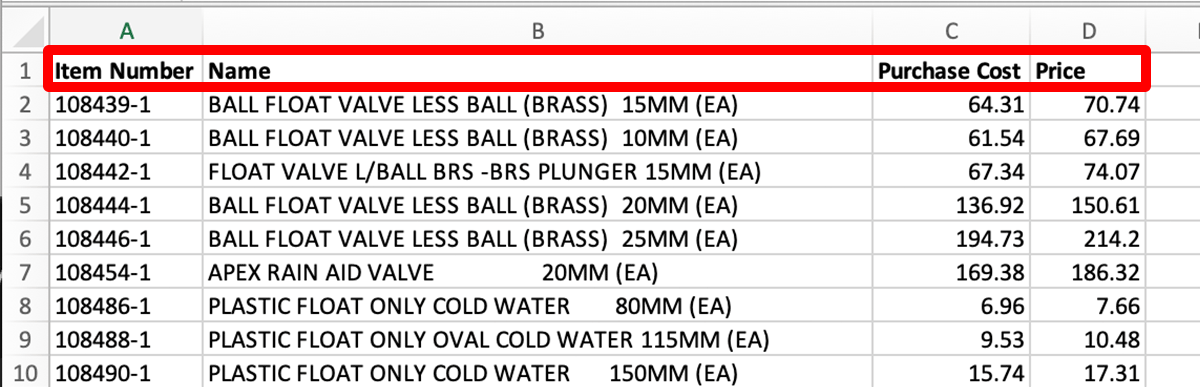
Save the file, go back to ServiceM8, upload your file and click ‘Next’
Check that your file’s data has been mapped to the correct Material Fields, then click ‘Next’
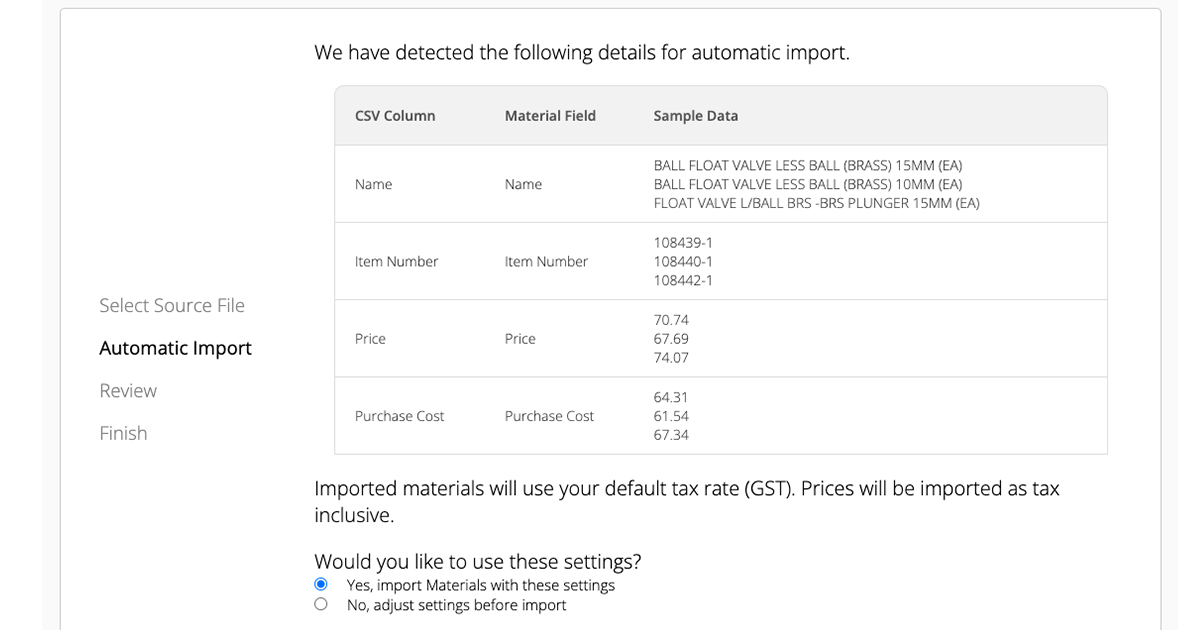
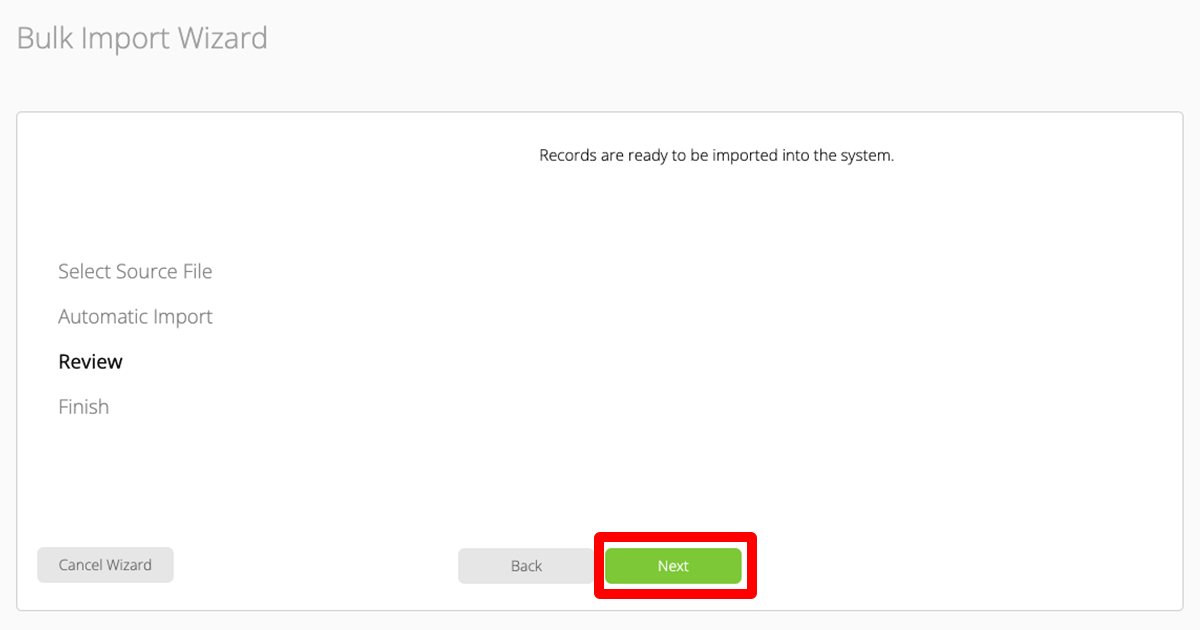
The materials/items will be imported
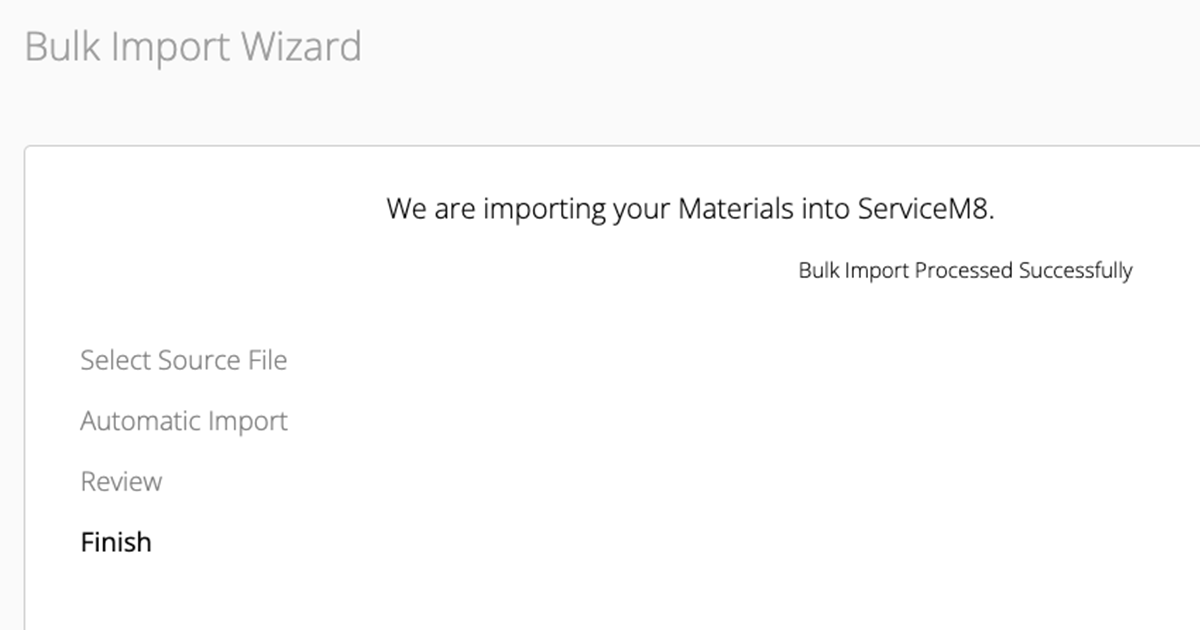
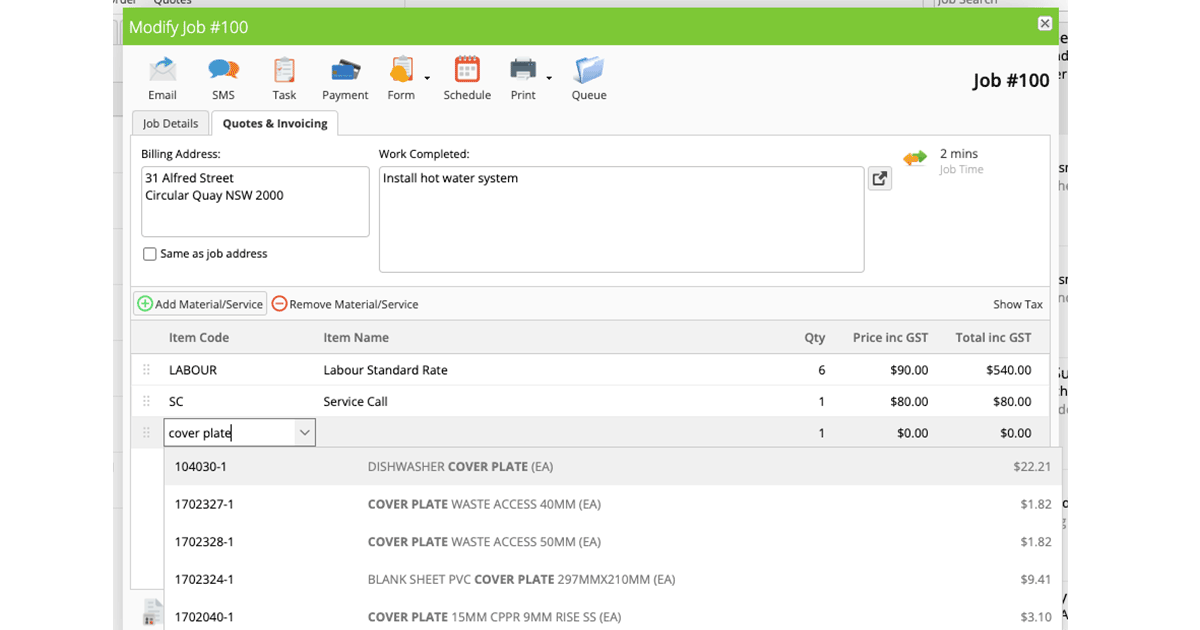
Once finished, you can search and add imported materials/items in a job card
How to Import Clients
Go to Clients, then click ‘Bulk Import’