- Online Dashboard - Dispatch Board
- Online Dashboard - job card
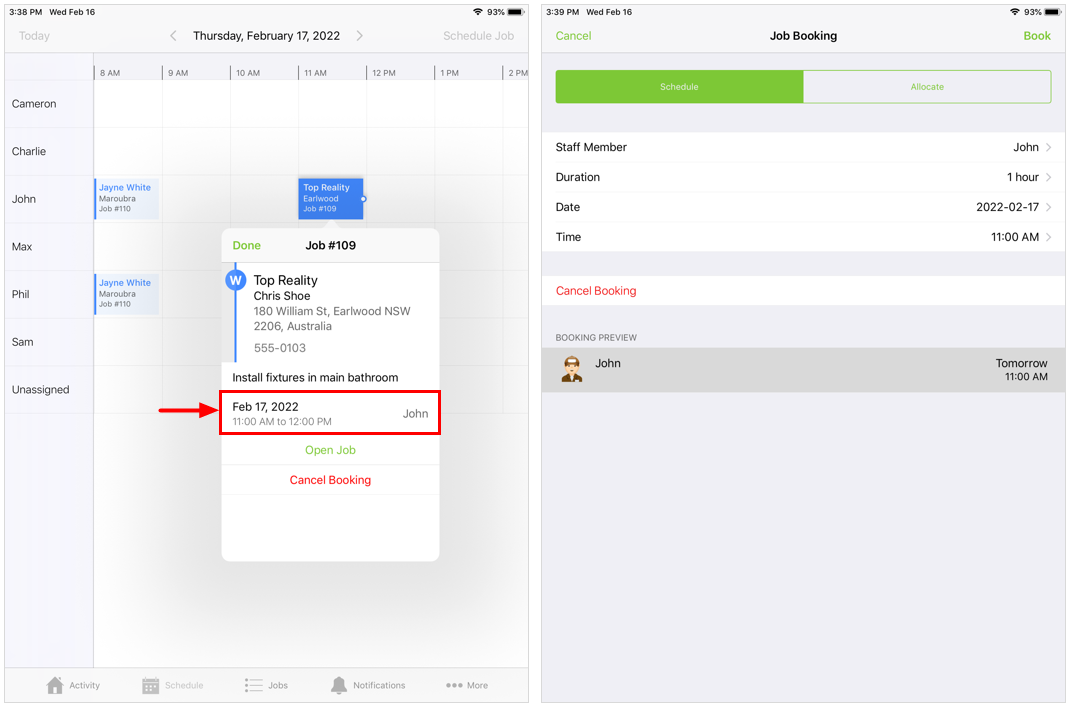
- ServiceM8 mobile app - job card
- ServiceM8 mobile app - Calendar view
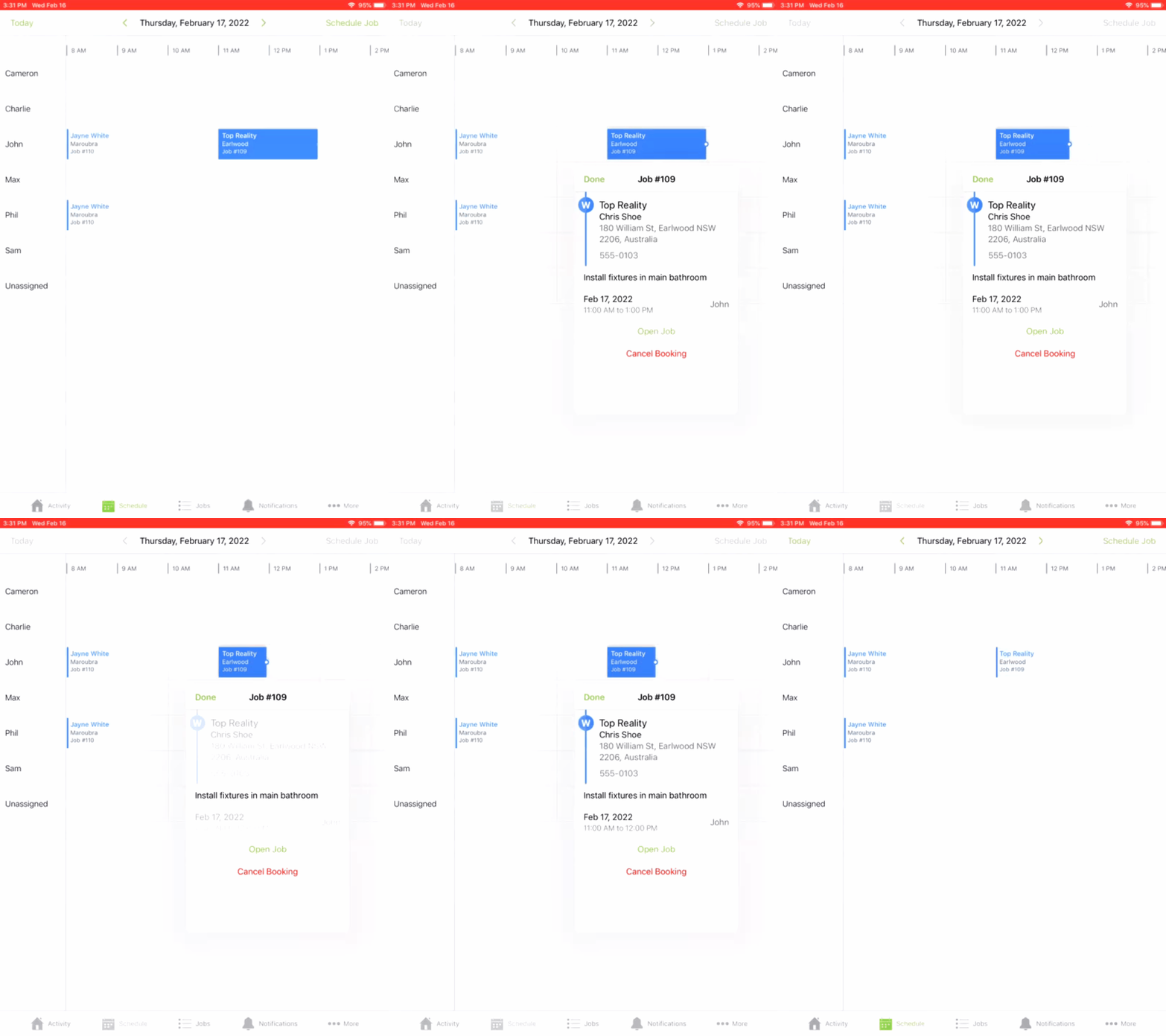
- ServiceM8 mobile app - Schedule tab (iPad only)
Rescheduling job bookings from the Dispatch Board
Note: This section references the Staff Schedules view, but you can reschedule and adjust bookings from the Calendar view as well. To change a booking time or staff member:- From the Dispatch Board, click Staff Schedules. You can display schedules by day, week, 2 weeks, or month.
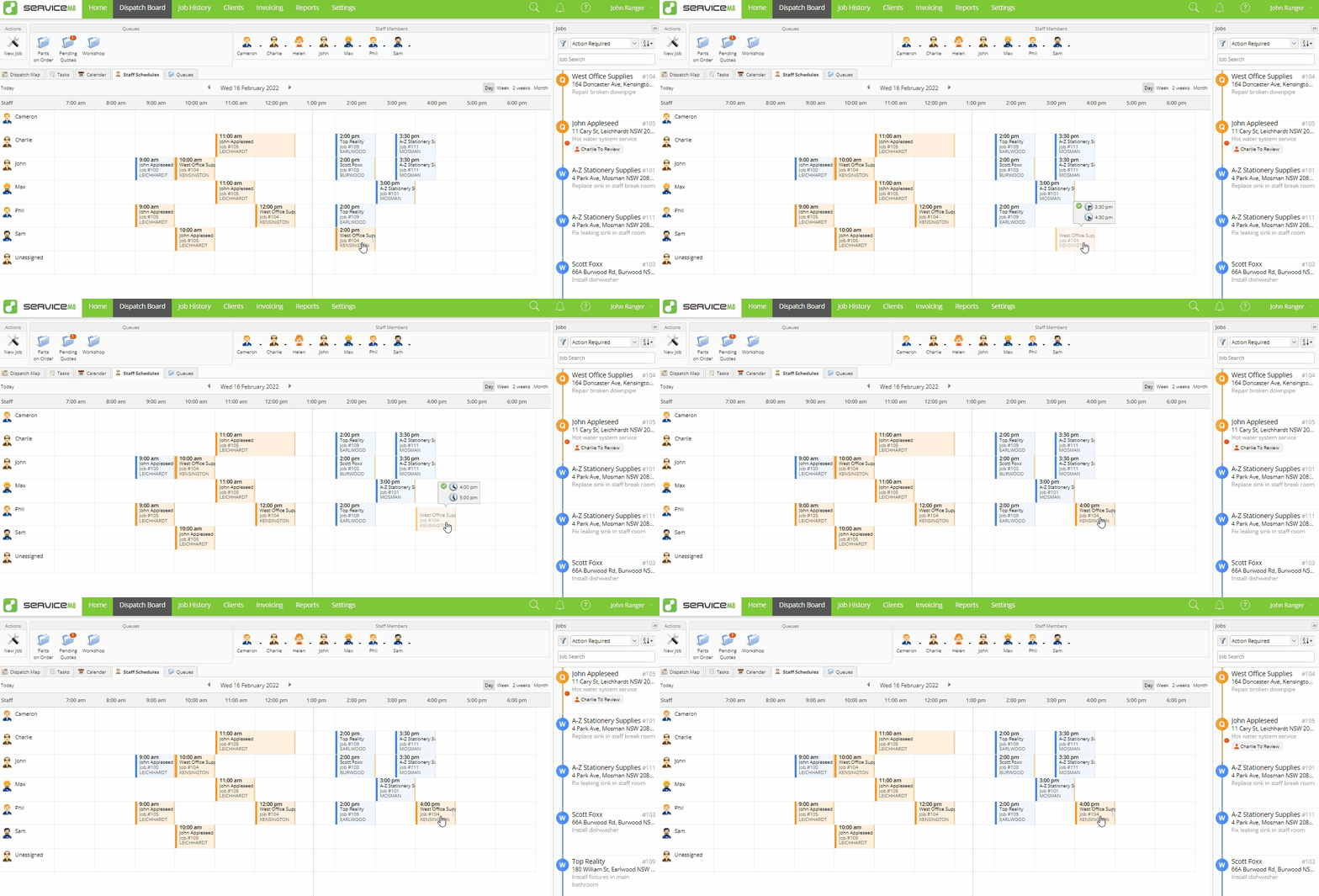
- Click and drag the job to the desired new slot on the schedule. (The example below moves the booking from Sam at 2:00 PM to Phil at 4:00 PM on the same day.)
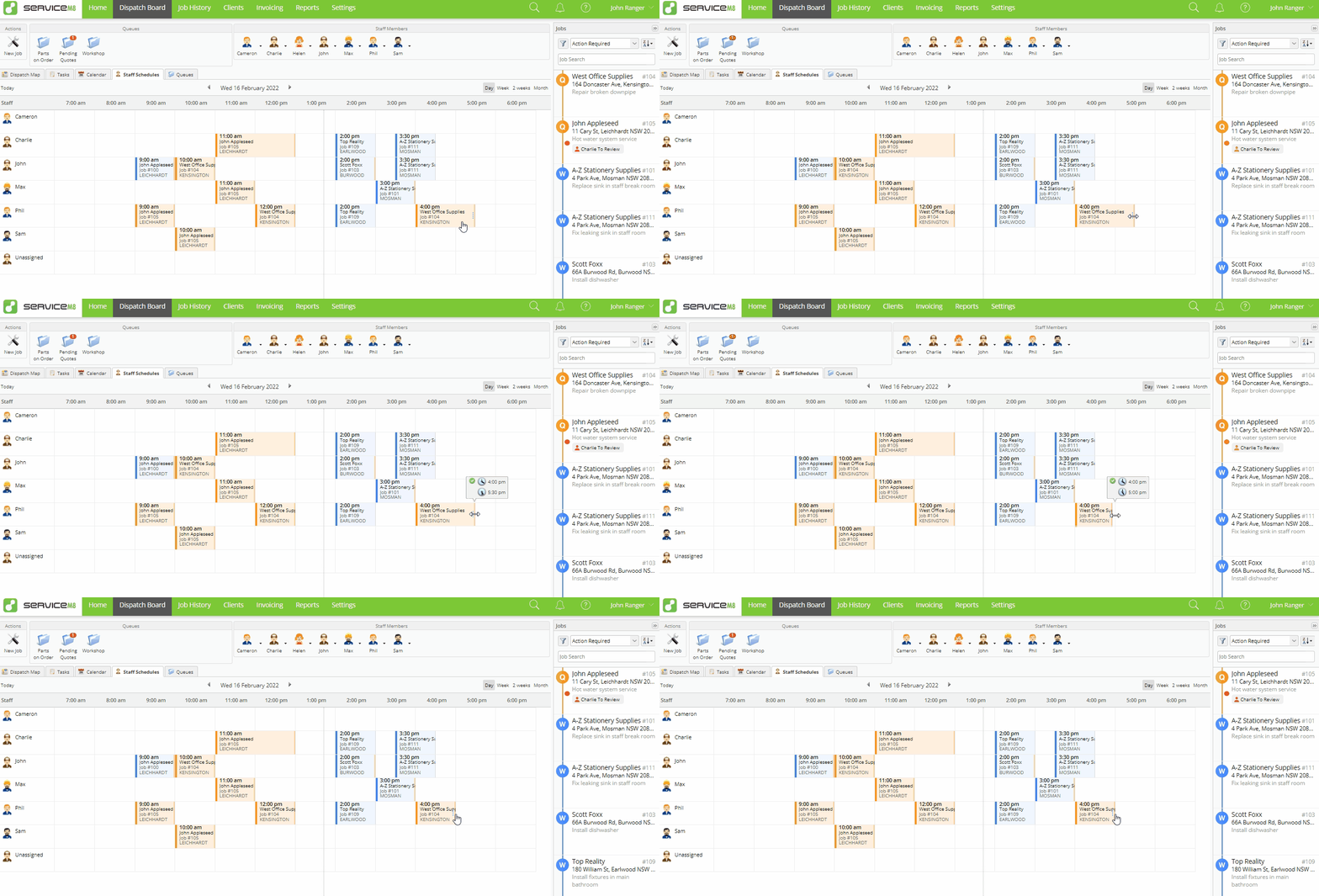
- Click and drag the booking end to lengthen or shorten the booking as desired.
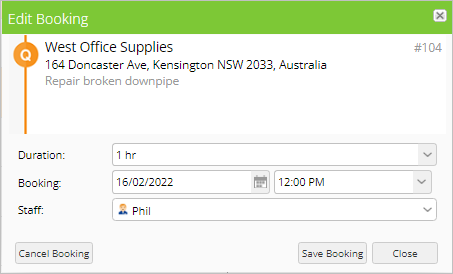
Rescheduling job bookings from the job card in the Online Dashboard
- From the Jobs list, double-click the job to open the job card.
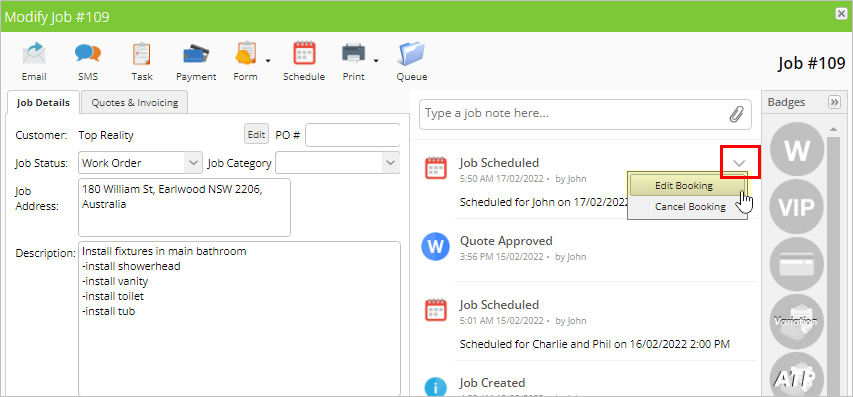
- Hover over the appropriate Job Scheduled entry in the job diary and click the arrow.
- Click Edit Booking.
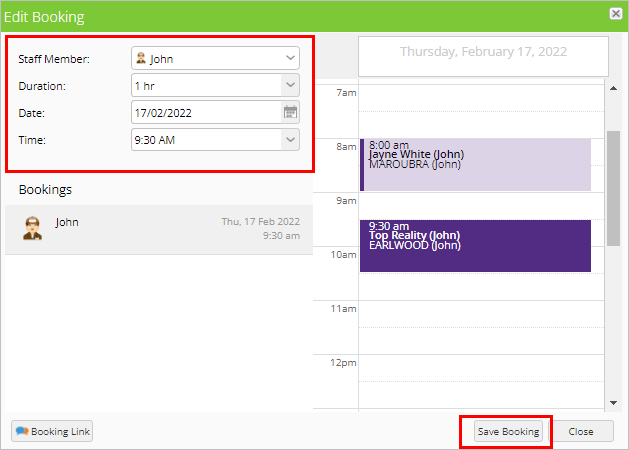
- The Edit Booking window will open. Adjust the staff member(s), duration, date, and time as needed. Current staff schedules will be displayed on the right to help you find a suitable time.
- Click Save Booking.
Rescheduling job bookings from the job card in the ServiceM8 mobile app
- From the Jobs view, find the job and tap to open.
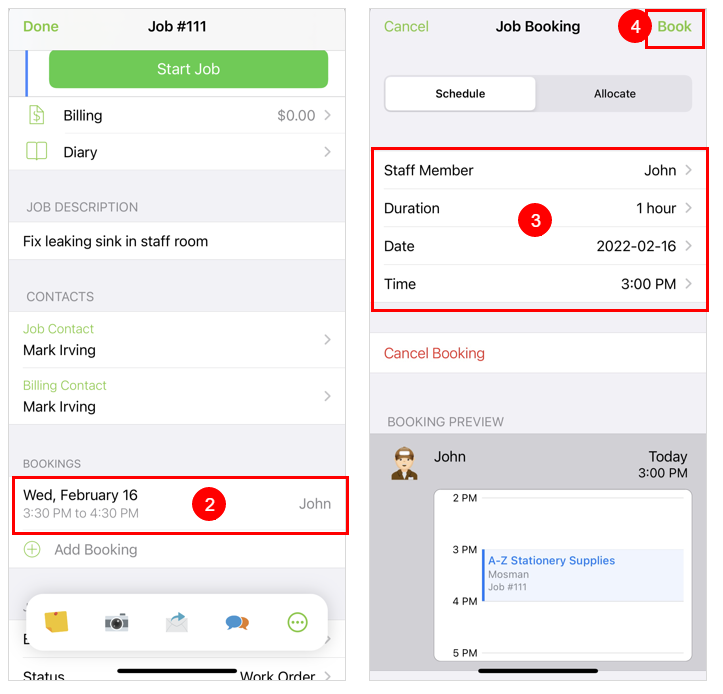
- Scroll down to Bookings and tap the booking you want to edit.
- Adjust the staff member, duration, date, and time as required.
- Tap the booking preview to see the new booking against the existing schedule.
- Tap Book.
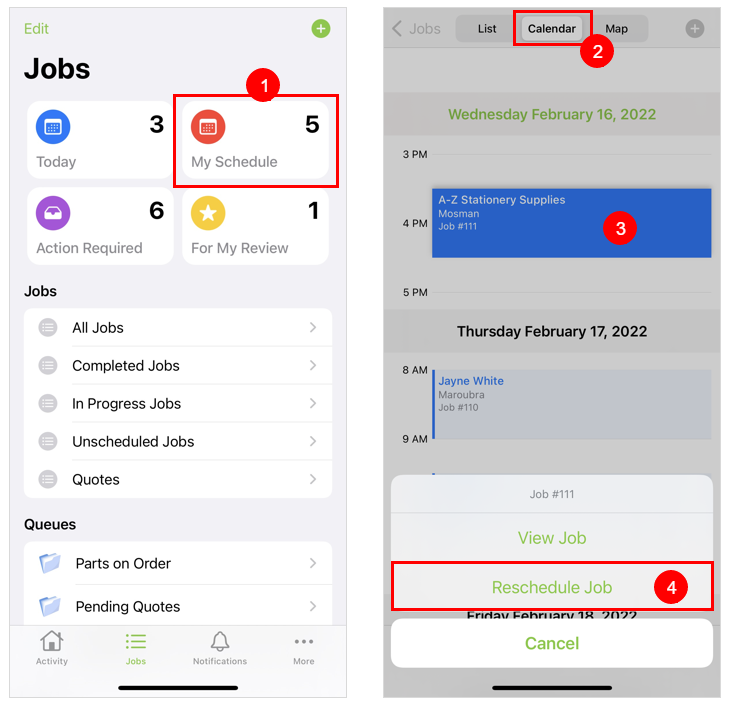
Rescheduling job bookings from the Calendar view in the ServiceM8 mobile app
- From the Jobs view, tap My Schedule.
- Tap Calendar.
- Find and tap the job you want to reschedule.
- Tap Reschedule Job.
Rescheduling job bookings using the Schedule tab (iPad only)
The iPad version of the ServiceM8 mobile app offers additional schedule management functionality in a separate Schedule tab.
- Tap and hold booking you would like to change.
- Drag the job to the desired new slot on the schedule and release.

- Tap the booking.
- Drag the booking end to lengthen or shorten the booking as desired.
- Tap Done.