

Reports
How to use the Weekly Timesheet report
Learn how to use the Weekly Timesheet report in ServiceM8.
The Weekly Timesheet report makes it easy to see the total hours a staff member was on shift, and review their start and finish times. The report provides a breakdown of Clock On & Off times, total working time and total break time for a selected staff member, in a specified week. Note that the Weekly Timesheet report is based on Clock On & Clock Off times, as well as recorded Break times, recorded by staff through the ‘My Shift’ options of the Activity tab in the ServiceM8 app. If needed, Check In & Check Out times for specific jobs can be reviewed separately with the Activity Timesheet report.
This article explains how to access and interpret the Weekly Timesheet report.
In the Online Dashboard, go to the ‘Reports’ tab

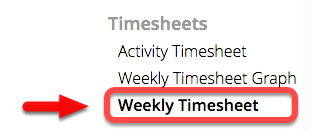
Under Timesheets, click ‘Weekly Timesheet’
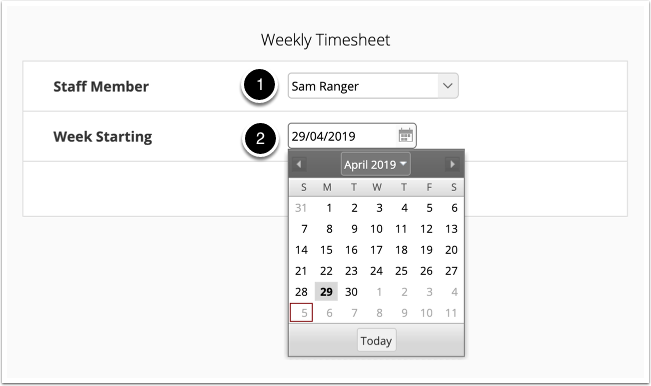
Select a staff member and the start date of the week you want to report on
Then click the ‘Produce Report’ button to generate the data
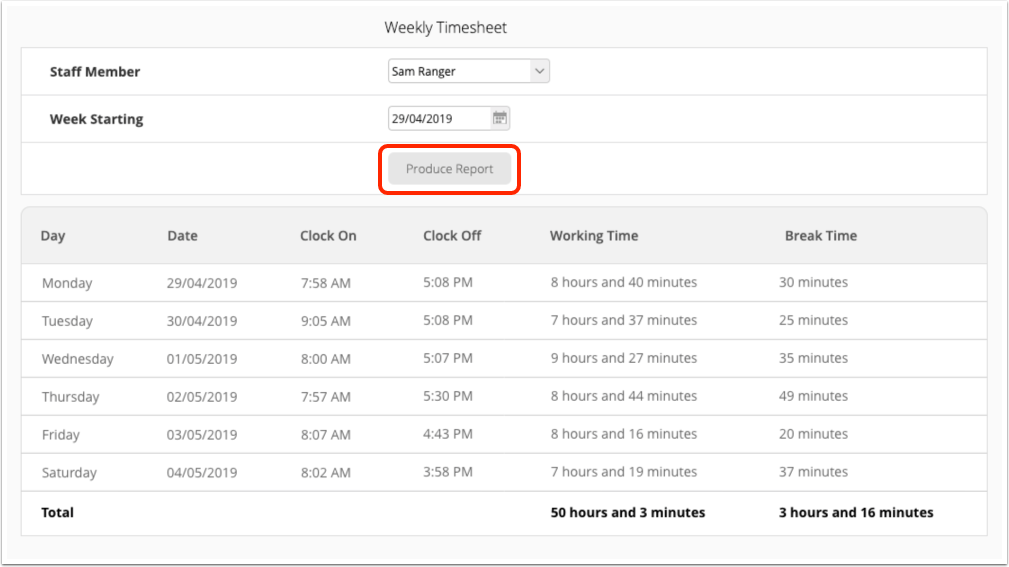
- Day & Date: days the staff member Clocked On to shifts with the ServiceM8 app.
- Clock On: the time at which the staff member Clocked On (or Checked In to a job when they were not Clocked On, which caused them to also Clock On). See How to Clock On/Off in the app.
- Clock Off: the time at which the staff member Clocked Off. Note that staff can set ServiceM8 to remind them to Clock Off at the end of the day in their device settings (Settings > ServiceM8 > Reminders > Clock Off).
- Working Time: the total time Clocked On for the recorded shift, minus total Break Time.
- Break Time: the total Break time recorded via the ‘My Shift’ option, throughout the recorded shift. If multiple Breaks are recorded, their duration will be totalled. See How to Clock On/Off in the app.
Multiple shifts in one day: if a staff member has more than one shift in a single day (i.e. they Clock On, Clock Off, then Clock On again) then the shift data will be listed in separate rows in the table, with the same Day and Date.
Timesheet sync: if you use an integrated accounting package you can send your timesheet data across automatically using the Timesheet Sync Add-on, saving administration and data entry.