Suppliers
How to call, email or navigate to your Suppliers
Learn how to call, email or navigate to your Suppliers in ServiceM8.
With the Suppliers add-on, you can add the businesses you buy from, along with their contact details and location. This makes it easy to communicate or navigate to your suppliers.
How to Activate & Add Suppliers
- Suppliers is an add-on. To get started, log in to the ServiceM8 Online Dashboard, go to Account > Features & Integrations, then activate the ‘Suppliers’ add-on.
- Go to Account > Settings > Suppliers, then click ‘Add Supplier’.

How to Email a Supplier from a Job — Online
When you’re drafting an email from a job card, click into one of the recipient fields and your saved Suppliers will be available to choose from:

How to Email a Supplier from a Job — Mobile app
When you’re drafting an email from a job card, tap the recipient field > New email address, then scroll down to choose from your saved Suppliers:


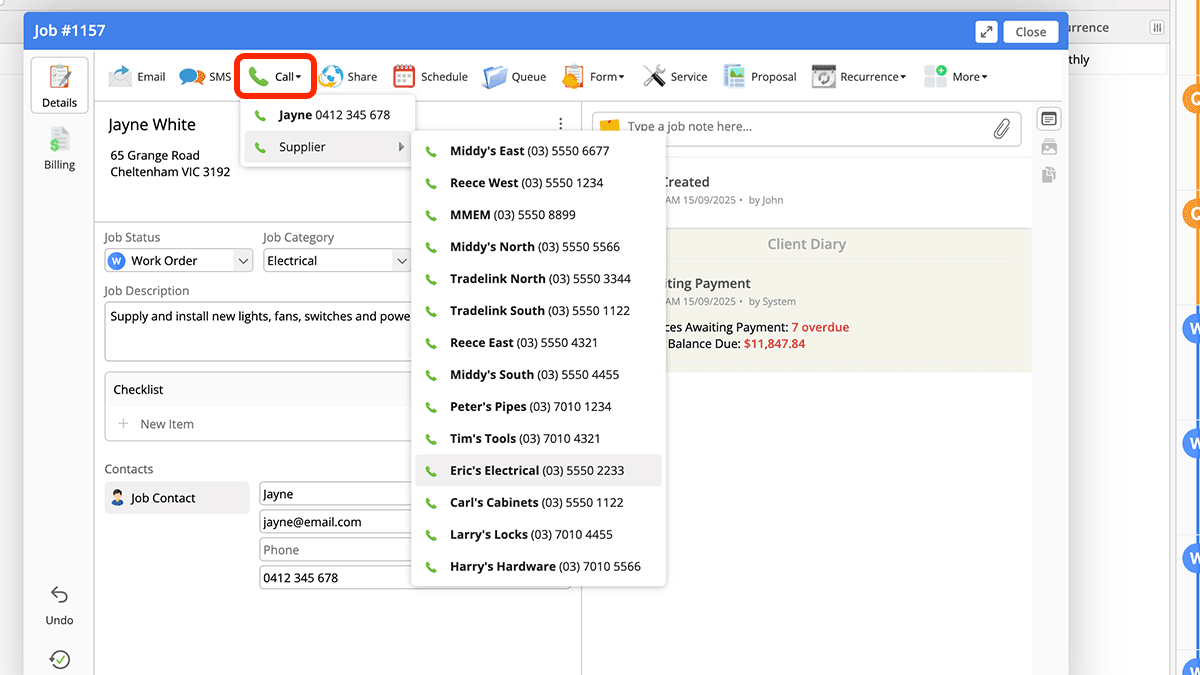
How to Call a Supplier from a Job — Online
With ServiceM8 Phone, you can click-to-call a saved Supplier directly from a job card:
How to Call a Supplier from a Job — Mobile app
To call a saved Supplier from a job card in the ServiceM8 app:
- Tap the triple-dot in the bottom-right corner of a job card to open your Job Actions menu.
- Scroll down to the bottom and tap Edit Actions, then ensure you add ‘Call Supplier’ to your favourites.
- Open your Job Actions menu as normal, and tap ‘Call Supplier’.

How to Call a Supplier from a Job — ServiceM8 Phone App
With ServiceM8 Phone, you can call a saved Supplier directly from the Contacts tab:

How to Navigate to a Supplier — Mobile app
To navigate to a saved Supplier from a job card in the ServiceM8 app:
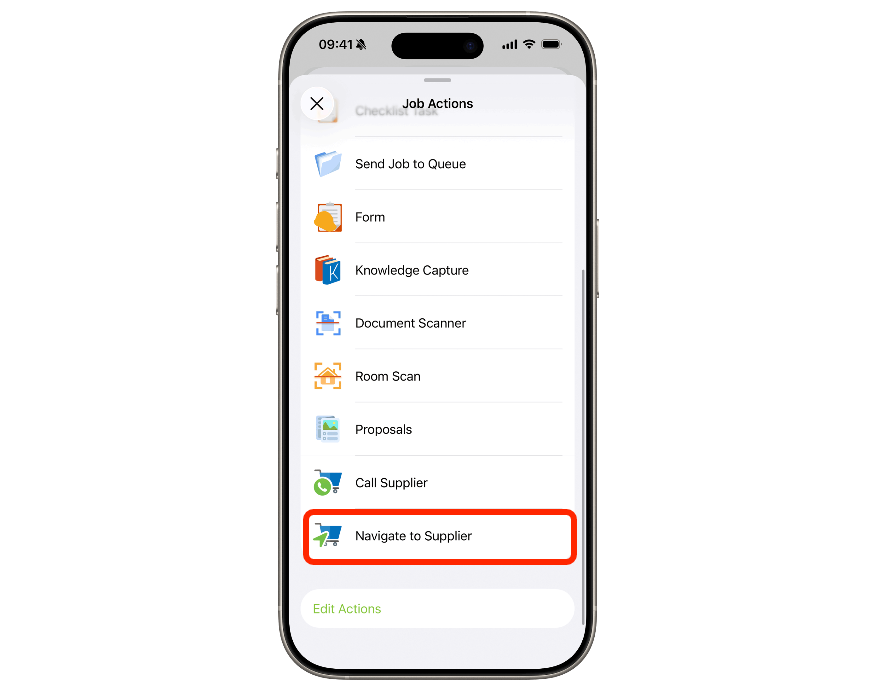
- Tap the triple-dot in the bottom-right corner of a job card to open your Job Actions menu.
- Scroll down to the bottom and tap Edit Actions, then ensure you add ‘Navigate to Supplier’ to your favourites.
- Open your Job Actions menu as normal, and tap ‘Navigate to Supplier’.
- Browse your saved Suppliers and their distance from your current location. Tap each in turn to highlight their location, make your selection, then tap Navigate.