

Office Agent
Talk to Office Agent from the ServiceM8 app
Speak with Office Agent about a Job and review prepared actions in the mobile app.
Talk to Office Agent while viewing a Job to ask questions about the work or prepare a supported action for review.
Before you start
- Office Agent must be active on your account.
Start a voice conversation
-
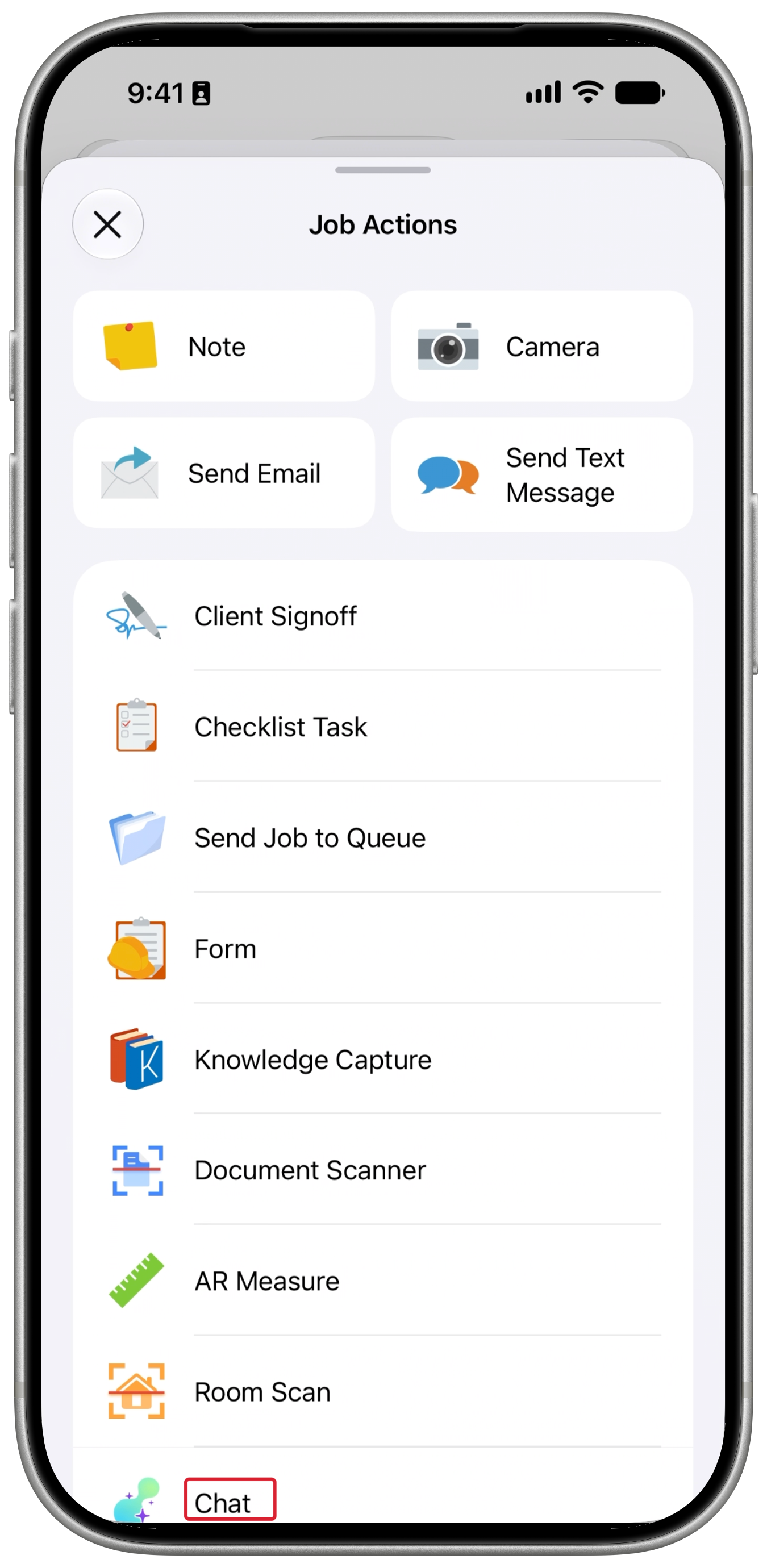
Open the Job, tap More (…) in the Job Actions bar, then tap Chat.
-
When the conversation connects, speak your question or request. You can interrupt Office Agent to correct or add information.
-
Tap Transcript in the top-right corner to follow the conversation and review its activity.
Review a prepared action
-
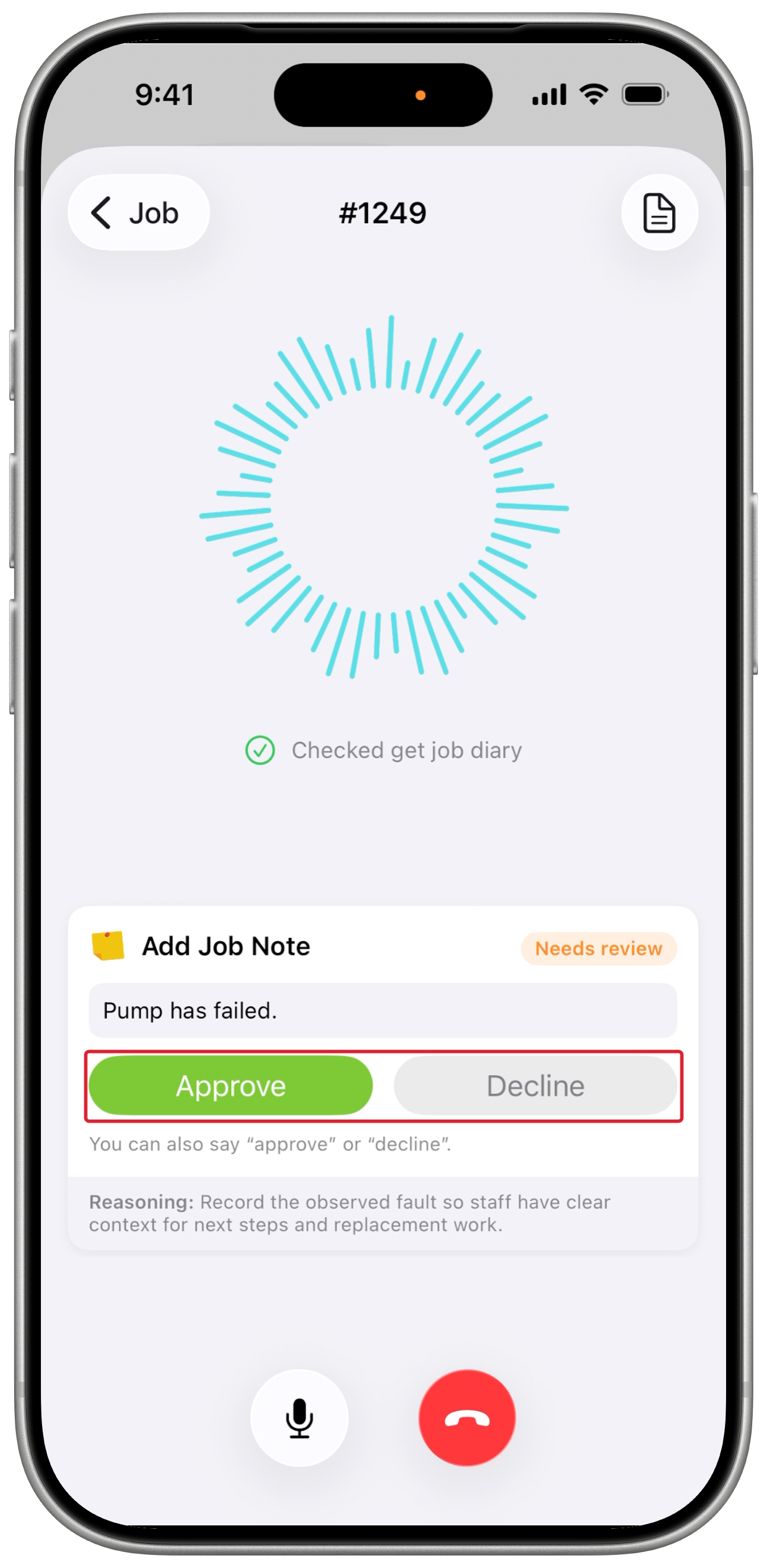
Check the proposed action and its reasoning, then tap or say Approve or Decline.
-
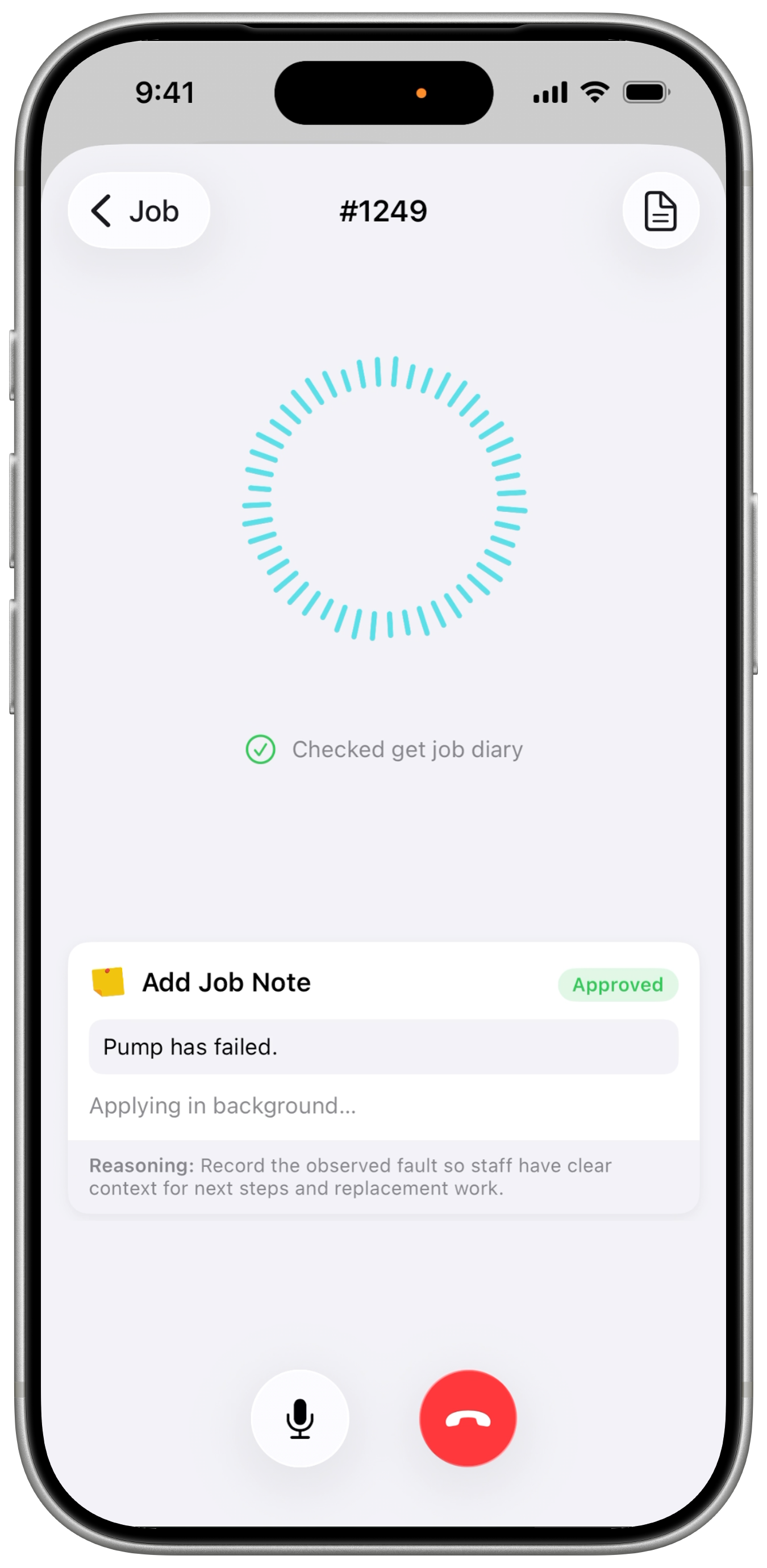
After you approve, the action is applied in the background. You can continue reviewing activity in Transcript while the conversation is open.
Available information and actions depend on your staff permissions and active add-ons.
Mute or end the conversation
- Tap the microphone button to mute or unmute yourself.
- Tap the red end-call button to finish the conversation.
See Introducing Office Agent for chat and recurring-task options.