

Reports
How to use the Team Timesheet & Shift GPS reports
Learn how to use the Team Timesheet & Shift GPS reports in ServiceM8.
With a high turnover of jobs and a busy mobile team, it’s hard to tell where time goes for any given staff member, on any given day.
The new Team Timesheet report shows weekly Job Time and Shift Time for every staff member, helping you spot missed billable hours and boost productivity. You can hover over a cell for a breakdown, and click to drill into the Shift GPS Report.
How to use the Team Timesheet report
To open the Team Timesheet, go to Reports, and in the left-hand menu, click All Timesheets.

The Team Timesheet lets you see recorded Job & Shift Time for any given week, for all staff members, in a single view.

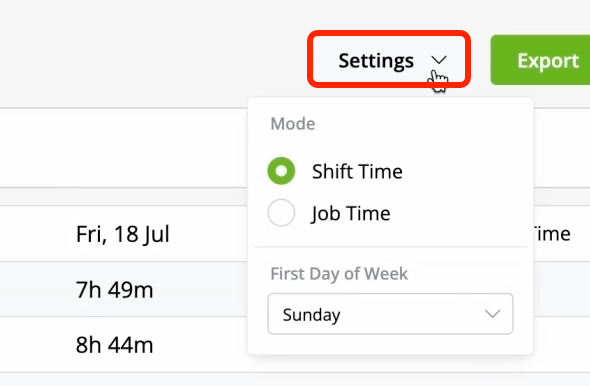
You can toggle the data between Job Time and Shift Time, depending on the insight or details you’re after.
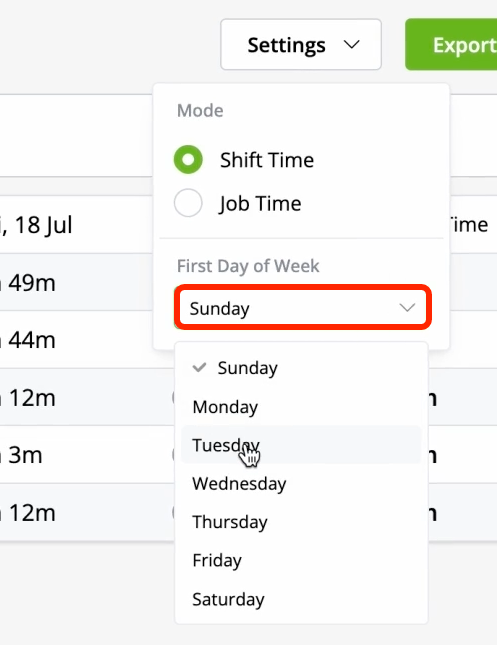
You can start the data from any day of the week to suit your preference, or match your pay runs.
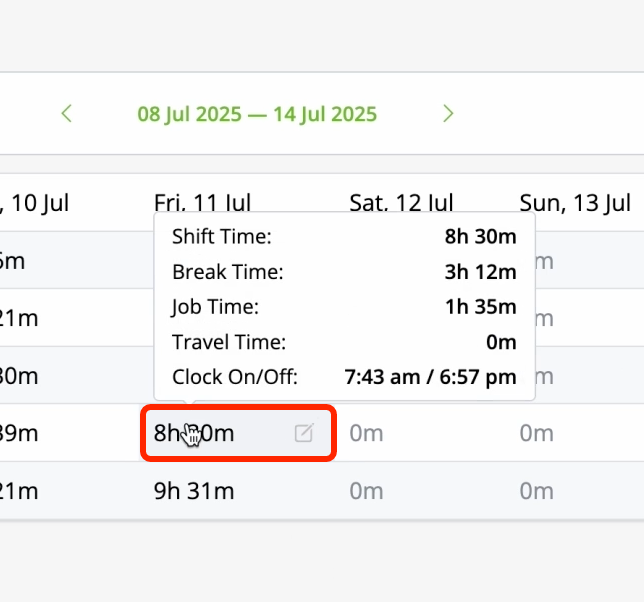
Hover over any cell for a detailed breakdown of the staff member’s recorded time for that day.
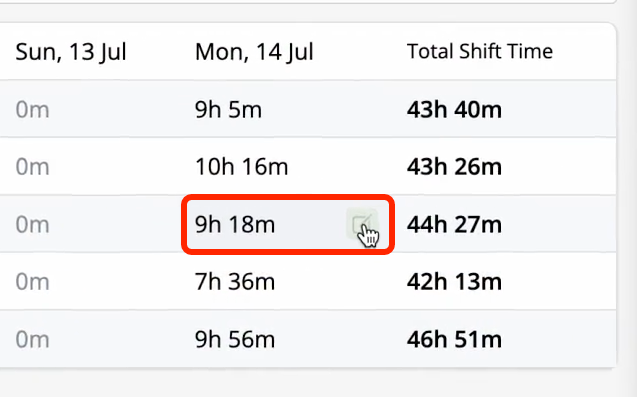
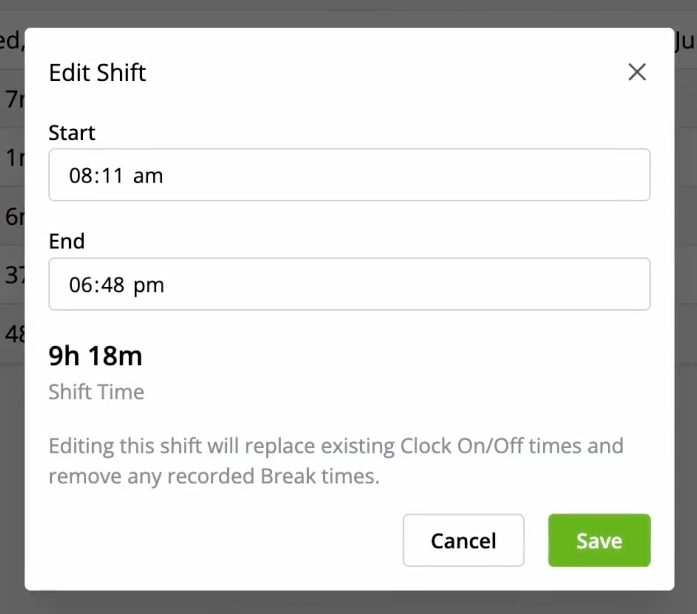
With the report set to display Shift Time, if you click a cell, you can edit the Clock On/Off time of the staff member for that shift.
You can export the data to a .CSV spreadsheet.

How to use the Shift GPS report
With the Team Timesheet report set to display Job Time, if you click a cell, you can jump to the Shift GPS Report for that day.


Alternatively, you can go to Reports > Shift GPS, and filter to the desired Staff Member and Date. The Shift GPS report is only available for staff using the iOS app.

Understanding the Shift GPS Report
The Shift GPS report is a powerful tool that gives you a detailed look at a staff member’s day. It provides a map timeline that visually tracks their movements and highlights where they spent their time. This is particularly useful for identifying any “lost” time that wasn’t previously accounted for or for verifying timesheet information.
Time and Location Breakdown
The top of the report gives you a high-level summary of a staff member’s day, breaking down their total time on shift into two main categories:
- “Travelling” is the total time the staff member was in motion between locations during their shift.
- “At Locations” is the total time the staff member was stopped throughout the day.
For a more detailed breakdown, you can scroll through the timeline on the left side of the report. This will show you exactly what happened throughout the day, including the time spent at specific jobs, supplier locations, or other stops.
Location Categorisation
The report automatically categorises locations to help you understand where a staff member was.
- Job Locations: If a staff member drives near a job that was scheduled for them that day, the system will automatically categorise that stop as a Job.
- Supplier Locations: If you have already added a location as a supplier in your ServiceM8 account, the report will recognise it and label it as a Supplier.
- “Unknown” Locations: An “Unknown” location is a valid stop where a staff member has spent a significant amount of time (typically around 15 minutes), but the location is not a pre-defined job, supplier, or office address in your system. It is not an indication of a tracking error.
Travel Time and Distance
The report calculates both travel time and distance for each leg of a journey.
- Travel time: the actual time elapsed between a staff member’s two most recent known locations.
- Travel distance: the straight-line distance between these two points, not the actual road distance.