Forms
How to enable a form badge on a job
Learn how to enable a form badge on a job in ServiceM8.
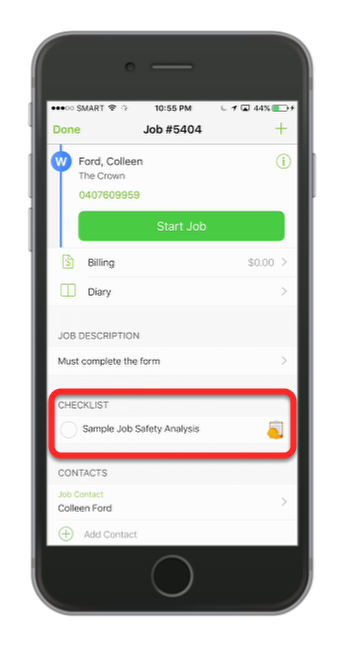
This lesson you will learn how to activate the form badge that will appear within the job from the app.
Under the Settings, click Forms
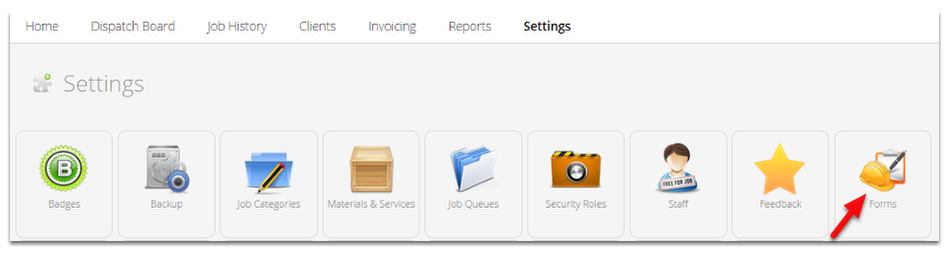
Select a Form and click Open Form

In the Modify Form, confirm the Bagde Name of the form and then close the form

Note: For this lesson we will use the Job Safety Analysis (JSA) form.
Go to Dispatch Board
From the Job list, select a job and double-click on it to open

Under the Badges panel, scroll down until you find the form’s badge name

1. Click on the form’s badge name ( In this example it’s JSA ) to activate it. And it will turn into color blue once activated.
2. Click Save and that’s it!
Tip: Now, if you go to the app and open the job with that form’s badge activated it will appear as checklist. This is a good way to ensure staff are aware that there is a form to be filled in on this job.