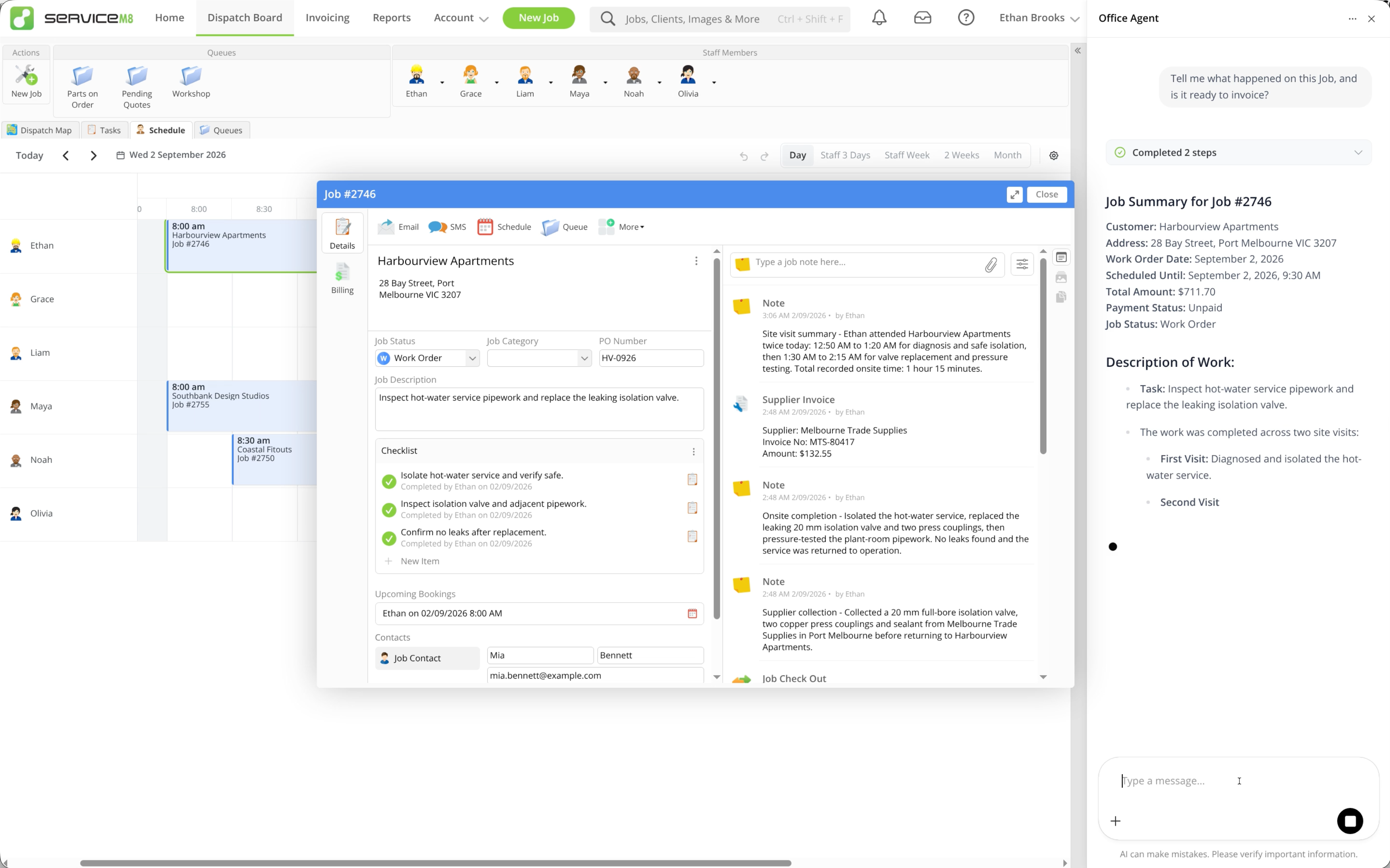
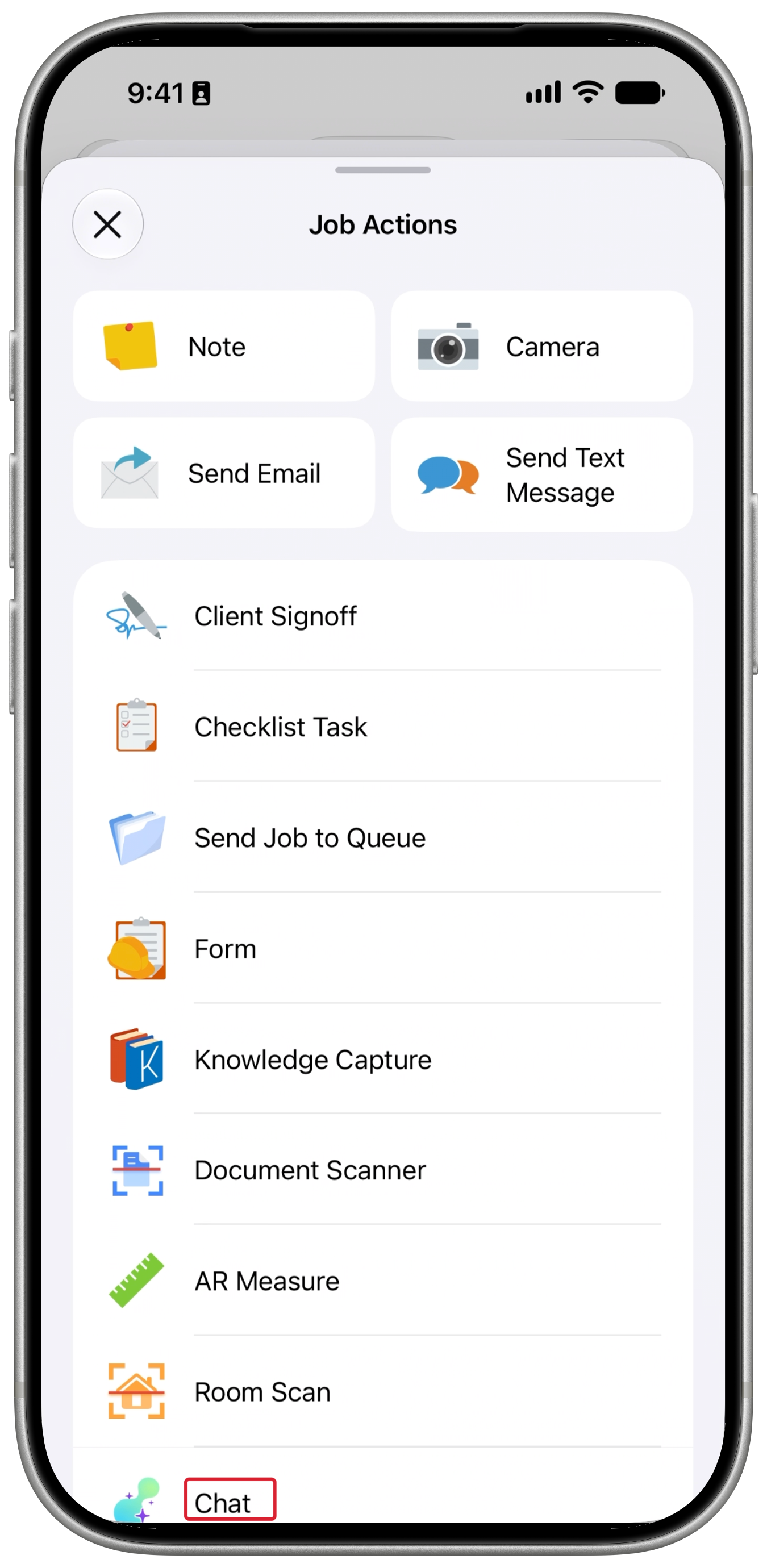
This video covers the same getting started workflow as the article below. The easiest way to start with Office Agent is to add one narrow task from the Task Library, run it straight away, and refine it inside the task conversation before you rely on automation. Office Agent is being enabled through a staged rollout. You use it in the Online Dashboard, and access is limited to staff with the Business Owner security role. The screenshots below follow one example first-run workflow from a demo account.

Open Office Agent

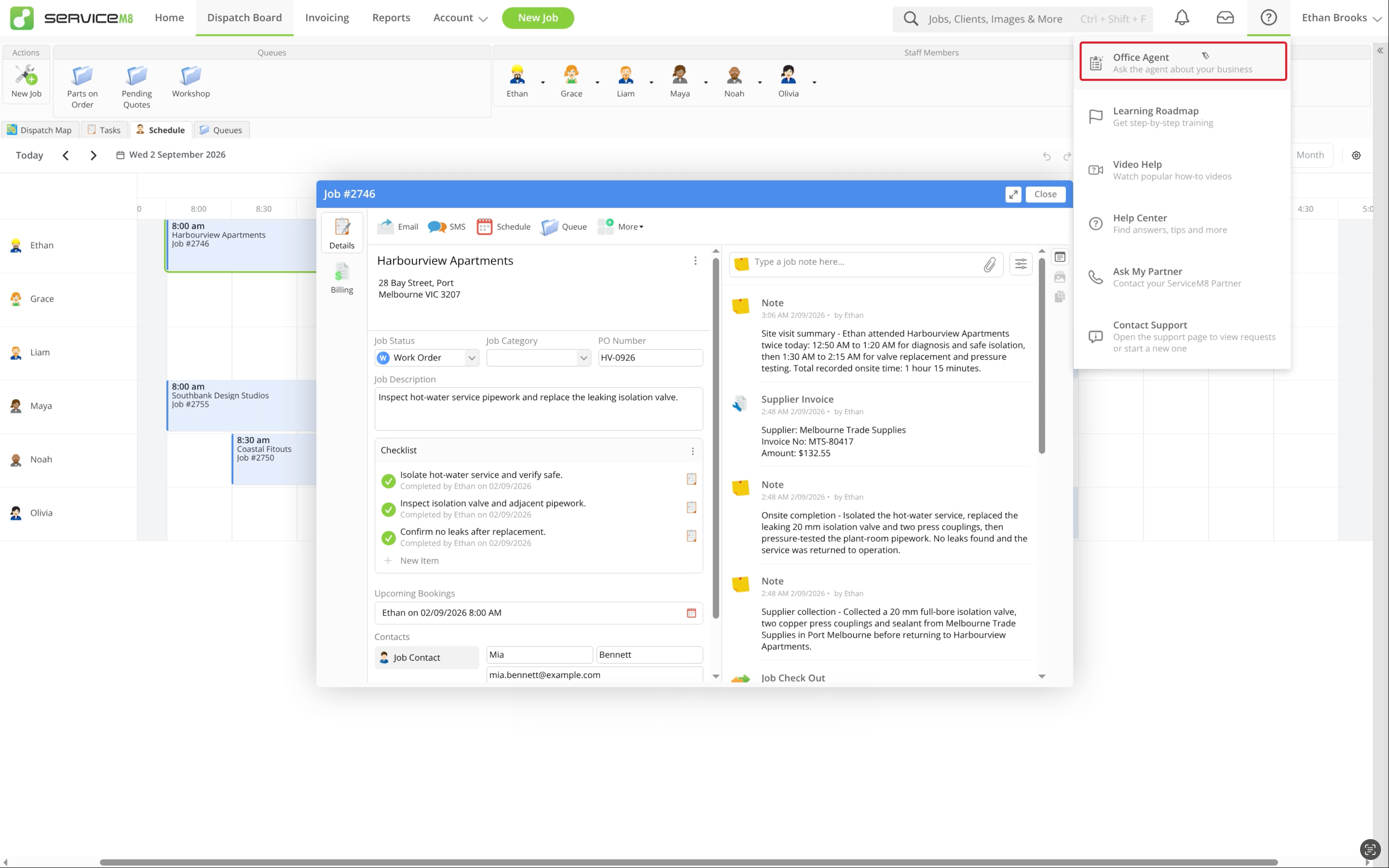
If Office Agent is enabled on your account, open it from the Online Dashboard. Open Office Agent from the Online Dashboard From there, you can open the Task Library, create a task, or open an existing task.

Start with the Task Library

For your first task, start with Triage Action Required Jobs from the Task Library. This is a good starter task because it has a narrow scope, the results are easy to review, and the output is immediately useful.
  1. Click Task Library.
  2. Select Triage Action Required Jobs.
Example Office Agent Task Library tasks This is a better first task than broad instructions like “manage my office” or “keep jobs organised”.

Review the template and click Try It

  1. Review the template name, schedule, instructions, and notification settings.
  2. Confirm that the task is reviewing the Action Required list.
  3. Click Try It to add it to your workspace.
Previewing Triage Action Required Jobs with Try It highlighted

Run the task for the first time

  1. Open the new task in your workspace.
  2. Click the play button to run it immediately.
  3. Do this before you rely on the saved schedule.
Triage Action Required Jobs with the play button highlighted Your first run is part of setup. Use it to see how Office Agent reads your workflow and what it wants to do.

Review the first run carefully

Treat the first few runs as setup, not as a finished automation. Check:
  • whether it reviewed the right jobs, list, or queue
  • whether it chose the right staff member
  • whether the tone of any customer communication matches your business
  • whether it suggested scheduling when you wanted allocation, or allocation when you wanted scheduling
  • whether the proposed next step for each job is useful and appropriate
  • whether the task is still narrow enough for a first automation
If Office Agent prepares actions, it still cannot carry them out on its own. You review each proposed action and approve only what looks correct. First run results highlighted in Triage Action Required Jobs

Refine the task in the conversation

If something is not right, reply in the same task conversation and tell Office Agent what to change. This is normal setup behaviour. Good examples include:
  • “Only review jobs assigned to John Smith.”
  • “Use a more professional tone in customer messages.”
  • “Allocate the job instead of creating a booking.”
  • “Only review Action Required jobs in this queue.”
Replying in the task conversation with the correction message highlighted Keep your corrections small and specific. Small corrections are easier to test than rewriting the whole task at once.

Approve the proposed change

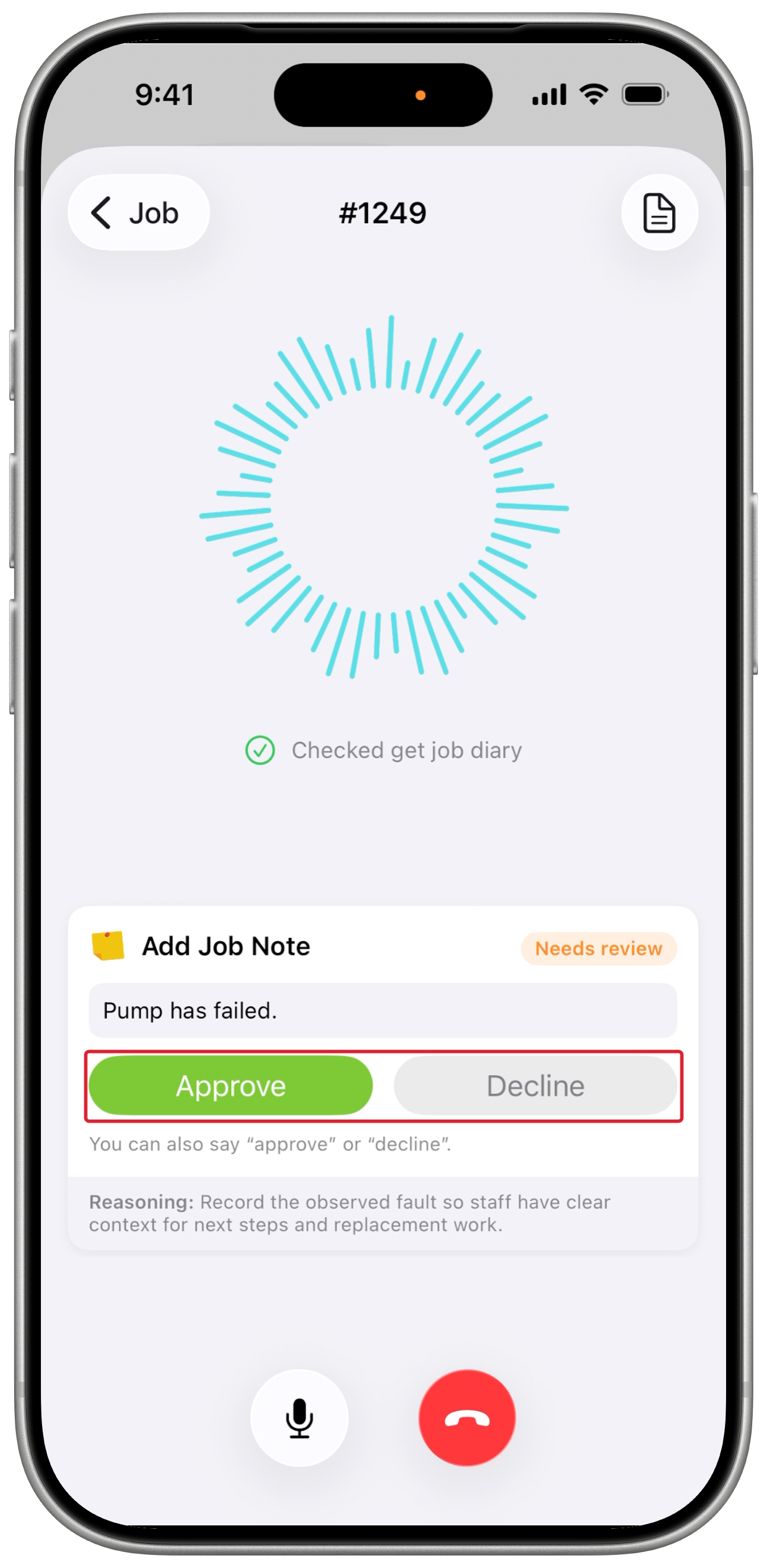
When Office Agent understands your correction, it can prepare an update to the task instructions, schedule, or notification settings for approval inside the same conversation. Office Agent proposing a task update with the approval controls highlighted Review the proposed change carefully. If it matches what you want, click Approve. Clicking Approve only applies the specific action shown. Office Agent cannot carry out changes on its own without your approval. If the proposal is not right, do not approve it. Reply with a more specific correction and let Office Agent prepare a better version. Approved task update highlighted in the Office Agent conversation

Run the task again

After you approve the change, click the play button again. Compare the new run with the previous one. Check whether the correction fixed the problem without making the task broader than it needs to be. Rerunning the task after approving the update with the new results highlighted

Repeat until the task fits your business

The easiest way to teach Office Agent your workflow is to repeat this loop:
  1. Run the task.
  2. Review the result.
  3. Message the correction.
  4. Review the proposed change.
  5. Approve it if it is correct.
  6. Run the task again.
Keep making small corrections until the task behaves the way you want.

Set the schedule for ongoing use

Once the task output is correct, update the schedule so the task runs as often as you need. Do this after testing, not before. You can keep the task narrow while you build confidence in the results.

Can I start a chat without a task?

No. Office Agent is task-based. There is no separate ad hoc chat entry point. Start by creating a task or opening an existing one, then continue the conversation inside that task. For more detailed guidance, see How to use the Office Agent task library. If you want to build your own task from scratch or adjust the schedule, tools, or notifications directly, see How to create and manage Office Agent tasks.
Last modified on April 19, 2026