

Reports
Jobs Completed in the Business Dashboard Report
Learn about jobs Completed in the Business Dashboard Report in ServiceM8.
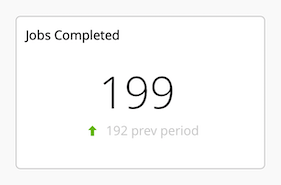
Your Jobs Completed in the Business Dashboard is the total number of jobs updated to a ‘Completed’ job status during the selected reporting period.
Immediately below is the number of Jobs Completed in the immediately preceding period of equal length, and an arrow indicator as to whether the current reporting period’s figure is higher or lower than the previous reporting period.
The number of jobs your business completes is an indicator of growth/contraction, and day-to-day productivity and efficiency in completing jobs.
If you want to increase the number of jobs you complete, below are some tips on various ServiceM8 features & best practices which can help you work to improve this:
Manage your Unscheduled Jobs
Keep your Unscheduled Jobs list empty. Ensure everyone in the business responsible for scheduling work knows how the Unscheduled Jobs list works (see the Job Filters overview video below). Unscheduled Jobs should be:
-
Scheduled to staff for completion; or
-
Placed in a Queue if they’re waiting for something to happen; or
-
Updated to Completed or Unsuccessful.
Optimise Scheduling
Review your scheduling practices for productivity & efficiency gains:
-
Review and optimise booking durations to ensure they’re not allowing too much time;
-
Keep a flexible and responsive attitude to scheduling. Use ServiceM8’s visibility around job & staff status to maximise staff productivity throughout each day; and
-
Contact clients with the offer to bring their appointment forward if staff are available sooner.
Automate Client Follow-Ups
Automate post-job follow up emails or texts to clients with the Automation Add-on to follow-up a few months after their job. Ask how they’re going, if they’ve had any issues you can help with, and whether they need any other work done. Customer service like this helps build your brand, generate work and earn you loyal repeat customers.
Learn more about automated client follow-ups the Automation Add-on.
Email your Client Database with Mailchimp
Create a Mailchimp account and connect it with your ServiceM8 account to run email marketing and/or newsletter campaigns to your customers. Email marketing is cost effective, direct, measurable, and a great way to keep in touch with your client base so you’re always front-of-mind the next time they need work done.
You can send out quarterly newsletters about your business and updates in your industry, information about common or seasonal problems including DIY tips and relevant services you offer, FAQ’s from customers & “myth busting”, or special offers on products or services you provide.
Learn more about the benefits of email campaigns and how ServiceM8 works with Mailchimp.
Accept Online Bookings and Enquiries
Create online enquiry and booking pages for your business, using either the Simple Online Enquiries Add-on, or the Services Add-on. Add links to these pages within your website, social media accounts, email templates, and email campaigns, as they provide a convenient, “always on” method for clients to get in touch and book services with your business.
Enquiry Forms with the Simple Online Enquiries Add-on
Online Booking Forms & Enquiries with the Services Add-on
Weekly Job Summary Report
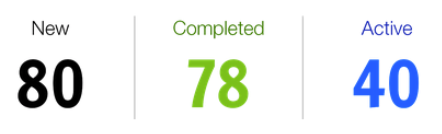
A weekly snapshot report which appears in your Activity Feed, indicating whether you’re getting ahead or falling behind on jobs. The Job Summary Report provides the number of New and Completed jobs since the same time last week, as well as the number of Active Jobs in your account i.e. jobs with a status of ‘Quote’ or ‘Work Order’, regardless of when they were created. Learn more.
Weekly Activity Report
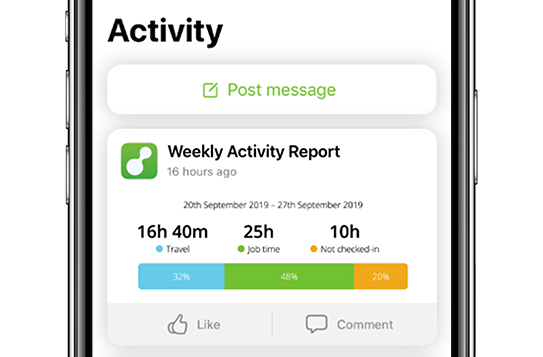
A weekly snapshot report which appears in your Activity Feed, indicating the proportion of your business’s working hours spent Checked In, Travelling to Jobs, and Not Checked In. Reports can also be posted for each staff member. Learn more.
Job Backlog Report
An on-demand report in the Reports tab of your Online Dashboard, the Job Backlog graphs the number of New, Completed and Active jobs in your account by week over the last 12 weeks. Learn more.
Jobs By Status Report
An on-demand report in the Reports tab of your Online Dashboard, the Jobs By Status Report graphs the number of Active, Completed & Unsuccessful jobs in your account by month over the last 12 months. Learn more.
Custom Reports
Activate the Advanced Reporting Pack Add-on to access Custom Reports in the Reports tab of your Online Dashboard, enabling you to generate on-demand reports for Jobs, Job Revenue, Job Cost & Job Profit (reporting on Job Costs & Job Profit requires the Job Costing Add-on to be activated).
Try creating a custom report on Jobs where Job Status = ‘Completed’ & Job Category = ‘X’ and Group By ‘Staff Member’ to compare the number of certain job types Completed by each staff member:
-
Last month
-
This month
-
This year
-
Last 3 months
-
Last 12 months
Or, report on Jobs where Staff Member = ‘X’, Job Status = Completed, and Timeframe = Year on Year to view a staff members’ monthly job completion numbers, and compare it to the same period last year.