

Knowledge
How to create a Knowledge article online
Create, save and publish Knowledge articles in the Online Dashboard.
Before you start
- Activate the Knowledge Add-on in Settings > ServiceM8 Add-ons. If the add-on is not available, check your plan details.
- Your security role must allow access to Knowledge articles in Settings or from a Job card.
Create a Knowledge article
-
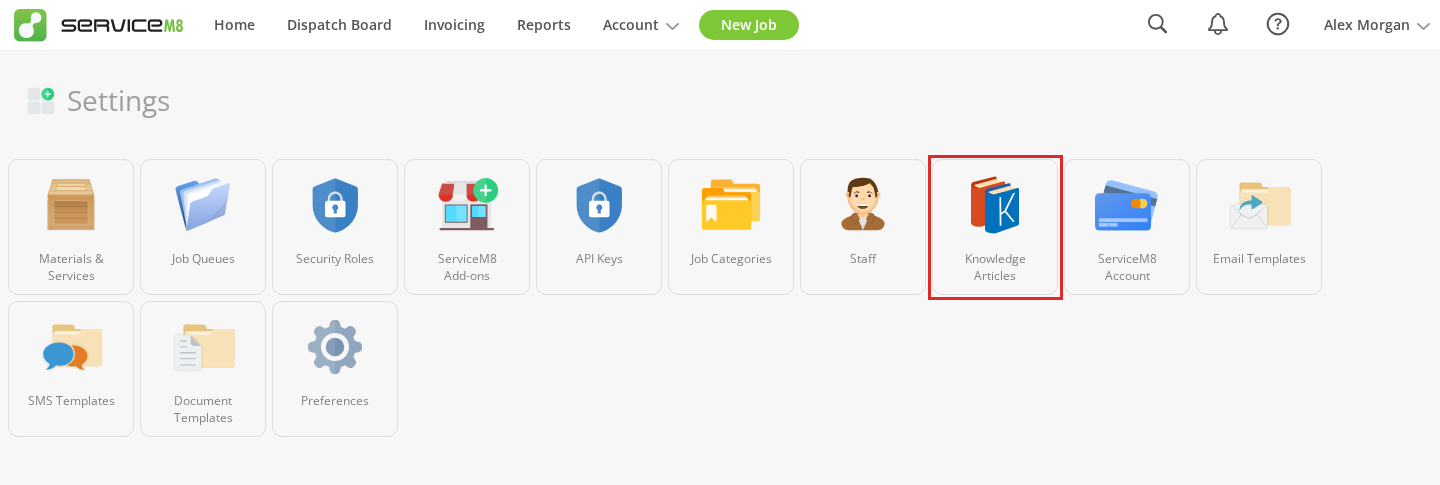
Go to Settings > Knowledge Articles.
-
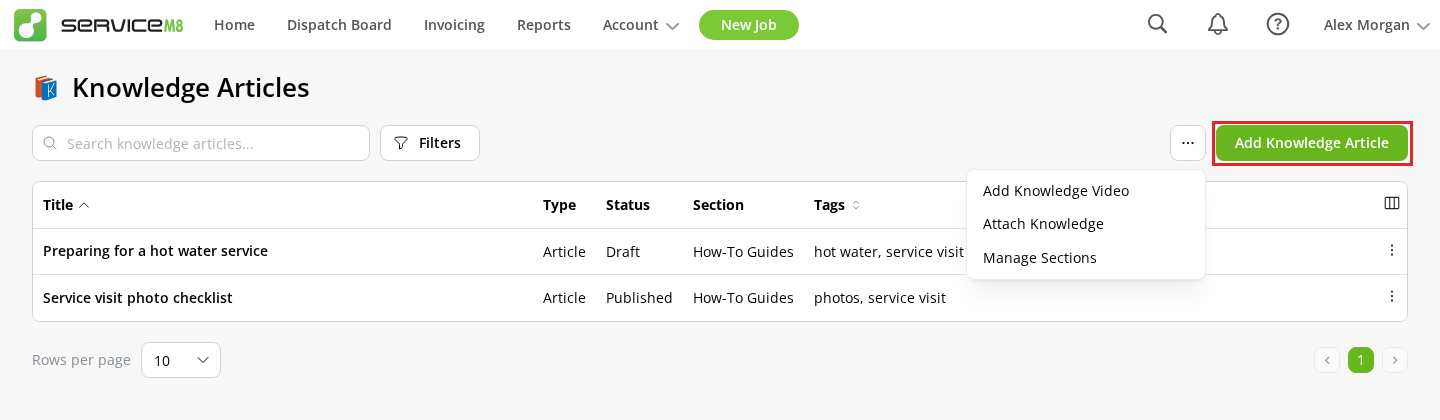
Click Add Knowledge Article.
-
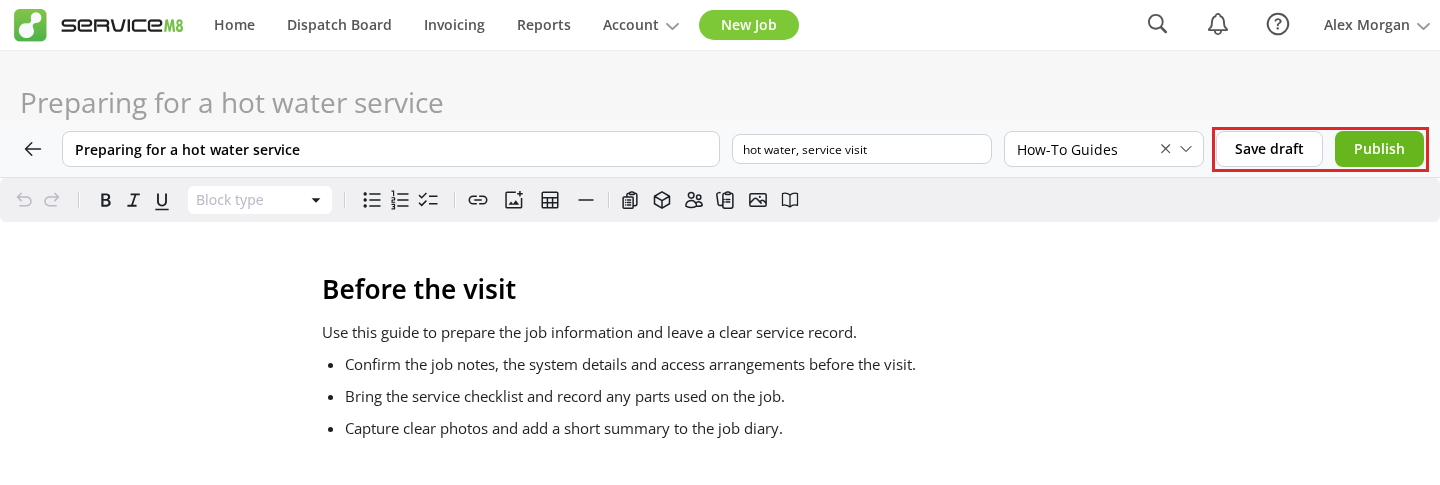
Enter a title, add any tags, and write your article. Use the toolbar to add headings, lists, images, tables or links.
-
Click Save draft to finish later, or Publish to make the article available to staff who have access.
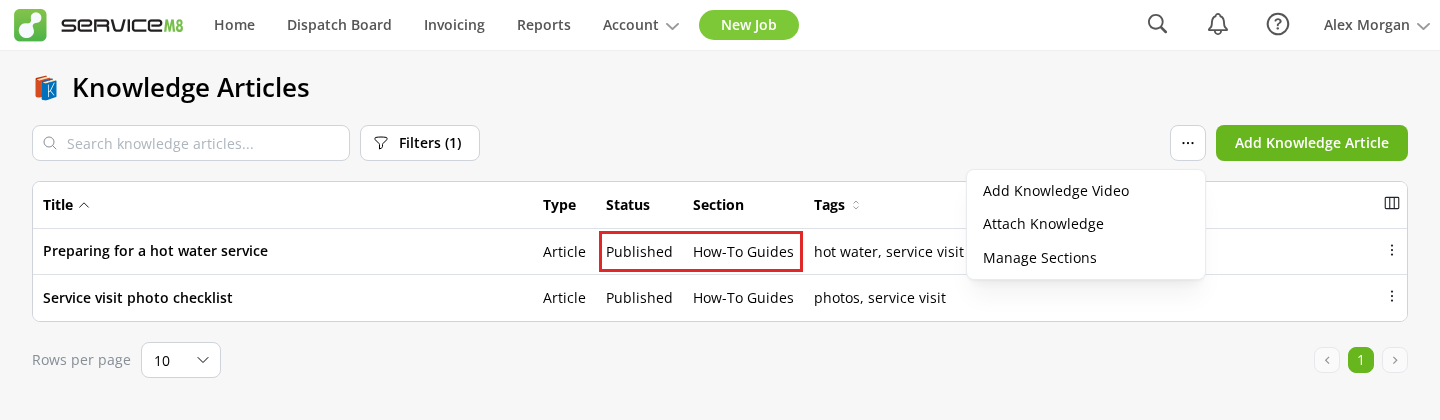
ServiceM8 returns you to the Knowledge Articles list. The Status column shows Draft or Published.
To add Forms, Materials, Clients, Job Templates, job media or an article link, see How to embed ServiceM8 content in a Knowledge article.
Continue a draft or update a published article
-
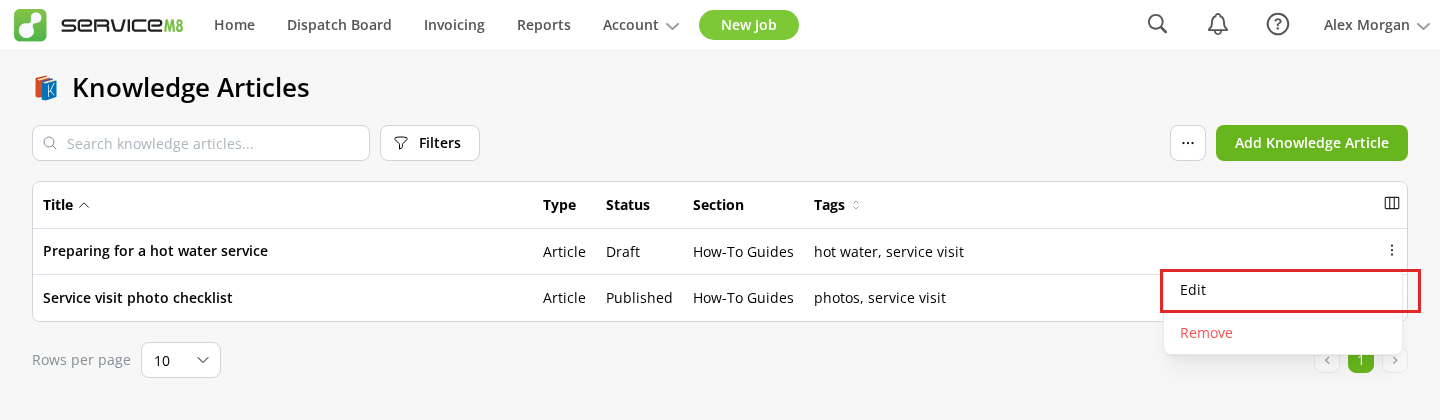
In Knowledge Articles, find the article, open its row action menu (…), then click Edit.
-
Make your changes.
-
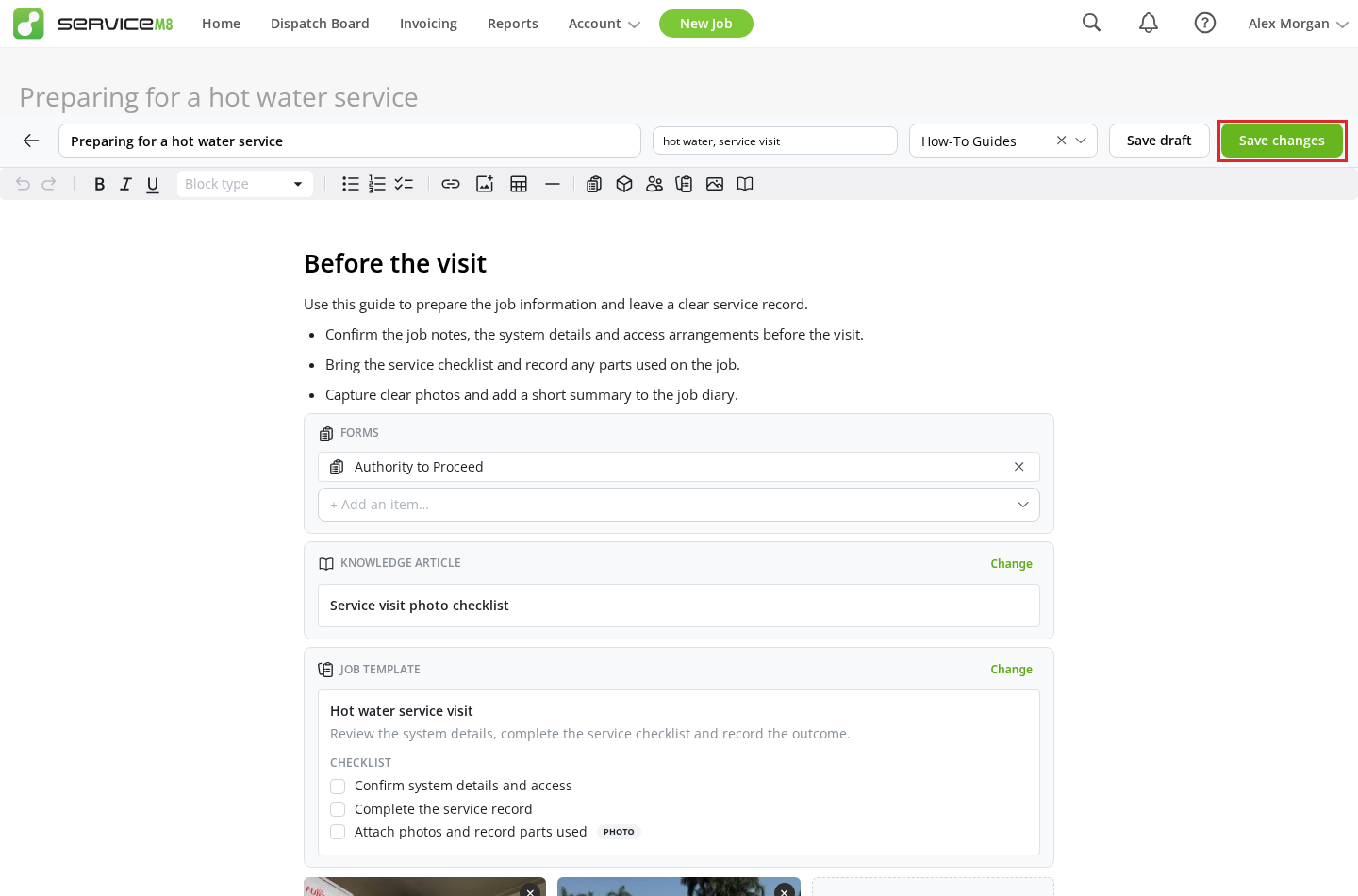
Click Publish for a draft, or Save changes for an already published article. To keep working on a draft later, click Save draft.
Drafts stay out of Knowledge searches and job recommendations and are unavailable in the app until published.