

ServiceM8 Pay
How to reconcile ServiceM8 Pay processing fees in Xero & QuickBooks Online
Learn how to reconcile ServiceM8 Pay processing fees in Xero & QuickBooks Online in ServiceM8.
This article provides tips on how ServiceM8 can help you reconcile ServiceM8 Pay processing fees in your accounting package, with the ServiceM8 Pay Transactions feature. Note: this feature is supported for Xero and QuickBooks Online only.
Please consult your accountant/bookkeeper for advice on how to apply this information to your business before activating this feature.
When you process payments via ServiceM8 Pay, processing fees are deducted from the total payment amount before the remaining money is transferred into your bank account. This can make it hard to reconcile your bank statement with invoices, because the amount that the customer paid will not match the amount that is deposited into your bank account.
ServiceM8 can help ease bank reconciliation by using a Clearing Account for ServiceM8 Pay transactions. The Clearing Account is an account set up in your Xero or QuickBooks Online, which represents the amount that you are owed.
For standard invoice payments:
- The balance of the Clearing Account will increase when the invoice payment syncs to your accounting package. This usually happens after the related invoice has been approved or synced to your accounting package (ServiceM8 Pay deposits can follow a different timing, described below).
- When the related fee and payout entries are recorded, the balance of the Clearing Account will decrease.
Here’s how it works:
- Standard invoice payments processed through ServiceM8 Pay are posted to your ServiceM8 Pay Clearing Account when the invoice payment syncs to your accounting package. This usually happens after the related invoice has been approved or synced.
- After the related payment has synced, ServiceM8 creates the ServiceM8 Pay fee as a Bill and records the Bill Payment from the clearing account.
- When ServiceM8 receives and processes the payout event, ServiceM8 creates a transfer from your ServiceM8 Pay Clearing Account to your configured business Bank Account.
- In your real bank account feed, match the actual ServiceM8 Pay deposit to the transfer created by ServiceM8. Do not match the bank deposit to the individual invoice payments, as those payments are recorded through the clearing account.
Example
A customer pays a $1,000 invoice via ServiceM8 Pay. ServiceM8 Pay deducts a $20 processing fee, and $980 is paid into your business bank account.
In Xero or QuickBooks Online, ServiceM8 creates the accounting entries through accounting sync and payout handling:
- When the standard invoice payment syncs to your accounting package: ServiceM8 records a $1,000 payment into the ServiceM8 Pay Clearing Account. In the clearing account, this appears as money received and increases the clearing account balance. This usually happens after the related invoice has been approved or synced.
- After that payment has been created in your accounting package: ServiceM8 creates a $20 ServiceM8 Pay fee Bill and Bill Payment from the clearing account. In the clearing account, this appears as money spent and decreases the clearing account balance.
- When ServiceM8 receives and processes the payout event: ServiceM8 creates a $980 transfer from the ServiceM8 Pay Clearing Account to your business bank account in your accounting package. In the clearing account, this appears as money spent and decreases the clearing account balance. In your business bank account in Xero or QuickBooks Online, this creates the accounting-side transfer entry which should be matched to the $980 deposit that appears in your real bank account feed.
- When the $980 deposit appears in your real bank account feed: reconcile it against the $980 transfer created by ServiceM8.
- After the related payment, fee, and payout transfer entries have all been recorded: the ServiceM8 Pay Clearing Account balance for this payment should return to $0.
Because payout transfers are created when ServiceM8 receives and processes the payout event, a payout transfer may appear before the related invoice payment has synced to your accounting package. The ServiceM8 Pay Clearing Account may show a temporary balance until the related payments, fees, and payout transfers for that period have all been recorded, allowing for any in-flight payouts or timing differences.
Keep in mind:
- Grouped payouts: If a payout includes multiple invoice payments, ServiceM8 creates one transfer for the combined net payout amount for that payout event. Reconcile the single bank deposit against the matching combined transfer.
- Xero transfer descriptions: In Xero, payout transfers may appear with a generic description such as “Bank Transfer from ServiceM8 Pay Clearing Account” rather than listing each job number. Match by amount and date, and cross-check against ServiceM8 Pay payout records if needed.
- Deposits with ServiceM8 Pay: These may create additional timing differences. For example, a Deposit can be paid and paid out before the final invoice is approved or synced to your accounting package. In that case, the payout transfer can still be created from the payout event, and the related payment may sync later once the invoice has been approved or synced. In QuickBooks Online, Deposit payments are synced as Sales Receipts into the ServiceM8 Pay Clearing Account. When the final invoice is synced, ServiceM8 applies the Deposit to the invoice as a negative line item. For more guidance on taking Deposits with ServiceM8 Pay, see How to use Deposits with ServiceM8 Pay.
- Reconciliation still happens in your accounting package: ServiceM8 does not automatically reconcile your bank feed for you. This feature records the ServiceM8 Pay payment, fee, and payout transfer entries so the net payout amount should match the real bank deposit. You still need to reconcile the bank deposit in Xero or QuickBooks Online against the matching payout transfer.
Setting up ServiceM8 Pay Transactions
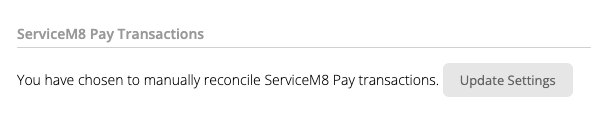
To activate this feature, or update your reconciliation settings, in your Online Dashboard, go to Account > Settings > Preferences > Invoicing > ServiceM8 Pay Transactions:
Complete the setup process:
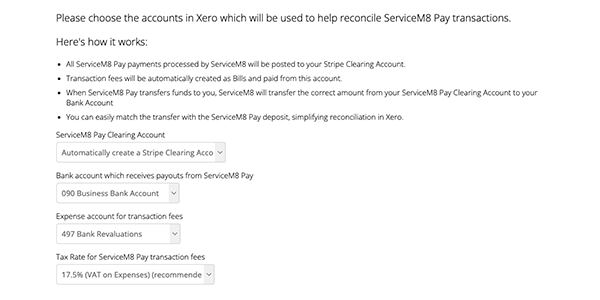
ServiceM8 Pay Clearing Account: this is the account in your accounting package where ServiceM8 Pay transactions will be recorded. See the next section for details.
Bank Account: the bank account in which ServiceM8 Pay deposits money when paid to you.
Expense Account: the account which will record transaction fees.
Tax Rate: The Tax Rate applied to ServiceM8 Pay transaction fees. (Note: in Australia, fees from Banking institutions are normally GST-free, however ServiceM8 Pay fees include GST).
Once you have configured your settings, click Next.
Because ServiceM8 creates fee Bills and Bill Payments in your accounting package, they need to be associated with a supplier (ServiceM8 can create this contact for you). Ensure the supplier contact for ServiceM8 Pay is set to ‘ServiceM8 Payments Pty Ltd’:
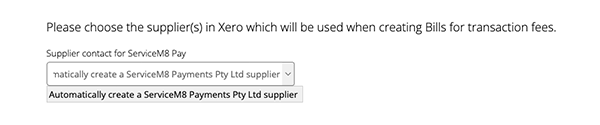
Click Next once you have configured your supplier settings.
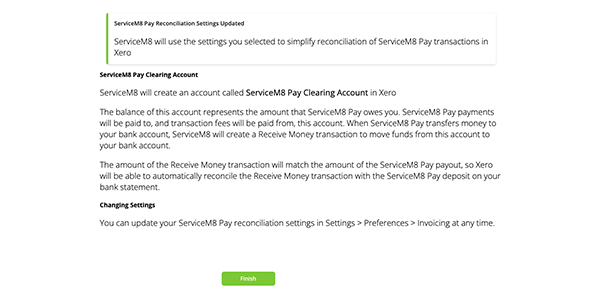
The setup process is now complete, and ServiceM8 will use your configured settings when recording ServiceM8 Pay payments, fees, and payout transfers in your accounting package, to make reconciliation easier.
Creating a Clearing Account
The process to create a clearing account depends on your accounting package.
Xero
ServiceM8 can automatically create a Clearing Account during the setup process. If you would like to set up your own clearing account instead, you will need to create a Bank account in Xero.
QuickBooks Online
You will need to create a Bank account in QuickBooks Online to use as your Clearing Account. Do not use an existing Bank Account which you receive bank statements for — you need to have a separate account for ServiceM8 Pay transactions. To create an account:
- Go to the Transactions menu
- Choose Chart of Accounts.
- Click New
- Select Bank for the Account Type, and select any Detail Type.
- Choose a name, for example “ServiceM8 Pay Clearing Account”.
- Click Save and Close.
Why does my ServiceM8 Pay Clearing Account show transactions as Unreconciled in Xero?
In Xero, the ServiceM8 Pay Clearing Account is used as an internal clearing account. It is not expected to receive a normal bank feed or statement feed.
ServiceM8 creates the payment, fee, and payout transfer entries needed for reconciliation, but ServiceM8 does not mark the clearing account’s Account Transactions as Reconciled in Xero.
It is common for transactions in the clearing account’s Account Transactions tab to show as Unreconciled, even after the matching deposit has been reconciled in your real bank account feed. The key check is whether the clearing account balance returns to $0 once the related payments, fees, and payout transfers for that period have all been recorded, allowing for any in-flight payouts or timing differences.
Disclaimer
ServiceM8 cannot provide accounting advice specifically for your business. However, this article describes the features implemented by ServiceM8 which can help make the reconciliation process easier in your accounting package. Please consult with your accountant and/or bookkeeper before activating this feature.