

Office Agent
Introducing Office Agent
See how Office Agent helps you ask questions, prepare actions and run recurring tasks.
Office Agent helps you find information and prepare work in ServiceM8. Ask about a Job, request a report or set up a recurring task, then review any proposed changes before approving them.
How Office Agent works
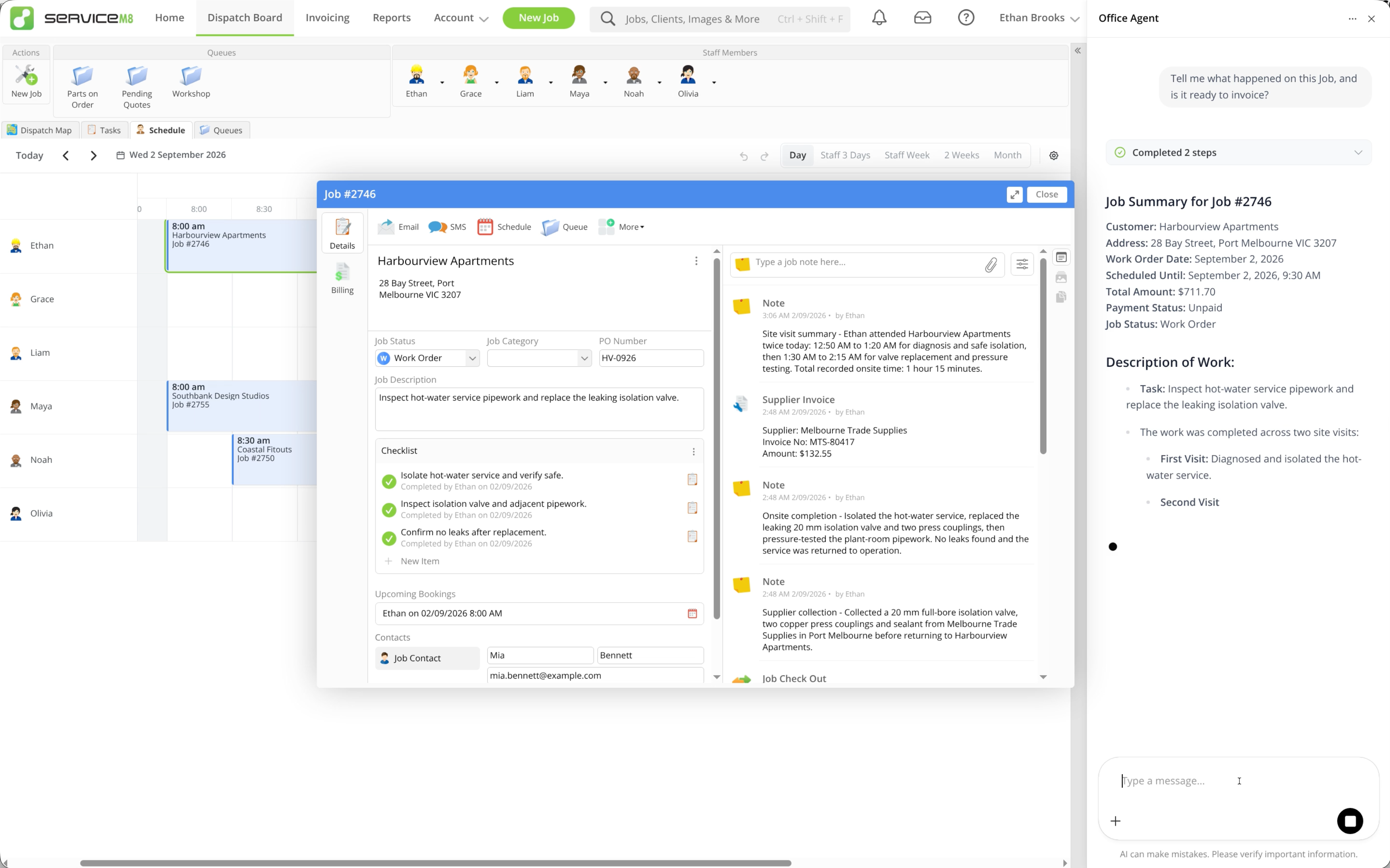
- Chat beside your work: ask questions in the Online Dashboard while keeping your current page and Job card open.
- Talk from a Job: use a voice conversation in the mobile app to ask questions and prepare supported Job actions.
- Schedule recurring work: choose a Task Library template or create a custom task with instructions, a schedule and notifications.
What Office Agent can do
Office Agent can help you:
- Find and summarise Jobs and clients, including Job details and Diary history.
- View Jobs by filter and identify work needing attention, including outstanding Quotes and overdue invoices.
- Read and summarise ServiceM8 Inbox messages to help identify enquiries needing attention.
- Prepare emails and SMS to your clients for approval, including replies, Quote follow-ups and payment reminders for individual Jobs.
- Check staff availability and view staff, Queues and Allocation Windows.
- Prepare bookings and Job Allocations for review.
- Prepare Job status changes, Queue moves and Job Diary notes for review.
- Draft Quotes and Invoices with descriptions and line items for you to review.
- Look up available Forms and check for completed forms recorded against Jobs.
- Look up categories, badges and tax rates.
- Answer questions using your business’s Knowledge articles and ServiceM8 help content.
- Create reports and explore business data, where reporting features and permissions are available.
- Run recurring tasks on a schedule you configure, such as reviewing Action Required every weekday at 9am, with notifications sent to your selected recipients according to the task’s notification settings.
Office Agent prepares supported actions for your approval. Approving carries out the action.
Available capabilities depend on your permissions, active add-ons and Office Agent plan. Reports require the Advanced Reporting Pack and access to Reports. Scheduled tasks require the Office Agent Pro plan and the Business Owner security role to manage them.
Availability and access
Office Agent must be active on your account. Your Security Role’s Enable access to Office Agent permission controls chat access. Your Online chat conversations are private to you.
Staff with the Business Owner security role can manage scheduled tasks and access their run conversations. See the app guide for voice controls and approvals.
For included chat, Pro pricing, daily usage and subscription management, see Office Agent plans, pricing and usage.
Good first uses
Start with one clear outcome, such as summarising the open Job or preparing a quote follow-up. For recurring work, begin with a narrow task and review its early runs before expanding its instructions.
Continue with How to get started with Office Agent.