

Online Booking
How to track the source of your Online Bookings
Learn how to track the source of your Online Bookings in ServiceM8.
ServiceM8 can track the source of your Online Bookings to provide insights into which marketing sources are most effective.
To track this information, you’ll need to edit the URL of the Online Booking slightly to include information about which marketing source it relates to. For example, to track bookings from Facebook, you’ll create a unique URL which tags those bookings as coming from Facebook, and then provide that URL as the link on your Facebook page.
Each Service that you publish to customers has a unique URL.

To track visitors from a specific source, you’ll need to add a source to the URL, which looks like this: &utm_source=SourceName
For Google you can add &utm_source=Google, Facebook would be &utm_source=Facebook, etc. Whatever you add after the ”=” character is what ServiceM8 will track as the source of that booking.
If the URL includes a ”#”, character, the UTM source must be inserted before it. The section of the URL after the ”#” links to a specific service. See below for an example.
Once you have added a UTM Source to all your different marketing sources you want to track, you can view the results in the online booking reports. Online booking reports break down how many visits you are getting to your online booking page as well as conversion rate and revenue generated after job completion by booking source
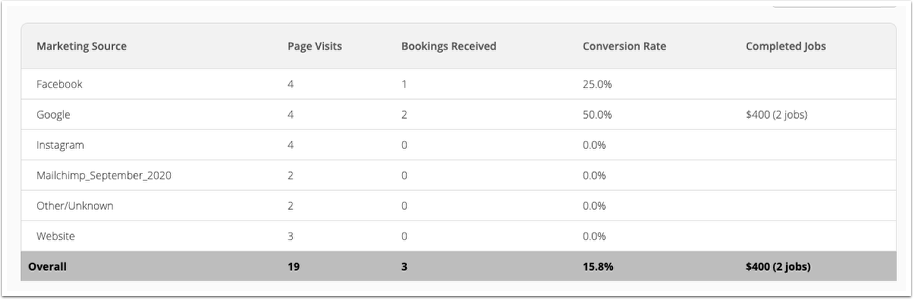
You can also track how many visits you are getting to your online booking page as well as conversion rate and revenue generated after job completion by Service Type
Note that we’ve shown how to track marketing source for Service Bookings using the “Self Serve Online Booking” addon in this example, but it works exactly the same for Simple Online Enquiries. Just add &utm_source=SourceName to the end of your ServiceM8 Online Booking URL to get started.