Stripe
How to set up Tap to Pay on Android
Enable Tap to Pay on each eligible Android phone after activating it for your business.
Once Tap to Pay is activated for your business, enable it separately on each eligible Android phone.
Before you start
- Your Account Owner or a staff member with the Business Owner security role must complete Tap to Pay setup on iPhone, then allow your account settings to sync to Android.
- Use a phone with Android 13 or later and NFC that meets Stripe’s supported-device requirements.
Enable Tap to Pay
-
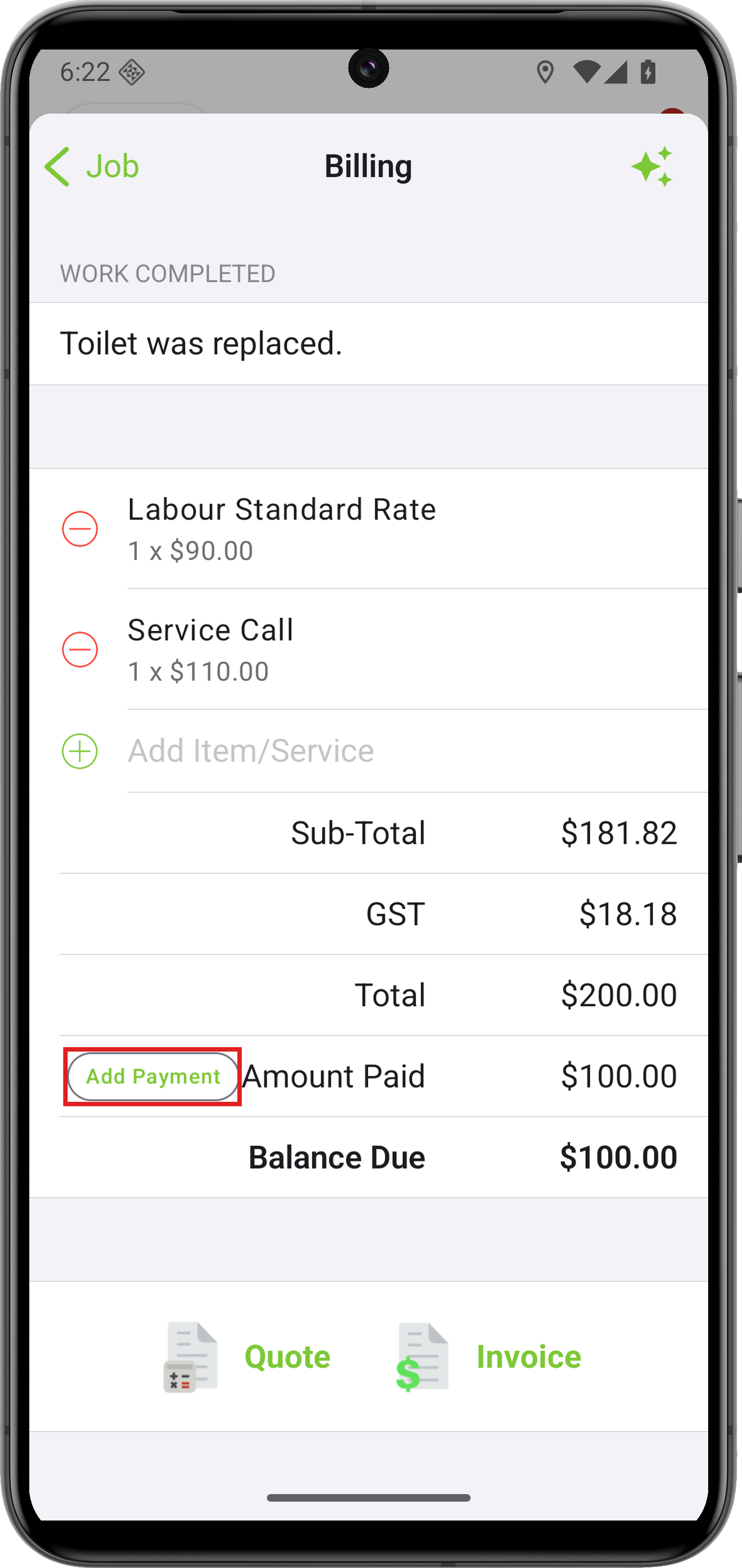
Open a Job card, go to Billing, and tap Add Payment.
-
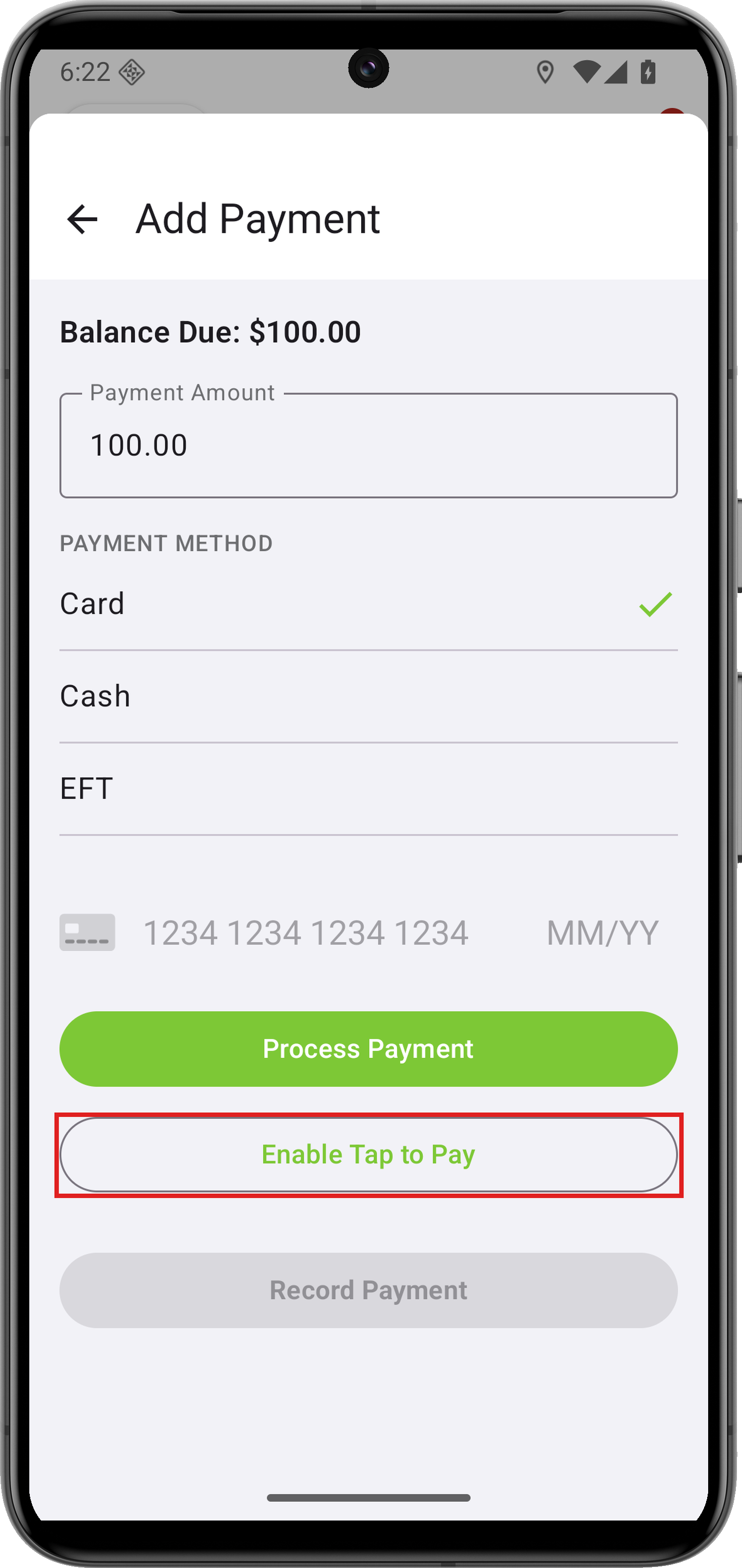
Select Card, scroll below the card-entry controls, and tap Enable Tap to Pay.
-
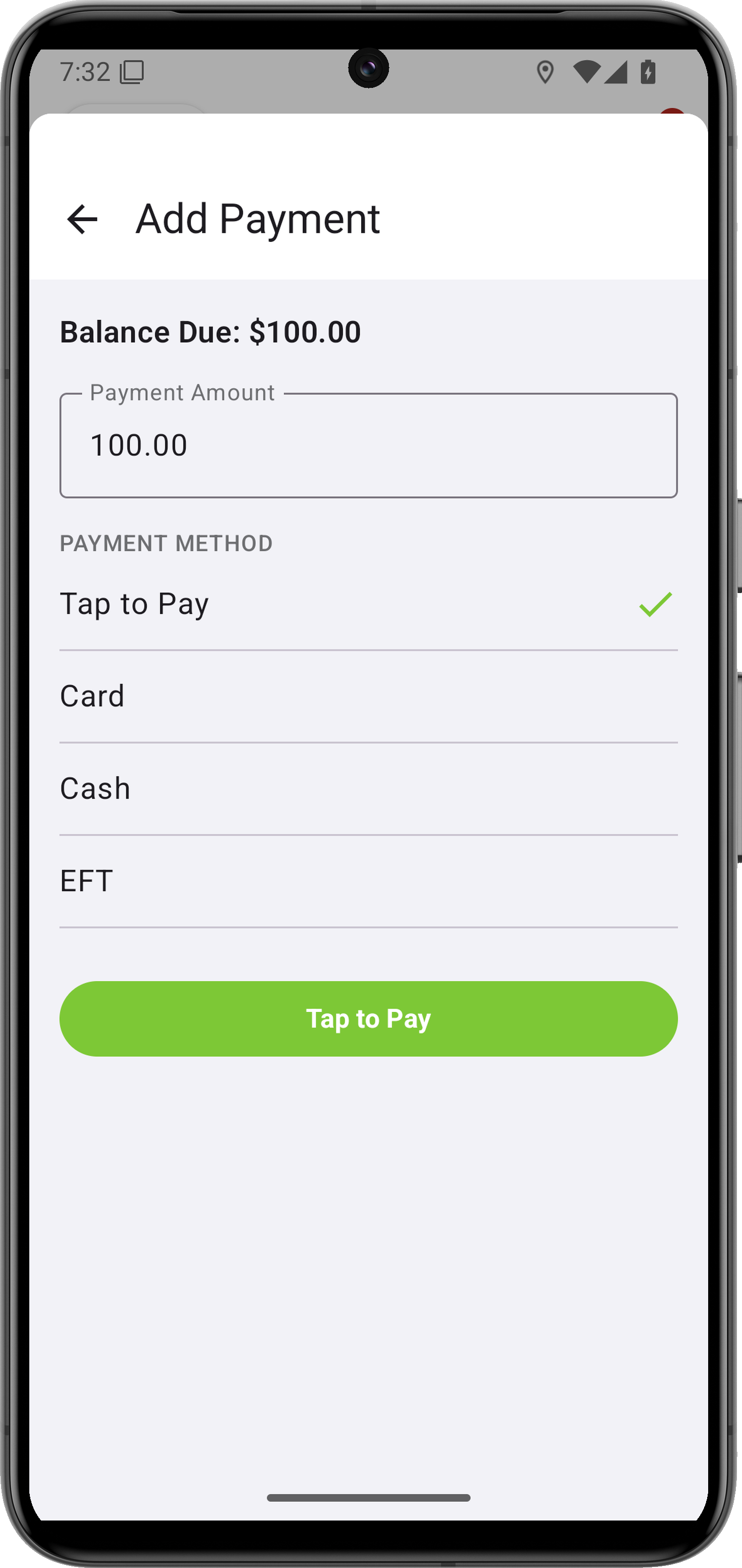
Allow the Location and Nearby devices/Bluetooth permissions if requested, then wait for the connection to finish. Tap to Pay becomes the selected payment option.