

Forms
Creating a simple Contract Variation Form
Learn how to create a simple Contract Variation Form in ServiceM8.
This lesson will show you how to build a simple Contract Variation form. The form will have the works to be varied, the amount the variation will cost, Tax inclusive or not, and a signature from the client.
Go to Settings
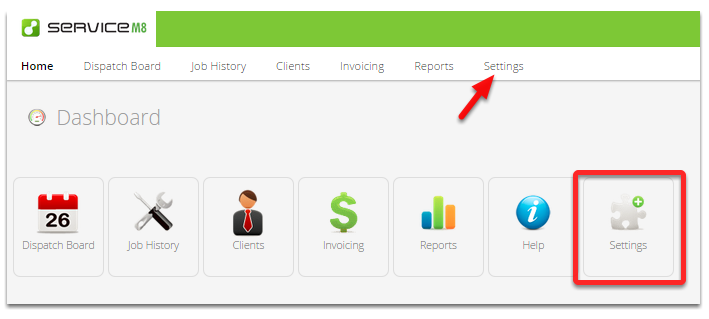
Click Forms

Click add Form

Our form will have three questions and a signature.
-
What is the nature of the variation.
-
How much will it cost.
-
Does that include tax, or not.
-
A client signature.
Name the form and its Badge
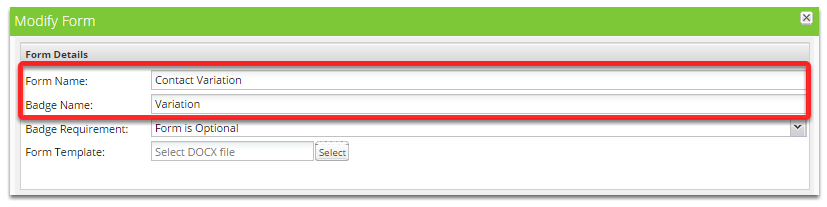
Enter the Form Name and a Badge Name.
Leave the form template section blank. This section is used to link a document template to this form. You can link a document template at any time if required.
NOTE: The badge you have named in your form here appears as a badge on the Job side board. If you select it, then it will appear as a job task beneath the check in button. This is a good way to ensure staff are aware that there is a form to be filled in on this job.
Question 1 - Variation Detail
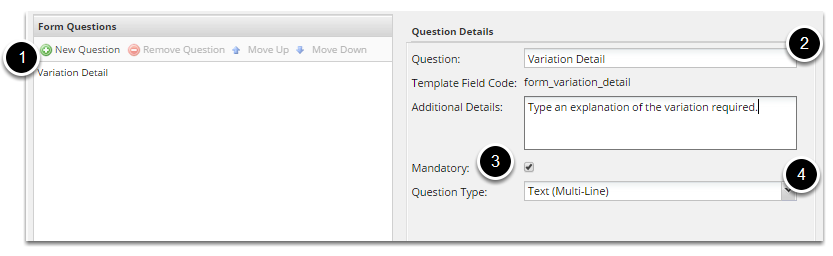
Click New Question and give the question a name, type any additional detail needed to answer the question, select the Mandatory box if the question must be answered before continuing and select multi-line text for question type. The “Template Field Code” is the merge code used to identify this field inside a document template.
Question 2 - Estimated Price
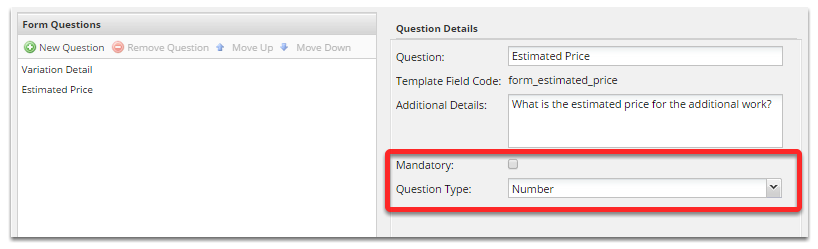
This question is not mandatory and the type is number.
Question 3 - Does the price include tax

This is a mandatory question and it is multiple choice. Users must select one of the options before proceeding.
Signature
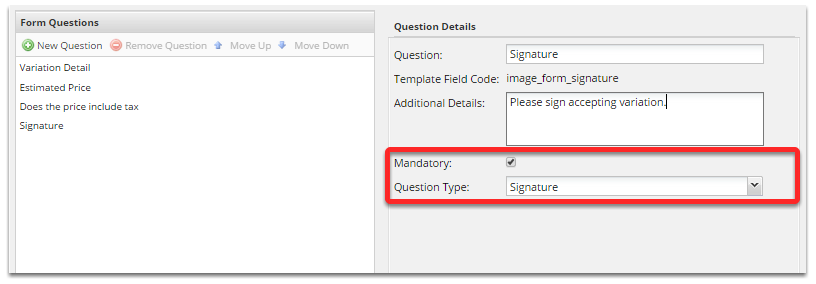
Signature is a special type of question and is mandatory in this form implementation. It requires a client signature to finish the form.
Finalize the form by clicking save
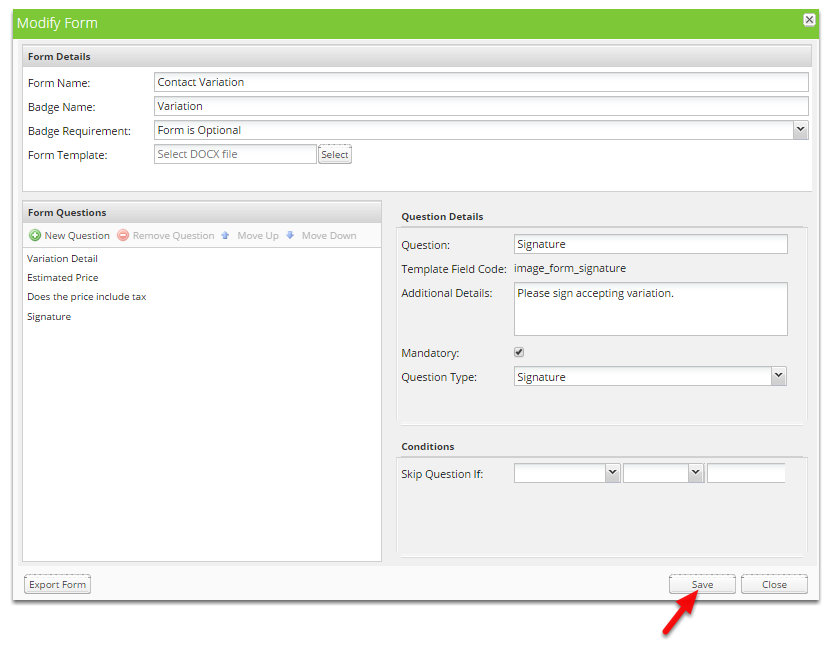
To use this form in the ServiceM8 app, you can enable the form badge which is “Variation” within the job card from the Dispatch Board.
Click the form badge to enable it

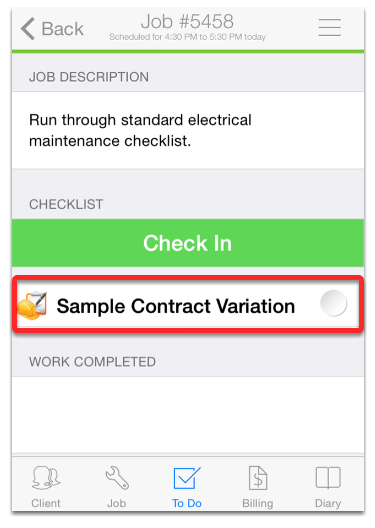
Then from the app, open a job and navigate to the “To Do” tab and you should see the form icon. Tap it, to start fill it in.
Forms icon in the mobile app
Once it has saved you can view the form from within the Diary.