

Automation
How to view and manage automations in a Job card
View upcoming automations and warnings for a job, cancel an upcoming action, or turn off an automation for a client.
Use the Automations view in a Job card to check upcoming automated actions and warnings, cancel an action, or turn off an automation for a client.
Before you start
- The Automation add-on must be enabled. In the Online Dashboard, go to Settings > ServiceM8 Add-ons and enable Automation.
View automations for a job
-
Open the Dispatch Board in the Online Dashboard.
-
Open the relevant Job card.
-
In the diary toolbar, click the Automations lightning-bolt icon.
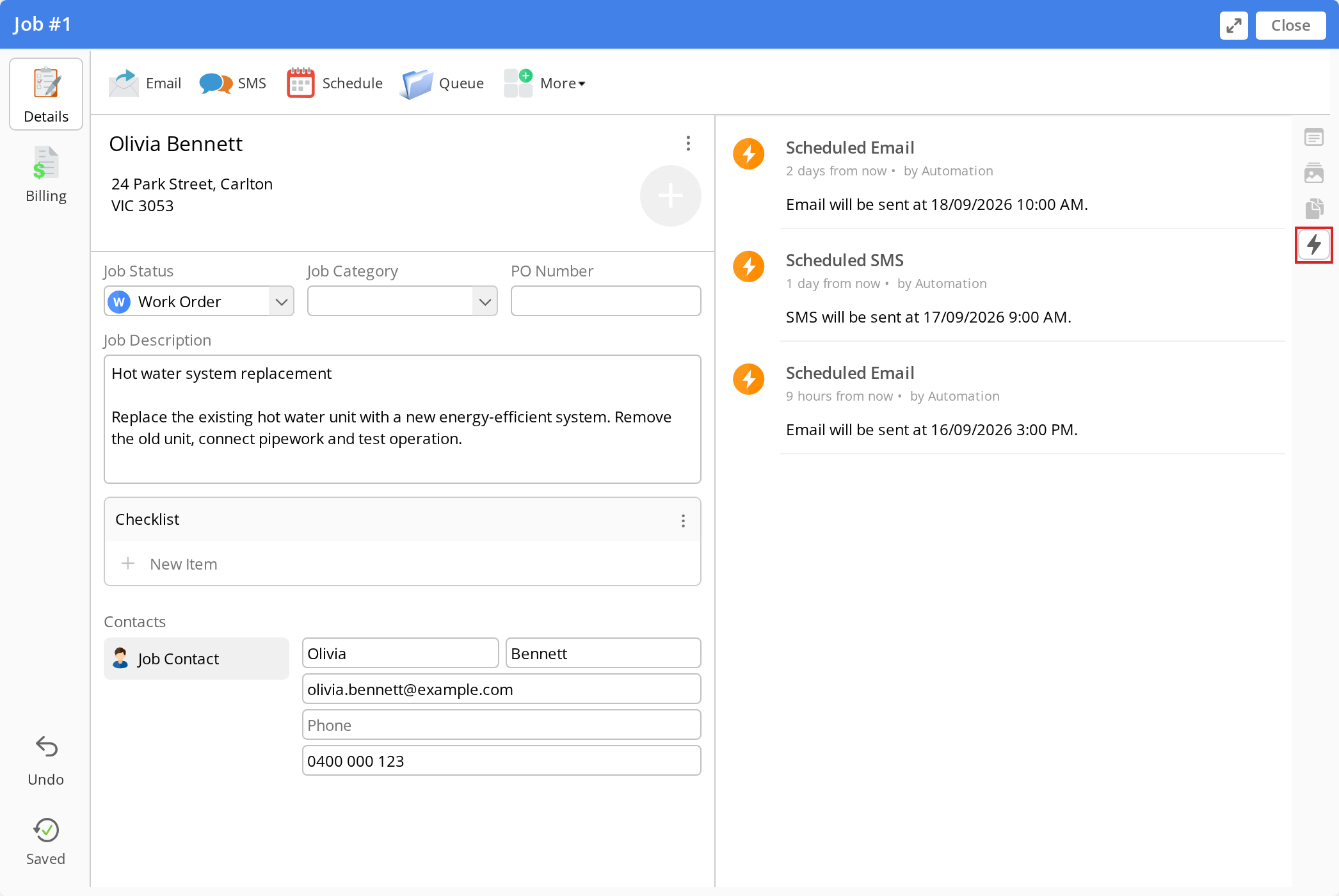
The view shows upcoming actions and automation warnings. Sent messages appear in the Job Diary. A warning icon and explanation appear when an action cannot be processed as expected.
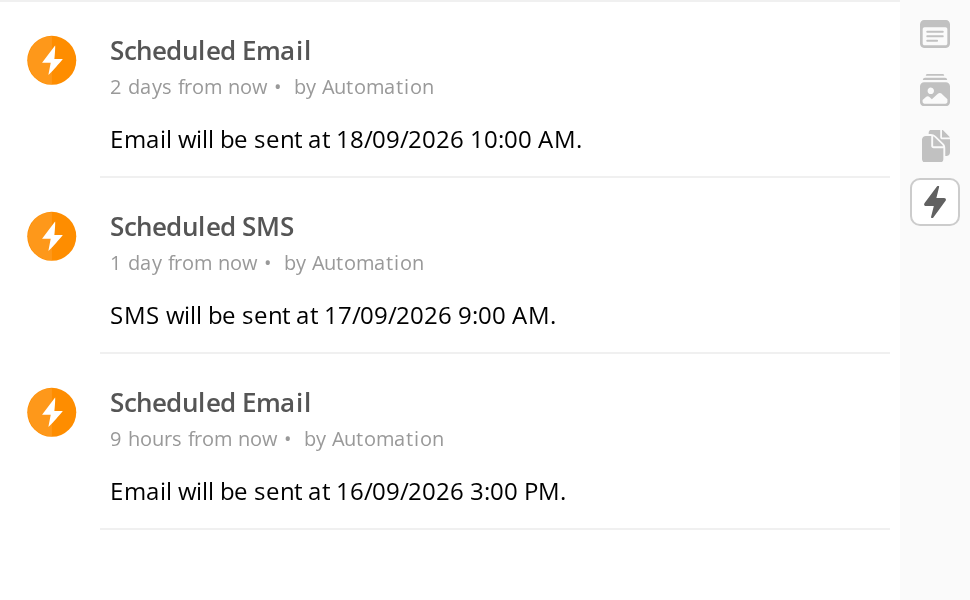
Hover over a timestamp to see its date and time. Times within seven days of now use relative labels; times further away show a date and time.
If the job has no scheduled automations, the view displays No automations are scheduled for this job.
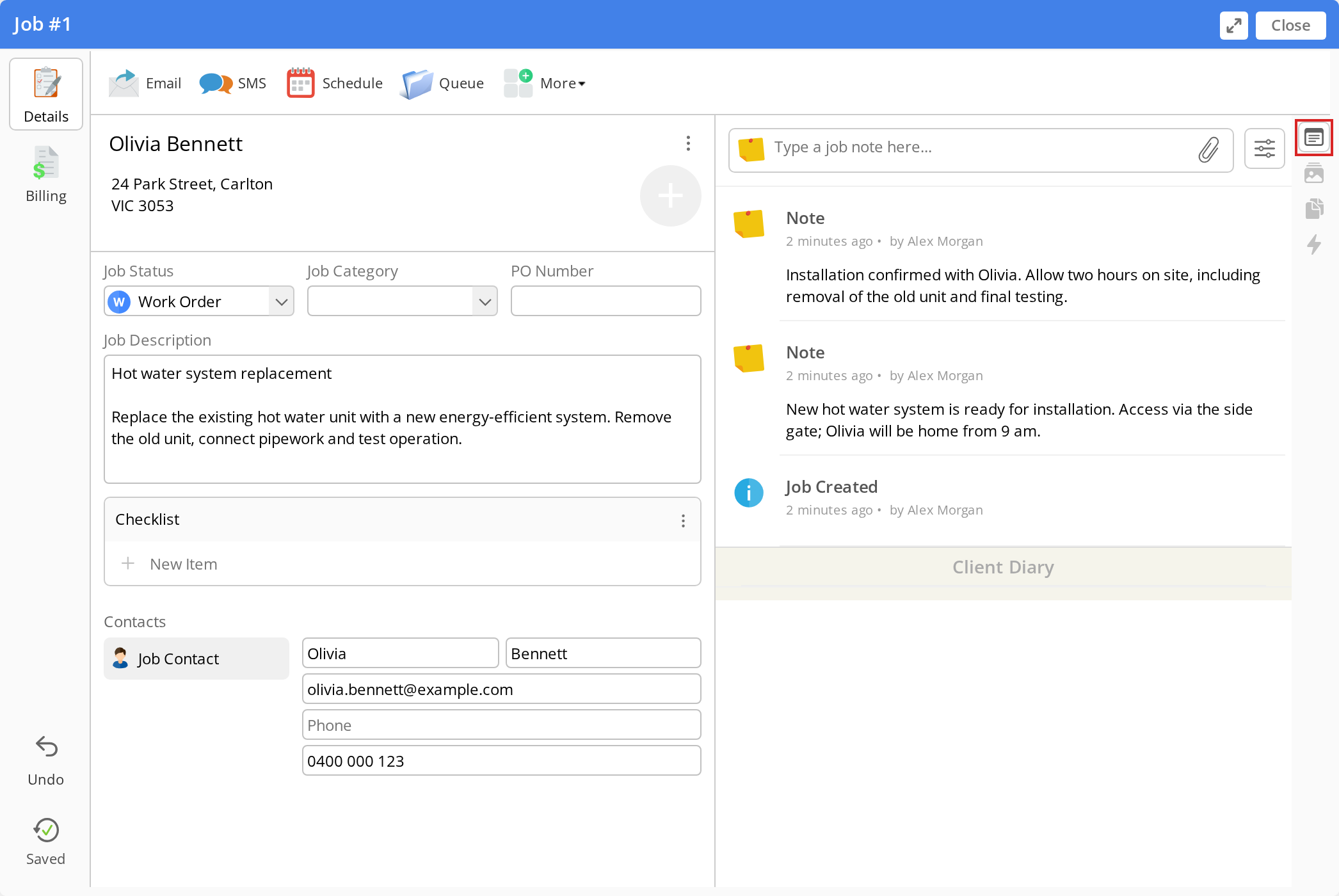
Click the first icon in the diary toolbar to return to the Job Diary.
Cancel an upcoming automated action
-
Open the Job card’s Automations view.
-
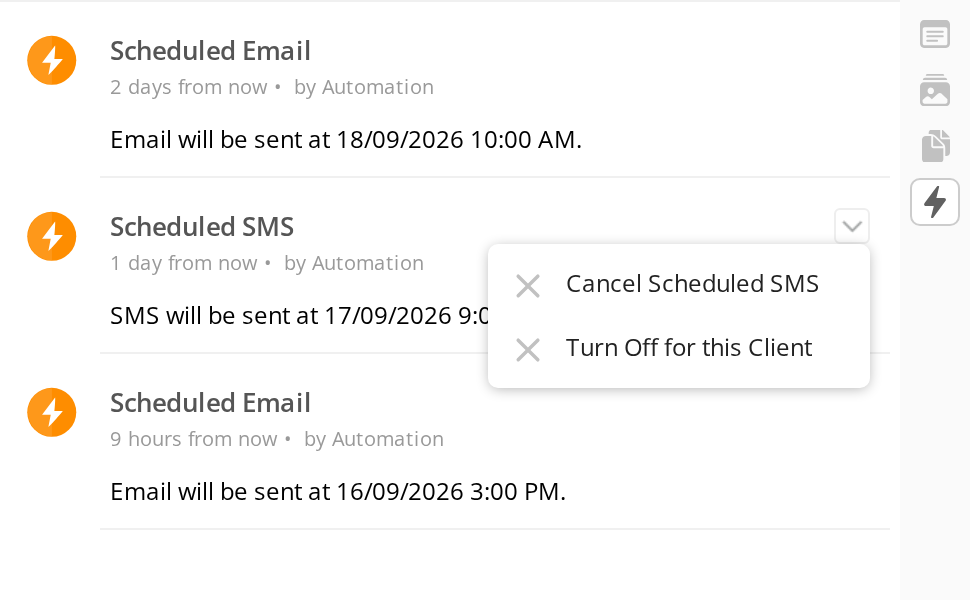
Hover over the scheduled automation, then open its action menu.
-
Click the cancel option, such as Cancel Scheduled Email or Cancel Scheduled SMS.
-
Confirm the cancellation.
-
If the cancellation record is hidden, click the link showing the number of hidden diary items.
The cancelled action will not be sent.
Turn off an automation for a client
- Open the action menu on the relevant scheduled automation.
- Click Turn Off for this Client.
This turns off that type of automation for the client across their jobs. To turn it on again, open the action menu and click Re-enable for this Client.
Review automations across all jobs
To review scheduled and processed actions across your account, go to Settings > Automation, then click the number in an automation’s Scheduled or Processed column.