

Forms
How to make a copy of a Form
Learn how to copy a custom Form, including its questions, conditions, and document template.
Make a copy when you want to create a new custom Form based on one you already use. The copy includes the Form’s questions, Skip Question If conditions, and custom DOCX document template. Completed Forms and responses are not copied.
Your ServiceM8 plan must include custom Form creation. Forms purchased from the Form Store cannot be copied.
Make a copy of a Form
-
In the Online Dashboard, go to Account > Settings > Forms.
-
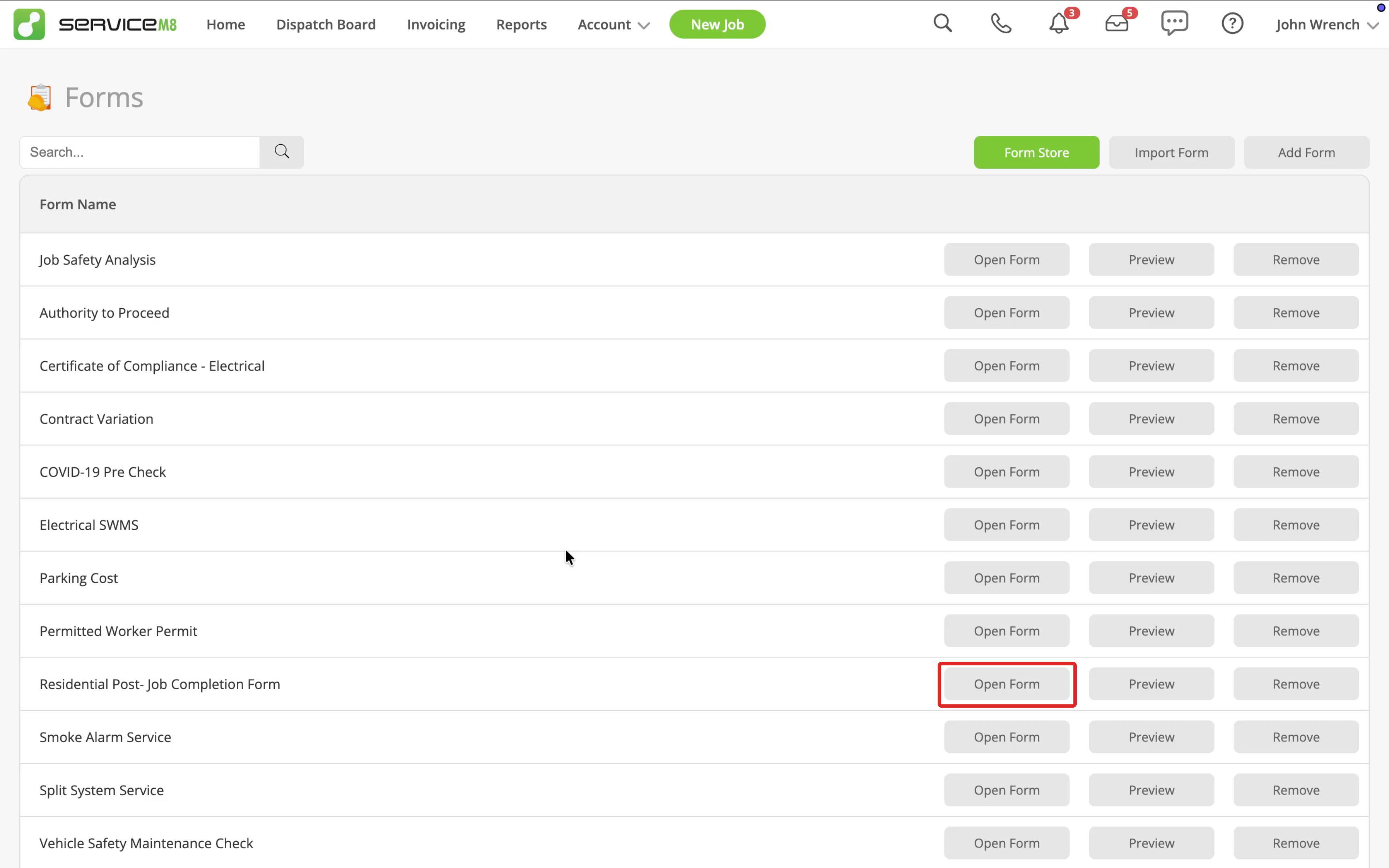
Find and open the custom Form you want to copy.
-
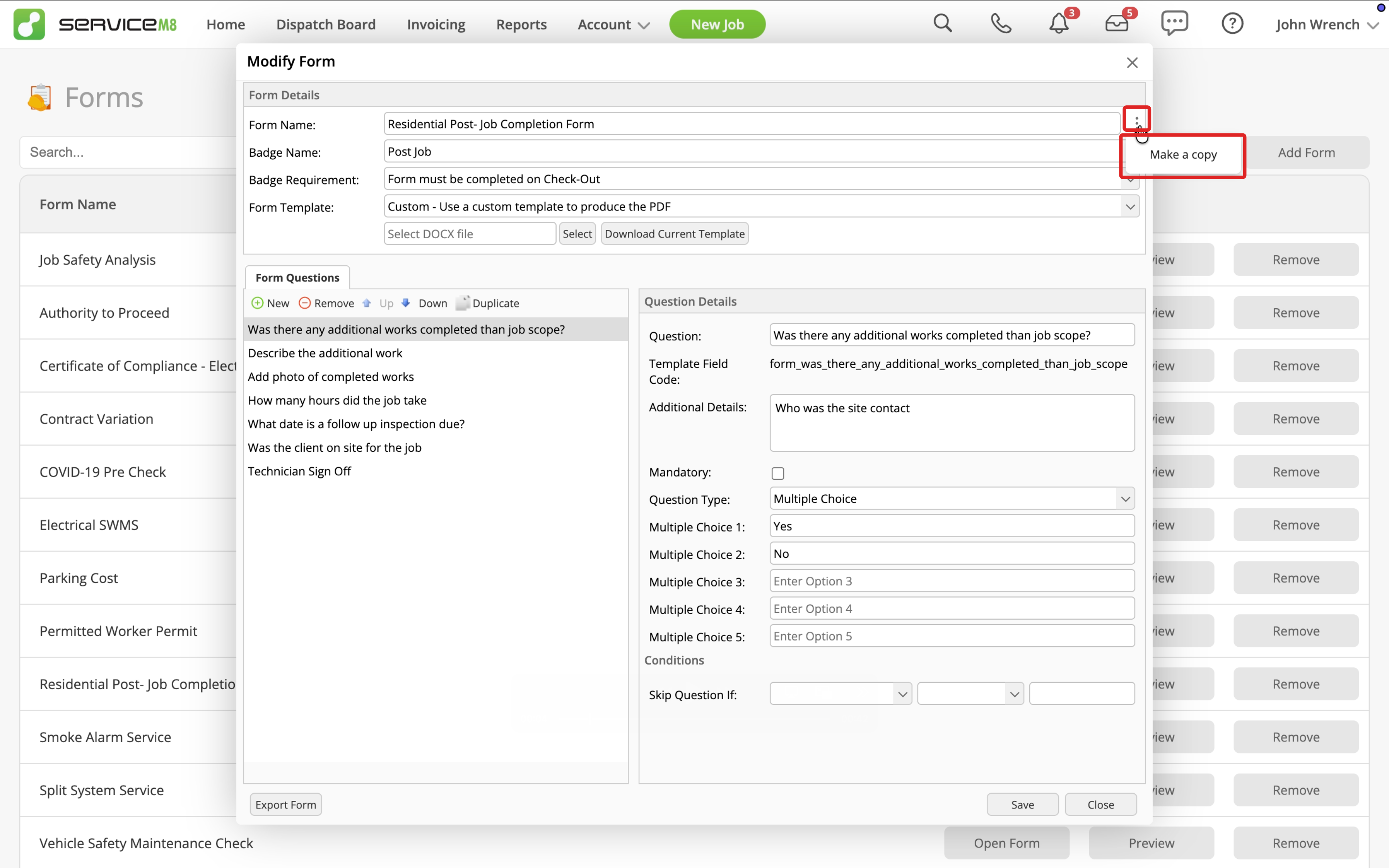
Click the three-dot menu beside Form Name, then click Make a copy.
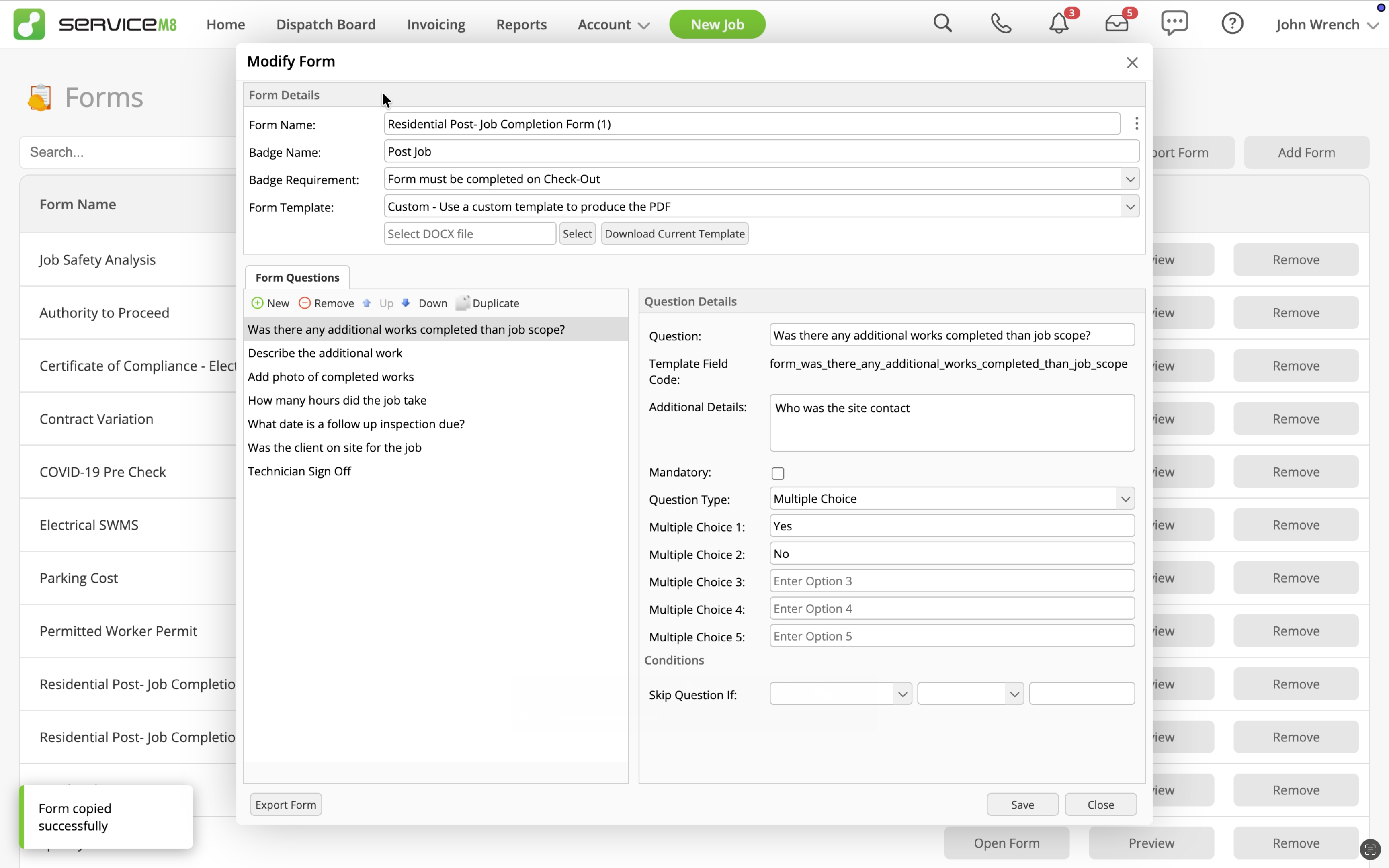
ServiceM8 saves the original Form and opens a separate copy. The copy’s name ends with the next available number, such as
(1).
-
In the copy, update the Form Name, Badge Name, questions or other details you want to change.
-
Click Save.
Changes you make to the copy do not affect the original Form.