Forms
How to edit Forms
Learn how to edit Forms in ServiceM8.
The Forms Add-on is incredibly powerful for completing paperwork and reports on site. If you forget something while completing a Form, or make a mistake, you can revisit all types of fields in a completed Form. Just open it from the Diary, tap Edit, and you can work back through the Form.
Editing Forms in the Online Dashboard
To edit a completed Form in the Online Dashboard, click on the Form in the job’s Diary, then click ‘Edit Form’:

You can now work through the Form again, editing responses as needed:

NOTE: any Signatures captured will be removed when a Form is edited, and when you finish and generate the edited Form, it will re-populate merge fields with current data e.g. if the Form includes the date, and the original Form was completed a week ago, and you edit it today, the new version will have today’s date.
Editing Forms in the ServiceM8 app
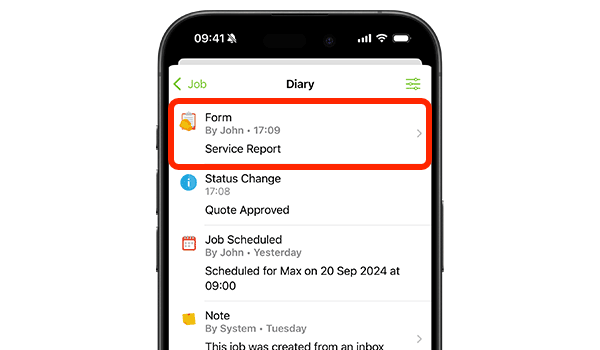
To edit a completed Form in the ServiceM8 app, tap the saved Form you want to edit in the job’s Diary:
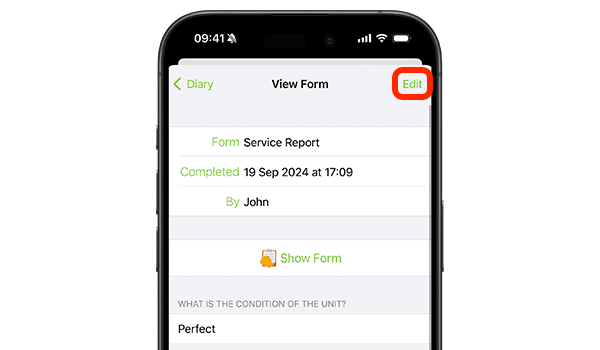
Then tap ‘Edit’:
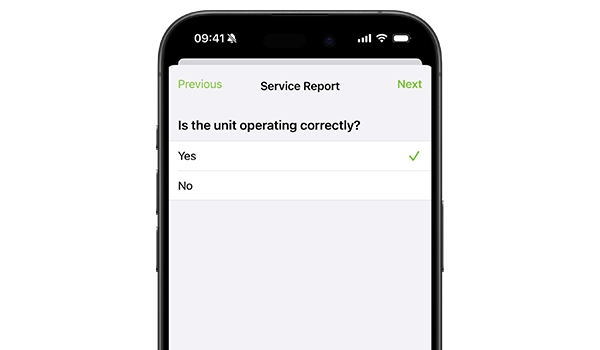
You can now work through the Form again, editing responses as needed:
Viewing a history of changes
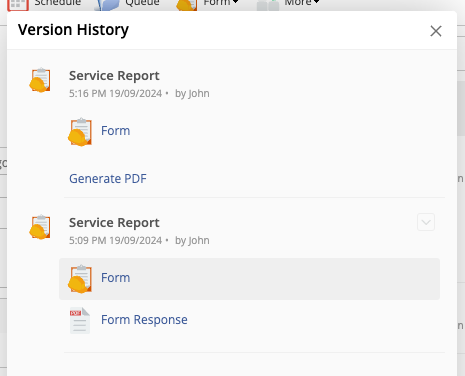
If a Form has been edited, you can view the history of changes made to the Form in the job’s Diary — this is possible in the Online Dashboard only. To do so, click the dropdown on the Form’s Diary item, then ‘Version History’:
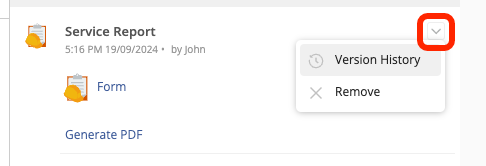
This will display a list of all versions of that form, with the most recent version at the top. Click on any version to view it.