

Knowledge
How to record a toolbox meeting in Knowledge
Record a team briefing on your iPhone, revisit its audio and transcript, and keep follow-up action items in Knowledge.
Record a toolbox meeting, pre-start or team briefing so you can revisit what was discussed. Knowledge keeps the recording and its transcript together. When Apple Intelligence is available on the recording device, ServiceM8 can also generate a summary and action items.
For example, you could record a briefing about damaged equipment, then use the saved meeting to review the agreed replacement and inspection work.
Before you start
- Activate the Knowledge add-on through your Online Dashboard.
- Transcription is available only on supported iPhones running iOS 27 or later, with summaries and action items requiring Apple Intelligence enabled on a compatible iPhone.
Start a meeting recording on your iPhone
- Open More > Knowledge.
- Tap +, then Record Meeting.
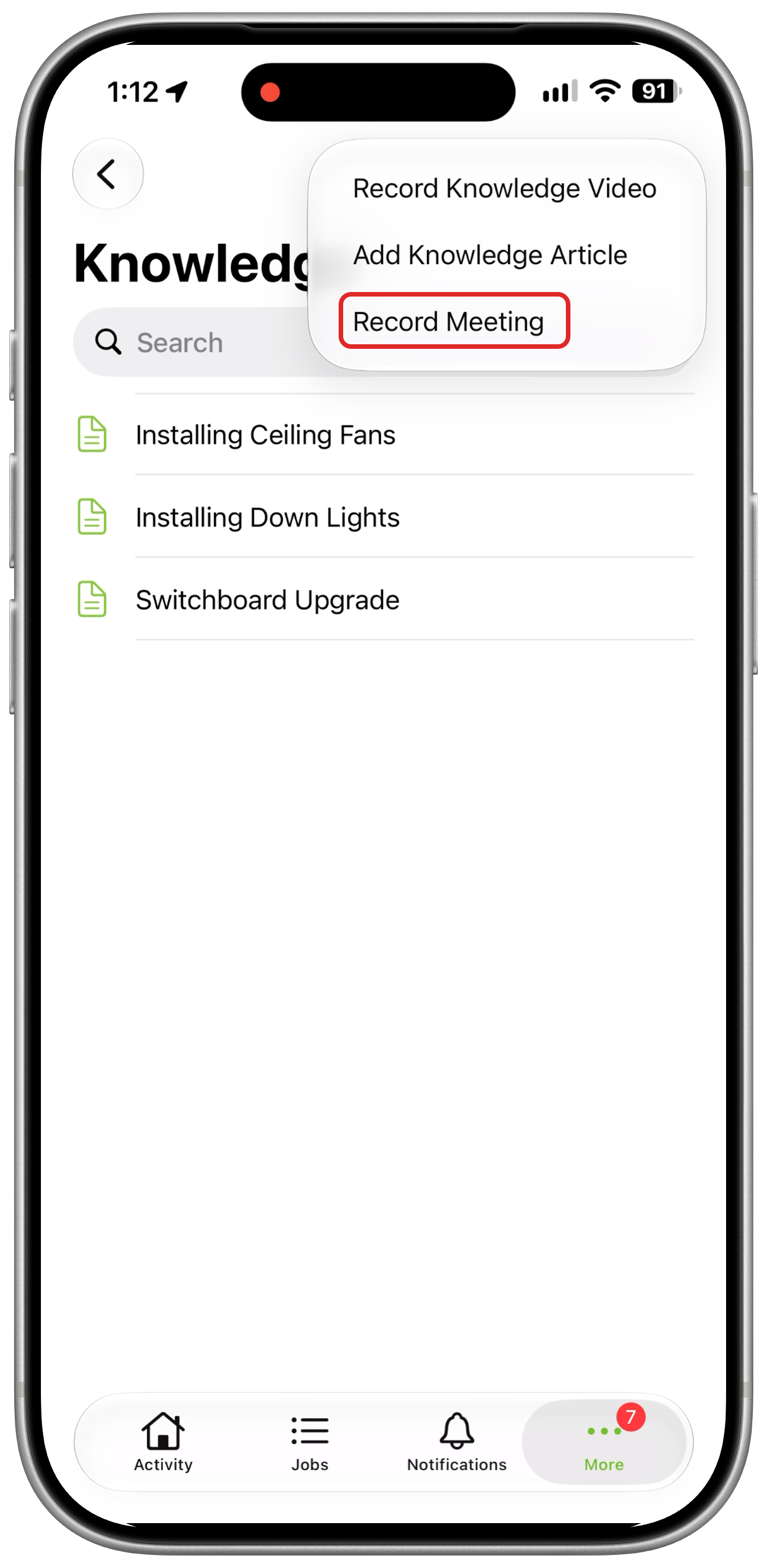
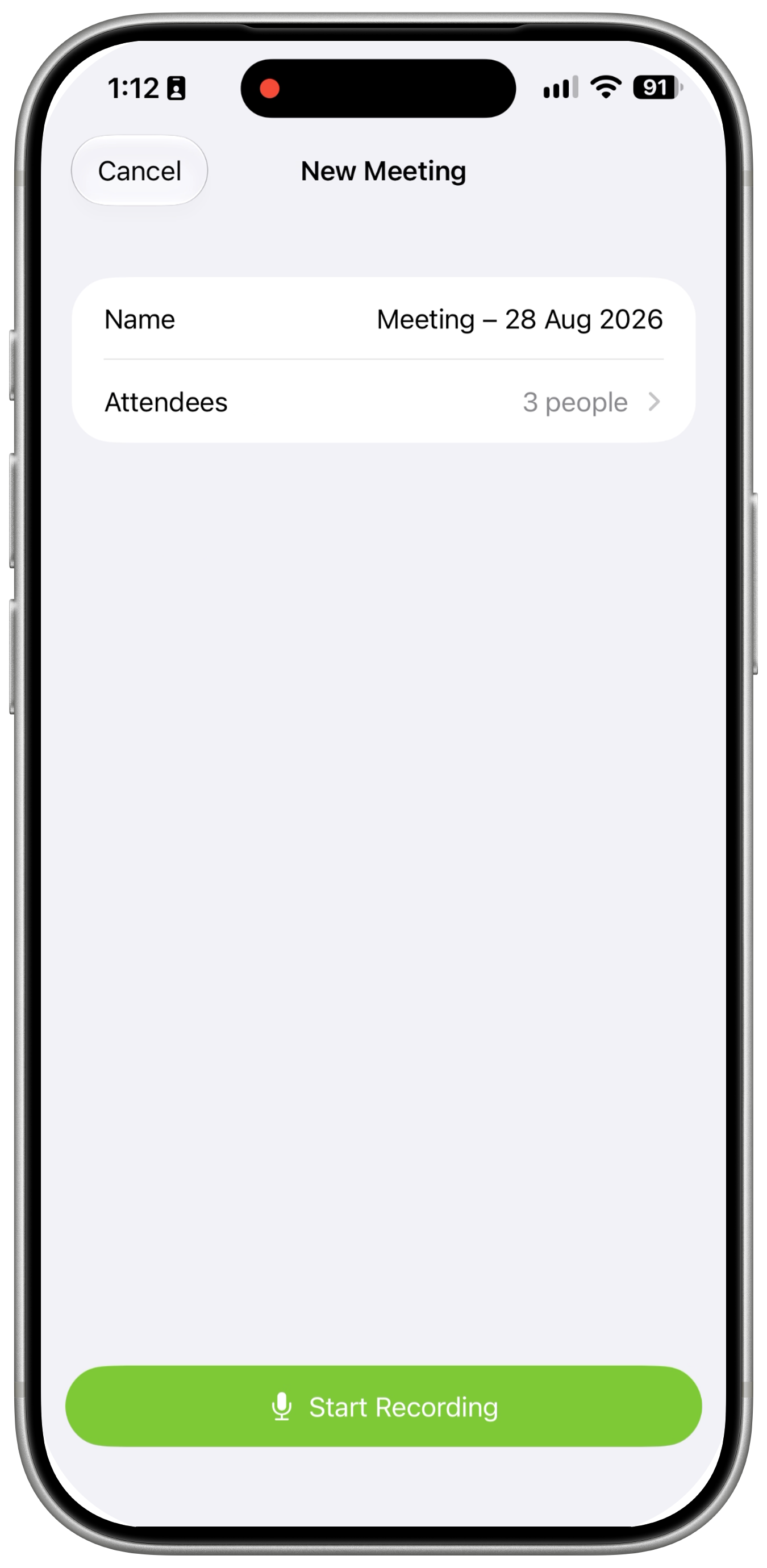
- Enter a Name that will help you find the meeting later.
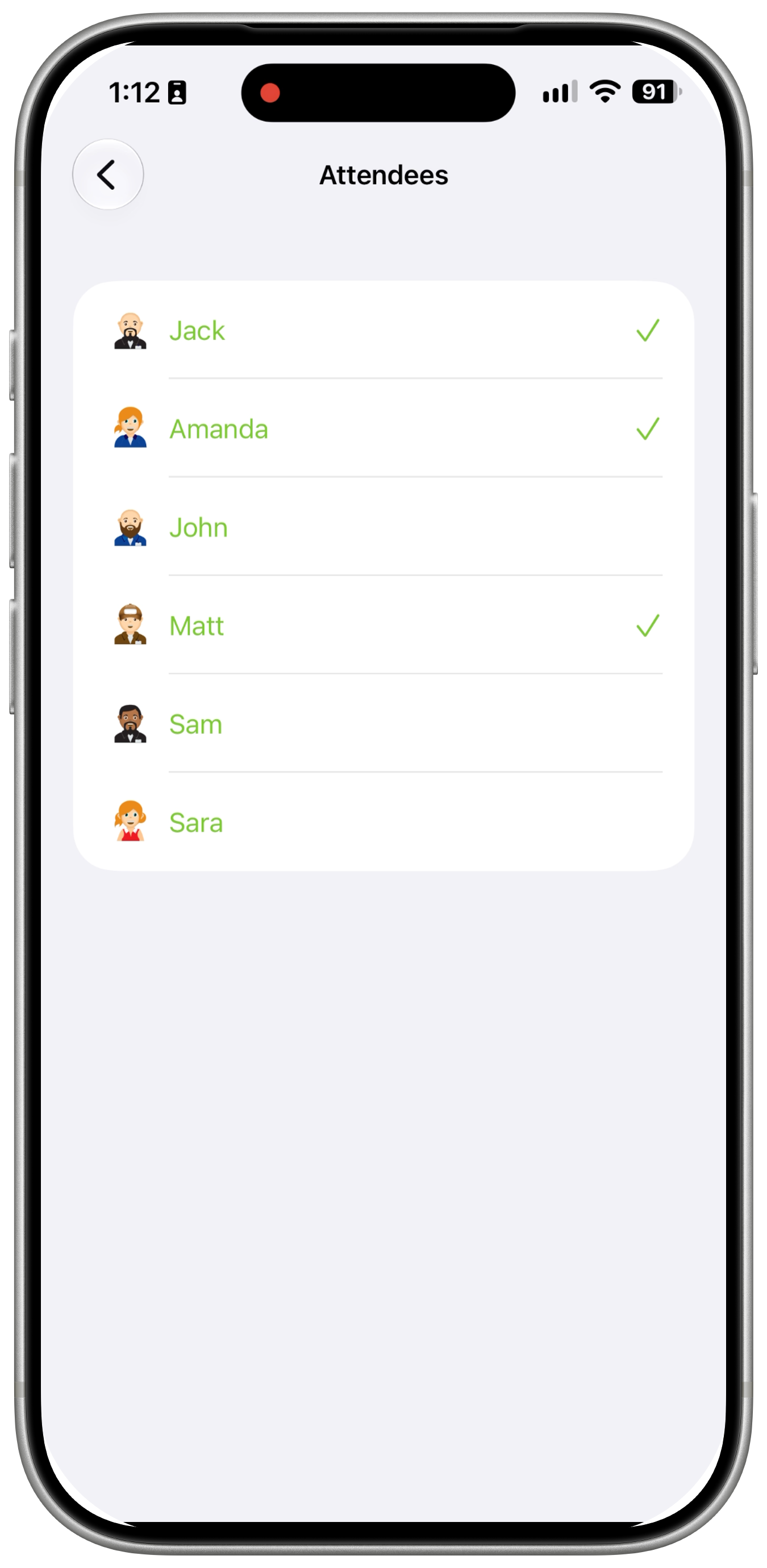
- Tap Attendees, select the staff who are attending, then return to the meeting setup. You are included as the meeting creator and remain selected.
- Tap Start Recording. Allow microphone access if prompted.
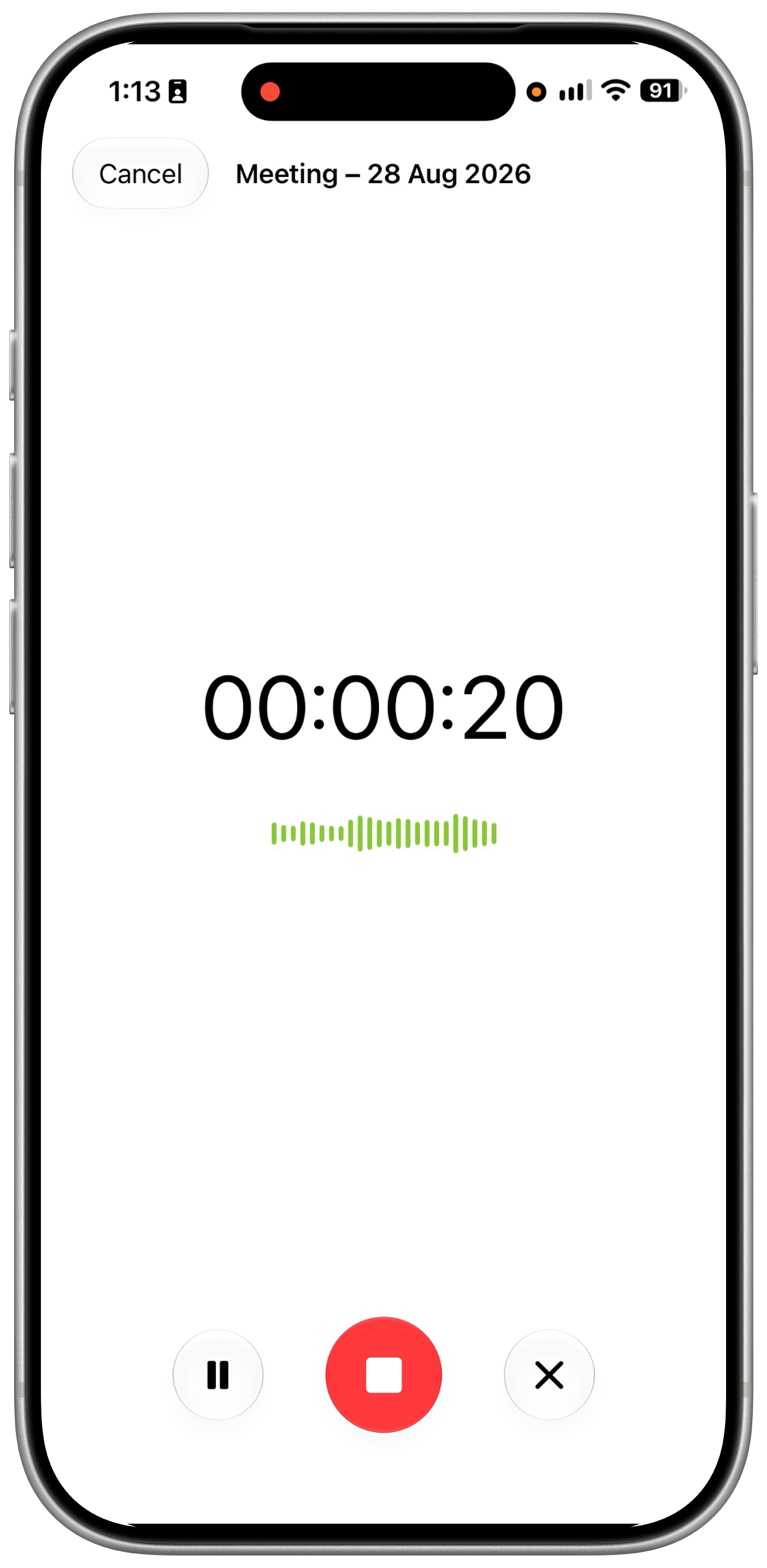
The timer and audio level display show that recording has started.
Pause, finish or cancel
While recording, use the controls at the bottom of the screen:
- Pause: temporarily stop recording. Tap Resume when you are ready to continue.
- Finish: tap the red stop button to save the recording and begin processing it.
- Cancel: tap the cross, then Delete Recording to discard the recording. Choose Keep Recording if you want to keep it.
Finishing a recording saves the meeting on your device and queues it to sync. Uploading and transcription can continue afterwards. Wait for the upload to finish before expecting the audio to be available on another device.
Listen to the recording and read the transcript
- Go to More > Knowledge > Meeting Recordings.
- Open the meeting you want to revisit.
- Under Recording, tap the play button to listen.
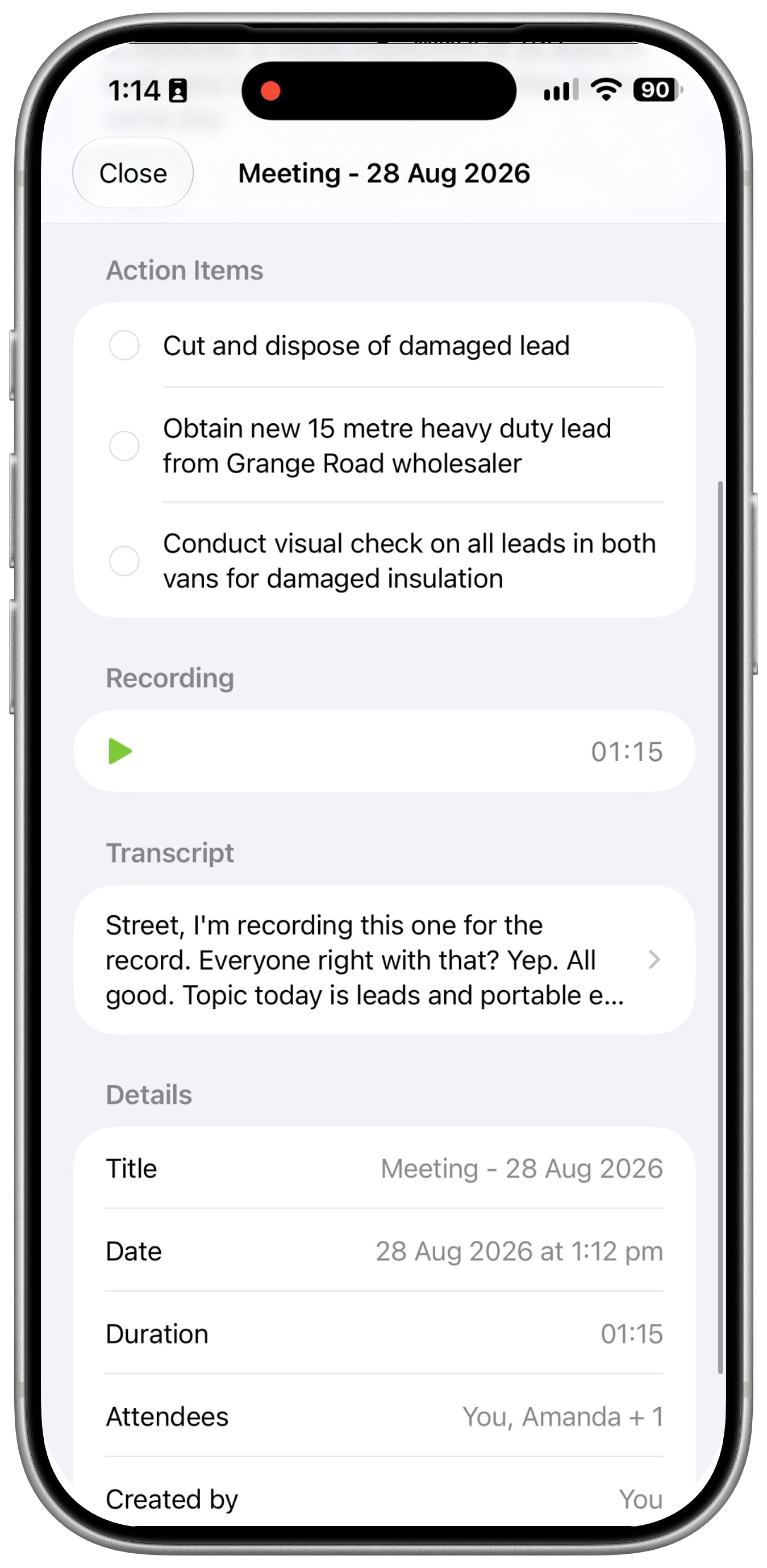
- Open Transcript to read the timestamped text.
- Tap a timestamp to play that part of the recording. Playback stops at the next transcript segment, or at the end of the recording for the final segment.
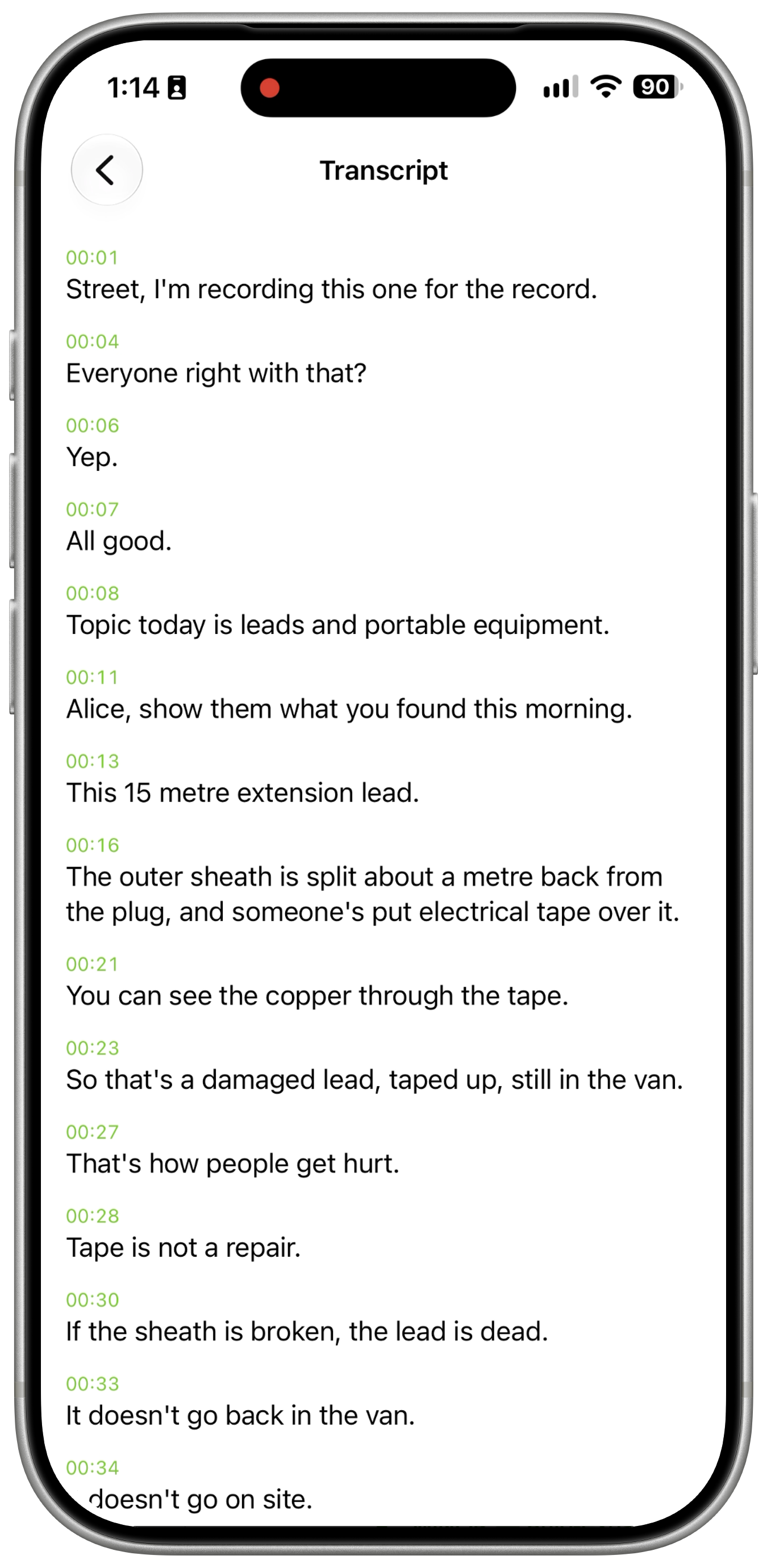
The transcript is read-only and does not identify individual speakers. Selecting attendees records who attended; it does not label their speech in the transcript.
If transcription is still running, you will see Transcribing…. If it fails and Retry is available, tap it to try again. An unsupported language produces a note that a transcript is not available for that language.
Review the summary and action items
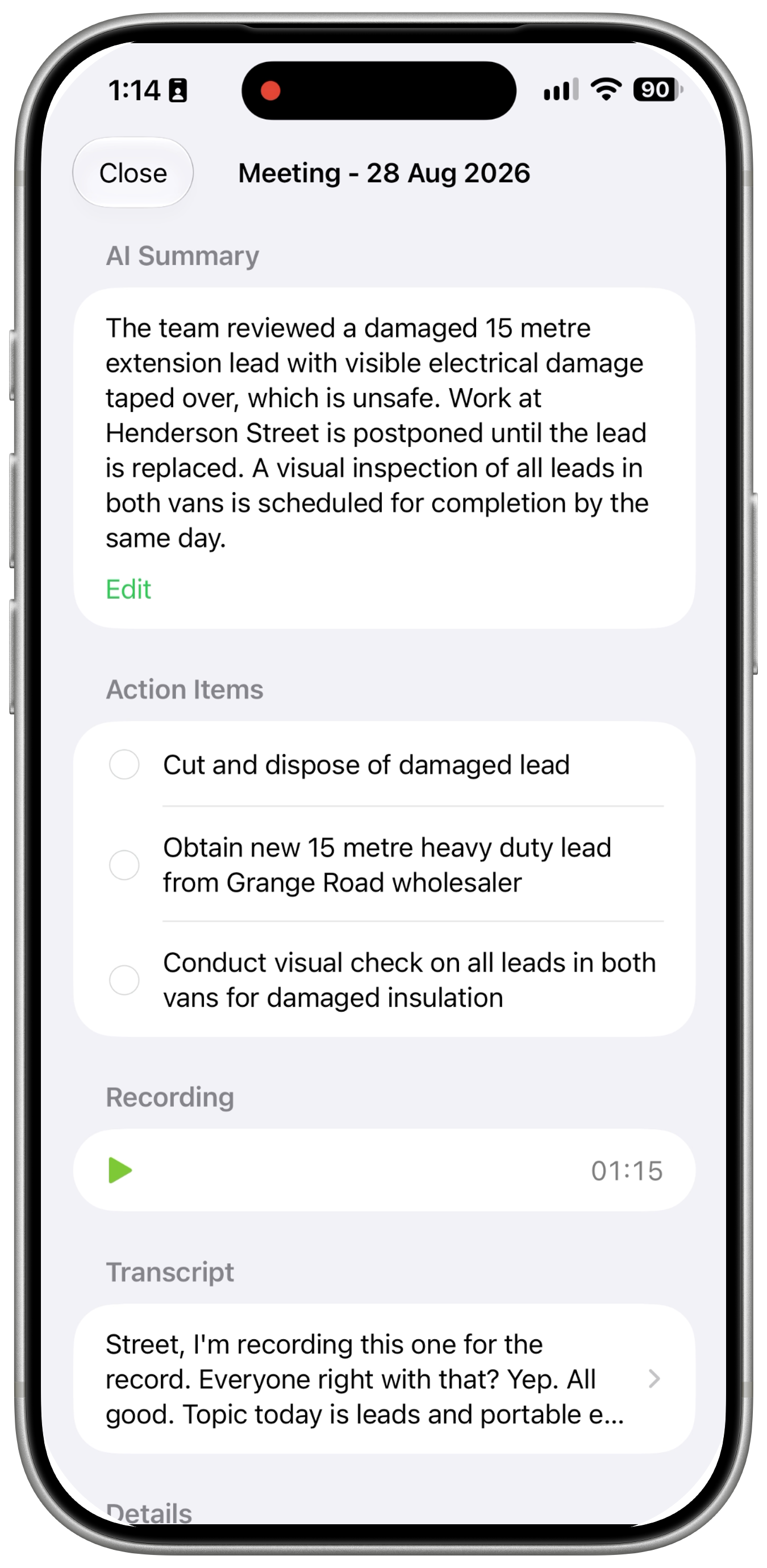
When generation succeeds, AI Summary and Action Items appear inside the meeting. Review them against the recording before using them for follow-up work.
Edit the summary
- Open the meeting and tap Edit under AI Summary.
- Update the summary.
- Tap Save.
Your change updates the meeting’s summary. The recording and transcript remain separate from the summary you edit.
Complete an action item
- Open the meeting and find Action Items.
- Tap the checkbox beside the item you have completed.
The item remains in the meeting with its completed state. These action items stay inside the Knowledge record; they do not become separate Tasks or Job checklists. Editing the summary and completing action items require Knowledge edit access.