

Job Allocations
How to set a default job allocation expiry
Set the default expiry used when you create or reschedule job allocations on the Dispatch Board.
Set a default expiry for jobs allocated on the Dispatch Board. Choose End of Allocation Day to stop incomplete allocations carrying into later days in Staff Schedules, when allocated jobs are shown there. The job itself stays open when its allocation expires.
Before you start
- Activate the Job Allocations add-on.
Set the account default
-
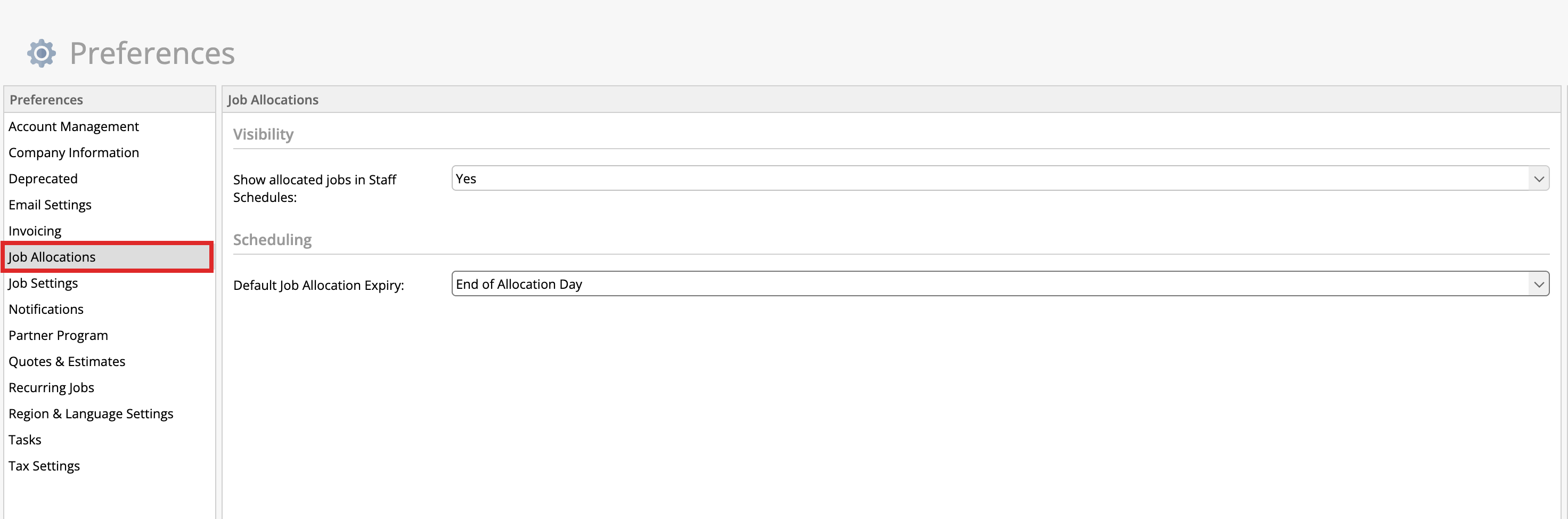
In the Online Dashboard, go to Settings > Preferences, then click Job Allocations.
-
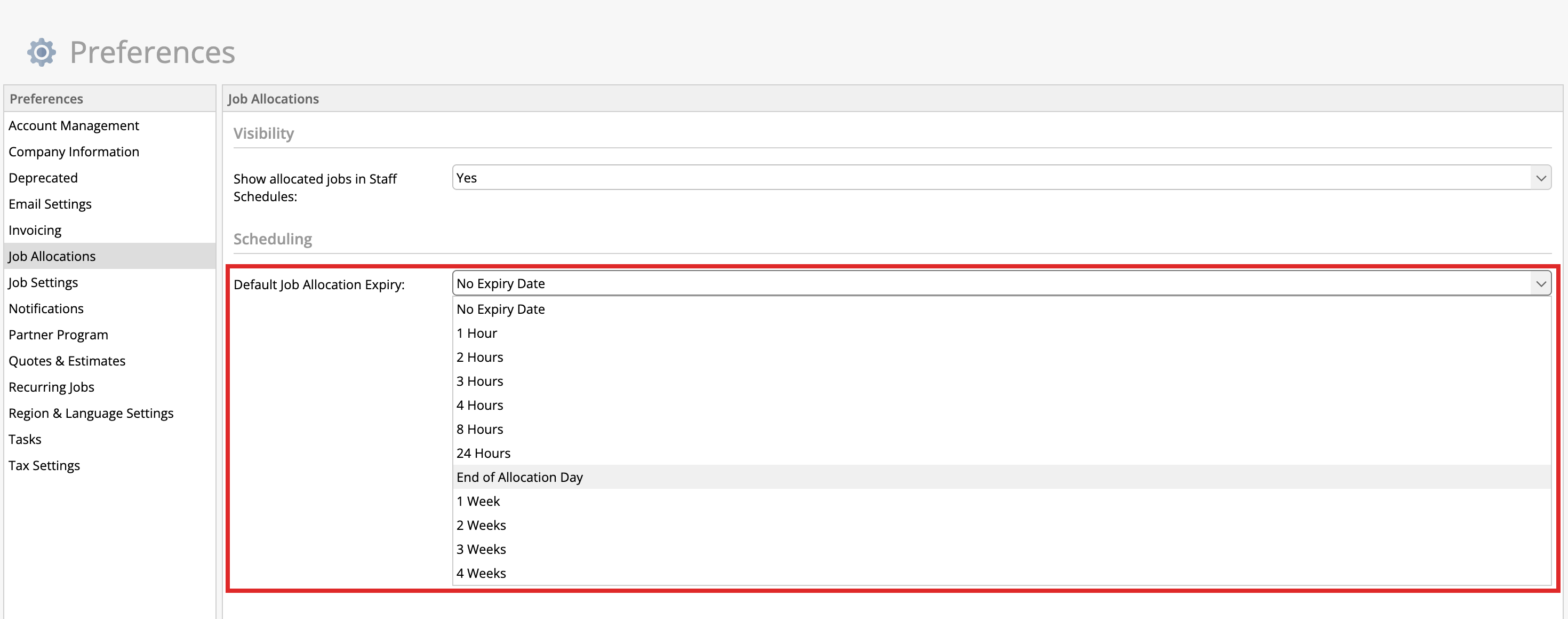
Under Scheduling, choose a Default Job Allocation Expiry. Select End of Allocation Day, a duration, or No Expiry Date.
-
Click Save.
Where the default applies
-
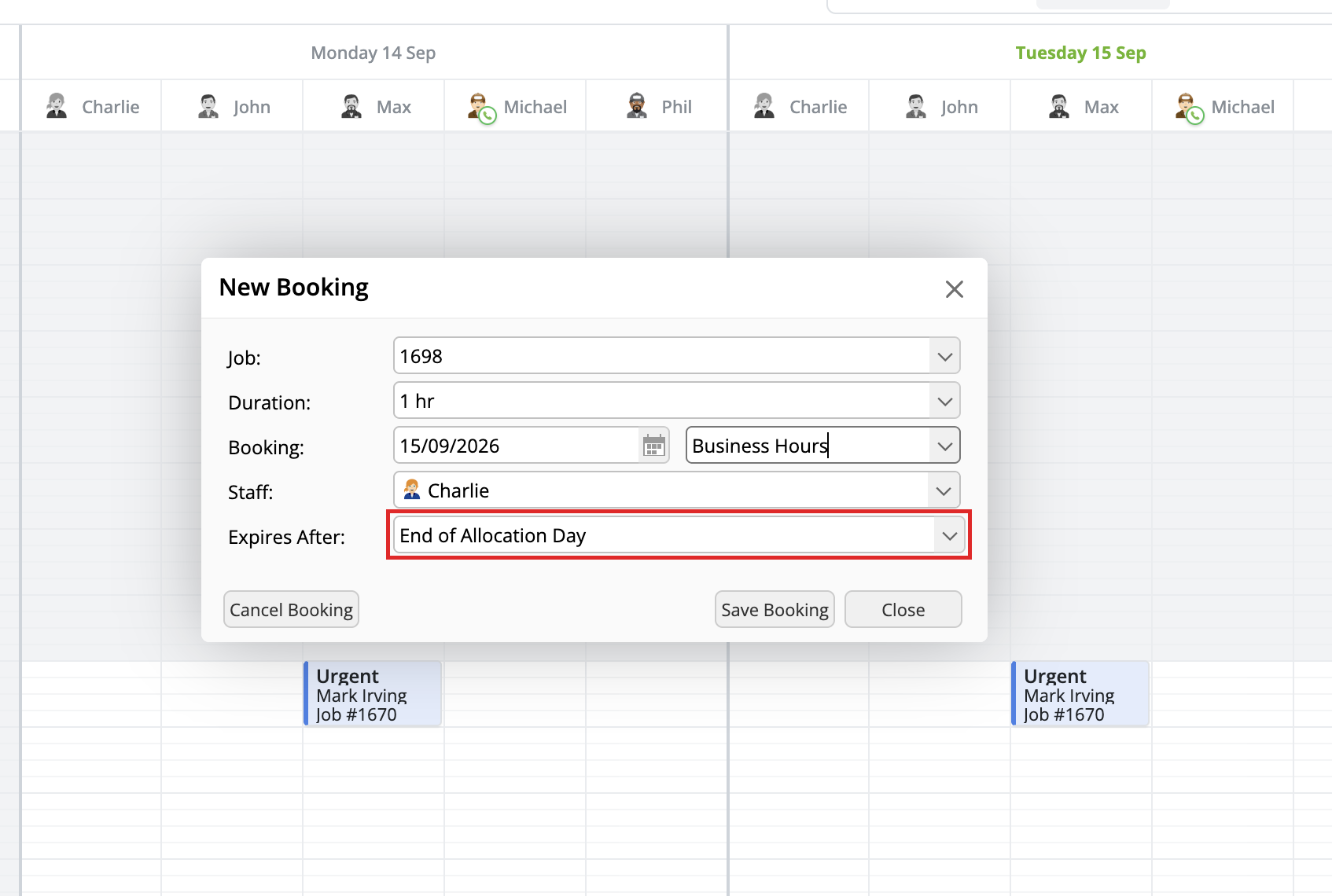
Drag a job onto a staff member’s icon: the allocation window’s Expires After field starts with your default.
-
Create a booking in Calendar or Staff Schedules: when you select an allocation window, Expires After starts with your default.
-
Drag a job directly into an allocation window on Staff Schedules: the default expiry is applied automatically.
Where Expires After is shown, you can choose a different expiry before saving the allocation.
Existing allocations
Changing the preference leaves existing allocations unchanged.
When you move an allocation to another date, booking window or staff member on the Dispatch Board, ServiceM8 uses the default to recalculate its expiry. You can choose another expiry in the booking editor before saving.
If the account default is No Expiry Date, rescheduling keeps the allocation’s existing expiry unless you choose another option.