

Automation
How to cancel scheduled automations
Learn how to cancel scheduled automations in ServiceM8.
Automatic client communications and tasks in ServiceM8, known as automations, cancel themselves if they are no longer relevant. For example, an automated quote follow-up will not send if a client accepts a quote, and an automated request for customer feedback will not send if the client has already submitted feedback.
However, if you want to cancel a scheduled automation for other reasons, or even disable an automation altogether, you can do so easily in the Online Dashboard.
- You can cancel an automation’s scheduled message/s on a “one off” basis, directly from a client’s job card.
- You can review all scheduled messages under an automation together, and cancel message/s on a “one off” basis.
- You can disable an entire automation permanently, if it doesn’t suit your needs.
- You can disable an automation for a specific client, permanently i.e. when an automation is not suitable for a few individual clients, but works well for all others.
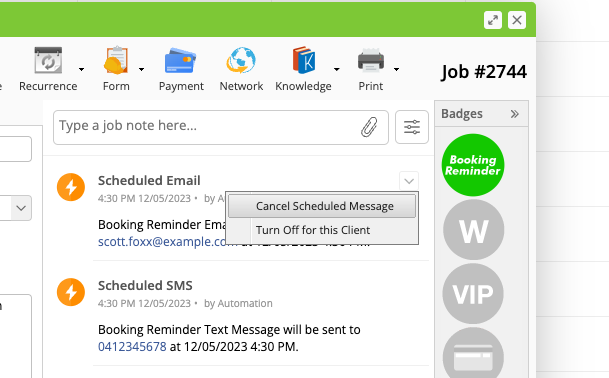
To cancel an automated message from the job card:
- Find the job and double-click to open the job card.
- In the job diary, hover your mouse over the automation so the down arrow appears, then click it.
- Click Cancel Scheduled Message**.**
To cancel an automation in Settings:
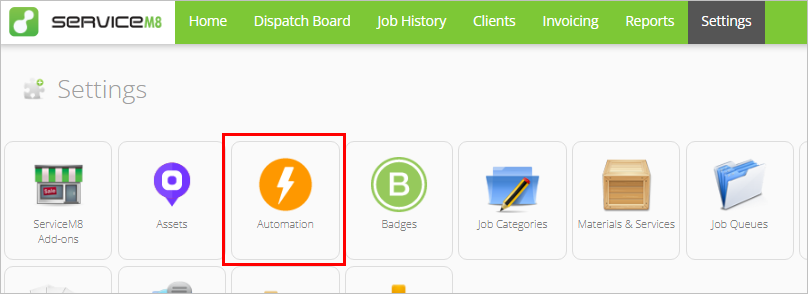
- Go to Settings > Automation.
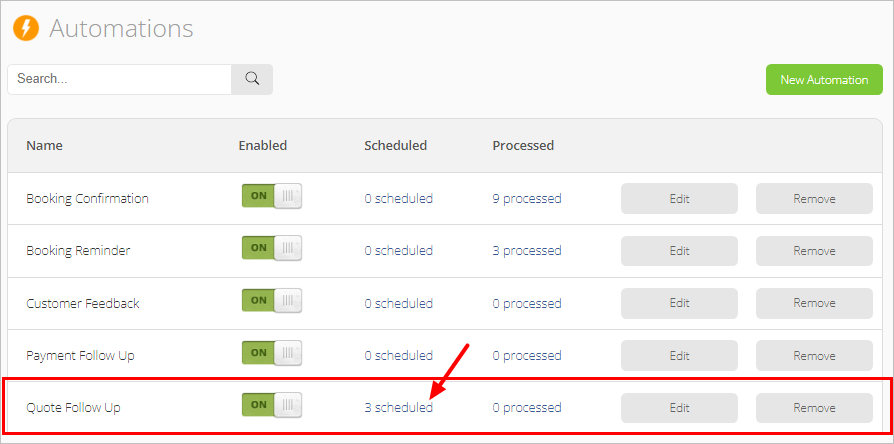
- Find the automation you want to cancel in the list and click # scheduled. (In the example below, there are 3 scheduled Quote Follow Up automations.)
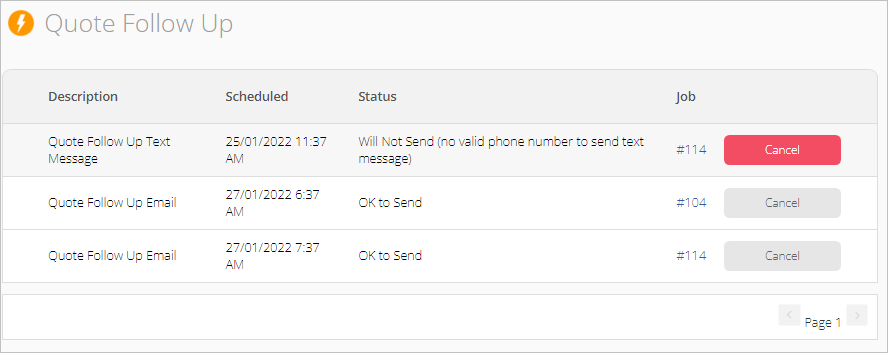
- Click Cancel next to any automations you don’t want to send. (Click the job number to open the job card if needed.)
To disable an automation entirely:
- Go to Settings > Automation.
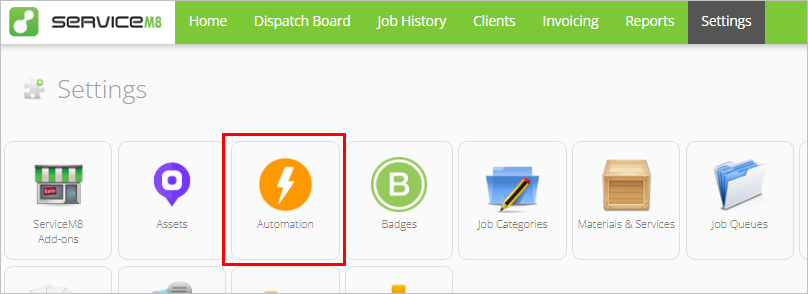
- Find the automation you want to disable for all clients, and switch it to OFF:

To turn off an automation for a specific client:
- Find a job for the relevant client, and double-click to open the job card.
- In the job diary, hover your mouse over a scheduled message of the specific type of automation you don’t want that client to receive in future, and click the drop-down arrow in the top-right corner.
- Click Turn Off for this Client**.**
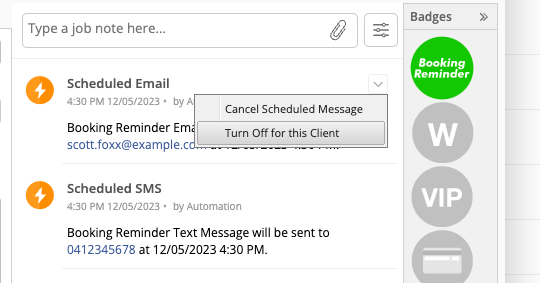
You can re-enable it again for the client at any point in future by finding the disabled automation in a job card for the client, clicking the same drop-down and selecting “Re-enable for this Client”.