

Email Integrations
How to setup a Custom SMTP Server
Learn how to setup a Custom SMTP Server in ServiceM8.
The Custom SMTP addon allows you to provide your own SMTP server details for ServiceM8 to use. Emails sent from ServiceM8 will be sent via your mail server.
To activate it you must login onto your account and follow this link - https://go.servicem8.com/help_me/ActivateCustomSmtpAddon
Once you have activated the custom SMTP add-on, you can configure its settings.
Here is how:
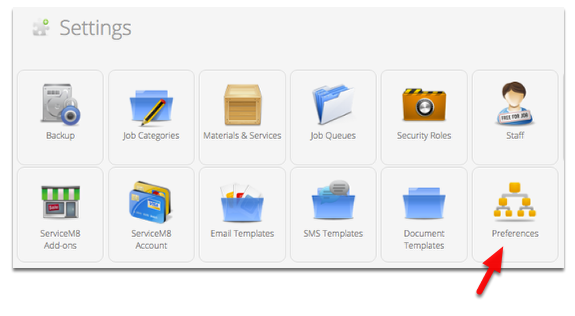
Go to Settings > click Preferences
Go to the Email Settings section
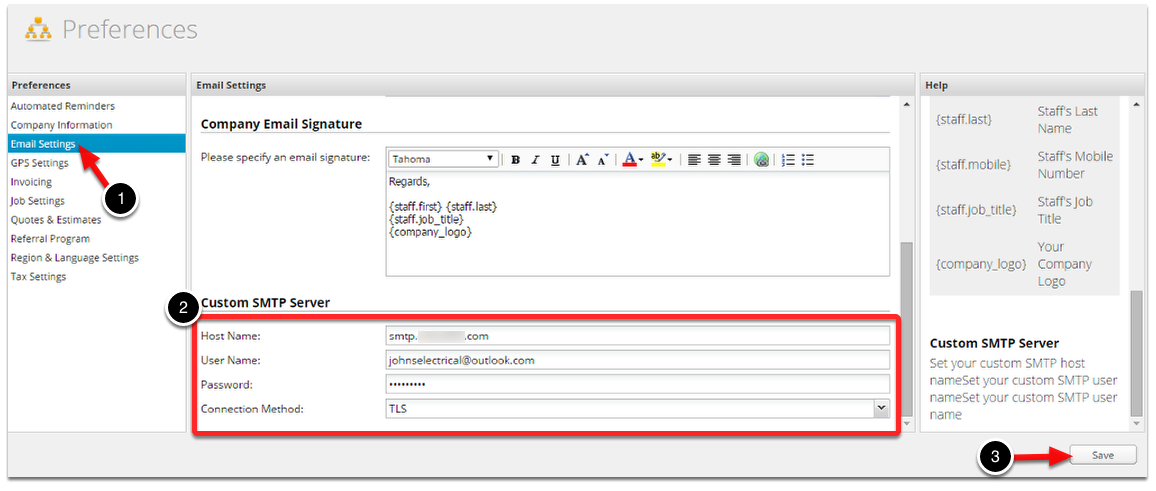
1. Click Email Settings
2. Enter the SMTP Server details. Below are the common email providers and their SMTP information.
- Outlook Settings
Host Name: smtp-mail.outlook.com
Username/Password
Connection Method: TLS
- Gmail Settings
Host Name: smtp.gmail.com
Username/Password
Connection Method: TLS
- BigPond Settings
Host Name: mail.bigpond.com
Username/Password
Connection Method: TLS
3. Once complete, click Save
**Note:
**• In Preferences > Email Settings — toggling Send emails from between ‘Company Email Address’ vs. ‘Individual Staff Members’ will have no effect when using your own SMTP server with this add-on — emails will be sent from whichever address is set in your Custom SMTP Server settings.
• If you enter invalid login details in your Custom SMTP Server settings, your email will continue to work but it will be delivered via ServiceM8’s normal email system rather than your SMTP server.