

ServiceM8 Pay
How to prepare for card surcharge changes in Australia
Learn how to prepare your ServiceM8 account for changes to card payment surcharges in Australia from 1 October 2026.
From 1 October 2026, Visa, Mastercard, American Express and eftpos are introducing no-surcharge rules for prepaid, debit and credit card payments in Australia.
What’s changing in ServiceM8
From 1 October 2026:
- ServiceM8 Pay Standard Domestic card processing fees will decrease across all ServiceM8 capped plans. Compare the rates before and from 1 October 2026 to see the reduction for your plan.
- ServiceM8 will stop adding card processing fee surcharges to card payments accepted through ServiceM8 Pay or the legacy Stripe Payments add-on.
- Your customers will no longer see or be charged a surcharge when they make these card payments through ServiceM8.
- You can continue accepting card payments through ServiceM8.
- Card processing fees will still apply, but you can no longer pass these fees on to your customers as a separate card surcharge.
You do not need to turn off card surcharging yourself. If you have not already turned it off, ServiceM8 will stop applying it automatically on 1 October 2026.
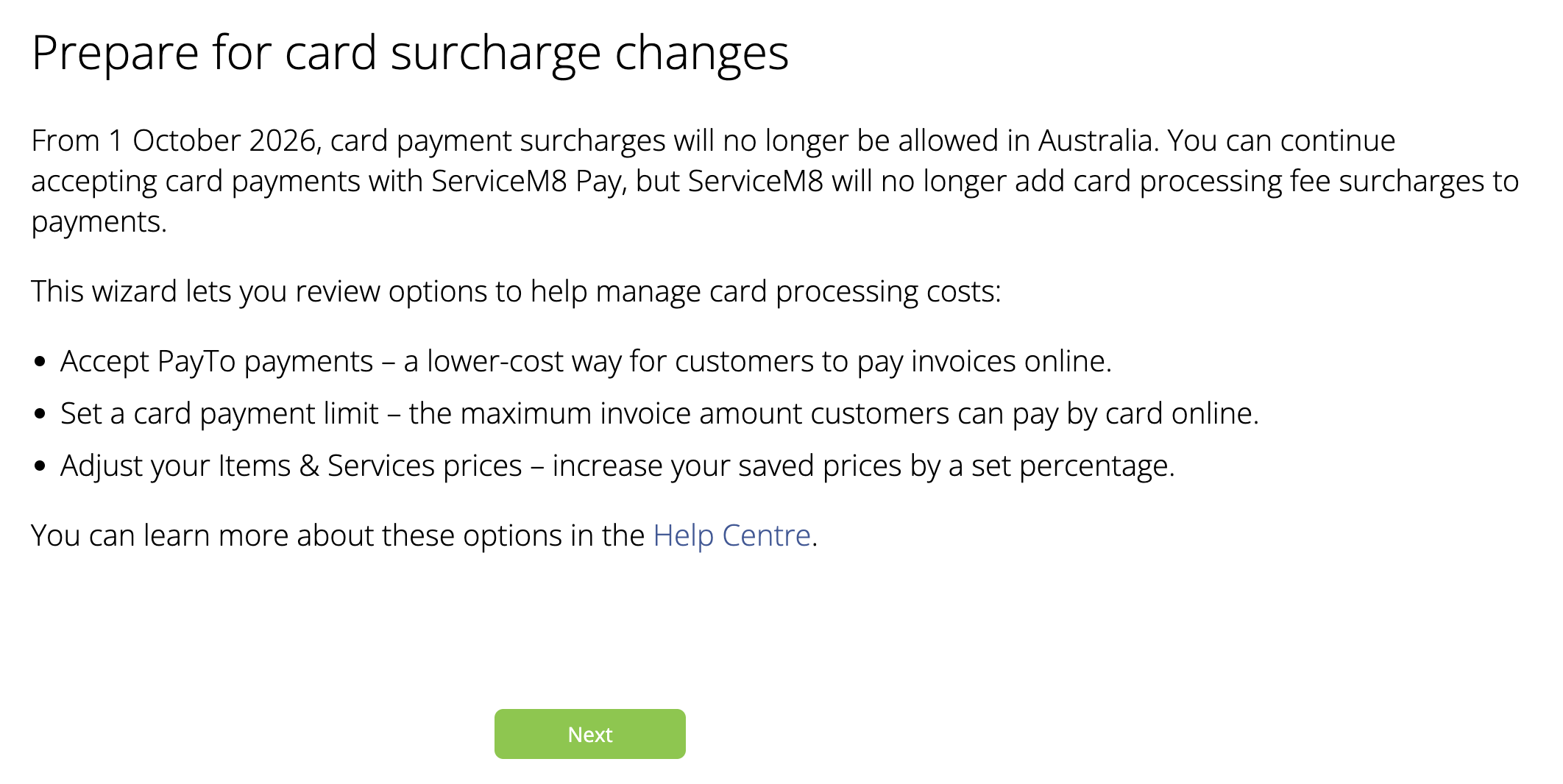
The preparation wizard is available only to eligible Australian businesses using ServiceM8 Pay. It helps you review lower-cost payment options, set a limit for online invoice card payments, and optionally increase saved Items & Services prices.
Businesses using the legacy Stripe Payments add-on are also covered by the surcharge change, but the preparation wizard is only available with ServiceM8 Pay.
The preparation wizard is being rolled out gradually to Australian ServiceM8 Pay accounts that currently have card surcharging enabled. Only staff with the Business Owner role can use the wizard. You must complete it in the Online Dashboard, not the ServiceM8 app.
Open the preparation wizard
- Sign in to the Online Dashboard as a Business Owner.
- Open the Home tab.
- Find the Card payment surcharges end on 1 October 2026 notice.
- Click Review Options.
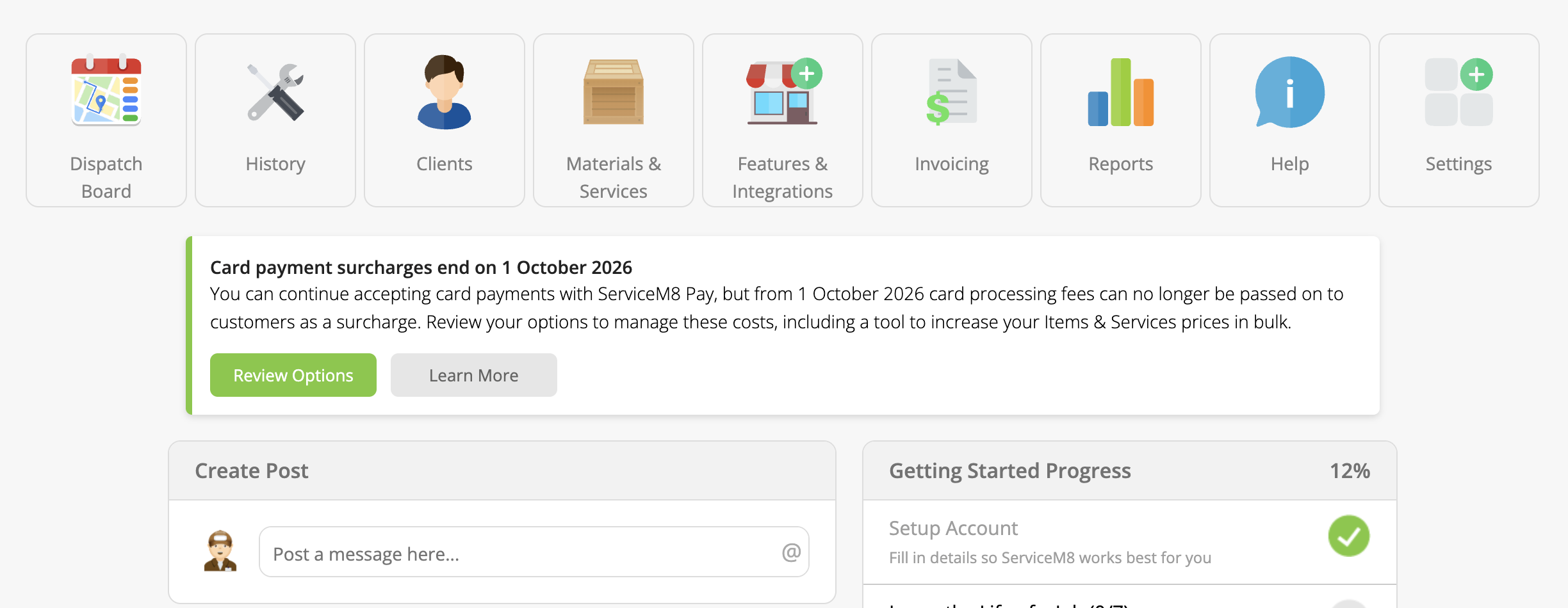
The wizard has four steps: Start, Payment Options, Price Increase and Finish.
Review the options on the first page, then click Next.
Review online payment options
PayTo gives your customers a lower-cost way to pay online invoices directly from their bank account. They enter their mobile number or bank details and approve the payment in their banking app.
Select Accept PayTo payments if you want to offer PayTo.
PayTo is available in Australia only with ServiceM8 Pay. It has its own processing fee, and ServiceM8 does not support passing this fee on as a surcharge. See How to use PayTo with ServiceM8 Pay.
On the same page, choose the maximum amount owing that your customers can pay by card from an online invoice:
- Always
- Up to $500
- Up to $1,000
- Up to $2,000
- Up to $5,000
- Up to $10,000
- Up to $25,000
- Up to $50,000
If the amount owing is above your selected limit, the card payment option is hidden. An amount exactly equal to the limit can still be paid by card. Select your preferred limit, then click Next.
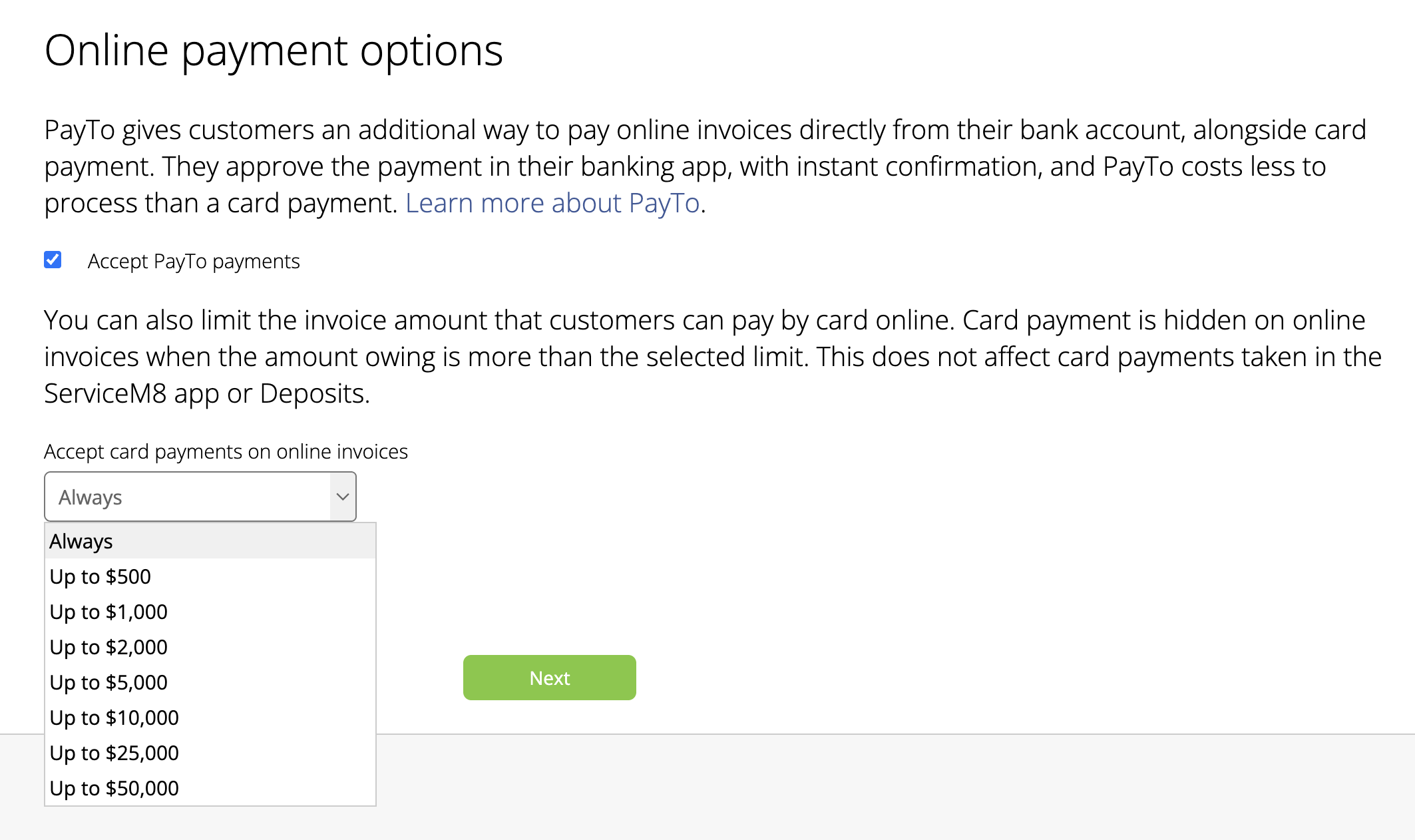
The card limit applies only to online invoice payments. It does not affect Deposits, Proposals, payments taken through the ServiceM8 app, Scan & Pay, Tap to Pay, or automatic payments. If PayTo is enabled and the payment is eligible for PayTo, it remains available when the amount owing is above the card limit.
You can change this setting later under Settings > Preferences > Invoicing > Card Payments.
Choose whether to increase your prices
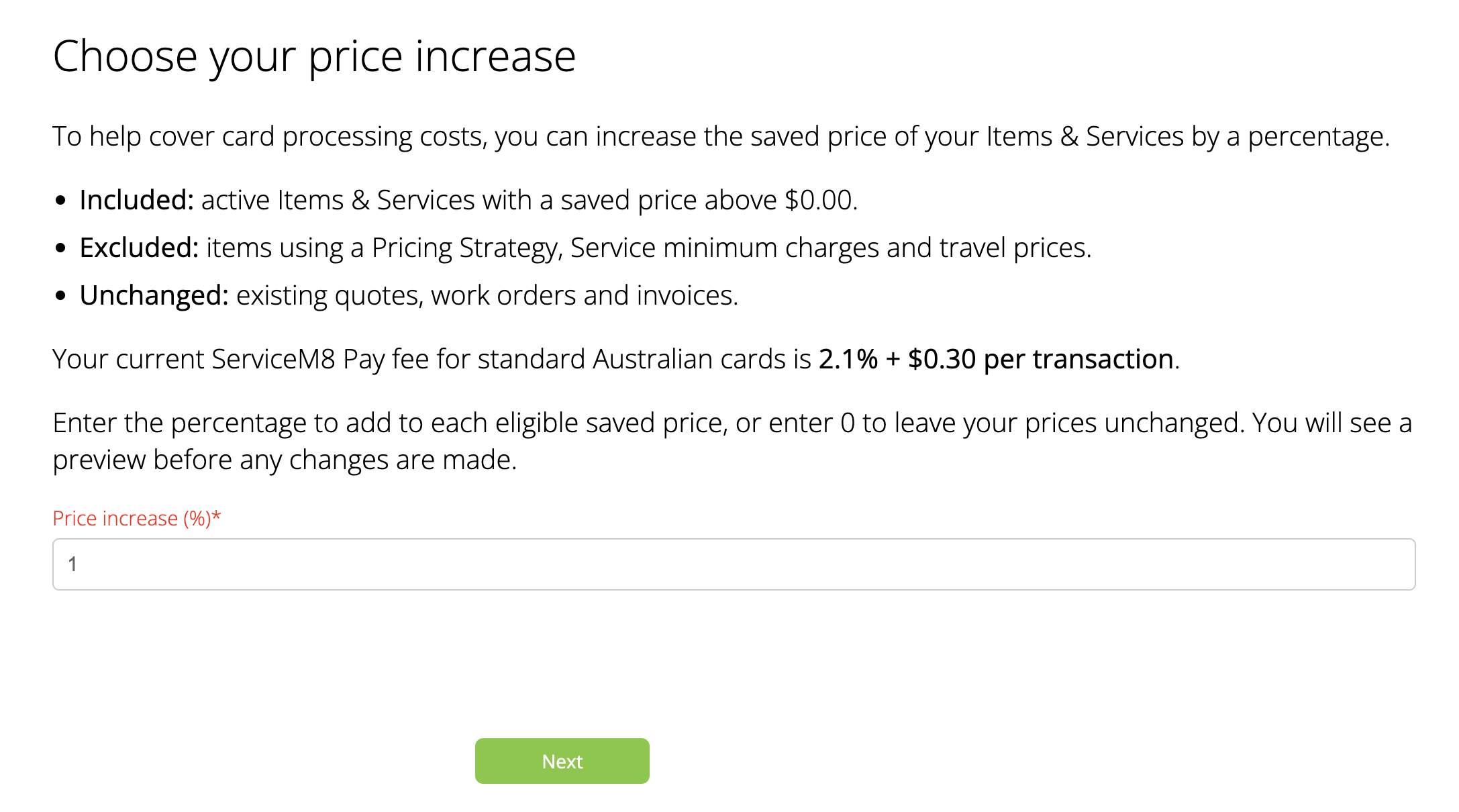
The wizard can apply the same percentage increase to eligible saved Items & Services prices. Your current standard card processing fee is shown to help you review the increase, but you decide whether to change your prices and what percentage to use.
The bulk price increase applies to:
- active Items & Services with a saved price above $0
The bulk price increase does not apply to:
- inactive Items & Services or saved prices of $0 or less
- items using a Pricing Strategy
- Service minimum charges or travel prices
- existing quotes, work orders or invoices
Enter the percentage you want to add to each eligible saved price. Enter 0 if you do not want to change your Items & Services prices, then click Next.
Confirm the price increase
If you entered a percentage above 0, the wizard shows:
- the number of eligible Items & Services that will be updated
- a preview of up to eight of your most-used eligible items
- the Item Number, Name, Current Price and New Price for each previewed item
Review the affected total and price examples. No saved prices are changed until you click Finish.
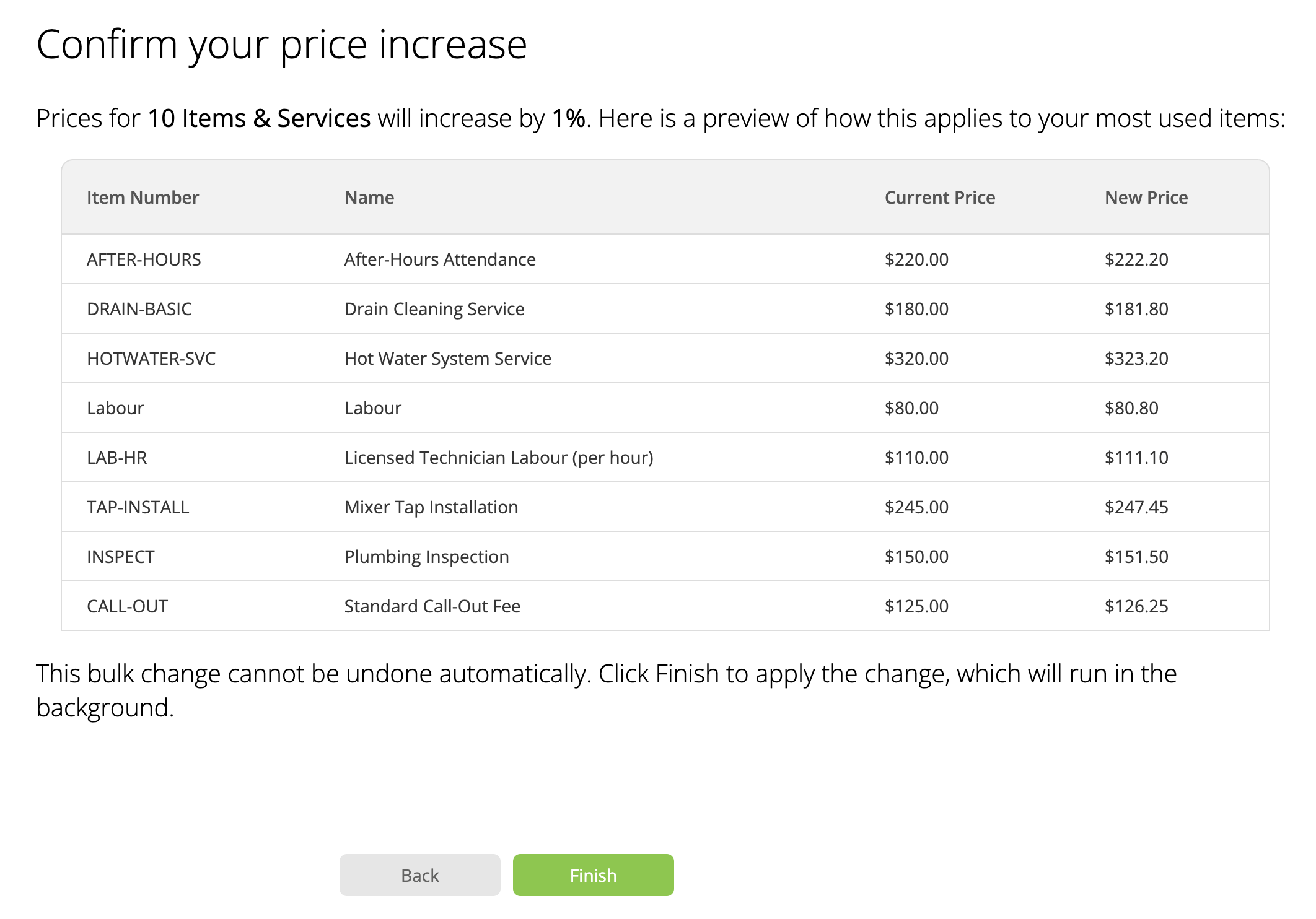
Click Finish to apply the price increase. The update runs in the background, so it may take some time for every eligible price to change.
If you entered 0, click Finish to complete the wizard without changing your prices.