ServiceM8 Phone
How to customise hold music on ServiceM8 Phone
Learn how to customise hold music on ServiceM8 Phone in ServiceM8.
ServiceM8 Phone plays default music for your clients when they are on hold. However, if you would prefer, you can replace the default hold music with your own uploaded audio file.
Audio files uploaded as hold music must be:
- In either .WAV or .MP3 format, and
- No larger than 20 MB.
Note that it takes 24 - 48 hours for the new audio file to take effect in your ServiceM8 Phone account.
To customise ServiceM8 Phone hold music:
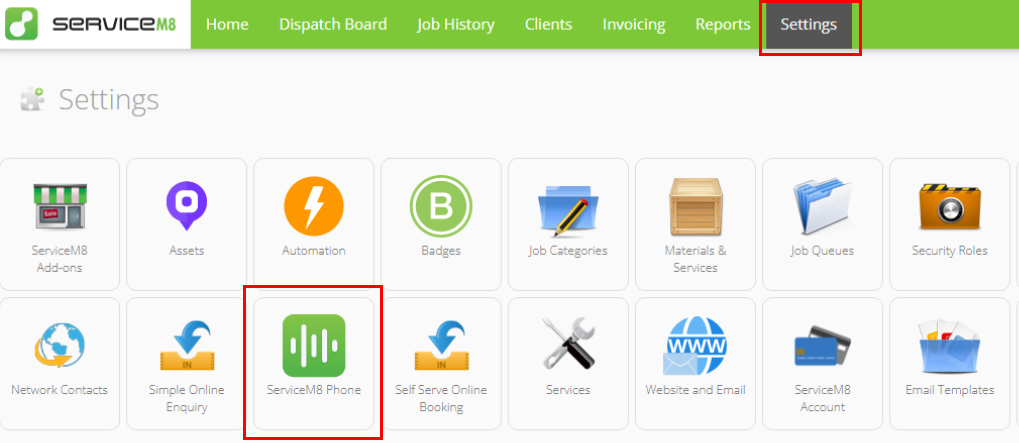
- From the Online Dashboard, go to Settings > ServiceM8 Phone.
- Click Advanced Settings (at bottom of page).

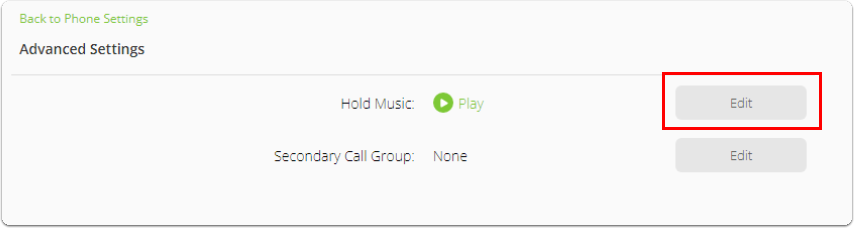
- Next to Hold Music, click Edit.
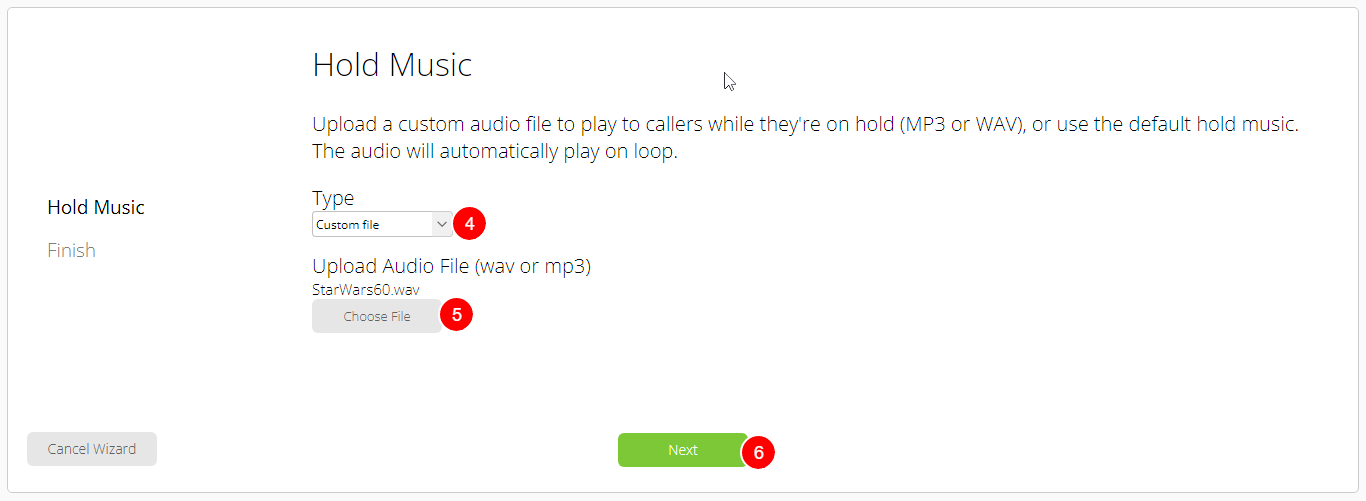
- The Hold Music wizard will open. Under type, select Custom File.
- Click Choose File and select the .WAV or .MP3 file from your computer. (The file name will appear above Choose File once selected.)
- Click Next. It may take a minute to process. The wizard will automatically close once the new audio file has been uploaded.
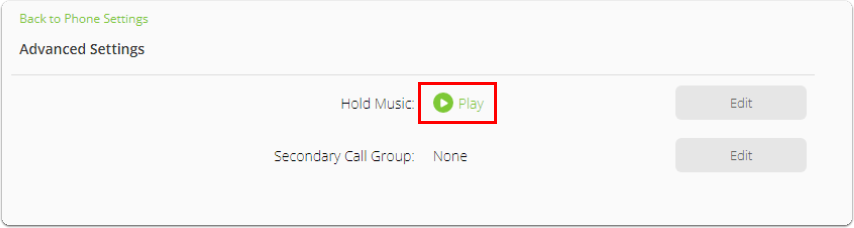
- To listen to your new audio file that customers will hear on hold, click Play. It will be live in your ServiceM8 Phone account within 24 - 48 hours.