

Stripe
How to reconcile Stripe fees in your accounting package
Learn how to reconcile Stripe fees in your accounting package in ServiceM8.
This article provides tips on how ServiceM8 can help to reconcile Stripe transaction fees in your accounting package. Please consult your accountant/bookkeeper for advice on how to apply this information to your business.
When you process payments via Stripe, transactions fees are deducted from the total amount before Stripe transfers the money into your bank account. This can make it hard to reconcile your bank statement, because the amount that the customer paid to you will not match the amount that Stripe deposits into your bank account.
ServiceM8 can help ease bank reconciliation by using a Clearing Account for Stripe transactions. The Clearing Account is an account set up in your Accounting Package which represents the amount that Stripe owes you. When you process a payment using Stripe, the balance of the Clearing Account will increase. When Stripe pays money into your Bank Account, the balance of the Clearing Account will decrease.
Here’s how it works:
- All Stripe payments processed by ServiceM8 will be posted to your Stripe Clearing Account.
- Transaction fees will be automatically created as Bills and paid from this account.
- When Stripe transfers funds to you, ServiceM8 will create a transaction in your accounting package to move the correct amount from your Stripe Clearing Account to your Bank Account
- You can easily match the transaction with the Stripe deposit, simplifying reconciliation in your Accounting Package
Note: this feature is currently supported for Xero and QuickBooks Online only.
Setting up Stripe Reconciliation
- Go to the Settings menu
- Click Preferences
- Click Invoicing
- In the “Stripe Transactions” section, click the “Update Settings” button.

This starts a wizard to configure your settings.
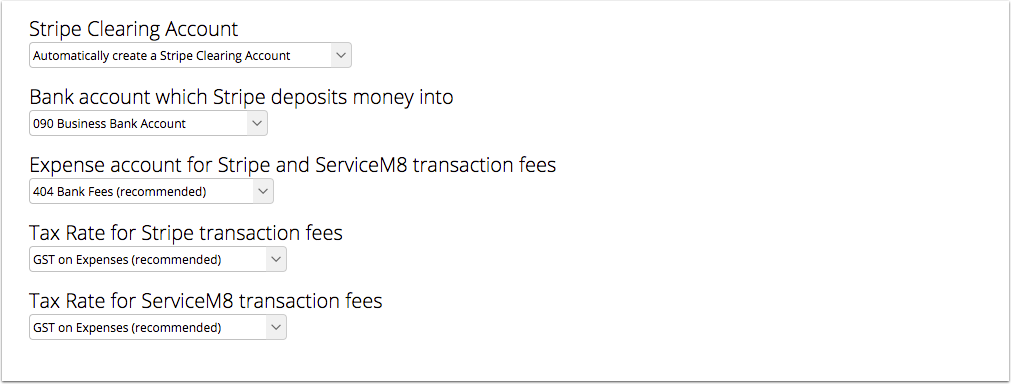
Stripe Clearing Account: This is the account in your accounting package where Stripe transactions will be recorded. See the next section for details.
Bank Account: The bank account in which Stripe deposits money when they pay you
Expense Account: The account which will record transaction fees
Tax Rate: The Tax Rate applied to Stripe and ServiceM8 transaction fees. (Note: in Australia, fees from Banking institutions are normally GST-free, however both Stripe and ServiceM8 fees include GST.)
Once you have configured your settings, click Next.
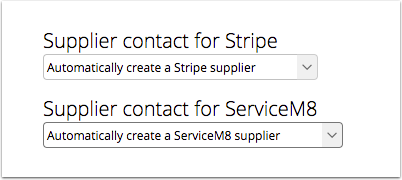
Because ServiceM8 will be creating Bills/Expenses in your Accounting Package, these need to be associated with a Supplier. If you have already set up Stripe and/or ServiceM8 contacts in your Accounting Pacakge, you can select them here. Otherwise, ServiceM8 can create them for you.
Click Next once you have configured your supplier settings.

The wizard is now complete, and ServiceM8 will use your configured settings to make reconciliation of Stripe transactions simple.
Creating a Clearing Account
The process to create a clearing account depends on your accounting package.
Xero
ServiceM8 can automatically create a Clearing Account during the setup process. If you would like to set up your own clearing account instead, you will need to create a Current Asset account with the “Enable Payments to this Account” option turned on.
QuickBooks Online
You will need to create a Bank account in QuickBooks Online to use as your Clearing Account. Do not use an existing Bank Account which you receive bank statements for — you need to have a separate account for Stripe transactions. To create an account:
- Go to the Transactions menu
- Choose Chart of Accounts.
- Click New
- Select Bank for the Account Type, and select any Detail Type.
- Choose a name, for example “Stripe Clearing Account”.
- Click Save and Close.
Disclaimer
ServiceM8 cannot provide accounting advice specifically for your business. However, this article describes the features implemented by ServiceM8 which can help make the reconciliation process easier in your accounting package.