

Forms
How to create Form questions and add the fields into a document template
Learn how to create Form questions and add the fields into a document template in ServiceM8.
This lesson will show you how to create a simple form with questions that will appear on the generated form. Please note this is for advanced users only, if you’re not comfortable with MS Word, you can get in contact with a ServiceM8 Partner to discuss having a form built to your requirements. You can find a list of Partners here: https://servicem8.com/partner-directory
Go to Settings > Forms > Add Form, and enter the Form Details
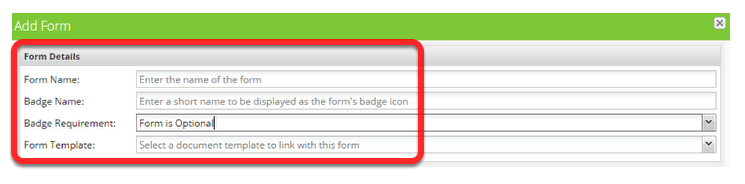
Form Name: Enter the name of the form.
Badge Name: Is what the badge will be called that links to this job. All forms have an associated Badge. Applying the form’s badge to a job is how you tell your staff that the form needs to be completed.
Badge Requirement: Set form as mandatory or optional. For mandatory form, you can choose whether the form must be completed on check-in or on check-out.
Form Template: This is the document template that the answers will be populated into. This can be set up now, or you can link the document template in at a later time.
Create questions and details
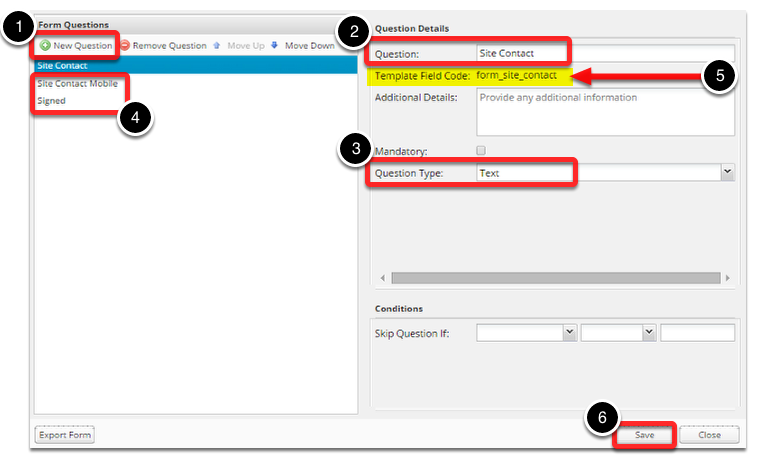
1. Click New Question
2. Enter the question name
3. In this exercise, select Text as question type
4. Repeat adding a question for the following fields:
- Question: Site Contact Mobile
Question Type: Text
- Question: Signed
Question Type: Signature
5. Take note the form’s Template Field Codes generated for each question
- “form_site_contact”
- “form_site_contact_mobile”
- “image_form_signed”
6. Once finished click Save
Note: Only use letters and numbers in your form questions. Including symbols such as ” / \ ( ) #& - : ’ ” in your Question names may cause problems when ServiceM8 generates the completed form PDF.
Using MS Word, open the document template that you want to link with the form
Position the field name where you want it and select it. Then click Insert > Quick Parts > Field
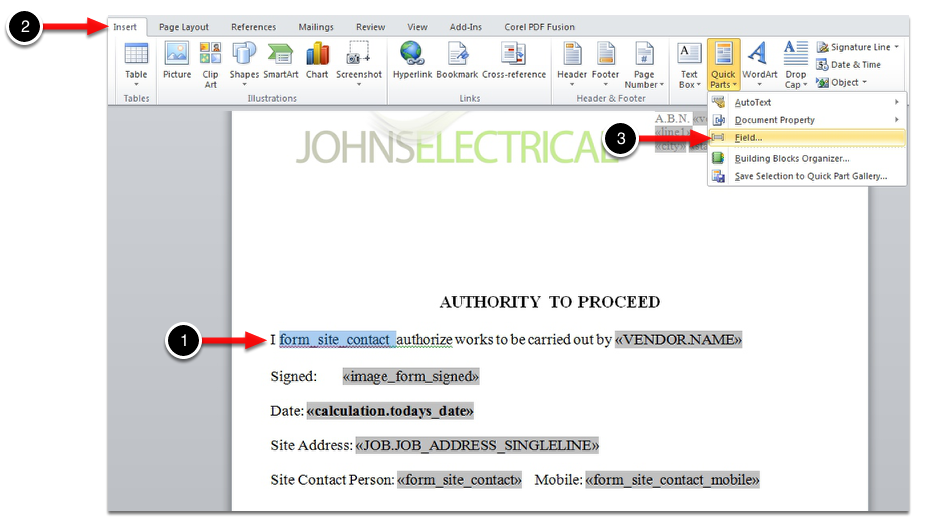
Select MergeField, enter the Field Name which is the form’s “Template Field Code” (highlighted previously). Click OK
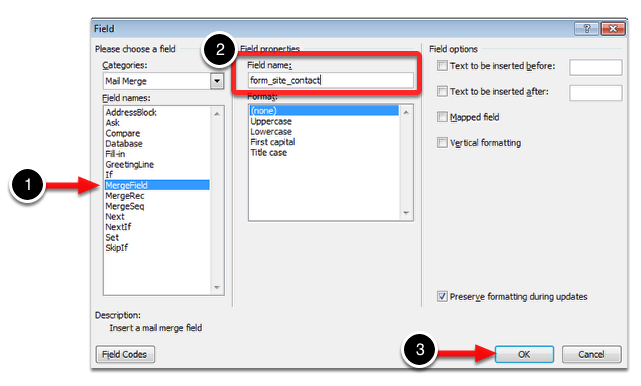
If you’re using a Mac, please refer to How to create a merge field on Mac
Once done that, it should have changed the field name into this.
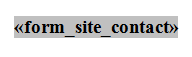
Repeat the same process for the remaining form’s template field codes and save the document template.
Link your document template to the form
Please refer to Forms - How to link the Contract Variation form to the Contract Variation document template
You can also watch the complete video tutorial that explains about creating a form from MAC and PC computers, click here.