Add-ons FAQ
How to use ServiceM8 Chat
Learn how to use ServiceM8 Chat in ServiceM8.
ServiceM8 Chat is your voice-activated assistant, capable of actioning tasks, analysing huge amounts of job information, and giving you answers in seconds.
You can ask ServiceM8 Chat to tell you about the job you’re checked in to, what materials are required, or to provide a summary of communication with the client. You can tell it to add items to an invoice. You can also dictate a job note, mention another staff member, initiate texts and calls to job contacts, and more. It can even help you with ServiceM8 in general.
To try out ServiceM8 Chat, check into a job, then say “Hey Siri, start ServiceM8 Chat”.
Requirements
The following settings and app permissions are needed to use ServiceM8 Chat:
- Siri (Settings > Siri & Search > Ask Siri)
- Speech recognition (Settings > ServiceM8 > Speech Recognition)
- Microphone (Settings > ServiceM8 > Microphone)
- Use with Ask Siri (Settings > ServiceM8 > Siri & Search > Use with Ask Siri)
How to start a chat
You need to be checked into a job to start a chat. This is because ServiceM8 Chat is job-specific — ServiceM8 can only provide information and action tasks for the job you’re checked in to.
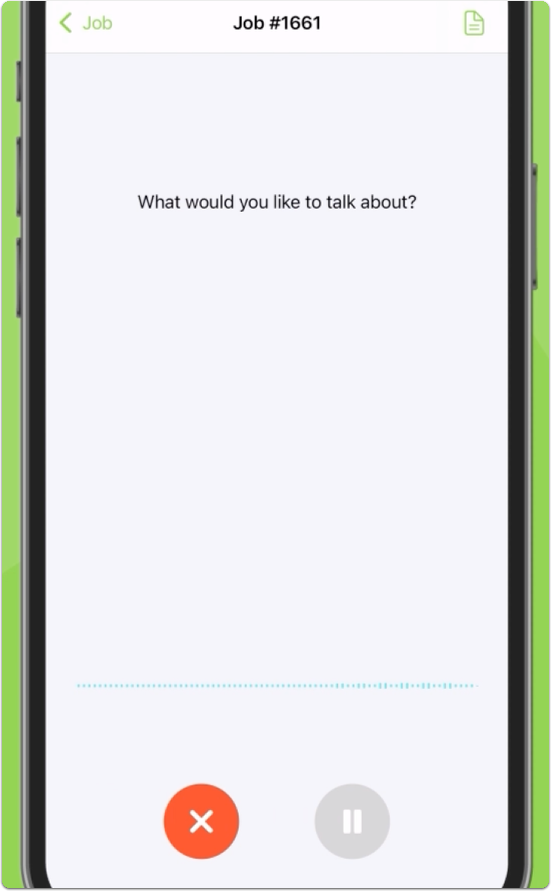
To try out ServiceM8 Chat, check into a job then say, Hey Siri, Start ServiceM8 Chat. This will open the job you’re checked in to in the ServiceM8 app, and start a chat:

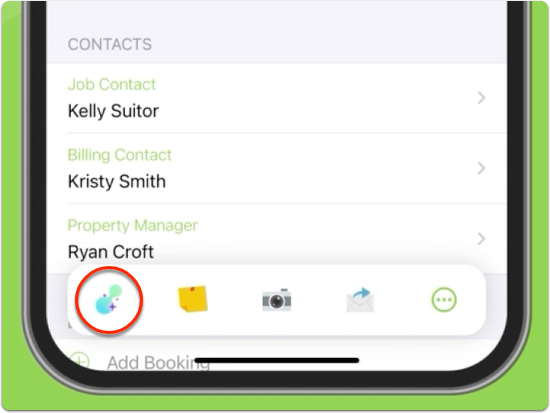
You can also use the new job action for ServiceM8 Chat (TIP: you may need to tap the three dots to open the full Job Actions menu, and ‘Edit Actions’ to add it):

What you can do with ServiceM8 Chat
Ask ServiceM8 to tell you about the job, for example:
- Tell me about this job
- What materials do I need?
- What badges are on this job?
- Summarize all correspondence with the customer
- Has the customer asked for anything I should know about?
You can ask ServiceM8 specific questions about the following types of information in a job:
- Job Description
- Notes
- Email & SMS correspondence
- Badges
- Work Completed
- Materials/Services added to the job
You can ask ServiceM8 to action the following types of job actions:
- Add items (letting you build an invoice as you talk)
- Add a job note
- Add a job note which includes a tag/mention of another staff member
- Email a saved email template to the Job Contact, Billing Contact or Property Manager
- Send any of your SMS templates to the Job Contact, Billing Contact or Property Manager
- Check out of the job
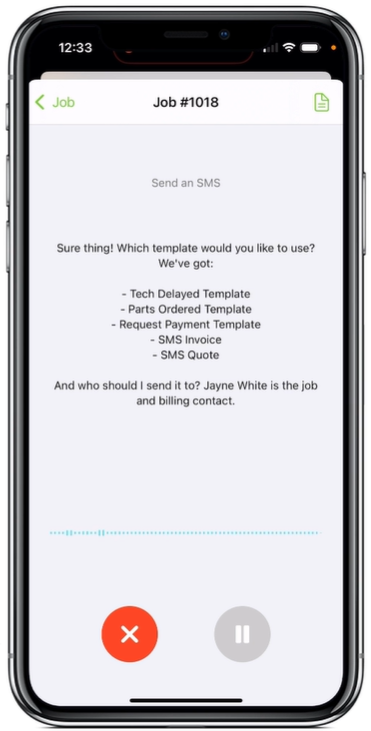

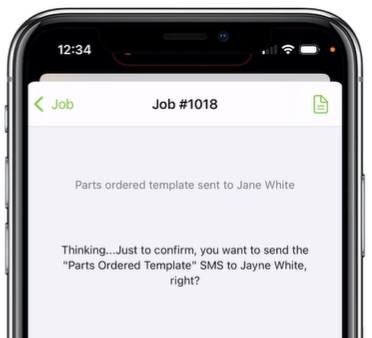
If you ask ServiceM8 Chat to do something that can’t be undone, such as sending an SMS to a client, it will ask for confirmation before proceeding.

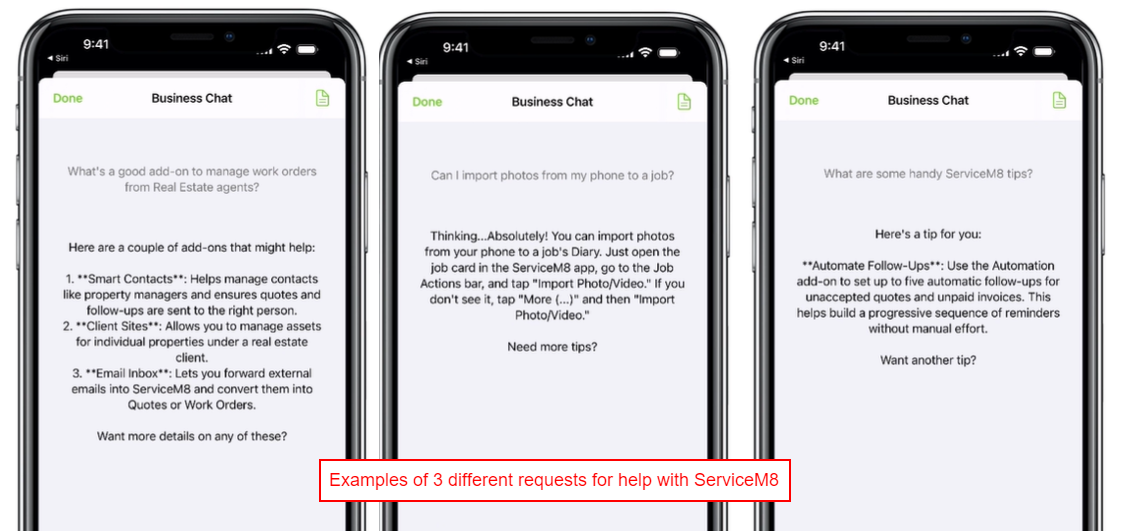
You can also ask ServiceM8 Chat to help you get the most out of ServiceM8 itself! Ask it for help with your workflows within ServiceM8, or how to accomplish specific tasks, and it will provide helpful tips and tricks.

Ending the chat
To end the chat, tap X or verbally tell ServiceM8 Chat to end the chat**.** (For example, when ServiceM8 asks, “Need more tips?”, reply with “No thanks, end chat.”)