

Job Allocations
How the 'Business Hours' allocation shortcut works
Learn about how the 'Business Hours' allocation shortcut works in ServiceM8.
Allocating jobs to staff to complete during ‘Business Hours’ is one of the most common uses of the Job Allocations Add-on, which is why there’s a dedicated shortcut for this workflow in the Online Dashboard — with a single click, you can drag a job from the jobs list (or job bubble), and drop it onto a staff member as a ‘Business Hours’ allocation. Here’s how:
Create a ‘Business Hours’ allocation window
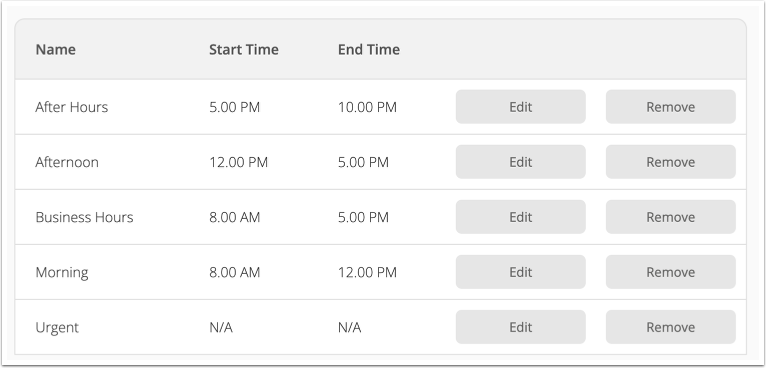
In Settings > Allocation Windows, ensure you have an allocation window which includes the exact words ‘Business Hours’, and review the window’s Start & End Times.
Show allocated jobs in Staff Schedules
In Settings > Preferences > Job Allocations, set ‘Show allocated jobs in Staff Schedules’ to Yes. This way, these allocated jobs will display alongside fixed-time bookings in the Staff Schedules view of the Dispatch Board.

Drag-and-drop jobs onto the shortcut box
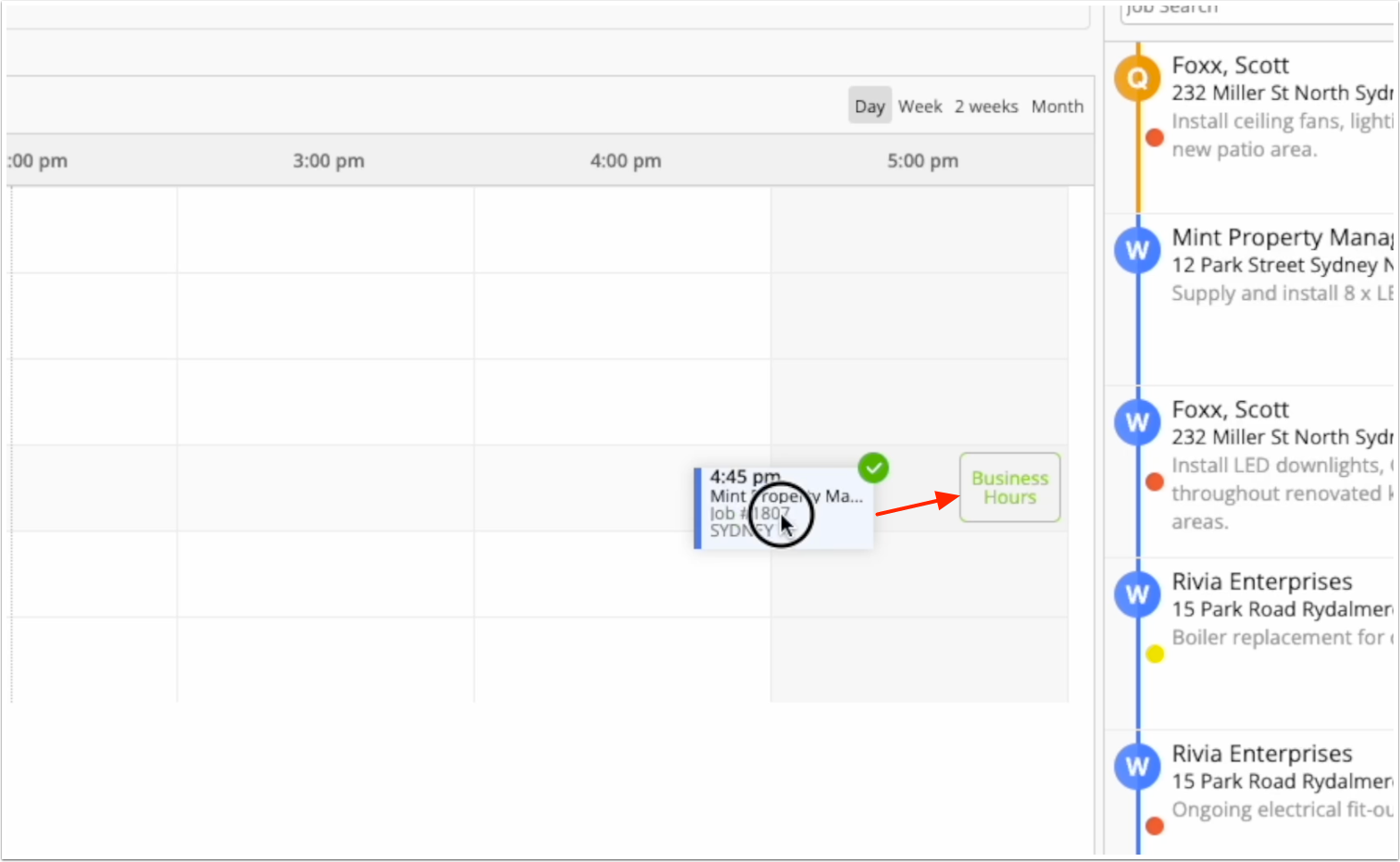
To allocate jobs to staff in your ‘Business Hours’ allocation window, simply click and drag a job, hover over the relevant staff row in the Staff Schedules tab, and drop it onto the ‘Business Hours’ shortcut box.
Note:
- These allocated jobs will show on the Staff Schedule, just like fixed-time bookings, giving you the full picture of a tech’s schedule & capacity.
- Allocated jobs automatically stack and shuffle around fixed-time bookings on the Staff Schedule, to keep themselves visible.
- You can drag allocated jobs left and right on the Staff Schedule, to prioritize a staff member’s schedule, which will update the display order in the app.