Proposals
How to create and use Proposal templates
Learn how to create and use Proposal templates in ServiceM8.
To speed up your workflows and ensure consistency, you can create and save custom templates to use as starting points when creating new Proposals. You can add standard gallery items, preset instructions for the Smart Writing Helper, develop standard optional extras - there are all sorts of ways you can design templates for your most popular types of jobs. You can even monitor your success rate by template, and do more of what you do best!
- How to create a template
- Use current prices in the Online Dashboard
- Add smart writing prompts to your template
- Monitor your template win rates
NOTE: Templates can only be created and saved using the Online Dashboard. However, you can start a Proposal from a saved template, in both the Online Dashboard and the ServiceM8 app.
How to create and use a template
- From the job card, click Proposal.
- You can either create a template from scratch, or you can create a template from an existing Proposal.
- To create a template from scratch:
- Click ⋮ next to Blank Proposal.
- Click Create Template.
- To create a template from an existing Proposal:
- Click ⋮ next to the Proposal’s name.
- Click Save As Template.
- To create a template from scratch:
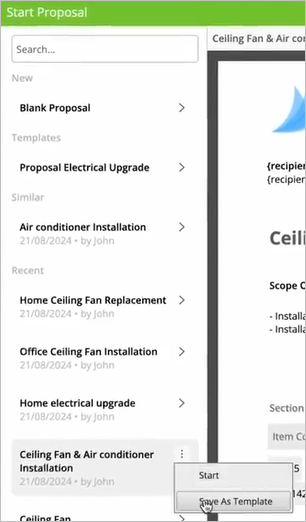

- A new Proposal Template will open. Customize the sections as needed, then click Save.
- Next time you create a Proposal, the template will be available to select from the Start Proposal window both on the Online Dashboard and in the ServiceM8 app.
Use current prices in the Online Dashboard
By default, templates use the prices saved with them. You can choose to use current catalogue prices instead. This setting applies to both Job Templates and Proposal Templates across your account.
-
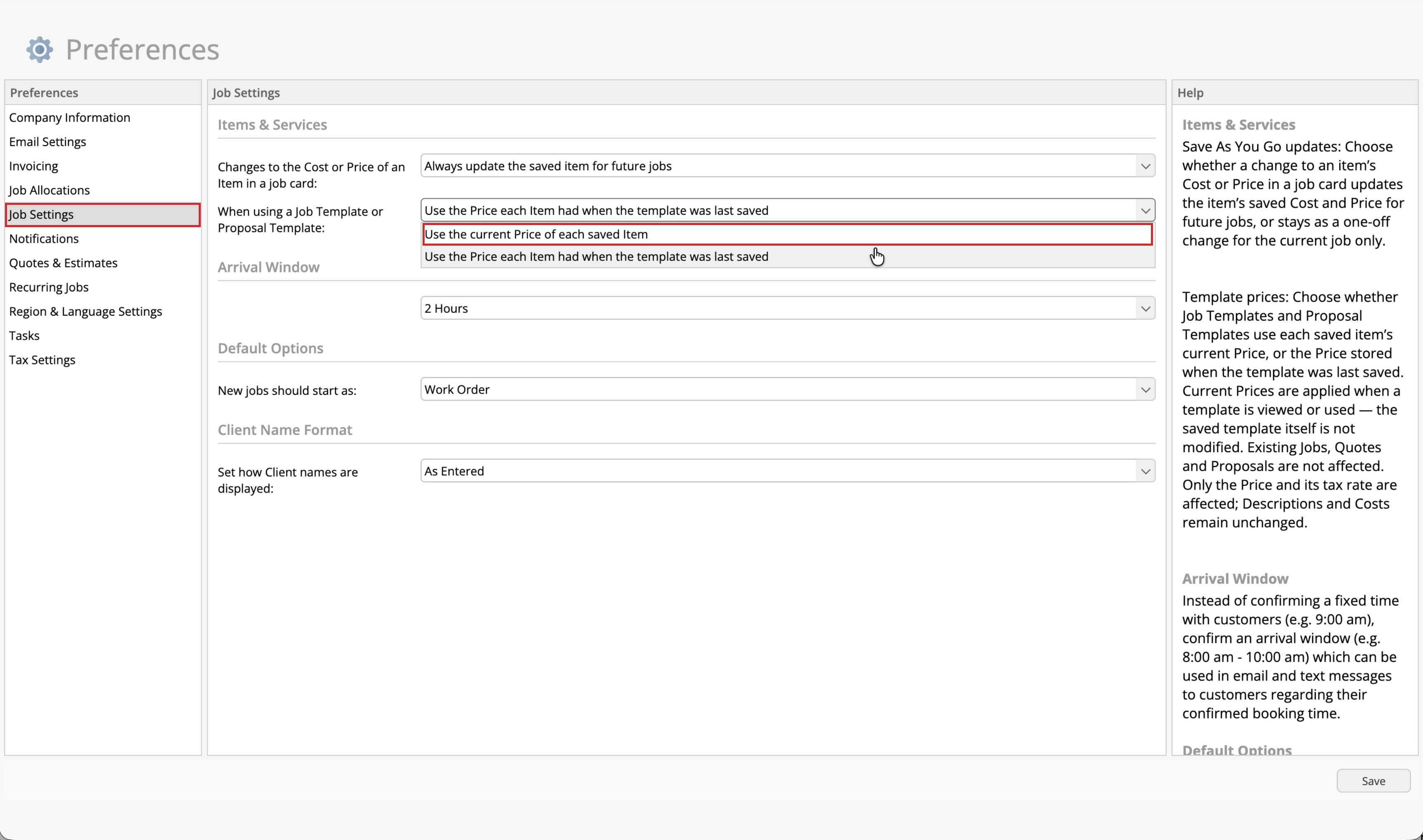
In the Online Dashboard, go to Account > Settings > Preferences > Job Settings. Under When using a Job Template or Proposal Template, select Use the current Price of each saved Item.
-
Click Save.
-
Open the Job card, click Proposal, then select your saved template in Start Proposal. Its matching items use their current catalogue prices.
Prices and tax rates refresh when a template is viewed or used. Costs and descriptions remain as saved. Current prices also replace custom template prices for matching catalogue items.
Changing this setting does not rewrite your stored templates or automatically update existing Jobs, Quotes or Proposals.
Add Smart Writing Helper prompts to your template
You can use the Smart Writing Helper to save time and auto-generate exactly the right content, customised to every job.
- When creating a template, add clear, instructional prompts to your template text sections.
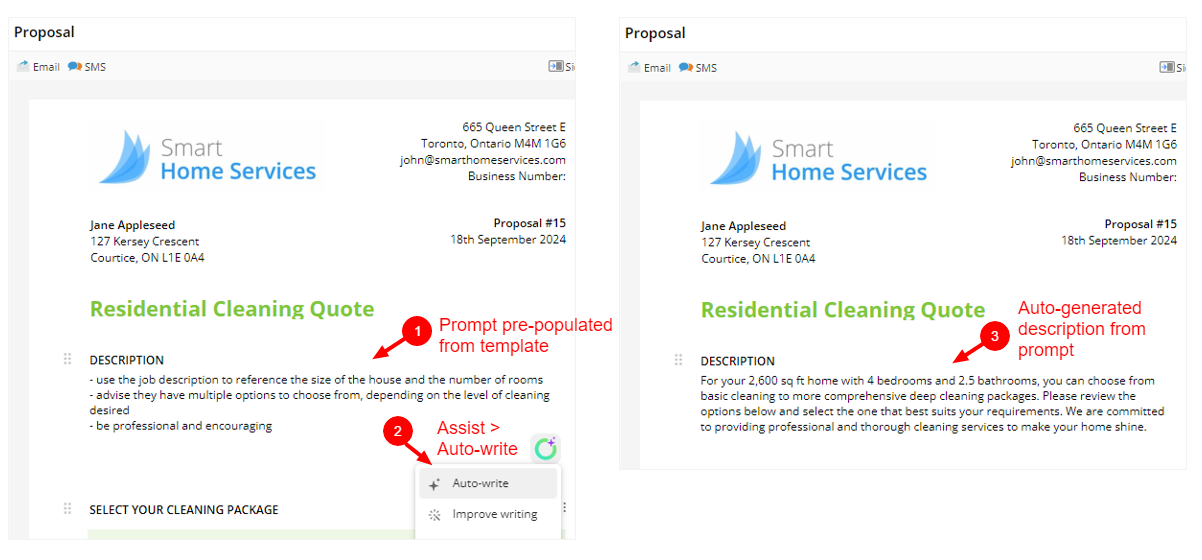
- When you use the template to create a new Proposal, simply click the Smart Writing Helper assist icon, and Auto-Write, then let your Smart Writing Helper do the work for you.
In the example below, the image on the left shows the pre-populated prompt in the Description section of the template, while the image on the right shows the text generated for the specific job.

Monitor your template success rates
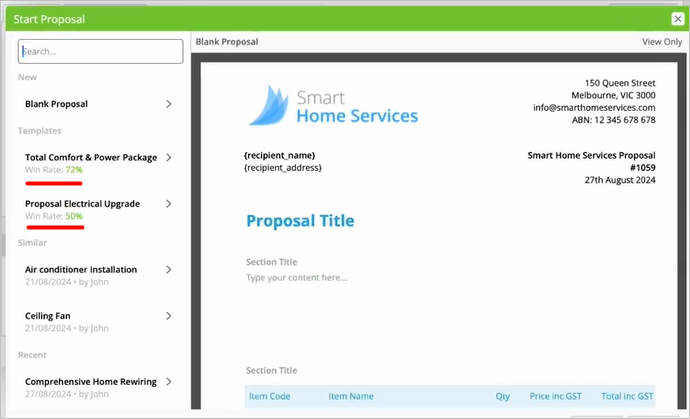
Once you’ve used a template a few times, it will display a success rate based on how often clients accept Proposals generated from that template. Success rates are an easy way to experiment and identify which templates resonate with clients, and which templates don’t.
Use this data to refine and optimise your Proposals by focusing on the templates with higher win rates, and incorporating successful elements - such as designs, photos, the way you present the value and price of items and services, or wording - into other templates to boost their effectiveness. It’s good to experiment!