

Office Agent
How to use Office Agent chat
Ask about your work, create reports and review prepared actions in the Online Dashboard.
Office Agent opens beside your work in the Online Dashboard. It can use the open Job card as context while you continue working.
Office Agent must be active on your account. Available information and actions follow your staff permissions and active add-ons.
Open Office Agent chat
-
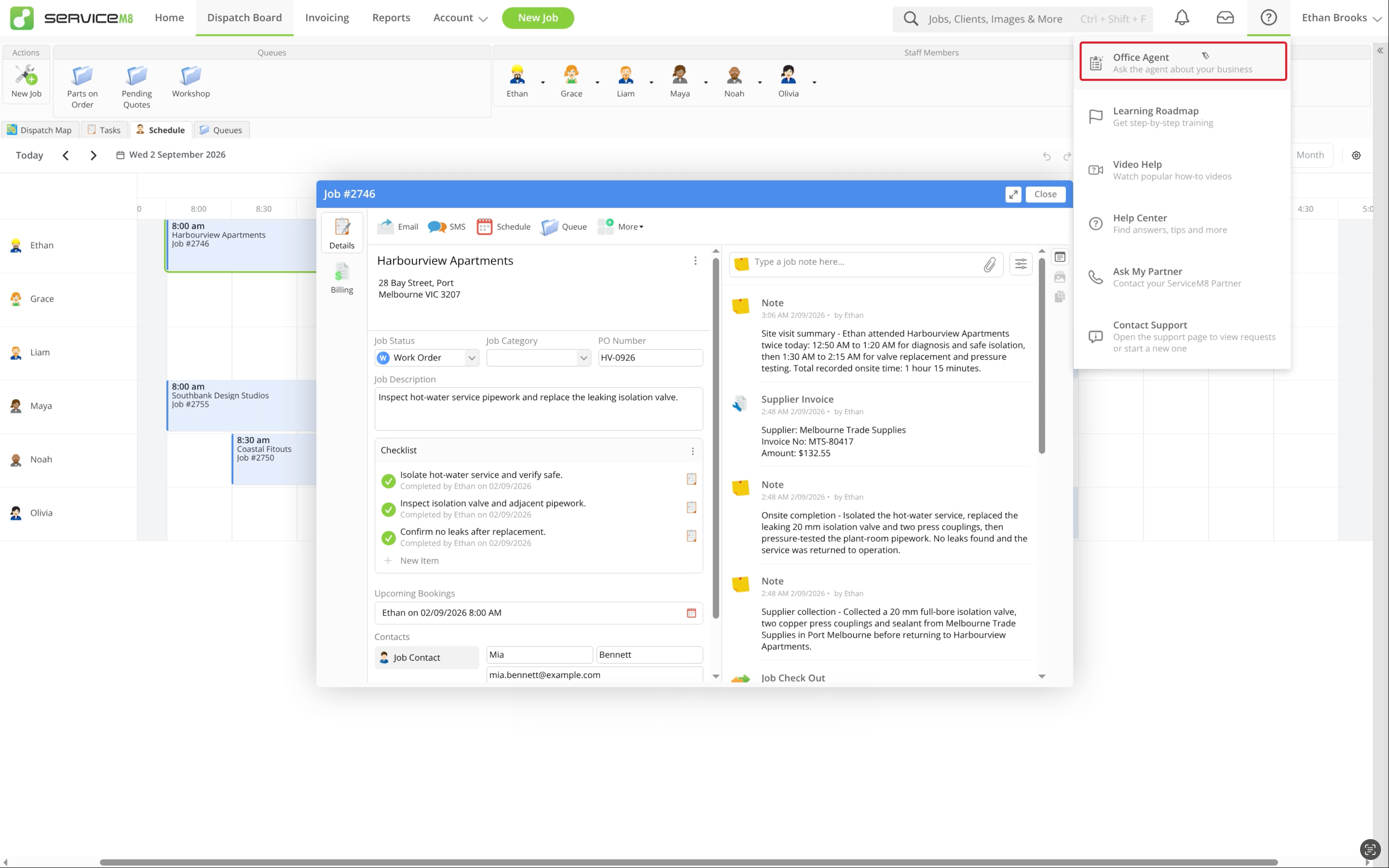
Click Help (the question-mark icon), then Office Agent.
-
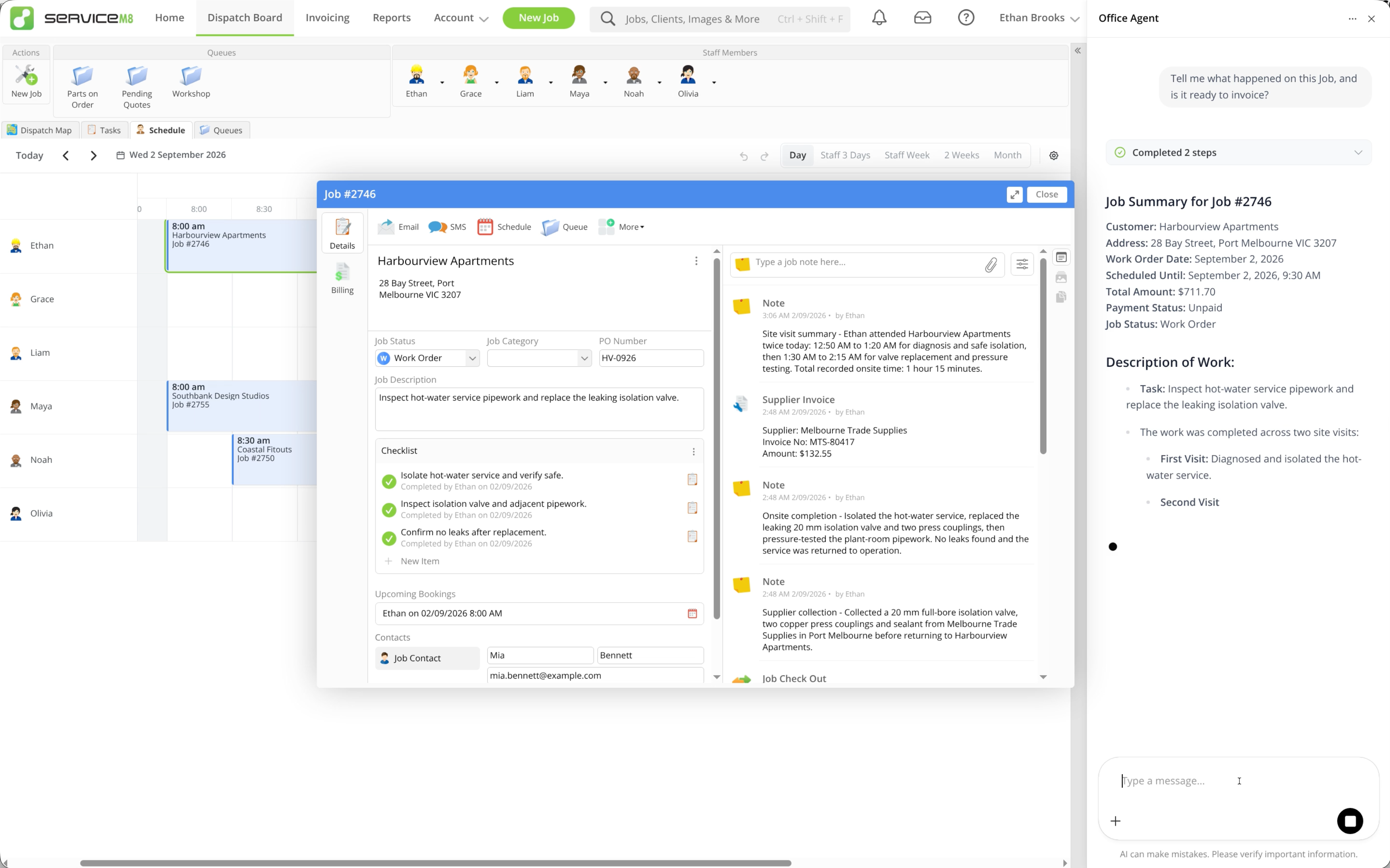
Type a question or request. With a Job card open, ask about this Job, or name the records you want to find.
-
Continue the conversation to refine the request or ask a follow-up question.
Add context and revisit a conversation
To include an image or PDF, click Add attachment (the plus button), choose the file, then send your request. Each attachment can be up to 5 MB.
To return to an earlier conversation, open the three-dot chat menu, choose History, then select a conversation. Your Online chat conversations are private to you.
Allow workspace navigation
Your workspace is the Online Dashboard page you’re viewing and any open Job card. Turn on Workspace access to let Office Agent open or close Job cards and move to supported pages for you, while your conversation stays open.
-
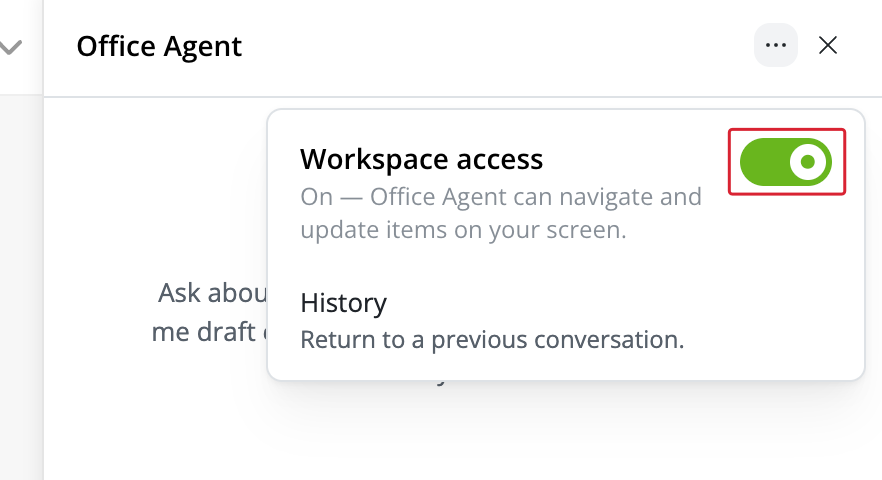
Open the three-dot chat menu and turn on Workspace access.
-
Ask Office Agent to open the Job you’re discussing, or take you to another supported page.
With Workspace access off, Office Agent can still use your current page and open Job as context, but you control navigation.
Workspace access controls navigation; proposed actions such as sending a message or changing a Job still need your approval. Finish any edits to a Job card before asking Office Agent to close it, as closing saves those edits.
Create a report
Reports require the Advanced Reporting Pack and permission to access Reports.
-
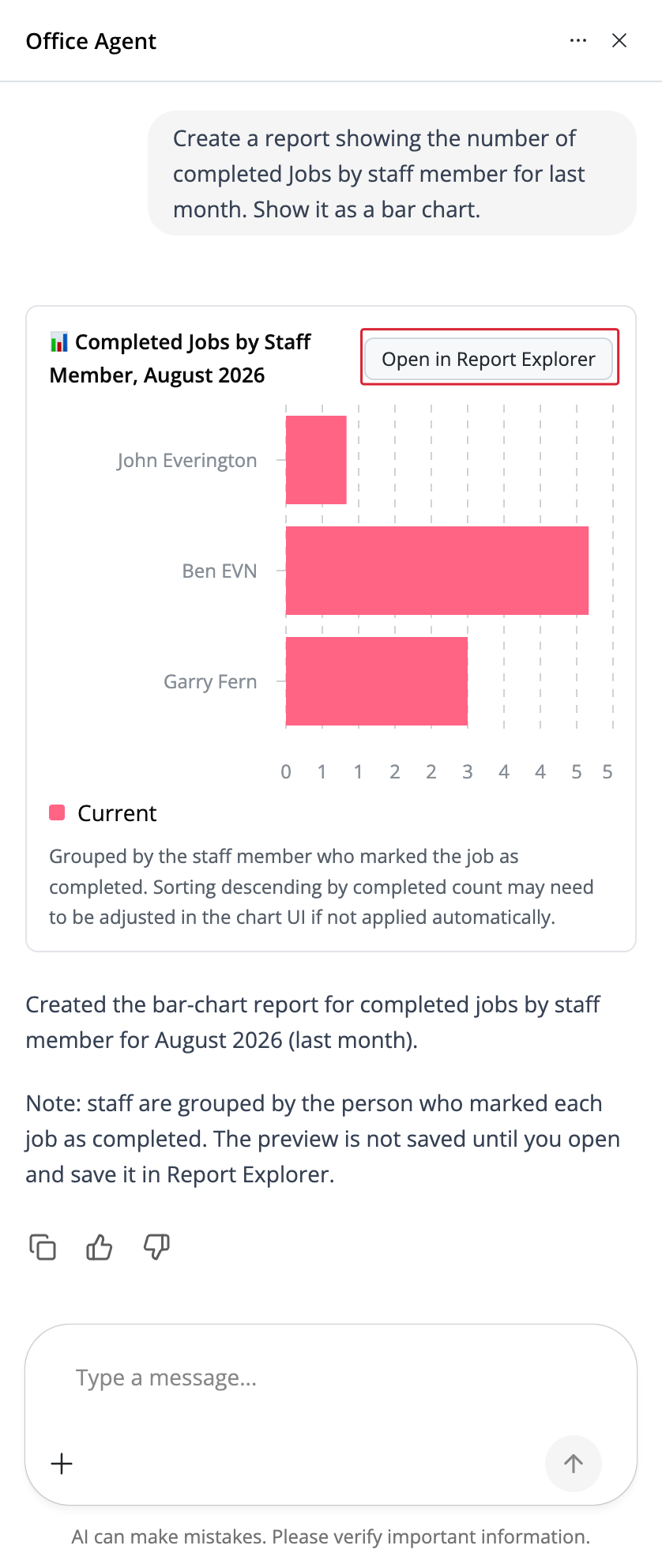
Ask for a report, including the information, date range and filters you need.
-
Review the table or chart and its assumptions. Ask follow-up questions to refine the result.
-
Click Open in Report Explorer to edit the report.
-
Adjust the report as needed, then use Save, enter a title and click Save in the Save Report dialog.
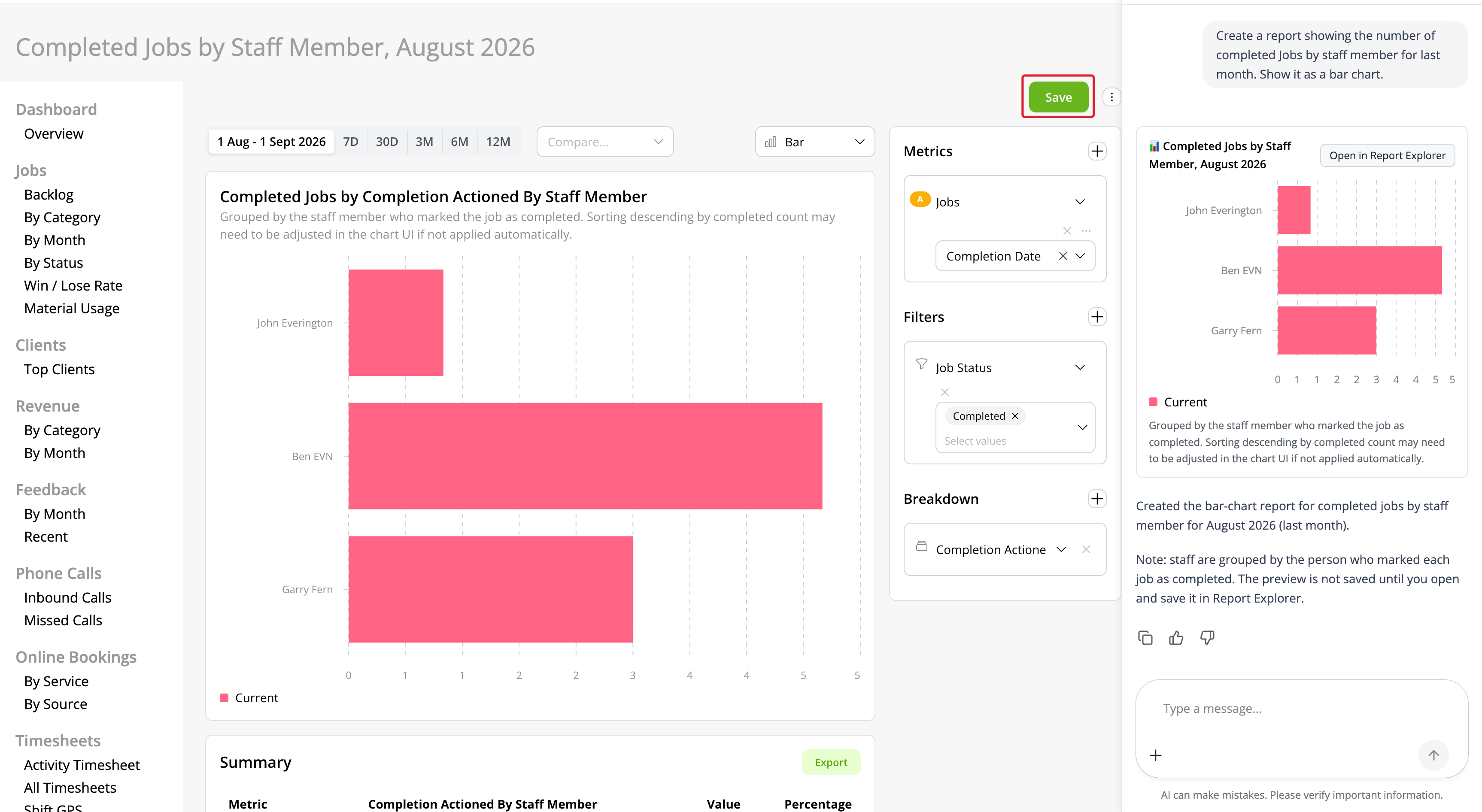
For more reporting options, see How do I generate Reports?.
Review a prepared action
Office Agent can prepare communication, bookings, notes, queue and Job status changes for review.
-
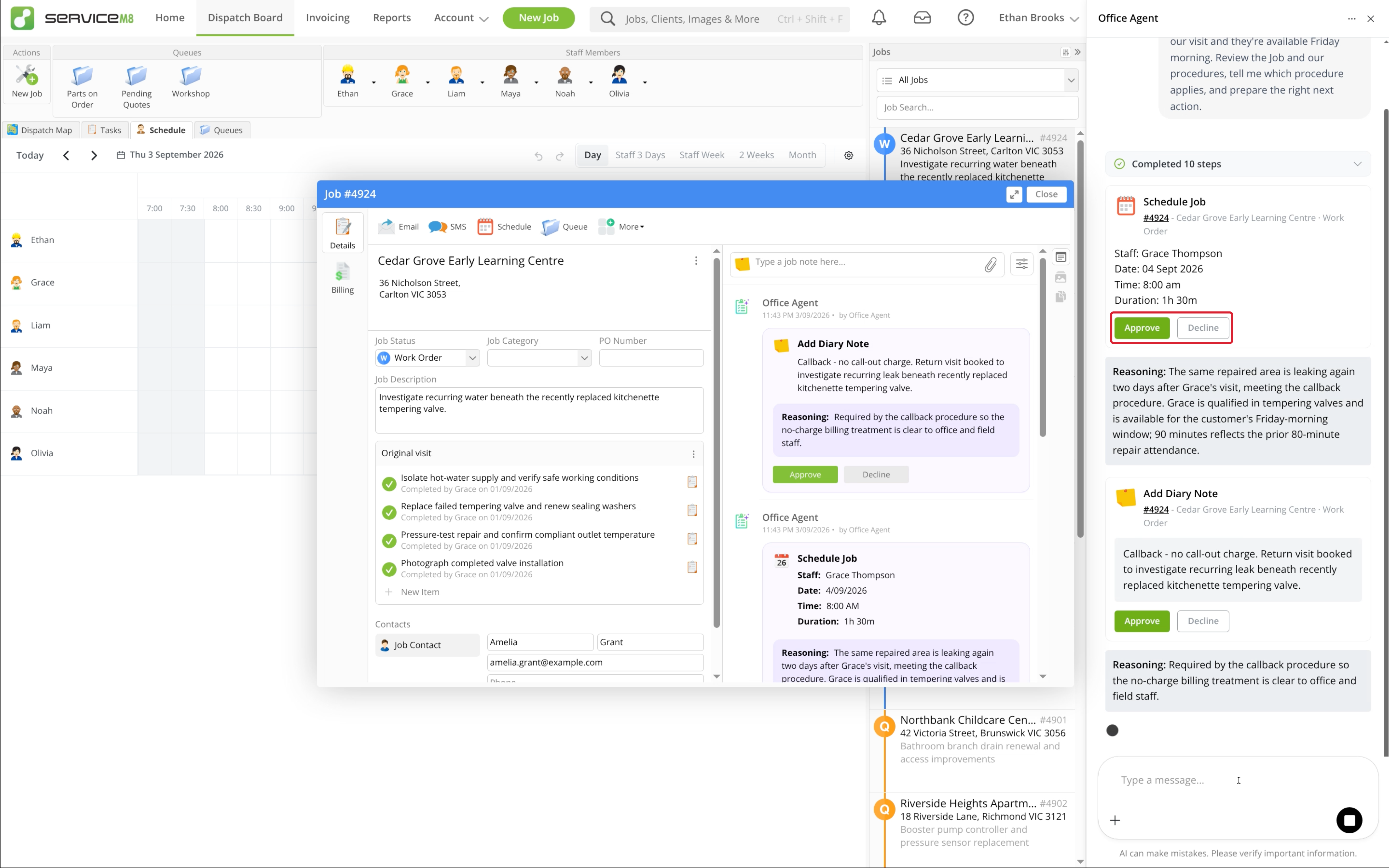
Check the proposed change and its reasoning, including the Job, recipients, dates and content.
-
Click Approve to carry out that action, or Decline to reject it.
-
When declining, you can add a reason to help Office Agent revise the suggestion. Review any replacement before approving it.
If the suggestion appears in the relevant Job Diary, you can also review it there. The actions you can view and approve depend on your permissions.
Prepare a Quote or Invoice
- Open the Job card and ask Office Agent to prepare a Quote or Invoice using the Job details, recorded work and relevant Knowledge.
- Review the proposed work description, line items, quantities, prices and tax breakdown. Viewing pricing requires the relevant staff permission.
- Click Approve when the draft is correct, or Decline and explain the change needed.
Approving replaces the Job’s existing line items and work description. Check the complete draft before approving.
For the separate Auto-Quote and Auto-Invoice workflow, see How to use Auto-Quote and Auto-Invoice.
Use business Knowledge
Ask Office Agent to find a policy or use a relevant procedure when preparing its response. It can use the Knowledge your staff permissions allow it to read. Review the proposed action before approving it.
See What is ServiceM8 Knowledge? for shared business policies and procedures.
Manage remembered preferences
Office Agent can remember preferences across conversations. Staff with the Business Owner security role can review and remove saved memories:
-
From Home, open Office Agent, then open the three-dot page menu and choose Memory.

-
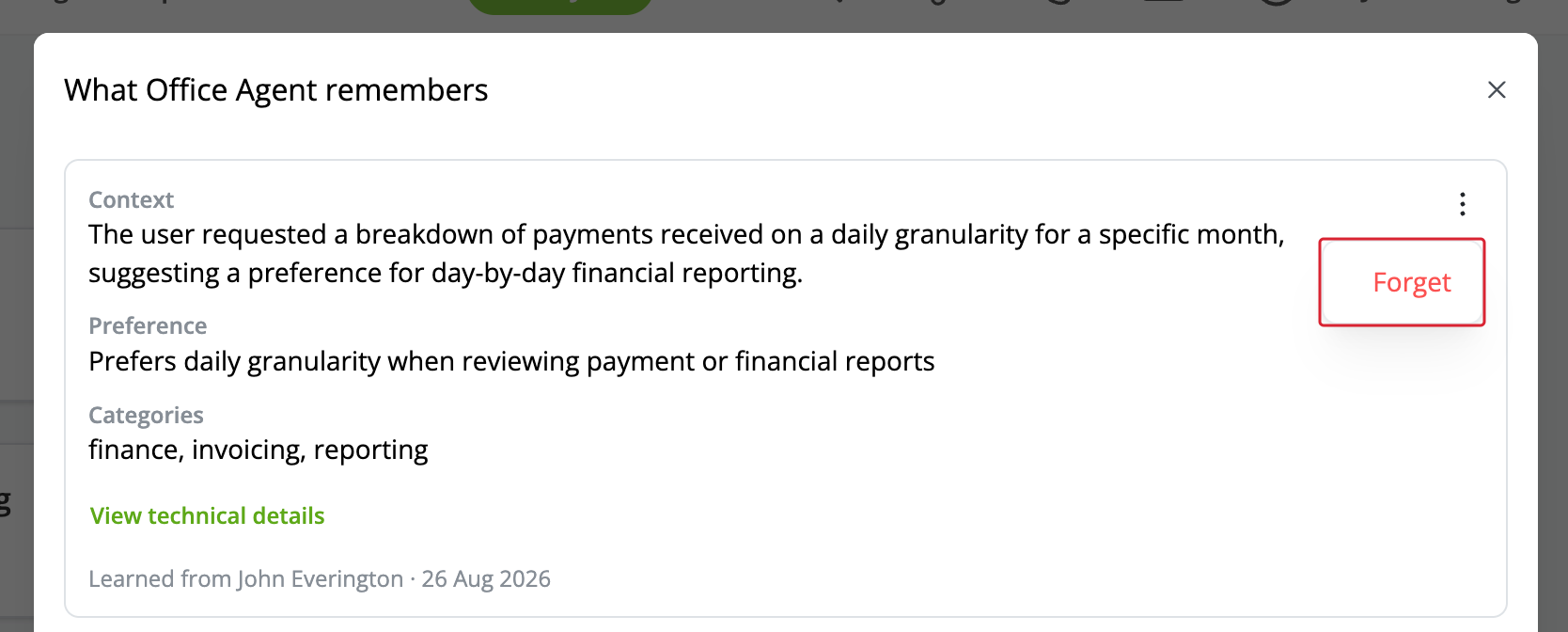
Review the saved information. To remove an entry, open its three-dot menu and choose Forget.
-
Confirm Forget memory.
Recurring tasks have separate Task Memory for their own rules and exceptions.