ServiceM8 Phone
How to block nuisance callers in ServiceM8 Phone
Block an exact phone number from ServiceM8 Phone Call History and manage your blocked numbers.
You can block a nuisance caller from ServiceM8 Phone Call History. Future inbound calls from that exact phone number are rejected before they ring your staff.
Online Dashboard
You need access to ServiceM8 Phone settings to manage blocked numbers in the Online Dashboard.
Block a number from Call History
-
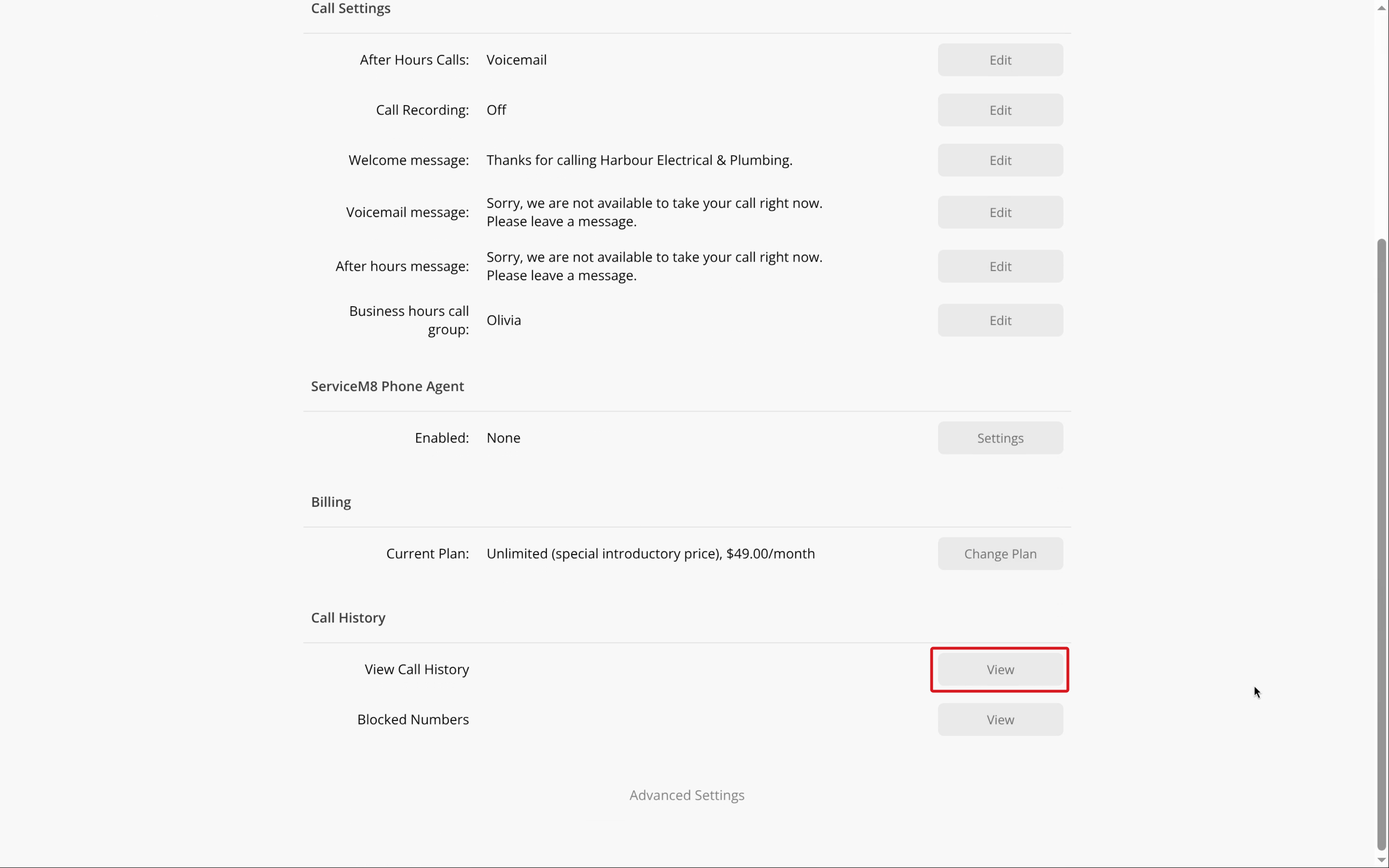
In the Online Dashboard, go to Settings > ServiceM8 Phone. Scroll to Call History and click View beside View Call History.
-
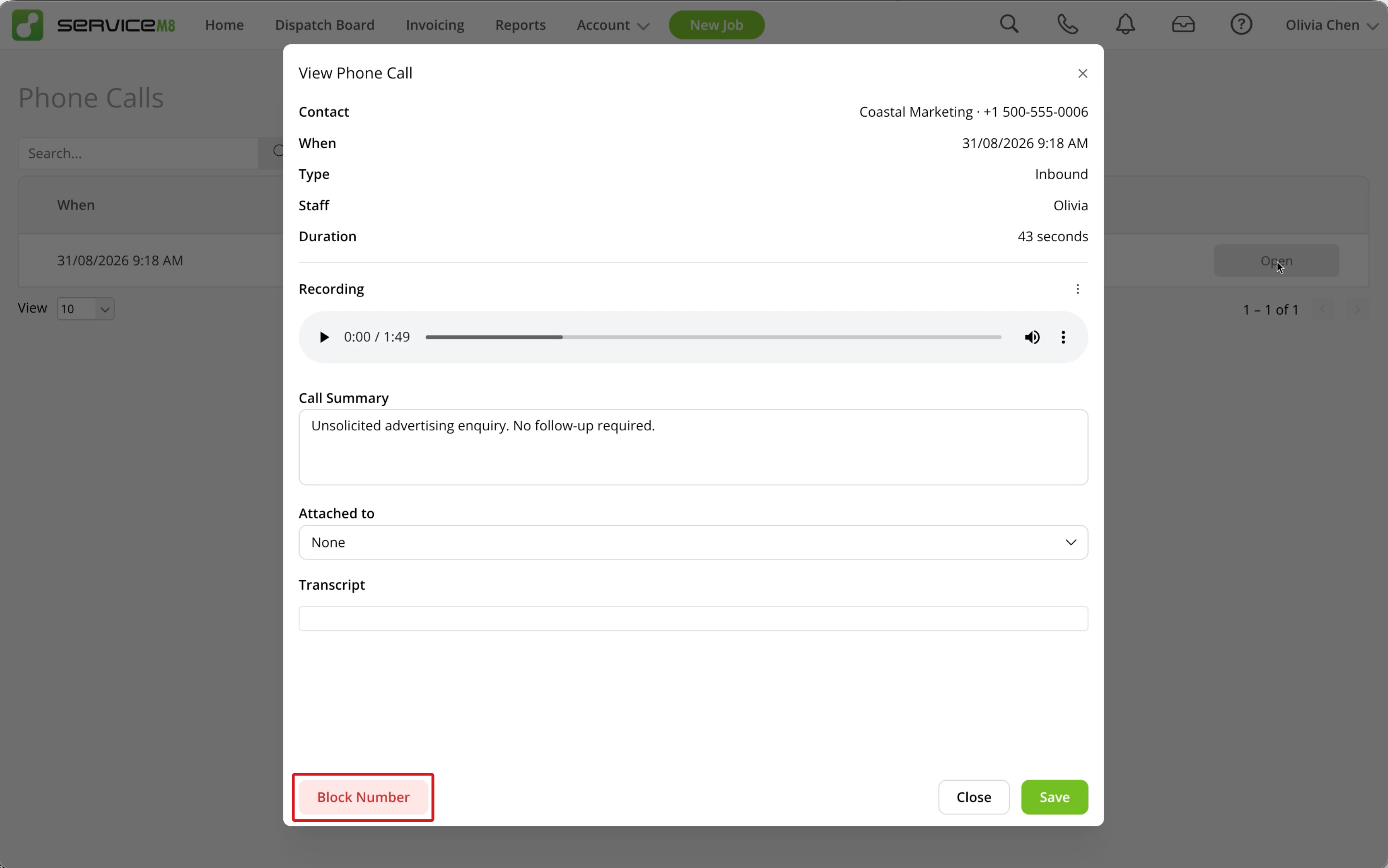
Open the call, then click Block Number.
-
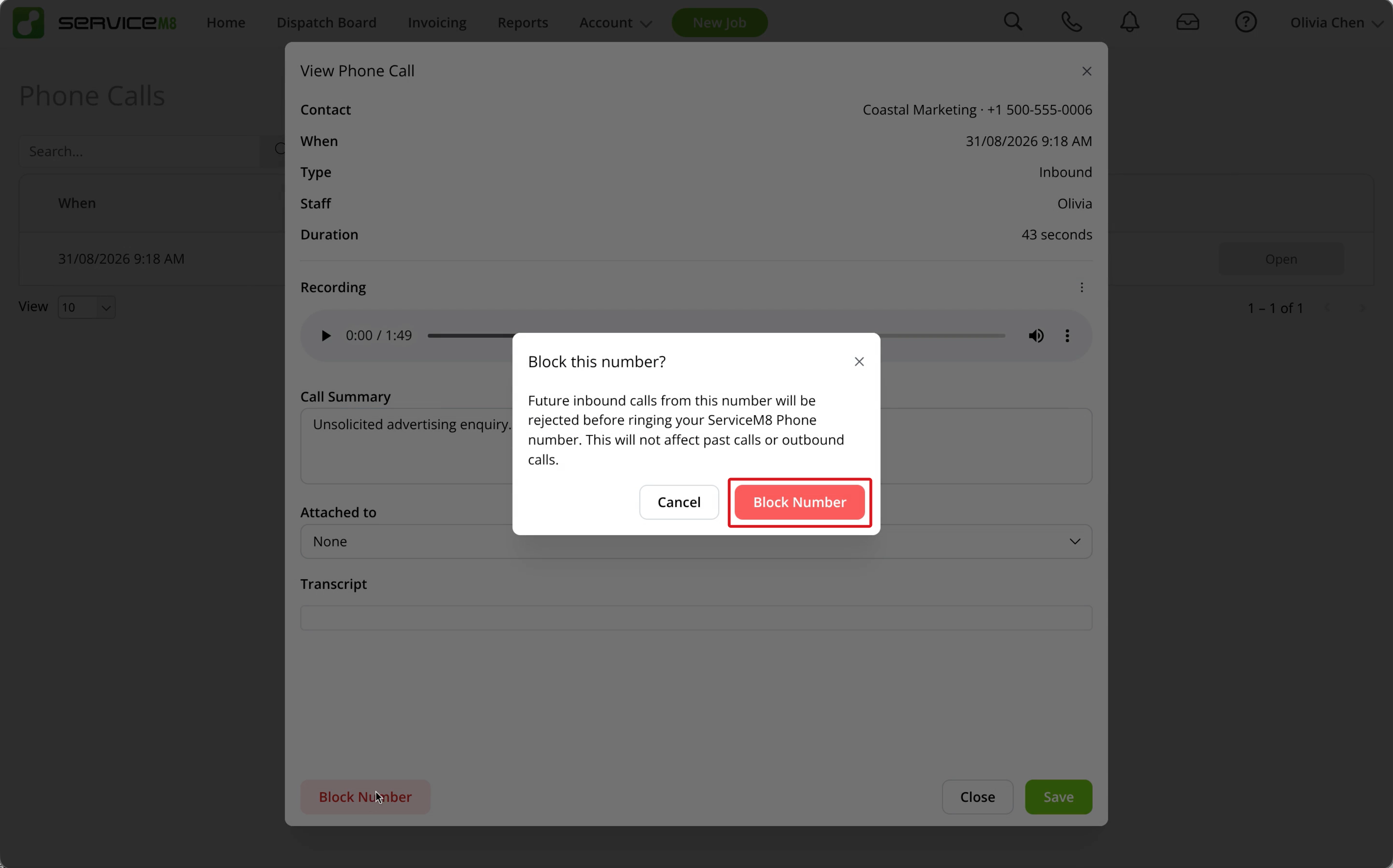
Click Block Number again to confirm.
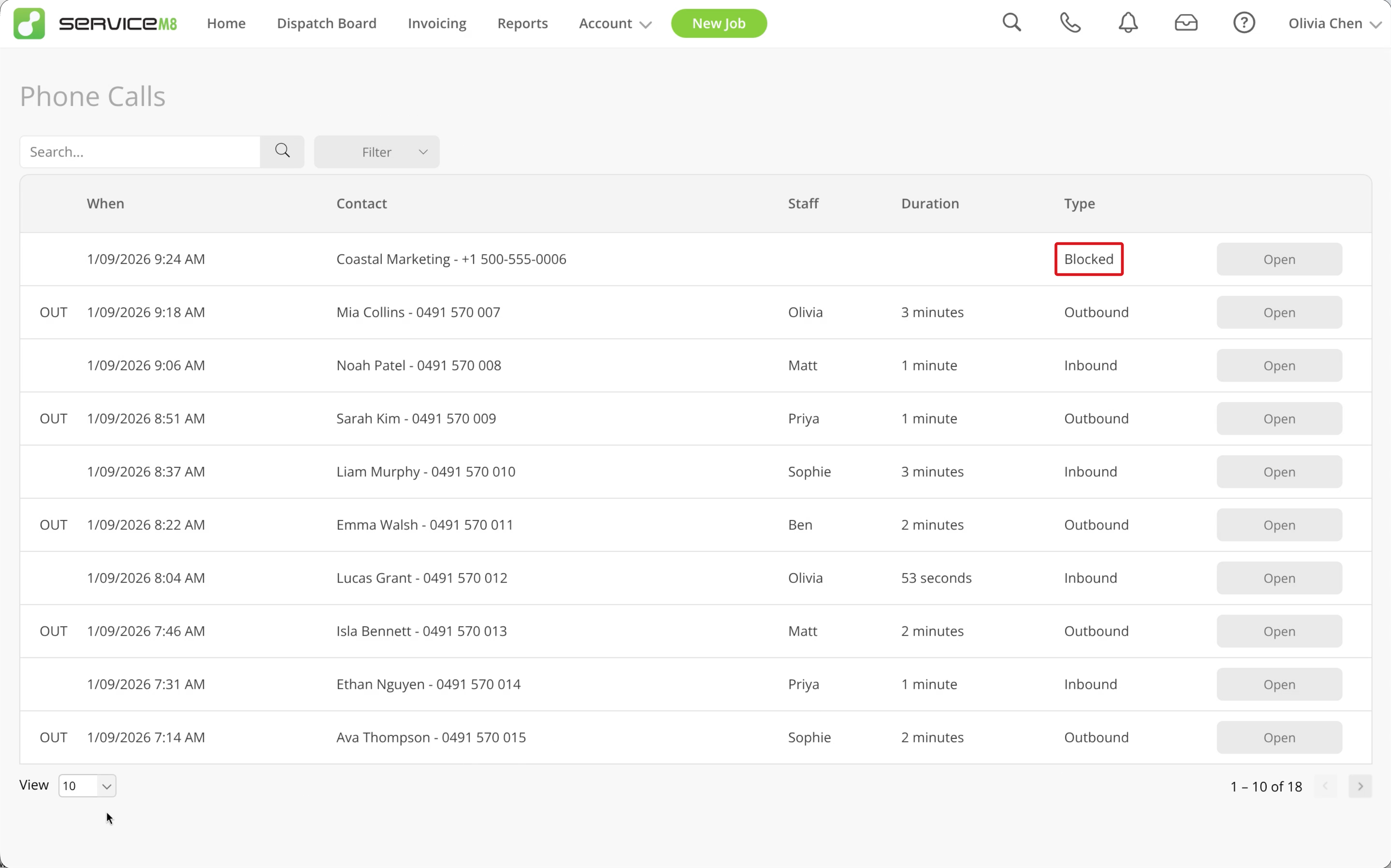
A Blocked label appears beside the number.
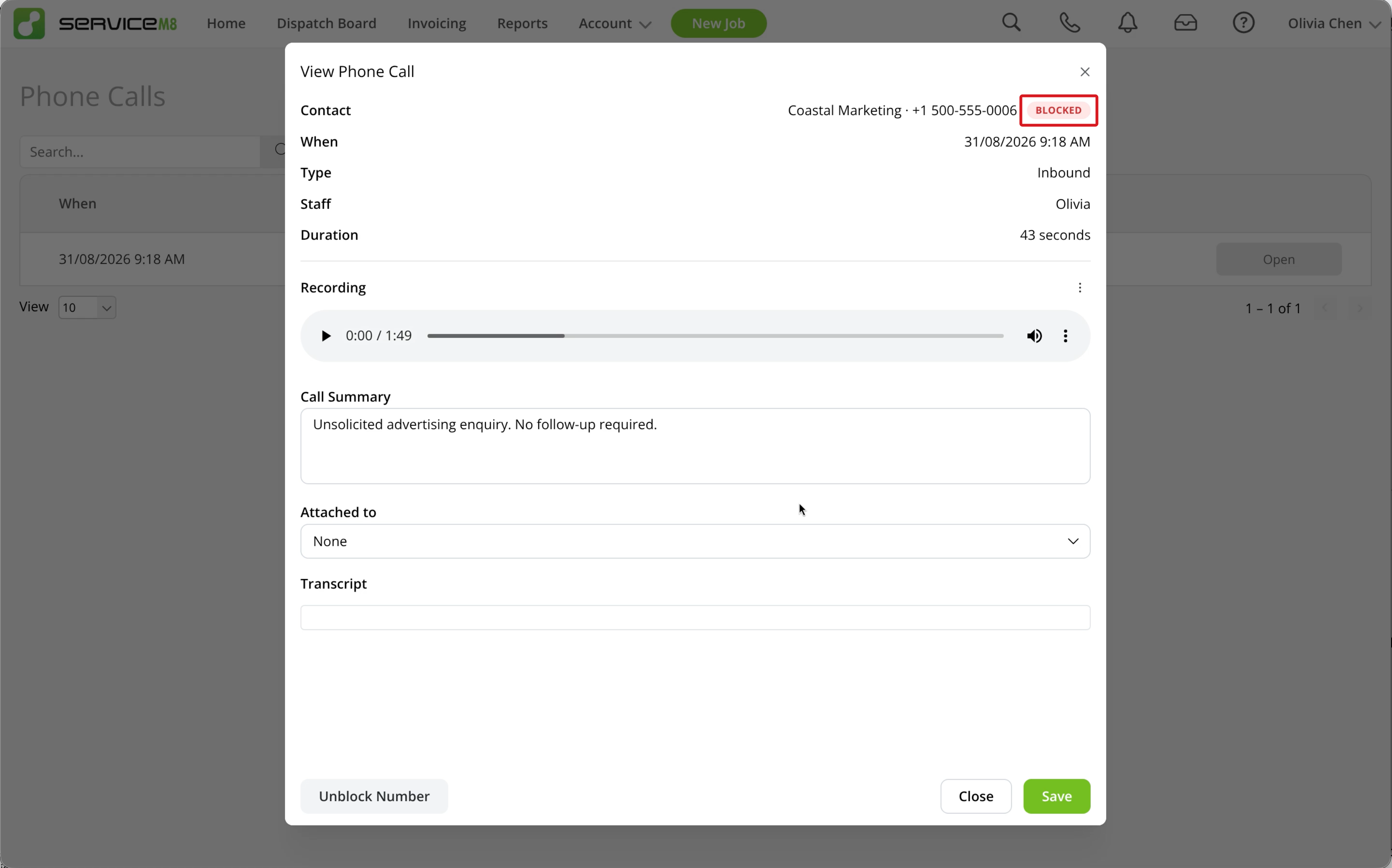
Blocking applies to that exact phone number. You need a visible phone number to block a caller.
Unblock a number
-
In the Online Dashboard, go to Settings > ServiceM8 Phone. Scroll to Call History and click View beside Blocked Numbers.
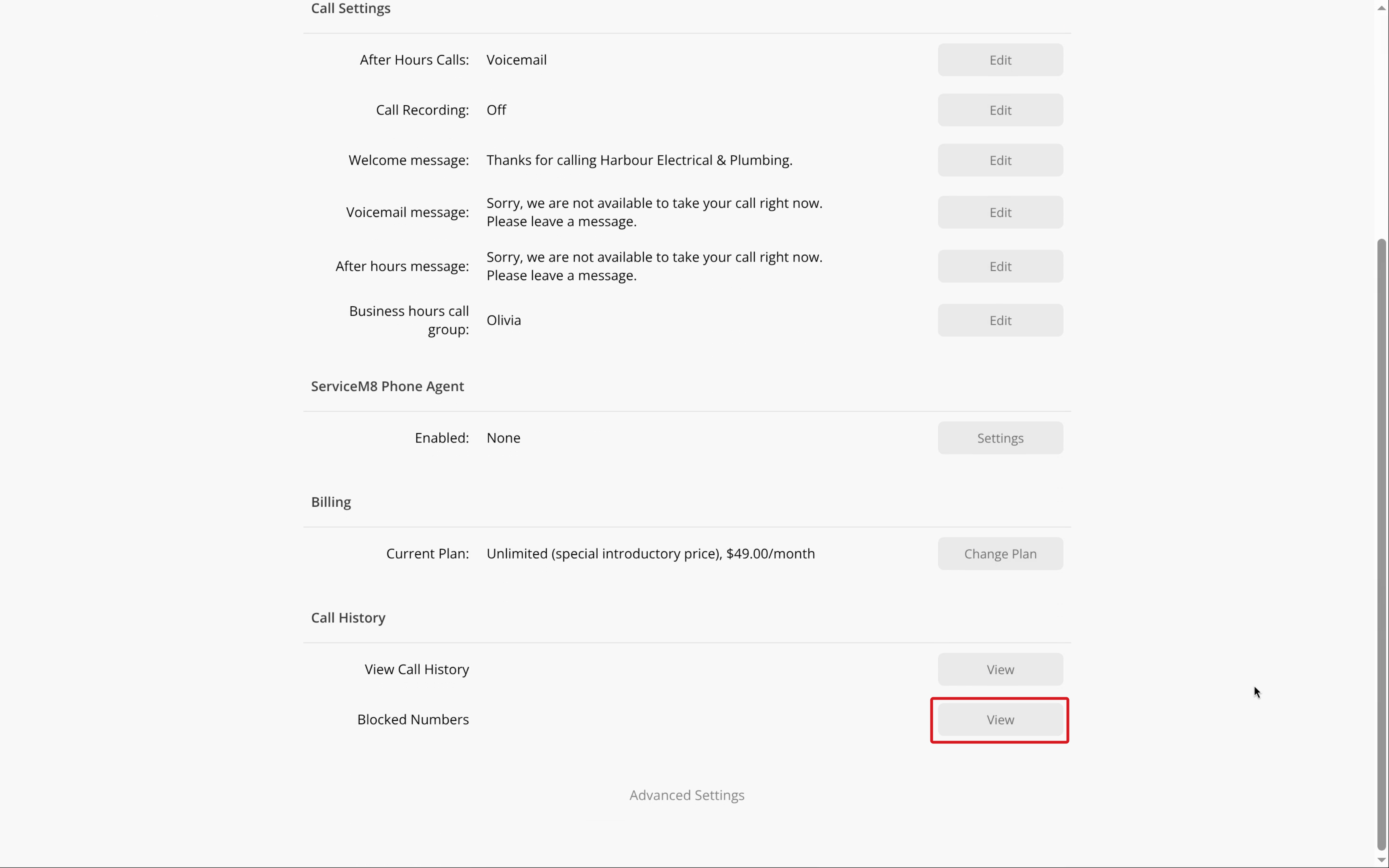
-
Find the number and click Unblock.
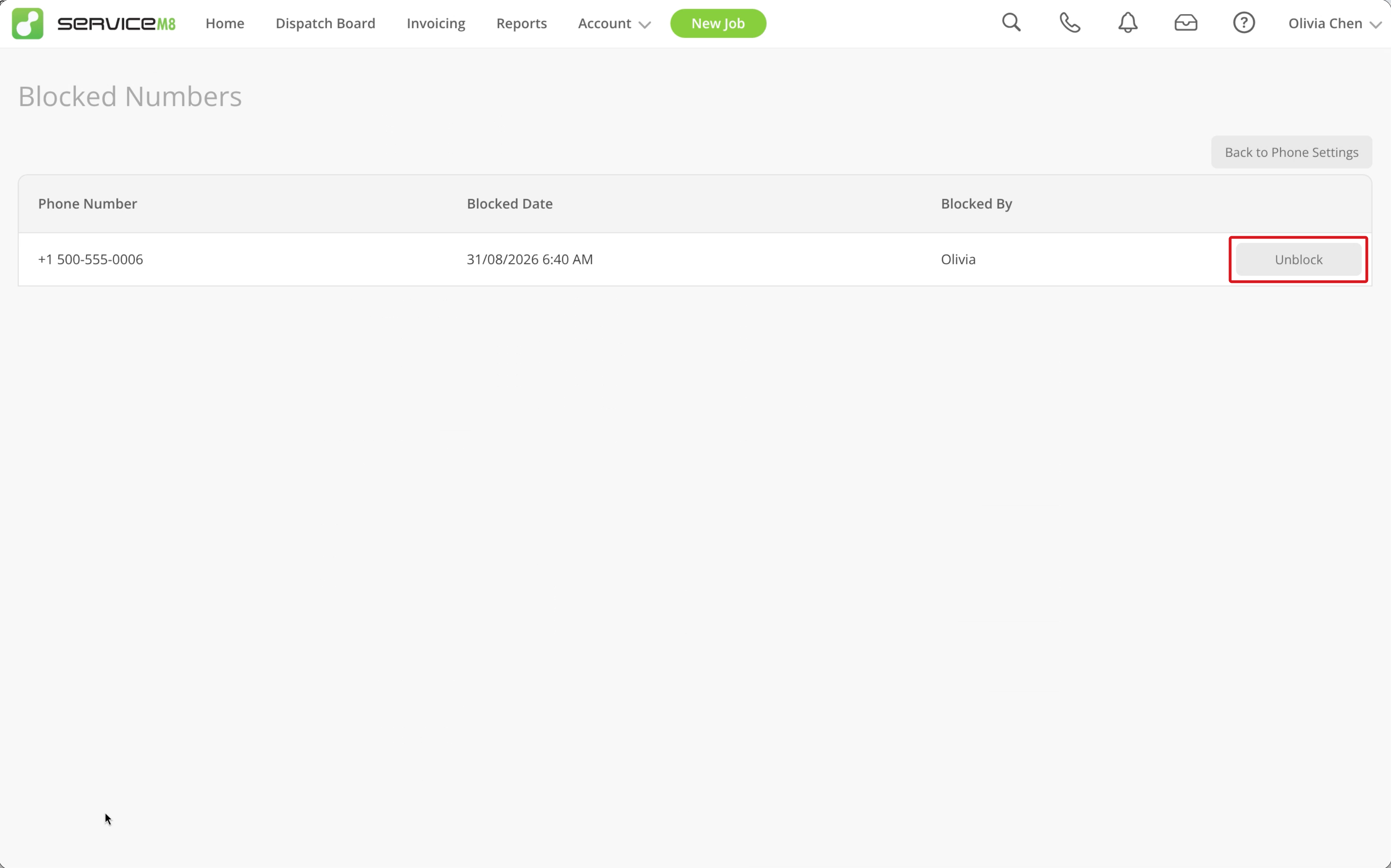
-
Click Yes to confirm.
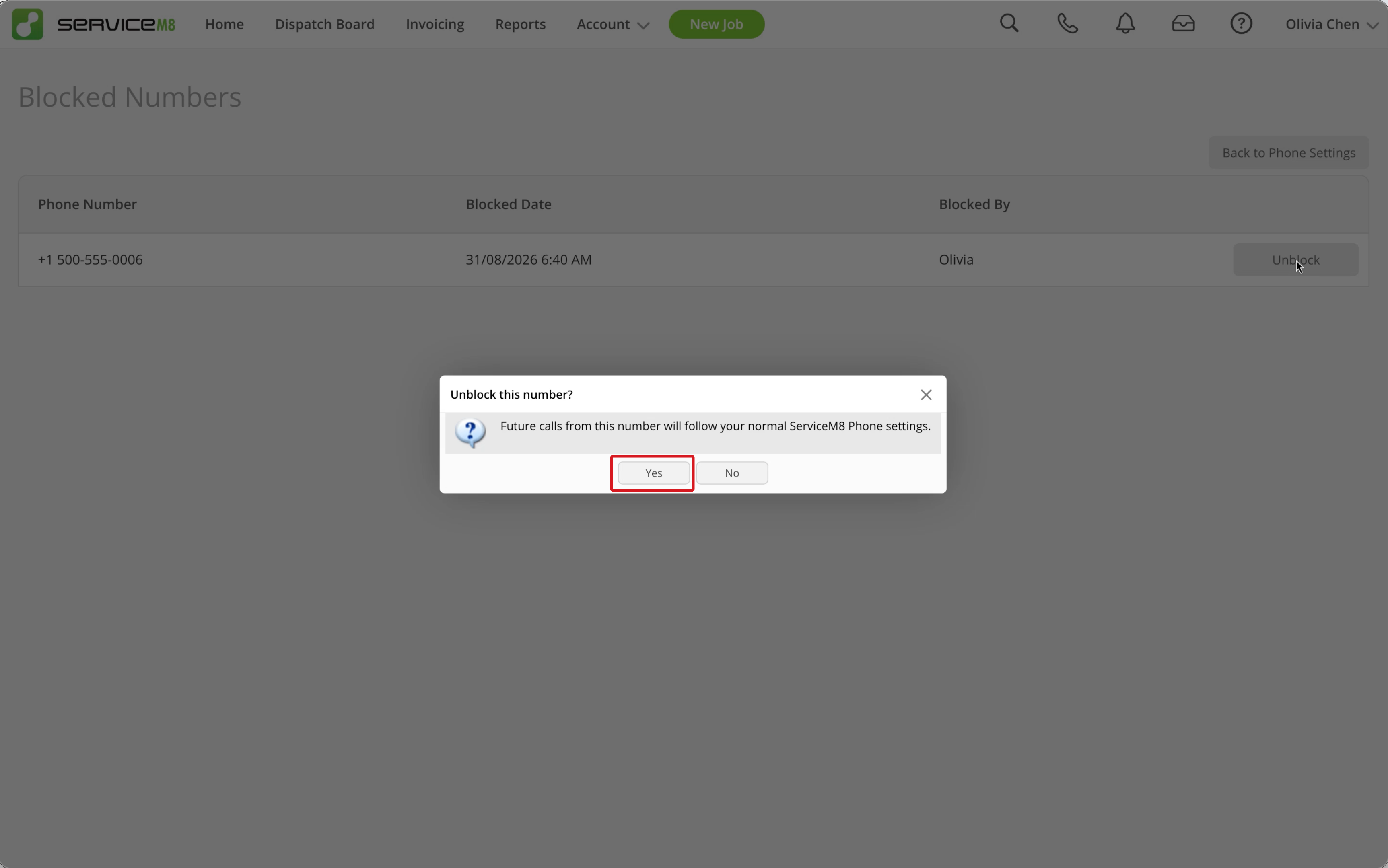
Future inbound calls from the number will then follow your normal ServiceM8 Phone settings. You can also unblock the number by opening one of its calls in Call History and clicking Unblock Number.
In the app
App caller blocking must be enabled for your account.
-
In the ServiceM8 Phone app on your iPhone, tap Recent, then tap the information (i) button beside the call.
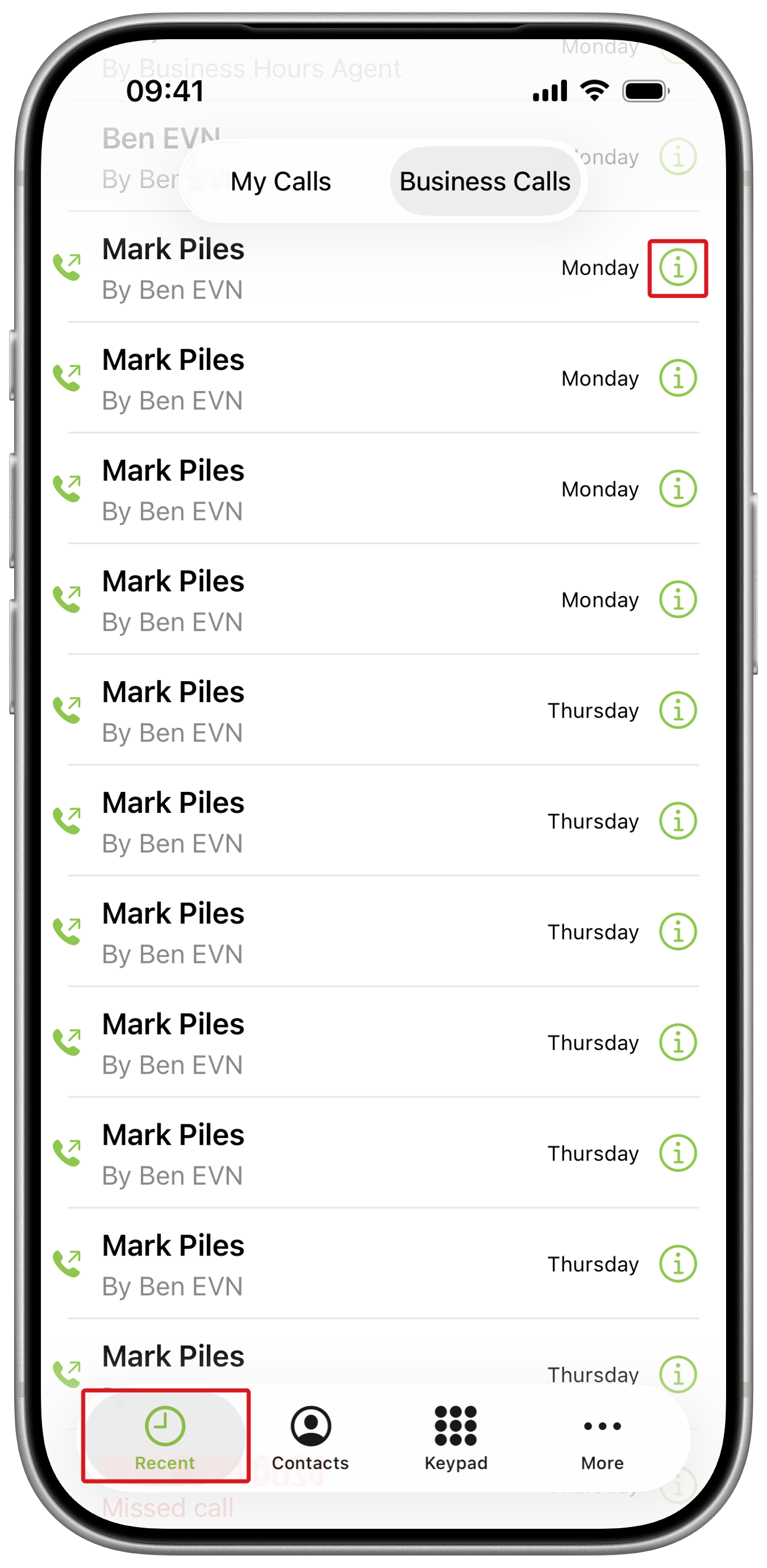
-
Scroll to the bottom of Call Details and tap Block Number.
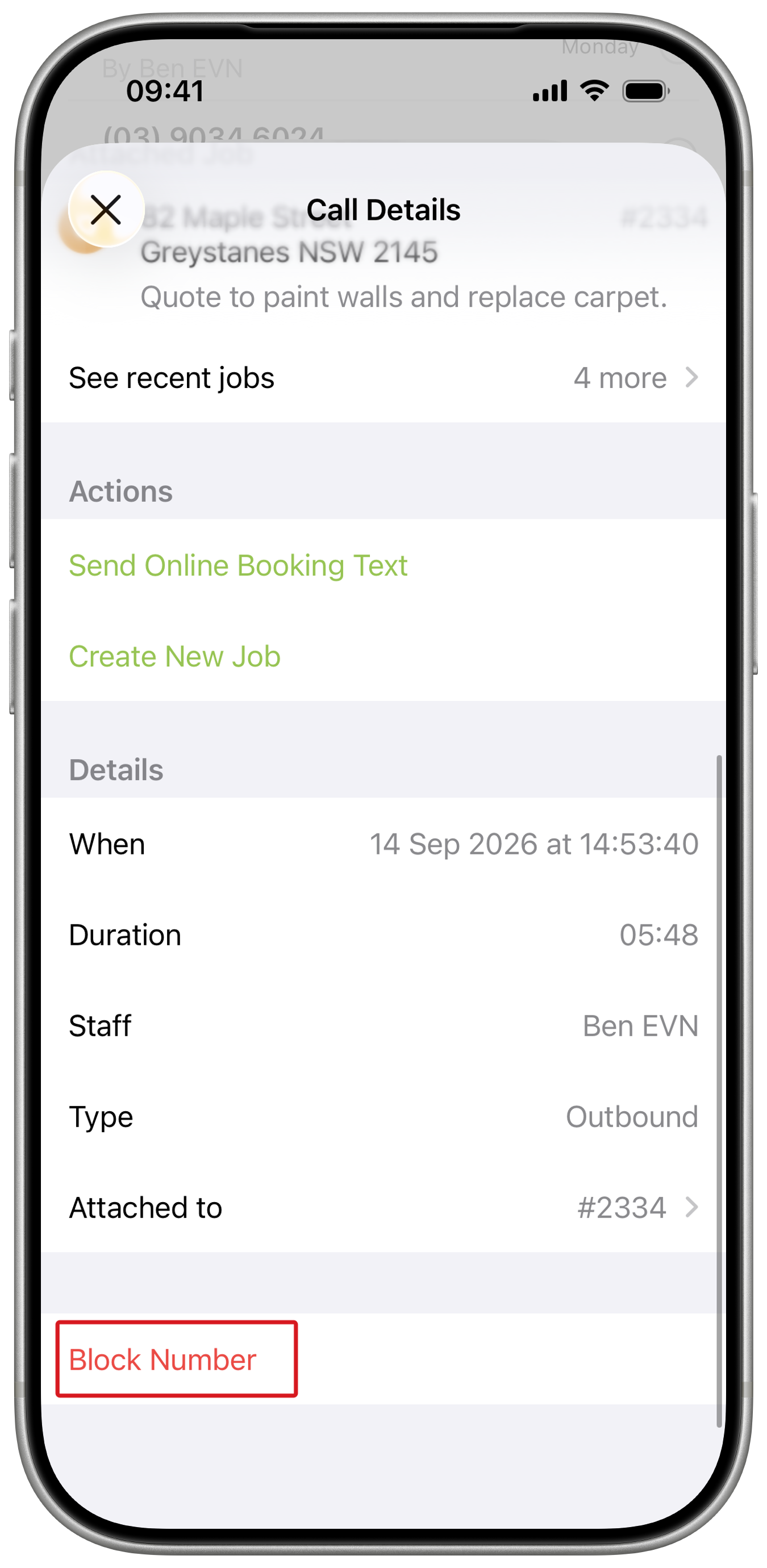
-
Tap Block Number to confirm.
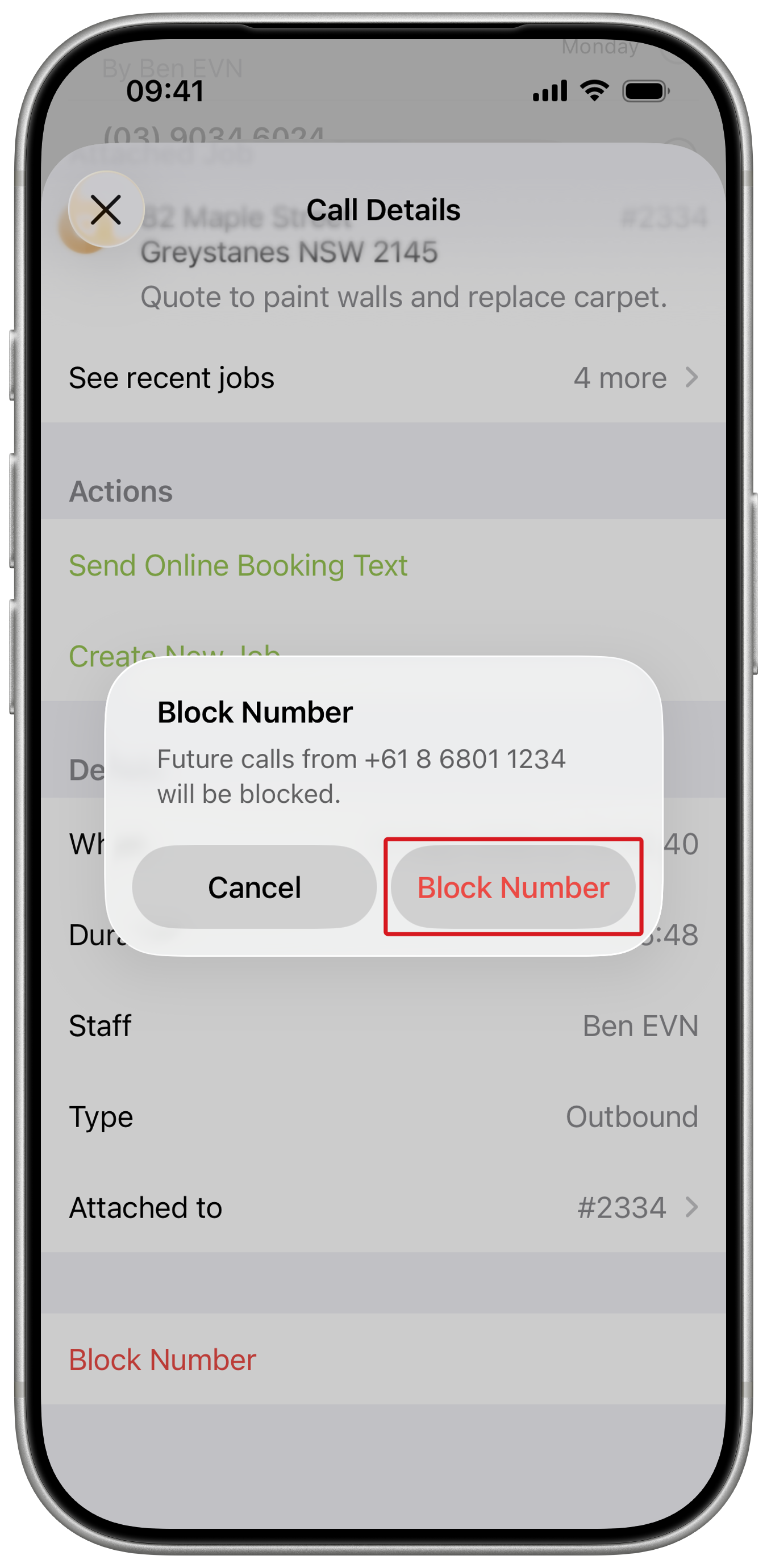
The number is marked Blocked in Call Details.
What happens to blocked calls
Blocking applies only to future inbound calls from the number. It does not end a call that is already ringing or in progress, and you can still make outbound calls to the number.
When the blocked number calls again:
- The call is rejected before it rings your staff.
- The call appears in Call History with the type Blocked.
- ServiceM8 does not take a voicemail, create an Inbox item, or notify staff.