

External Calendars
How do I see my ServiceM8 schedule in Google Calendar?
Find out how to see your ServiceM8 schedule in Google Calendar in ServiceM8.
This article will show you how to see (but not change) your ServiceM8 schedule in Google Calendar, so you can review your availability for personal and other appointments in your personal calendar.
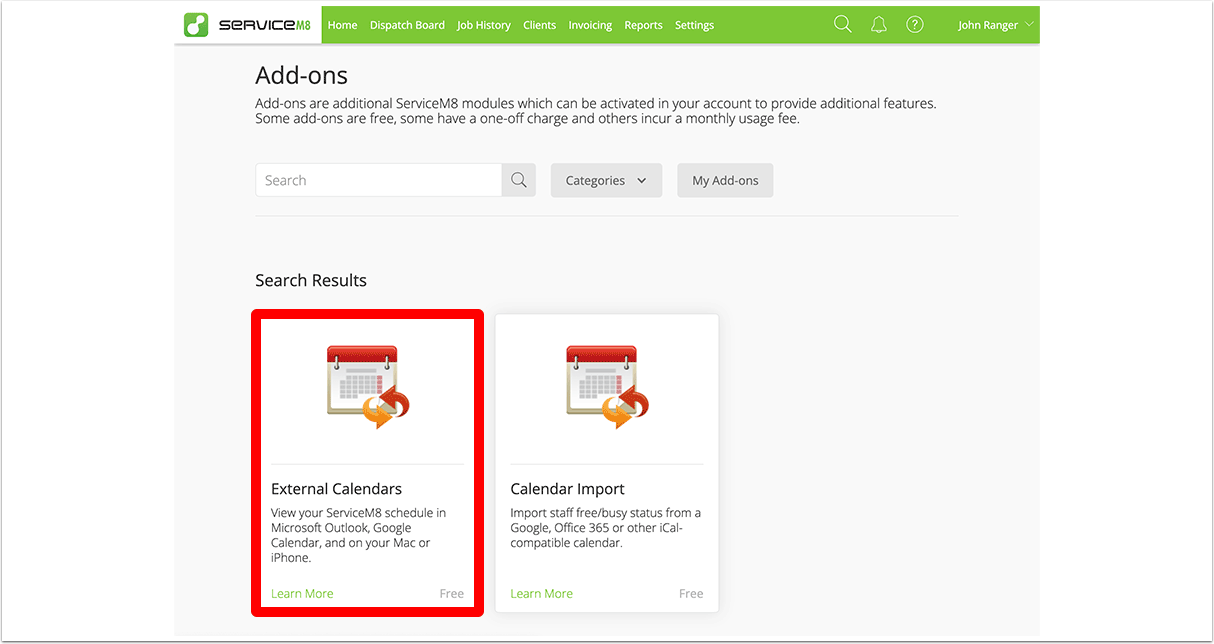
First, go to Settings > ServiceM8 Add-ons, and activate External Calendars
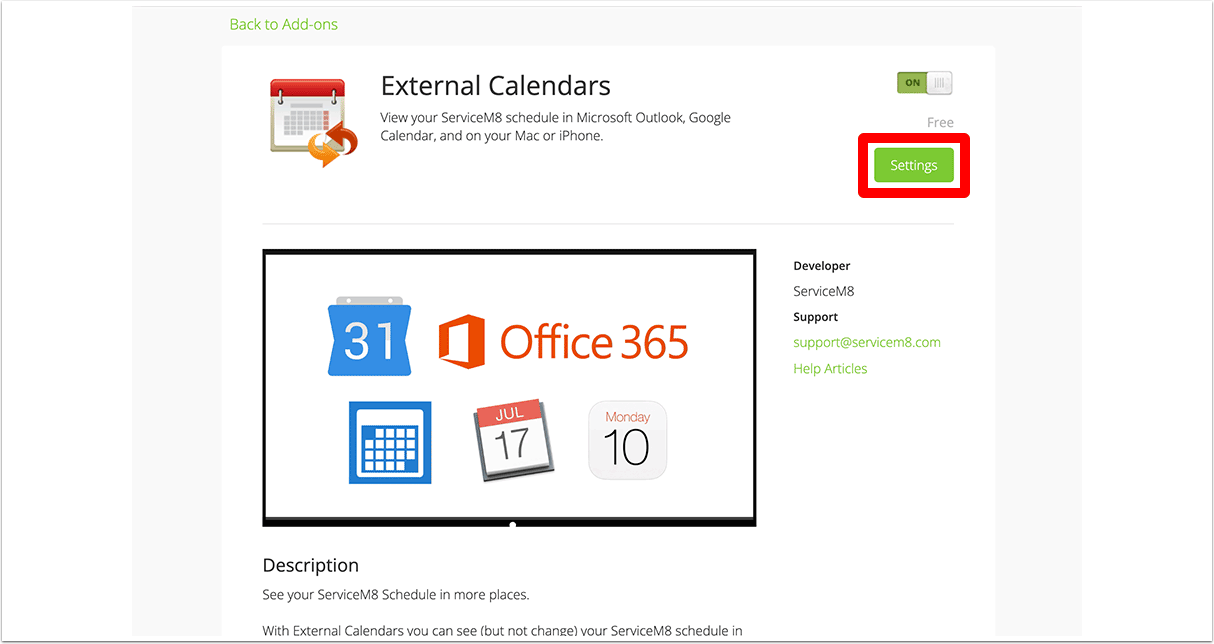
Once activated, click ‘Settings’
Copy the calendar URL
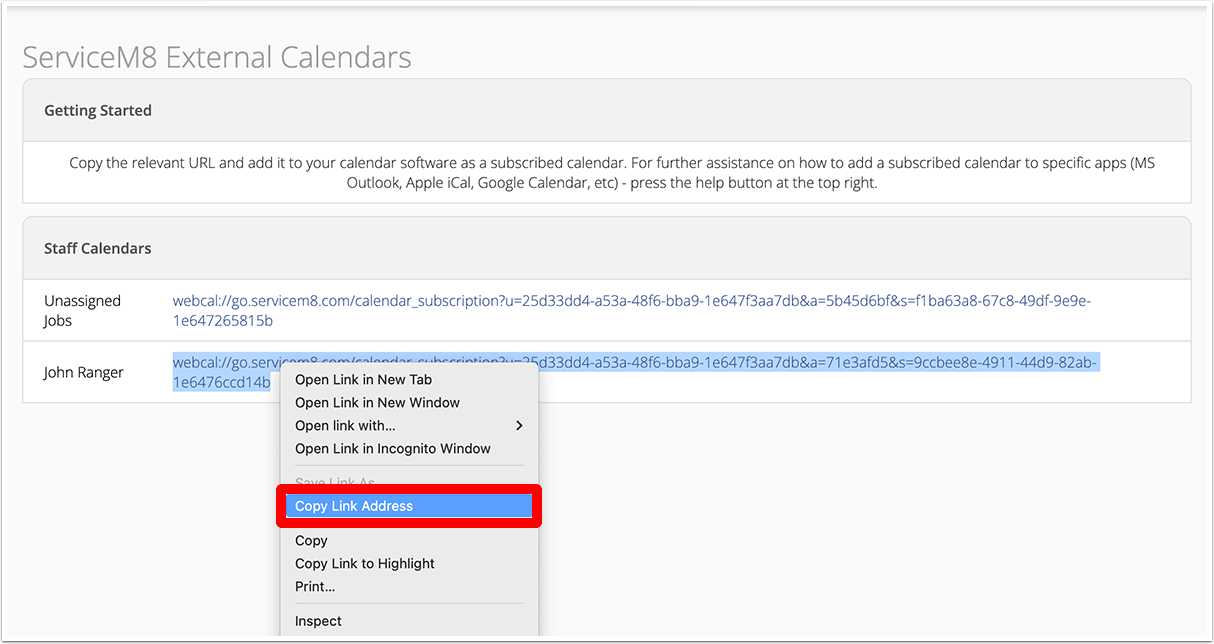
Each staff member has their own calendar URL. You will need to repeat the following process for each staff member’s schedule you wish to see in your Google Calendar.
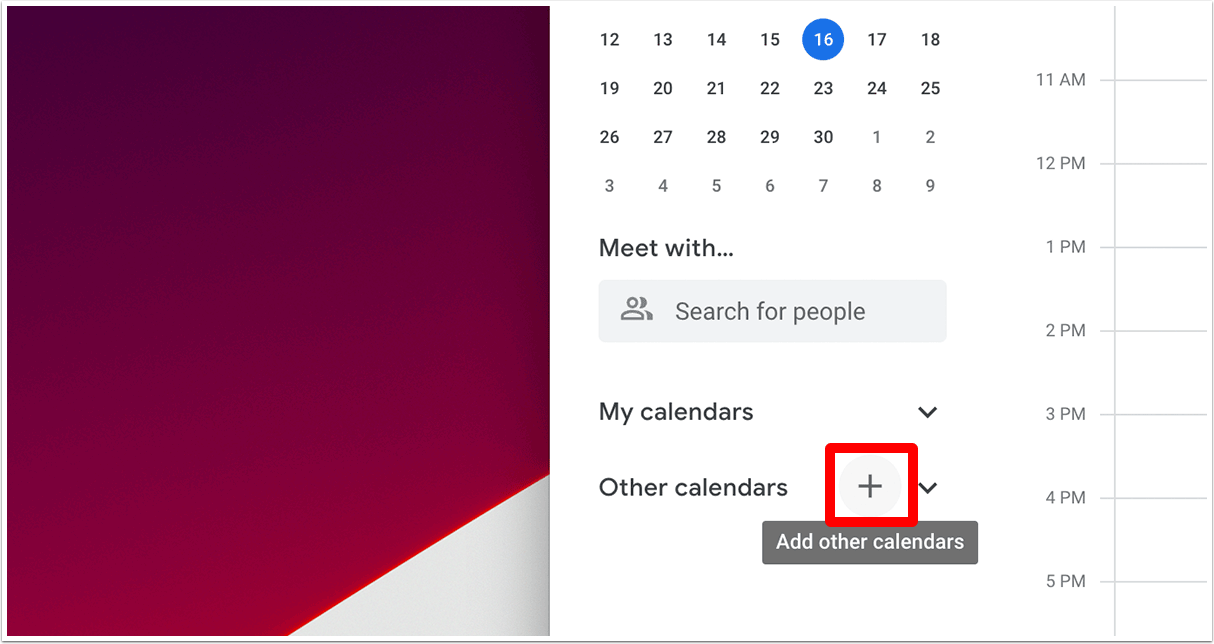
Open Google Calendar, click ‘Add Other Calendars’ and select ‘From URL’
Paste the URL you copied earlier, then ‘Add calendar’
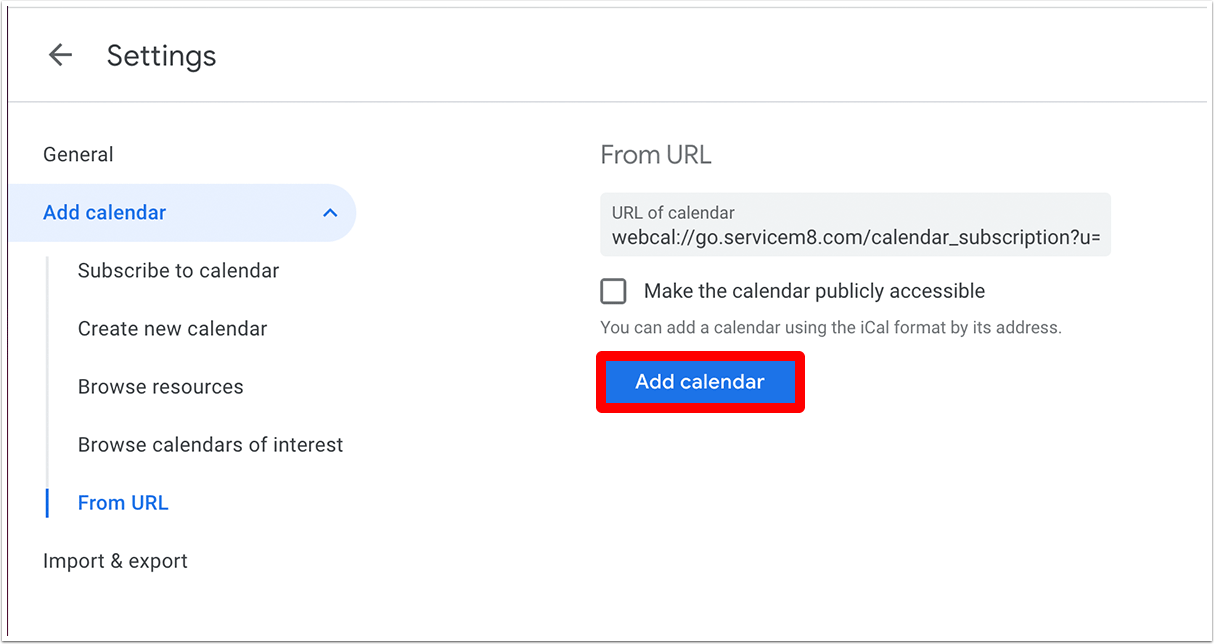
Done!
Jobs scheduled to you in ServiceM8 will appear in your Google Calendar within a few minutes. Repeat the process for each staff member’s schedule you would like to see.
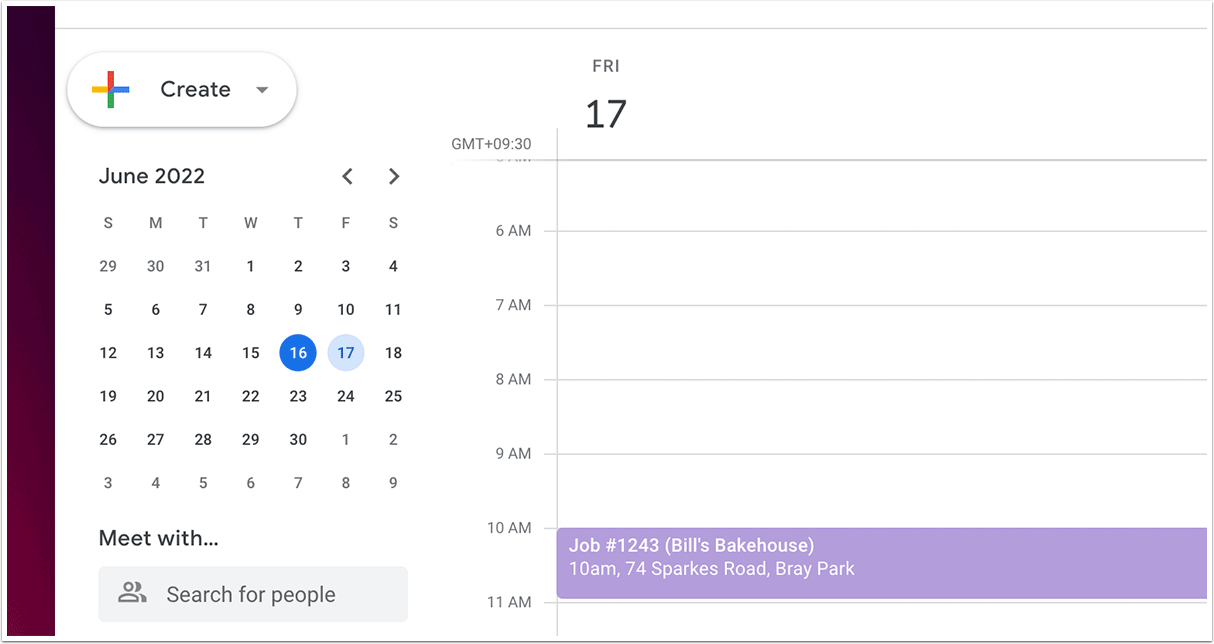
NOTE: You are not able to make changes to your ServiceM8 schedule in Google Calendar — you can only view it. To make changes you must use the ServiceM8 Dispatch Board, or the ServiceM8 mobile app. Also be careful of recent changes, as while the Google Calendar is kept in sync with your ServiceM8 schedule, it’s not updated in “real time”. Recent scheduling changes may take time to reflect in Google Calendar.