

Auto Routing
How to use Auto Routing to optimise daily schedules
Learn how to use Auto Routing to optimise daily schedules in ServiceM8.
The Auto Routing add-on helps your business save travel time and fuel, by automatically rearranging a staff member’s scheduled jobs into the most efficient order.
Key features of Auto Routing include:
- One-click Optimisation: From the Staff Schedule, you can instantly calculate the most efficient order for a single staff member to attend their jobs for the day.
- Mixed Booking Types: You can keep fixed-time bookings in place, while optimising when you attend “allocated” jobs. You can also choose to reschedule fixed bookings, or convert them to allocations for maximum optimisation.
- Flexible Start & Finish Points: In the Online Dashboard, routes can be optimised to start and finish at your office, or start and finish at a staff member’s home address.
- Review before Applying: You can review and compare the suggested route with your original schedule, before applying.
- Mobile app: In the ServiceM8 app, you can optimise your own schedule in Today. The app even excludes Completed jobs, making midday re-optimisation simple.
TIP: The more flexibility Auto Routing has to make changes to your schedule, the more efficiency benefits you’ll get. If you’re able to primarily schedule jobs as “allocations” using the Job Allocations add-on (where jobs are scheduled for attendance in windows such as Morning, Afternoon or During Business Hours, rather than at a fixed time like 10am) then you’ll automatically create the flexibility to optimise each team member’s daily schedule with Auto Routing. If you don’t enable or use the Job Allocations add-on, your options and optimisation with Auto Routing will be limited, as it will only be able to reschedule fixed-time bookings i.e. the ‘Low’ and ‘High’ optimisation options will be greyed out and unavailable.
How to activate Auto Routing
1. Go to Account > Features & Integrations, and activate the Job Allocations add-on
2. Go to Settings > Preferences > Job Allocations, then set “Show allocated jobs in Staff Schedules” to Yes.
3. Go to Account > Features & Integrations, and activate the Auto Routing add-on.
How to use Auto Routing (Online)
1. Go to the Staff Schedules view of the Dispatch Board, and navigate to the day on which you want to optimise a staff member’s schedule and route.
2. Right-click the staff member’s icon in the Staff column and click ‘Auto Routing’.

3. ServiceM8 will calculate the most efficient order of jobs for the selected staff member and day.

4. You can click ‘Show Original Route’ in the bottom-left corner to compare the suggested/optimised route to the original route.

5. You can click the three vertical dots to adjust the level of optimisation you want to apply:
- Low: Keep fixed-time bookings and only reorder allocated jobs.
- Medium: Reschedule fixed-time bookings to new times and reorder allocated jobs.
- High: Convert fixed-time bookings to allocated jobs and fully optimise the day.
If you’re happy with the suggested optimisation, click ‘Apply’ in the bottom-right corner, and the staff member’s schedule will be updated accordingly.

Let’s check out some examples of how each level of optimisation with Auto Routing would treat your schedule for the day, based on having 3 x fixed-time bookings at 8am, 10am and 2pm; and 3 x jobs allocated to attend during ‘Business Hours’.
- Low: Auto Routing will leave the 3 x fixed bookings in place, and only optimise the order in which you attend the 3 x Business Hours jobs around the fixed-time bookings.
- Medium: Auto Routing may reschedule some (or all) of the fixed-time bookings to new fixed times, such as 9am, 11am and 3pm, while also optimising the order in which you attend the 3 x Business Hours jobs around the new fixed-time bookings.
- High: Auto Routing will convert the 3 x fixed-time bookings to ‘Business Hours’ allocations, resulting in 6 x Business Hours jobs, offering maximum flexibility. Auto Routing would then proceed to optimise the route and order of attendance on this basis.
6. You can choose to optimise the route for a staff member, based on whether they ‘Start from Office’ or ‘Start from Home’.
- This choice affects both where the route starts and where Auto Routing will try to finish the day.
- Start from Office: Auto Routing uses your office as both the start point and end point for the route, so it will optimise the day to finish back near the office.
- Start from Home: If the staff member has a valid home address saved, Auto Routing uses that home address as both the start point and end point for the route. This means it takes the trip home into account when ordering the day, so the final jobs are arranged to finish closer to home.

7. To set a Home address for a staff member, go to Account > Settings > Staff > Edit > Options > Auto Route Home Address.

Start from Home is only available once a valid home address has been saved for that staff member.
How to use Auto Routing (Mobile app)
Individual staff members can also optimise their own daily schedule with Auto Routing, in the mobile app.
1. In the Jobs tab, tap ‘Jobs’ in the top-left (or swipe from left of screen) to get to the Jobs view, then tap ‘Today’.
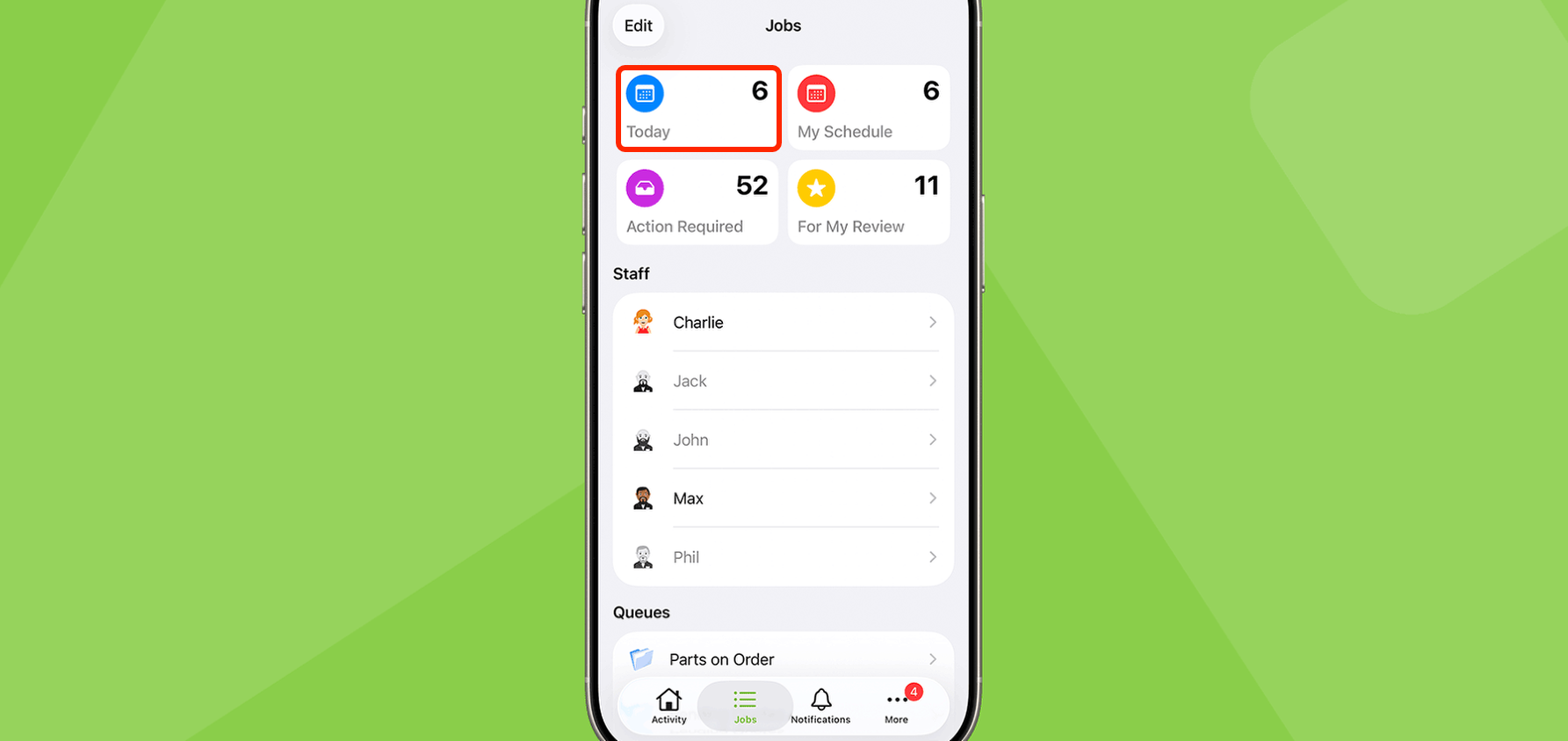
2. Switch to the Map view, then tap the Auto Routing button.

3. Review the suggested route, and tap ‘Auto Route’ to toggle between Low, Medium & High optimisation.

- In the mobile app, all routes will be calculated on the basis that you will start at your current location.
- By default, routes will be calculated on the basis that you will finish at the office, unless you have a home address set. If you have a home address set, it will be calculated on the basis that you will be finishing at home.
4. If you’re happy with the suggested optimisation, click ‘Apply’ in the top-right corner, and your schedule will be updated accordingly.