

Website and Email
How to set up a website and domain with the Website and Email add-on
Learn how to set up a website and domain with the Website and Email add-on in ServiceM8.
The Website and Email Add-On lets you create a professional website and email address for your business - in less than 10 minutes! This article explains how to set your domain and email, how to customize your website, and shares some tips for success.
Note: This add-on requires a ServiceM8 subscription to activate. ServiceM8 subscribers get the first 24 months free. After that, the add-on costs 24 per year in your billing currency (for example, $24/year or £24/year), prorated monthly.
Setting your domain and email
This section walks you through how to activate the add-on and what to expect during the setup wizard.
To activate the add-on:
- From your Online Dashboard, go to Settings > ServiceM8 Add-Ons.
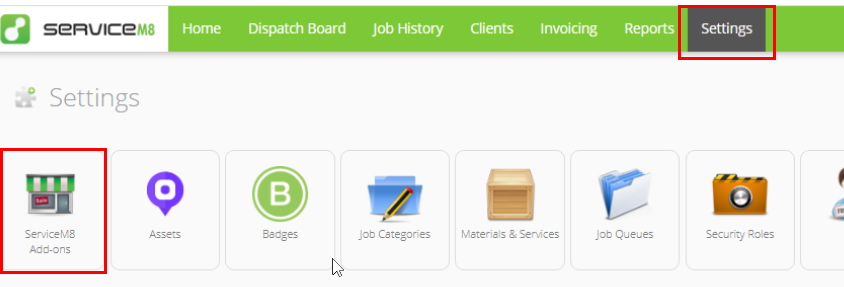
- Find the Website and Email add-on and click to open.

- Click Connect.
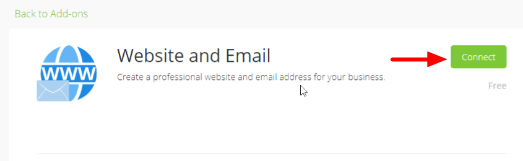
The Website and Email Setup Wizard will open. During setup, you will choose a domain name, set up a branded email address, and identify the existing email account that will send and receive emails through your branded email address.
When following the Setup Wizard, you will:
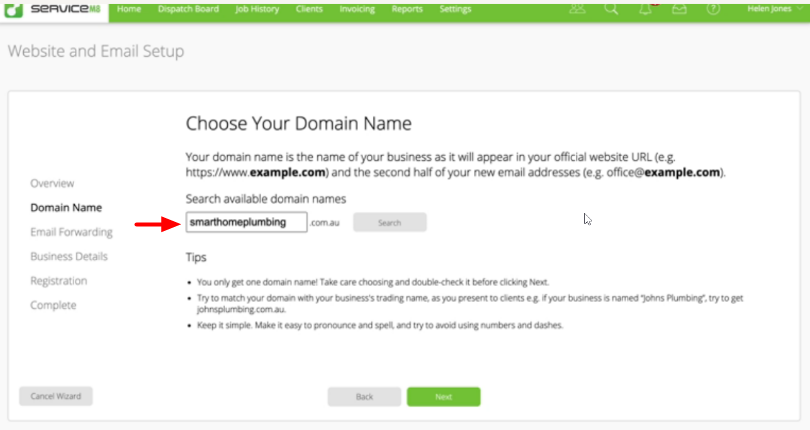
- Search for available domain names. It must be a new, unregistered domain - you can not transfer an existing domain name. Choose something that’s relevant to your business. You only get one, so choose wisely and proofread it carefully before clicking Next.
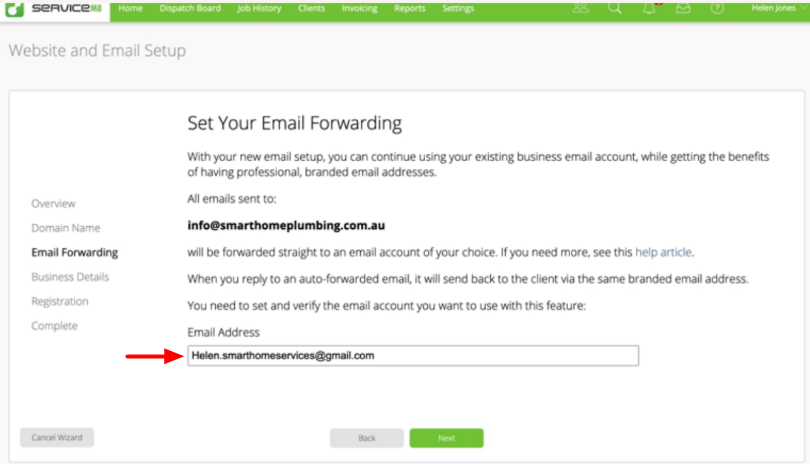
- Set your email forwarding. Your new email address will be branded with your domain name when sending emails to clients (e.g., info@smarthomeplumbing.com.au), and any emails sent to that address will be forwarded to your existing business email account.
- Verify your email address. You will be prompted to do so upon receipt of a 6-digit verification code.
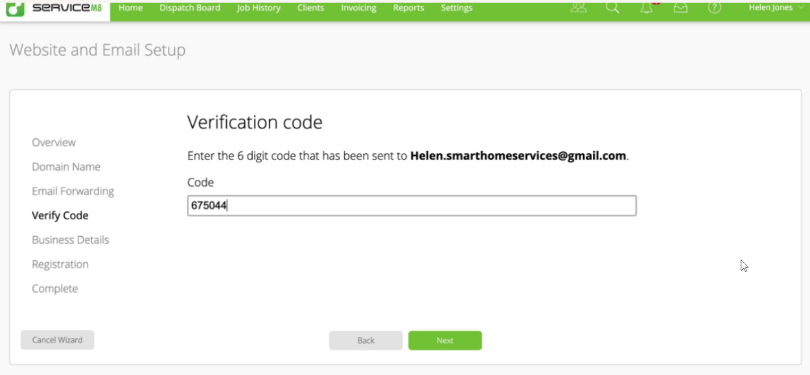
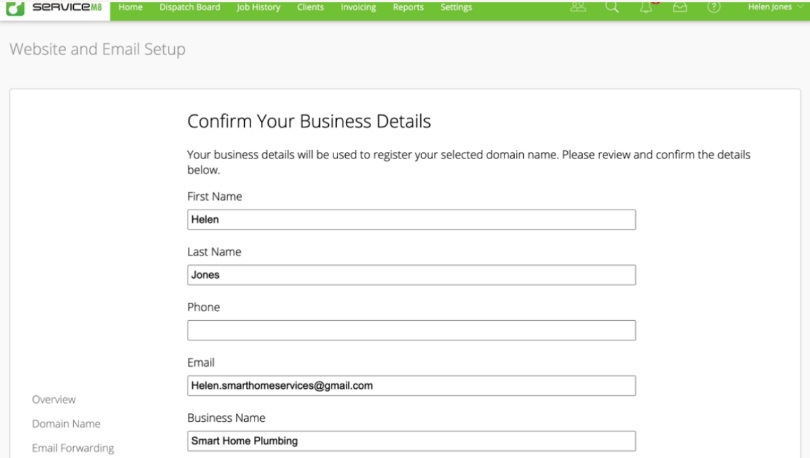
- Review and confirm your business details. These details are pre-populated based on information you have already entered into ServiceM8. This information is used to register your selected domain name.
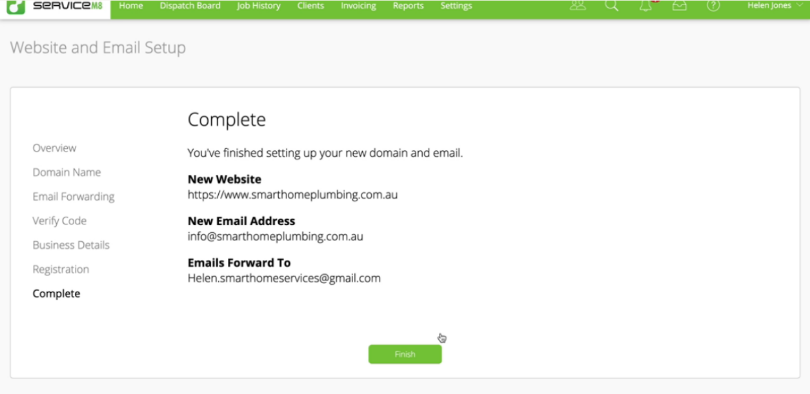
The Setup Wizard will confirm your domain details and, upon successful registration, you will see confirmation of your new website, email address, and email forwarding information.
Customizing your website
Following confirmation, the Website and Email Settings page will open. Although your domain name can not be changed, you can adjust your email settings and customisable website elements at any time. (Note that your website will automatically display your contact information and logo already saved in ServiceM8 under Settings > Preferences > Company Information.)
Any changes made to your website will be live within 24 hours.
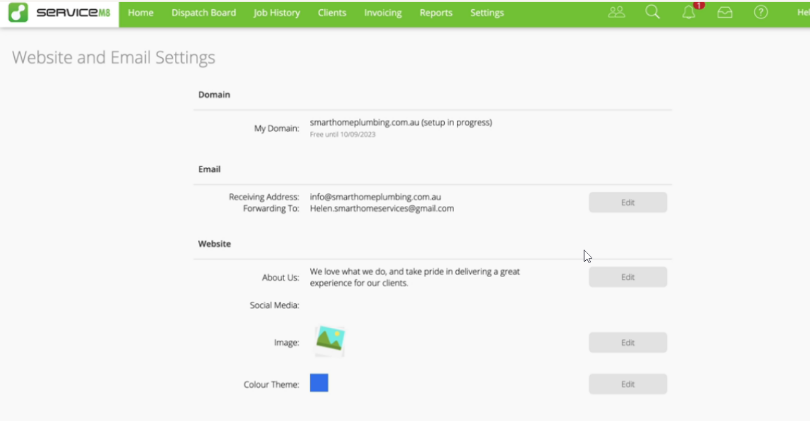
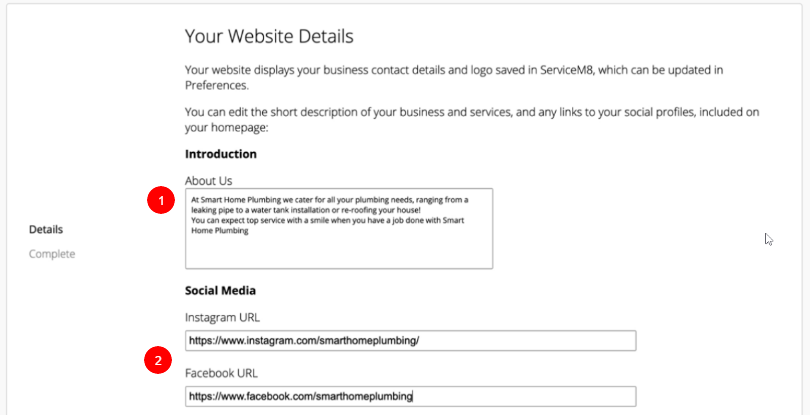
Under Website, you can customize the following elements:
-
About Us. Use this field to write a short description of the services you offer and how you can help your clients. What makes your business stand out? (Think workmanship, reliability, value, local, great communication, etc.)
-
Social Media. If applicable, add links to your Facebook and/or Instagram pages for your business. They will appear in the footer of your website.
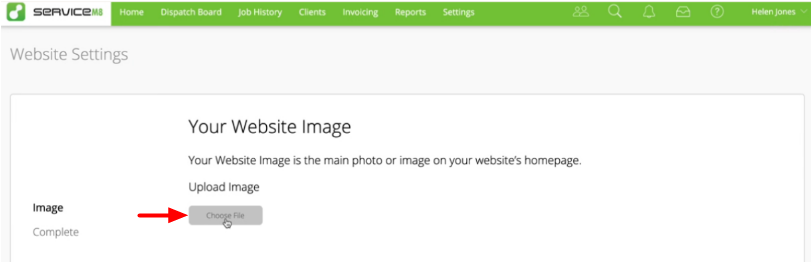
- Image. Click Choose File to upload an image from your computer that will appear on the front page of the website. Try to choose an image that will emphasize the value you bring.
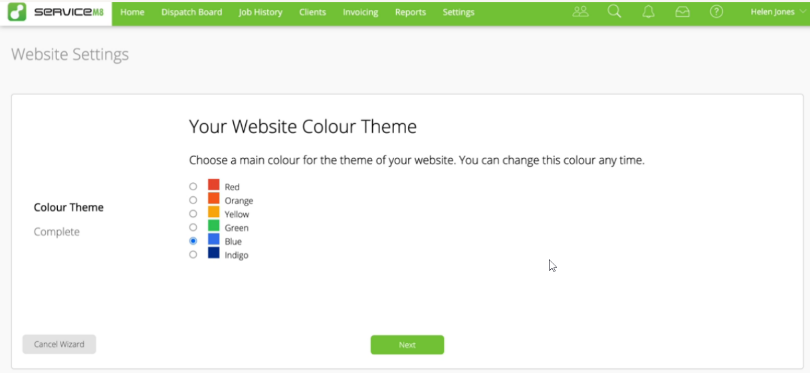
- Colour Theme. Choose one of six colours as the main colour theme for your site. This colour will be reflected in your site’s buttons and accent bar.
Once you have completed all setup, your site will be live within 24 hours!
Tips for Success
- To maximize the benefits of your new website, use the Customer Feedback and the Self-Serve Online Booking add-ons.
- Whenever you have a great photo from a job well done, share it to your website gallery right from the job card, either from the Online Desktop or from the ServiceM8 App.