

Forms
Form Follow-Up Automation
Learn about form Follow-Up Automation in ServiceM8.
Forms are great for ensuring that details of equipment inspections are recorded, and that company procedures are followed. But following up on the results of forms has previously been a manual process — you would need to look at the form, read the answers, and determine if there were any actions required. The Form Follow Up Automation helps to solve this problem.
Using Form Follow Up Automations, you can generate messages that arrive in your ServiceM8 Inbox based on the responses to questions in the form. For example, if you have an equipment inspection form, a common question in that form may be to ask if there are parts to be replaced or additional servicing required. You can set up a Form Follow Up Automation so that if that question is answered “Yes”, you receive a message in your ServiceM8 Inbox ready to convert to a job so you can follow up to provide the parts or servicing. Or you could set up an Automation so that you are notified when a staff member provides an unexpected response when filling out a company procedure form, such as a pre-start checklist or risk assessment.
To create a Form Follow Up Automation, you’ll first need to activate the Automation add-on and the Forms add-on.
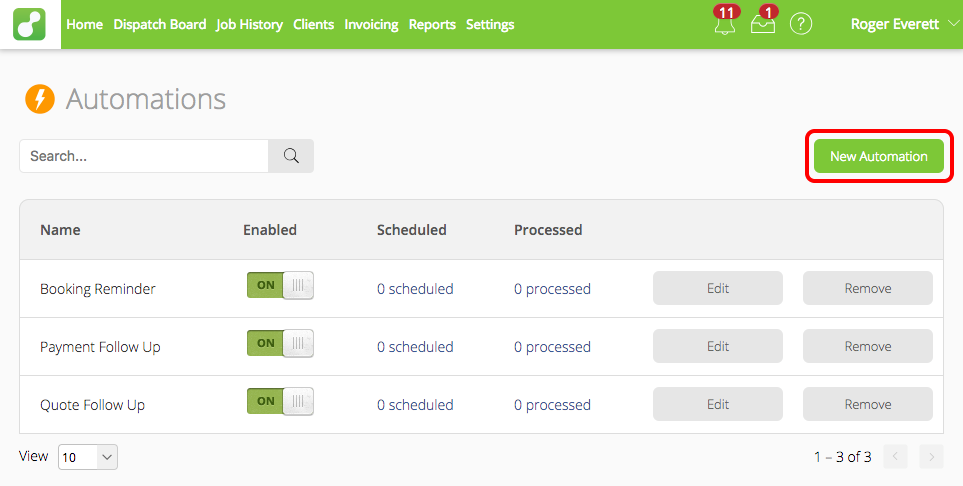
Go to Settings > Automations and click the “New Automation” button at the top-right:
Select Form Inbox Follow Up from the list of Automations:

Choose the form for which you would like to create follow up messages:

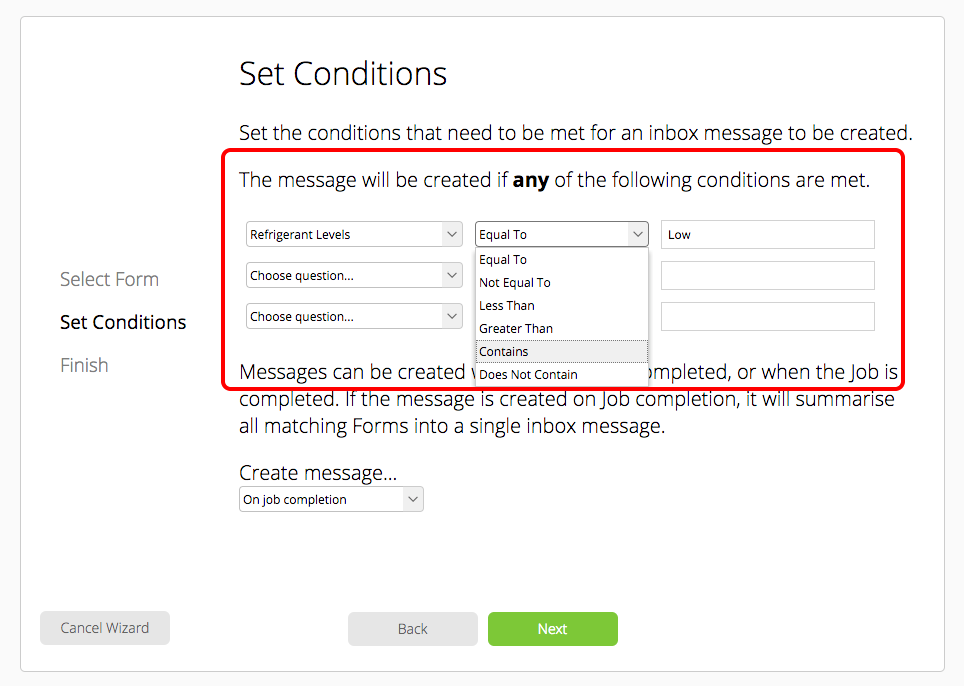
You can set up to three conditions which will trigger the Inbox message to be created. The message will be created if any of the specified conditions are met. The responses to each question that you specify will also be included in the Inbox message.
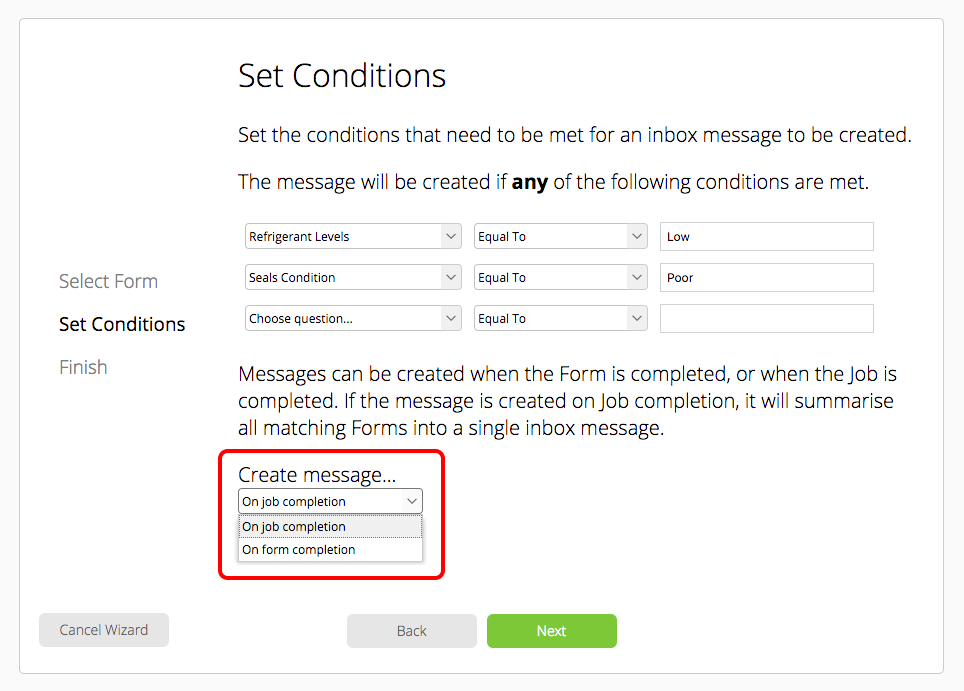
You can also select whether the Inbox message should be created as soon as the Form is completed, or when the Job is completed. This is mainly useful when creating Follow Up messages for Forms on Assets, as selecting the “On Job Completion” option will combine all the messages that would have been generated for that Job into a single message. For example, say you inspected 50 Fire Extinguishers at a client’s premises, and 10 of them required some sort of follow-up action based on your form responses. Using the “On Job Completion” option will result in a single message with details of those 10 Asset Forms, instead of 10 separate messages.
Click Next to create the Automation.
Now, when you complete a Form which matches the conditions you set up (and complete the Job, depending on the option selected), the message will arrive in your ServiceM8 Inbox ready to be converted to a job.
