

Knowledge
How to embed ServiceM8 content in a Knowledge article
Learn how to embed Forms, Materials, Clients, Job Templates, and job photos or videos in a Knowledge article.
Add Forms, Materials, Clients, Job Templates and job photos or videos to your Knowledge articles. You can also link to another Knowledge article.
Before you start
Activate the Knowledge Add-on in Settings > ServiceM8 Add-ons.
Open the editor
-
Go to Settings > Knowledge Articles.
-
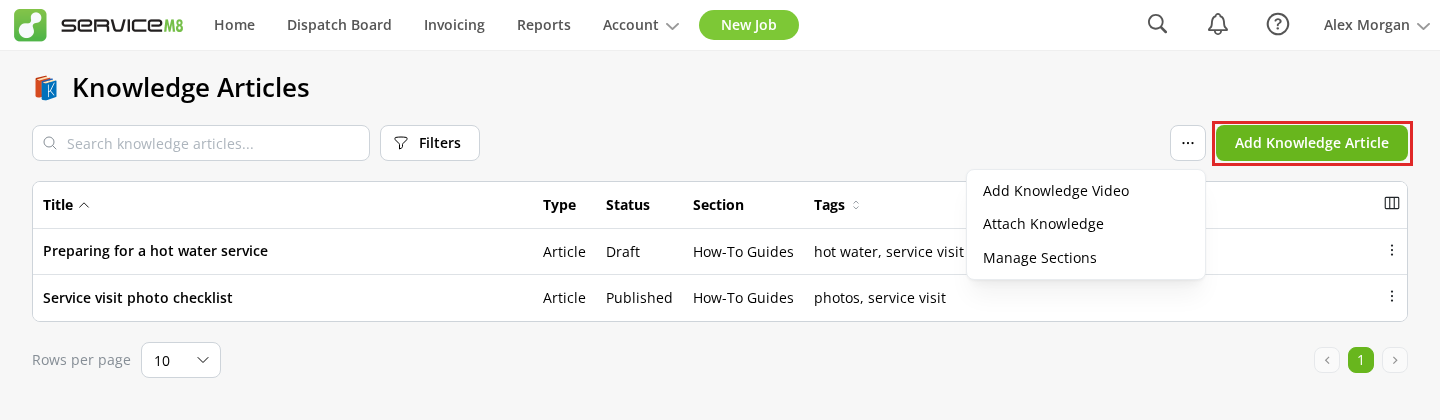
Click Add Knowledge Article, or open the row action menu (…) and click Edit for an article that uses the full-screen editor.
-
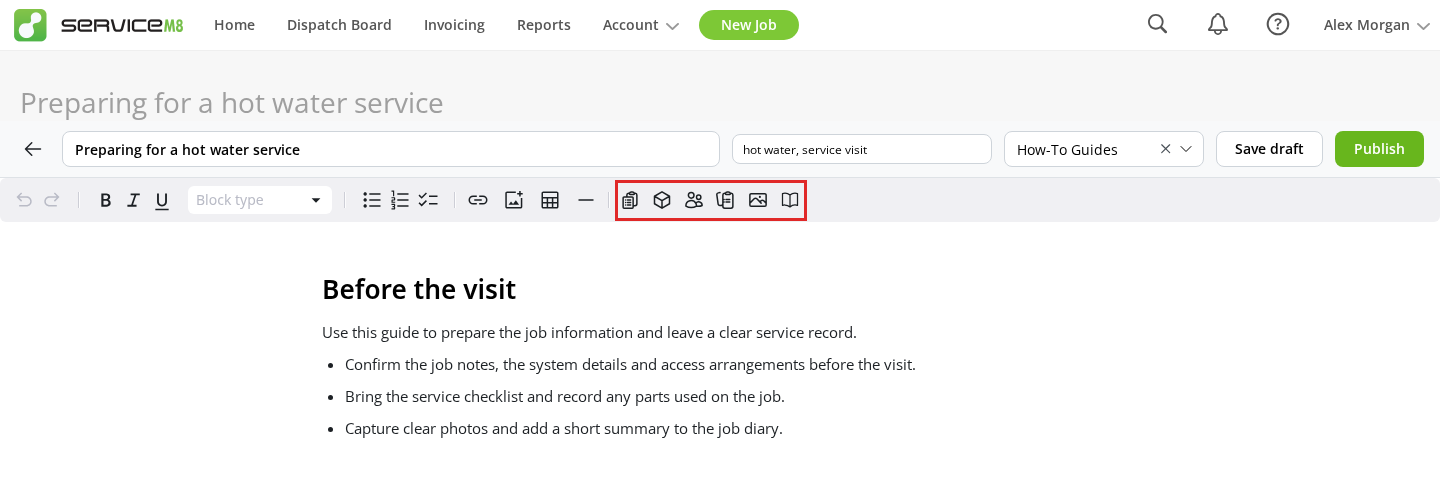
Click in the article where you want to insert content, then choose a content button in the toolbar.
Add Forms, Materials or Clients
-
Click Insert form list, Insert material list or Insert client list in the toolbar.
-
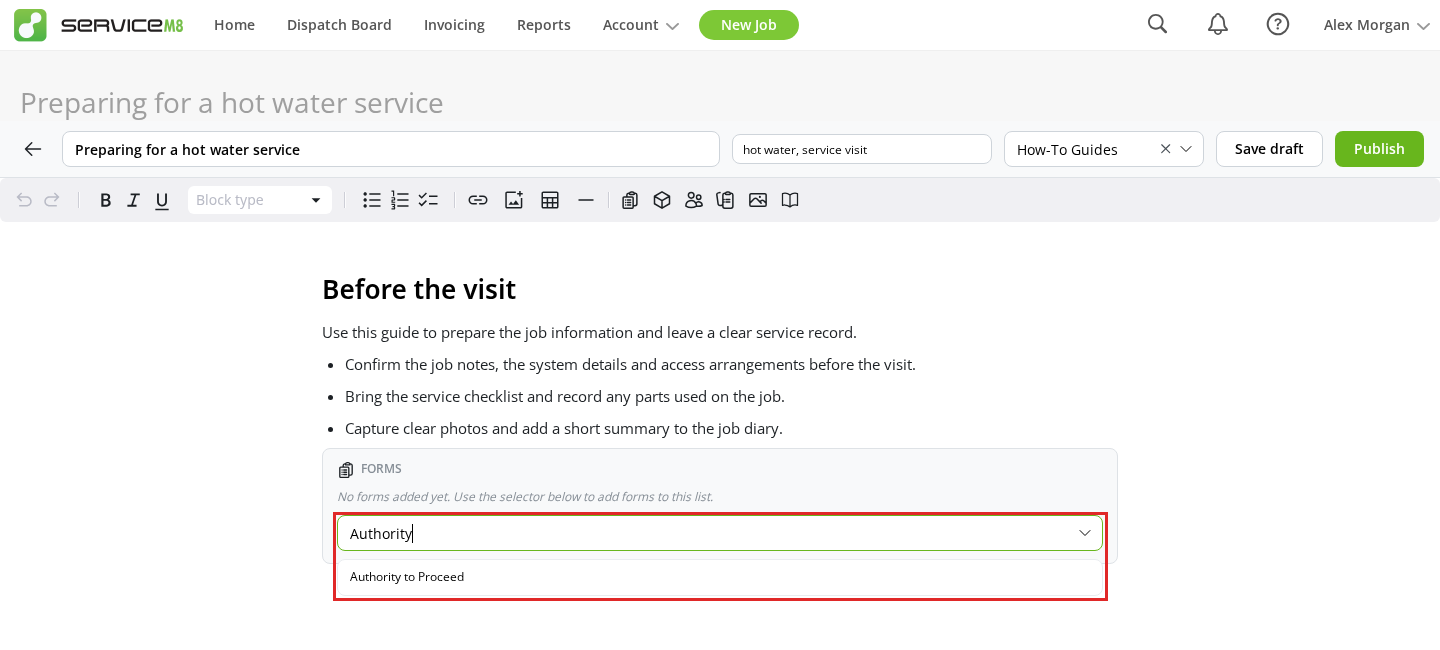
Search for and select an item in the block. For Materials, type a name to find matching items.
-
Repeat to add more items. Click the remove button beside an item to take it out of the block.
Add a Job Template
- Click Insert job template in the toolbar.
- Search for the template by name and select it.
The block displays the template’s name, description and checklists.
Add job photos or videos
-
Click Insert job photo/video in the toolbar.
-
Choose recent media, or search by keyword or job number.
-
Select up to 10 items, then click Insert. The numbered badges show their order.
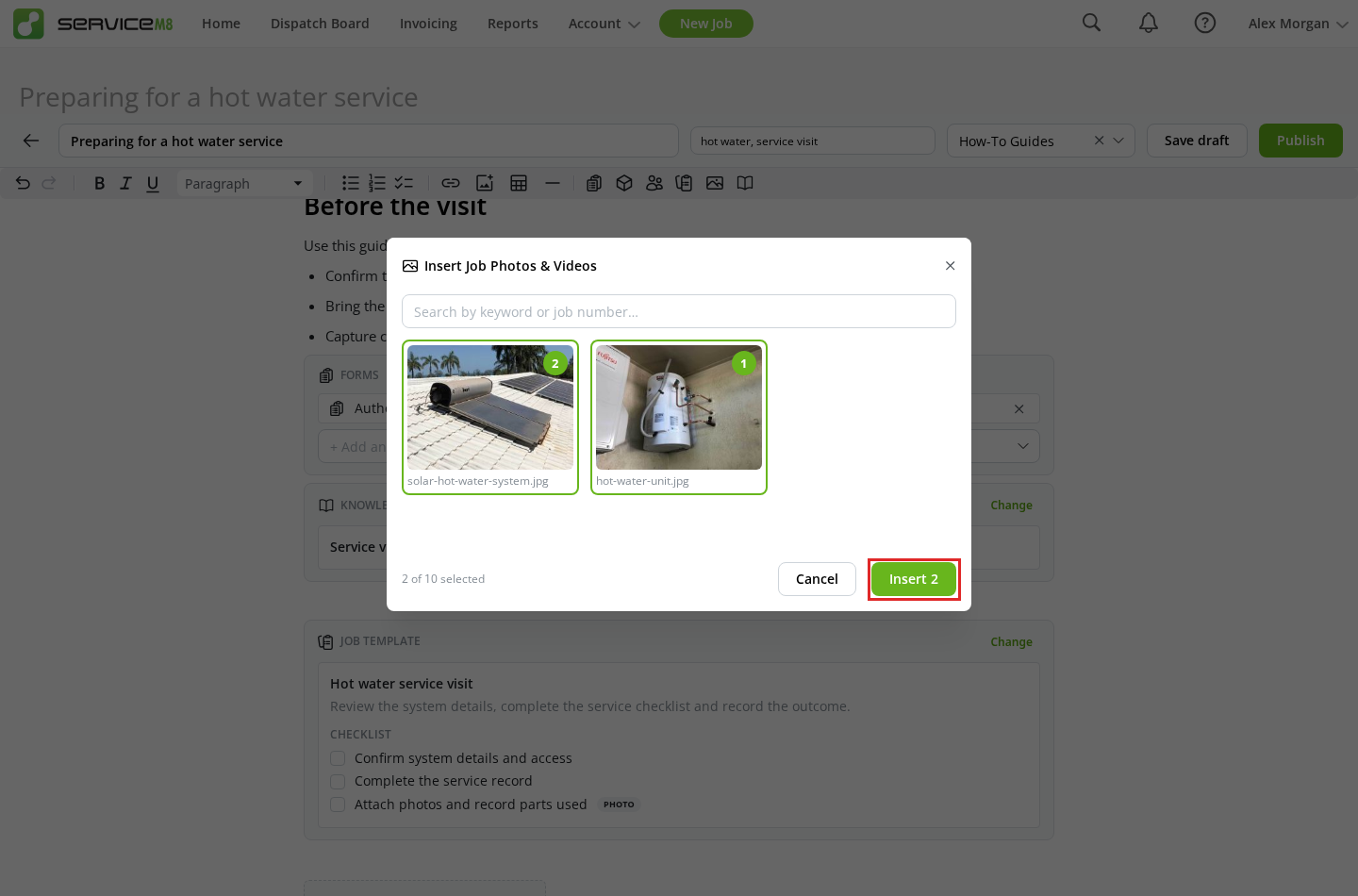
Click + Add in the block to insert more media, or use an item’s remove button to take it out.
Link to another Knowledge article
-
Click Insert knowledge article link in the toolbar.
-
Search by title and select the article.
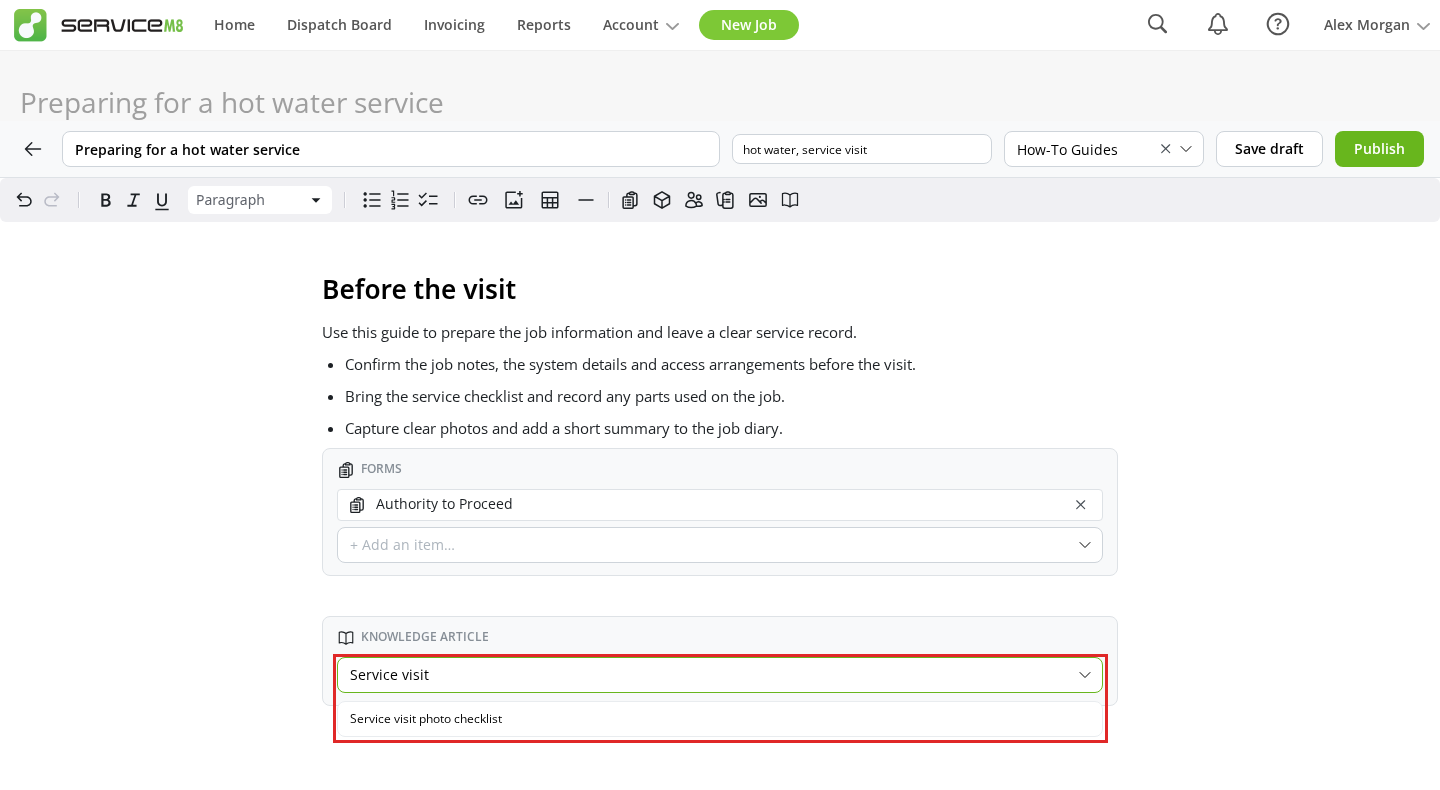
The picker lists published articles you can access. The link opens the selected article; it does not copy its content. Click Change in the block to choose a different article.
Save or publish
Click Save draft to finish later, or Publish when the article is ready. For an already published article, click Save changes to keep it published.
Open the saved article to view its content.
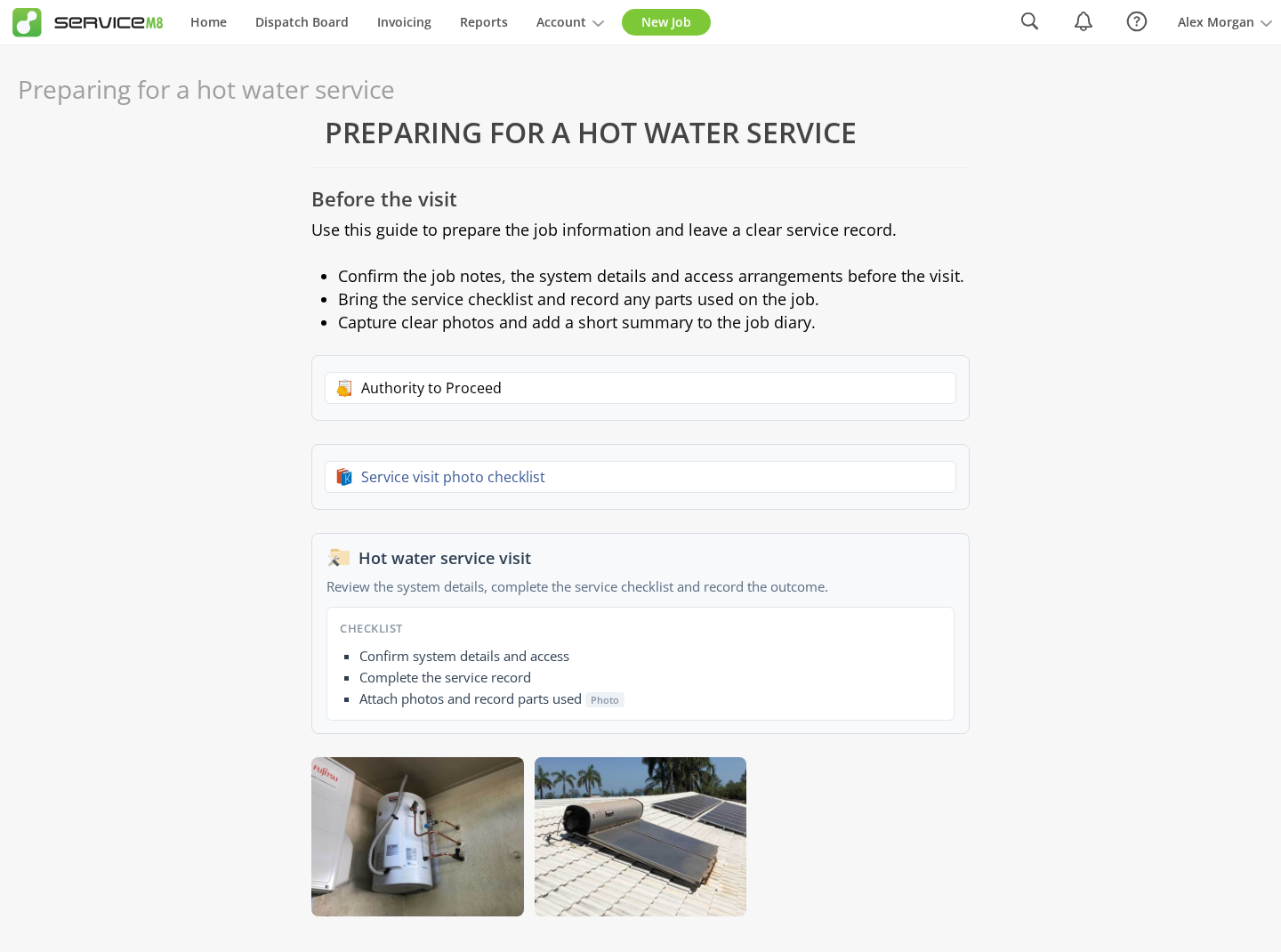
For draft visibility and editing steps, see How to create a Knowledge article online.