Automation
Automation - overview
Get an overview of automation in ServiceM8.
The Automation add-on is a powerful tool that you can use to schedule automatic communications to your clients and to your staff. By putting routine automations in place, such as quote follow-ups or overdue payment reminders, your staff will spend less time on administrative tasks, while your clients will benefit from clear, professional communications.
This article provides a brief overview of each automation, and explains where to view scheduled or processed automations. There is also a brief video with more information.
To activate the add-on from the Online Dashboard, go to Settings > ServiceM8 Add-ons and enable Automation.

Overview of available automations
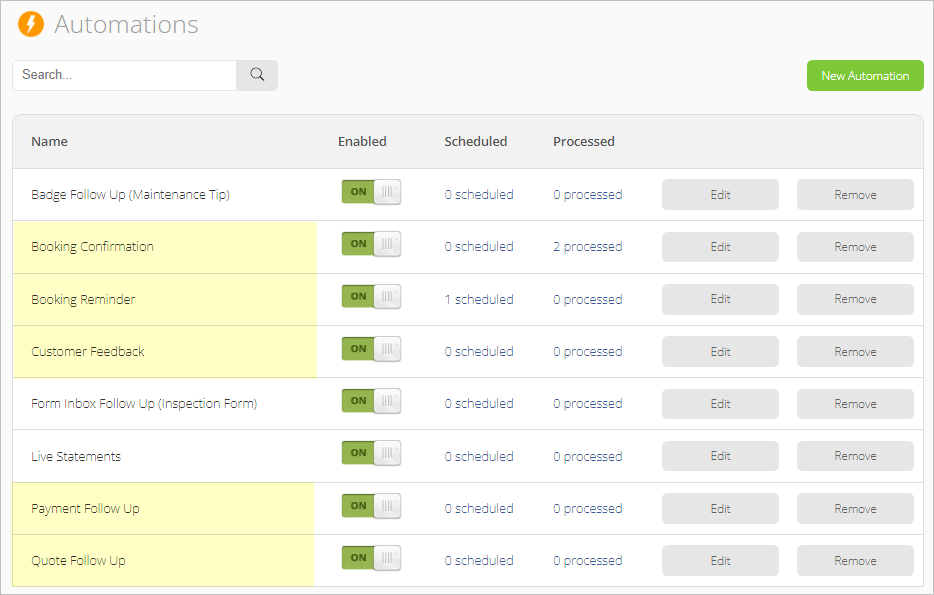
There are eight available automations. The five highlighted in the list below are routine activities for almost any business, so are pre-built and ready for you to enable or customise. The other three are more dependent on specific business goals, and can be created as needed.
All automations have a convenient Wizard to walk you through initial set-up and any customisation required.
Booking Confirmation (pre-built)
Sends a booking confirmation to clients immediately upon scheduling a new booking within the job card.
- You can customise the message and choose if you want confirmations sent via text message, email, or both.
- Booking confirmations are only sent for bookings scheduled from the job card. You can select if you want to send a booking confirmation or not before saving.
Booking Reminder (pre-built)
Sends a booking reminder to clients before the scheduled booking.
- You can determine the timing of the reminder (for example, 8 hours before booking), customise the message, and choose if you want reminders sent via text message, email, or both.
- Booking reminders will only be sent for jobs with the Booking Reminder badge applied.
Customer Feedback (pre-built)
Sends a request to clients for feedback after a job invoice is paid.
- You can determine the timing of the request, customise the message, and choose if you want confirmations sent via text message, email, or both.
- Messages will be sent only if the client has not already provided feedback for the job.
- Used with the Customer Feedback add-on.
Payment Follow Up (pre-built)
Sends a request for payment to clients who have overdue accounts.
- You can determine the timing of the follow-up, customise the message, and choose if you want follow-ups sent via text message, email, or both.
- Payment follow-ups are calculated from the date the job status changed to Completed, and are only sent if payment has not been received.
Quote Follow Up (pre-built)
Sends a follow-up to clients who have pending quotes - an excellent way to increase your quote win rate.
- You can determine the timing of the follow-up, customise the message, and choose if you want follow-ups sent via text message, email, or both.
- Quote follow-ups will only be sent if the client has not yet responded to the quote and the job status has not changed from Quote.
Sends customised messages to clients after completing jobs with specific badges.
- Every new badge follow-up automation you set up is associated with a unique badge. For example, you could customise a badge follow-up to send a reminder about equipment servicing 9 months later, or to send a special offer 3 months later.
- You can also specify that if a client schedules a new job before the automated message is due to be sent, the automation will be cancelled.
- Used with the Badges add-on.
Sends messages to your ServiceM8 inbox that can then be converted to jobs, depending on responses to questions in a form.
- For example, if a response on an equipment inspection form indicates a part needs to be serviced, a message is sent to your inbox that can then be converted to a job as you follow up about servicing the part.
- You can set up to three conditions that will trigger the creation of an inbox message.
- You can also specify if messages are created when the form is completed, or when the job is completed.
- Used with the Forms add-on and the Email Inbox add-on.
Sends a live statement of outstanding invoices to specific clients - particularly useful for clients who have multiple jobs on the go.
- You can specify if a client should receive live invoice statements.
- You can set the automation to occur at the start of each week, every two weeks, or at the start of each month.
- If an invoice for a completed job has been sent to a client but the invoice has not yet been paid, it will appear on their live invoice statement.
Viewing scheduled or processed automations
(NOTE: You can manually stop an automated communication from being sent to a client at any time from the Online Dashboard. Click here for more information.)
You can see all scheduled or processed automations in the Online Dashboard from Settings > Automation.
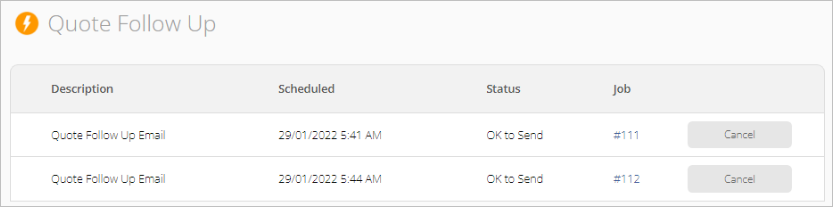
Click on the # scheduled or # processed next to any given automation to see the list of associated jobs. The example below clicked on the scheduled quote follow up automations.
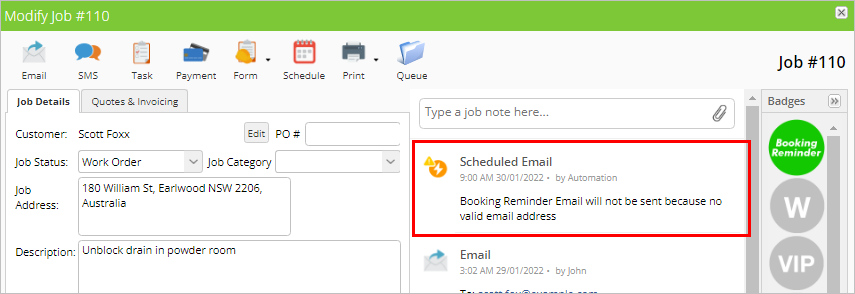
- Scheduled automations will display a warning if there is an issue preventing them from being sent (for example, a missing email address). If you fix the issue identified, then the automation will proceed at the scheduled time.
- Processed automations will either display a sent status, or a reason why they did not process as scheduled.

You can also see any automations for a specific job, either scheduled or processed, from its job diary.
- If a scheduled automation has an issue, there will be a warning icon and an explanation. The example below is a booking reminder with an issue.