

Office Agent
How to create and manage Office Agent tasks
Create a recurring Office Agent task, review its suggestions and manage Task Memory.
Use a scheduled task for work you want Office Agent to repeat. Each run has a conversation where you can review findings and proposed actions.
Task management requires the Business Owner security role. Office Agent tasks are separate from Job Checklists.
How to create a new task
-
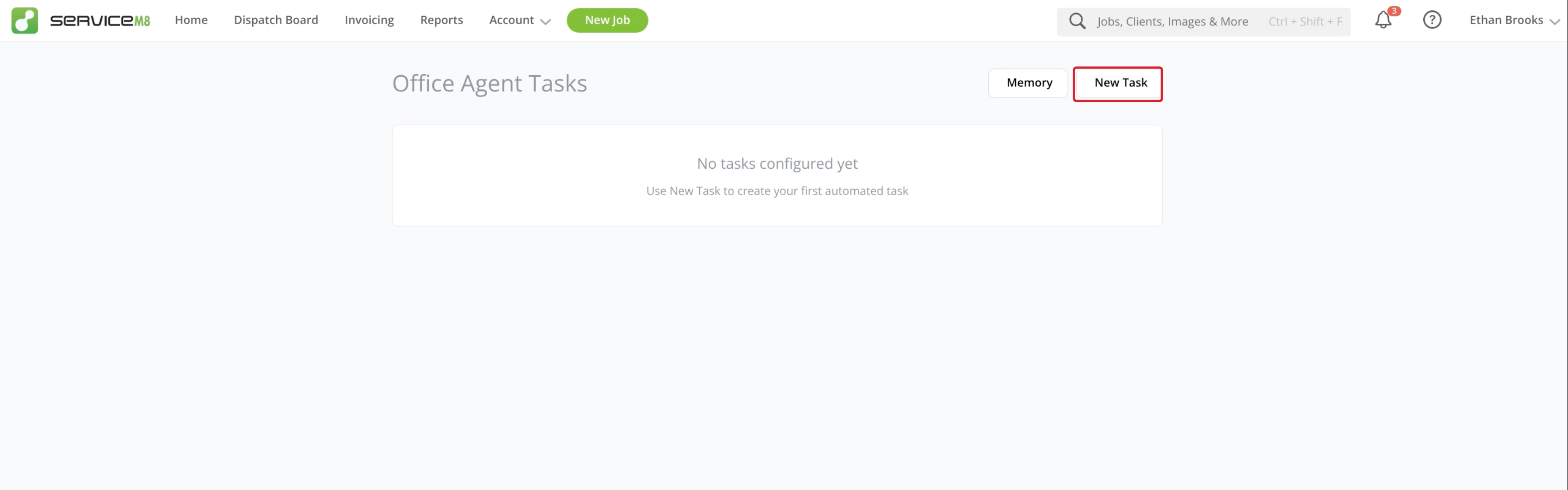
In the Online Dashboard, open Office Agent from Home or the Account dropdown menu, then click New Task.
-
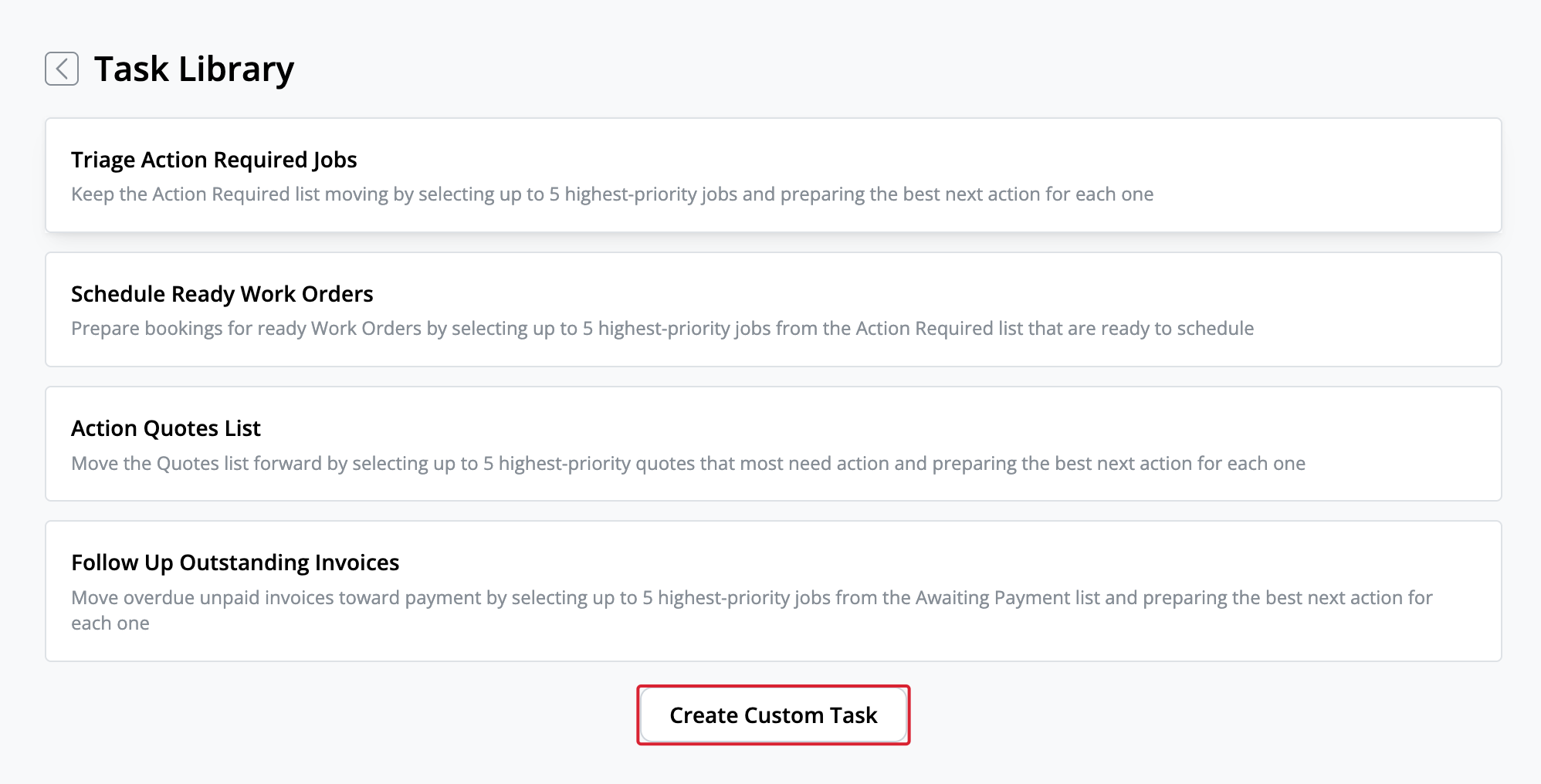
If the Task Library opens, click Create Custom Task.
-
Enter a Name of task, Frequency & Time, and Instructions.
-
Choose Who to notify and, if needed, enter a condition in When to notify.
-
Review the Tools tab and turn off actions the task does not need.
-
Check the settings, then click Create.
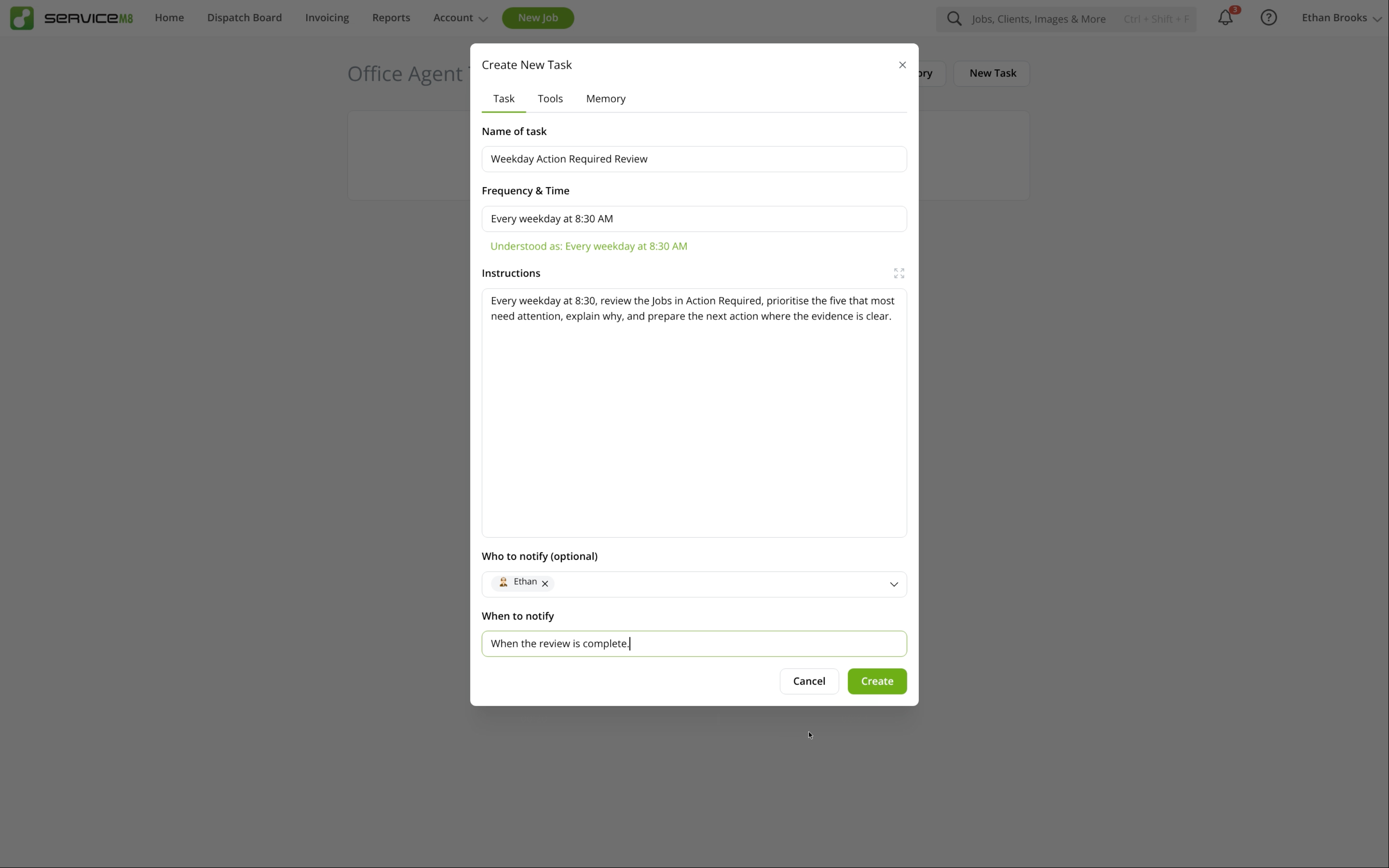
A custom task starts turned off. Turn on its switch when you want it to run on schedule.
How Frequency & Time works
Enter a schedule in plain English, such as Every weekday at 8:30 AM. Check the Understood as confirmation before saving. Schedules use your business timezone and must be at least two hours apart.
To change a task’s settings, select it, click the pencil button, make your changes and click Save. Use its switch to enable or disable scheduled runs.
How to write clear instructions
Specify which Jobs, lists or queues to review, how many to process, and the outcome you want. Include any exceptions. Say whether the task should only report its findings or prepare actions for approval.
Choose the right tools
Open the Tools tab when creating or editing a task. Enable only the actions it needs. For a review-only task, turn off communication, booking, queue and status-change tools.
If you need to notify someone
Select recipients in Who to notify. Leave When to notify blank to notify them after every run, or enter a condition for when a notification is useful. Leave Who to notify blank to send no notification.
Run a task and review its actions
-
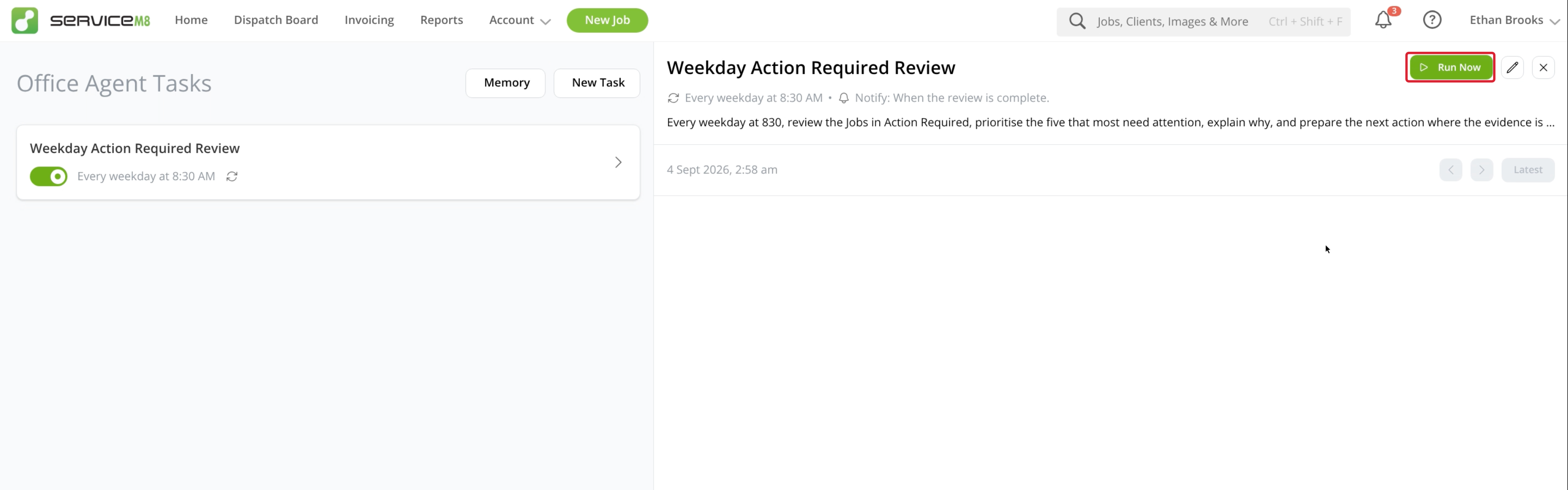
Select the task and click Run Now to start a run without changing its saved schedule.
-
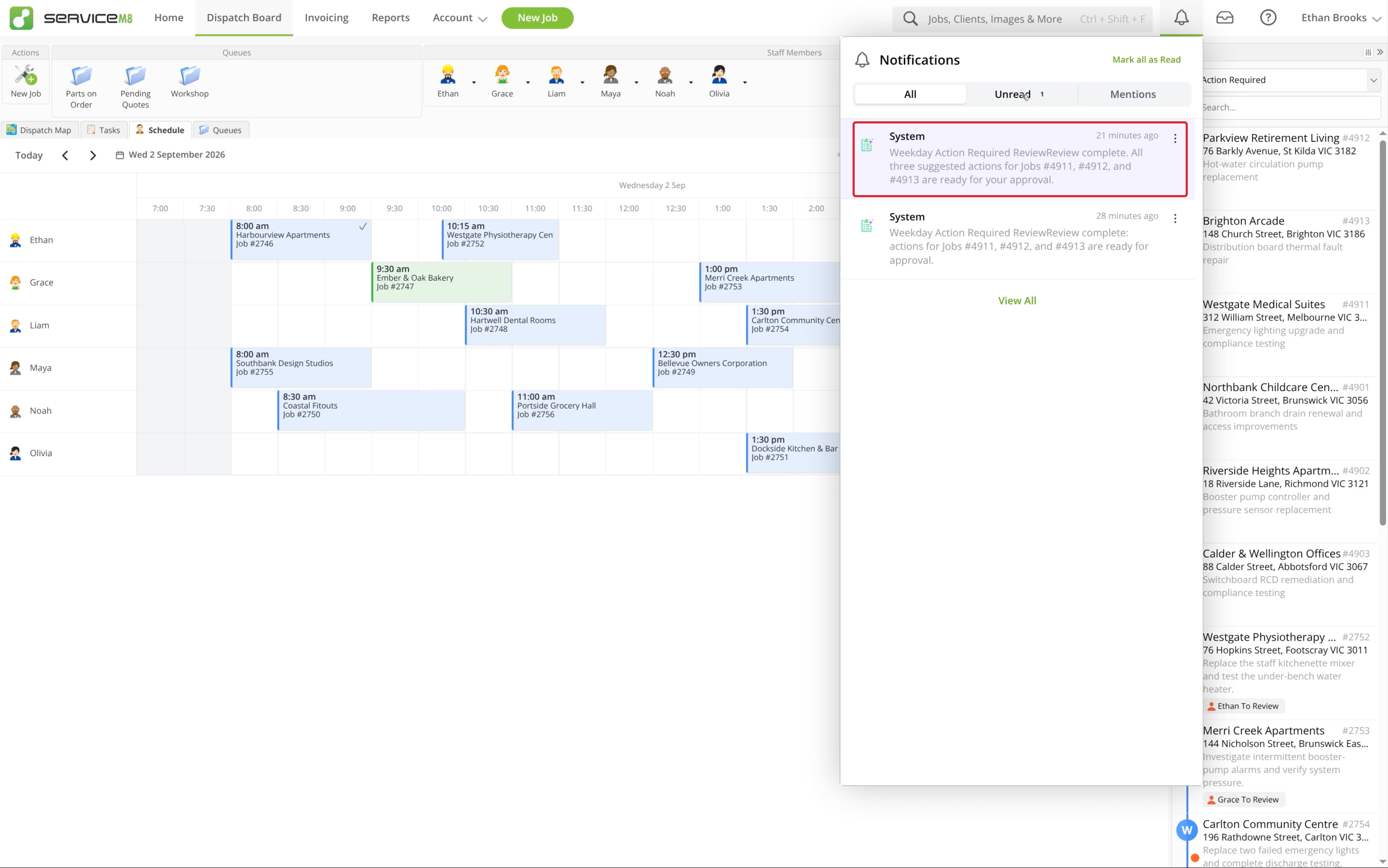
Open the run conversation, or click its notification when one arrives.
-
Check each proposed action and its reasoning, then click Approve or Decline. Where a suggestion appears in the relevant Job Diary, you can review it there too.
Each action is reviewed separately. Keep reviewing suggestions as the task runs over time.
Give feedback and review Task Memory
-
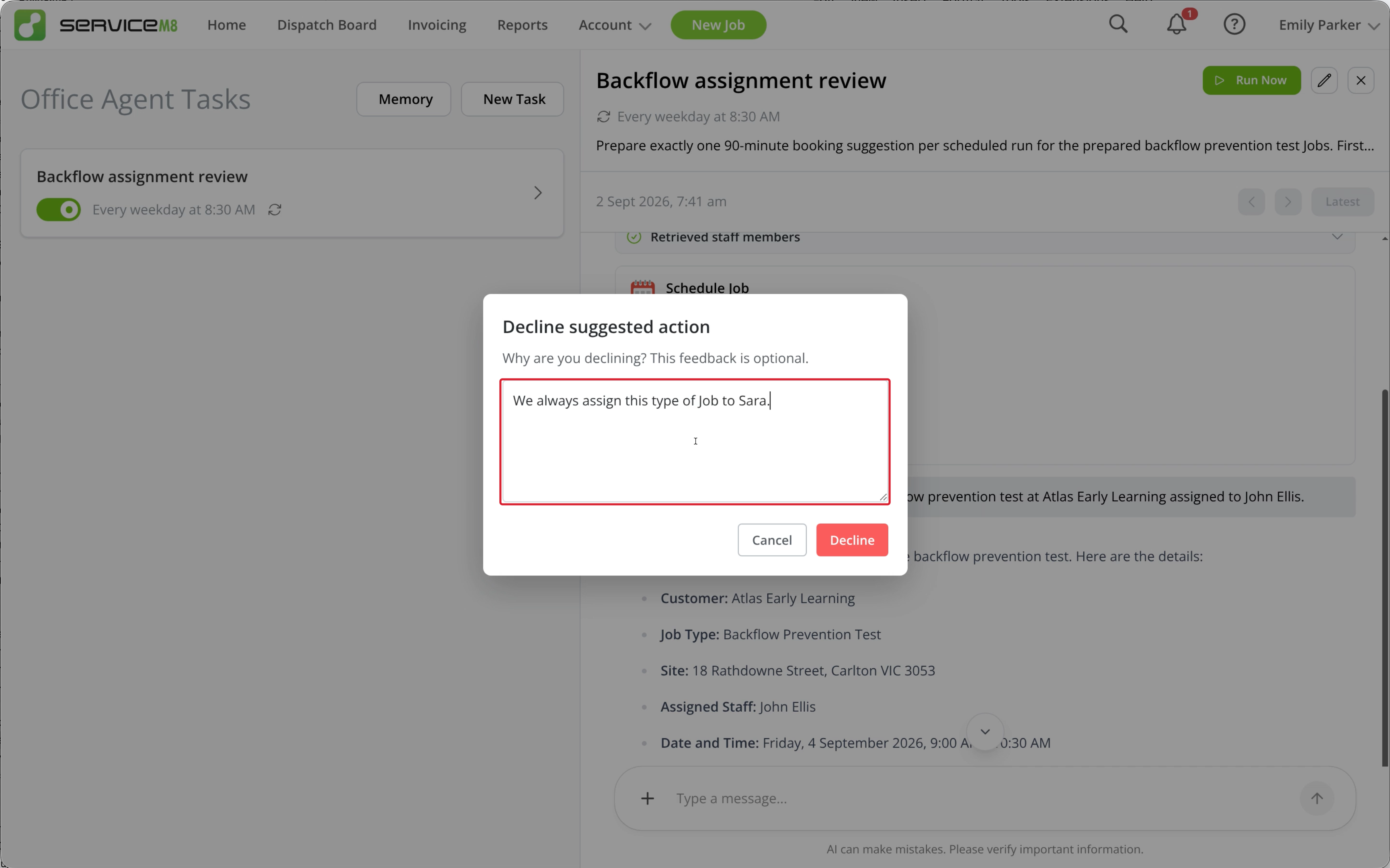
To explain a correction, click Decline on the suggestion, enter an optional reason, then confirm Decline.
-
Review any revised suggestion before approving it. Office Agent can use your feedback to update the task’s rules.
-
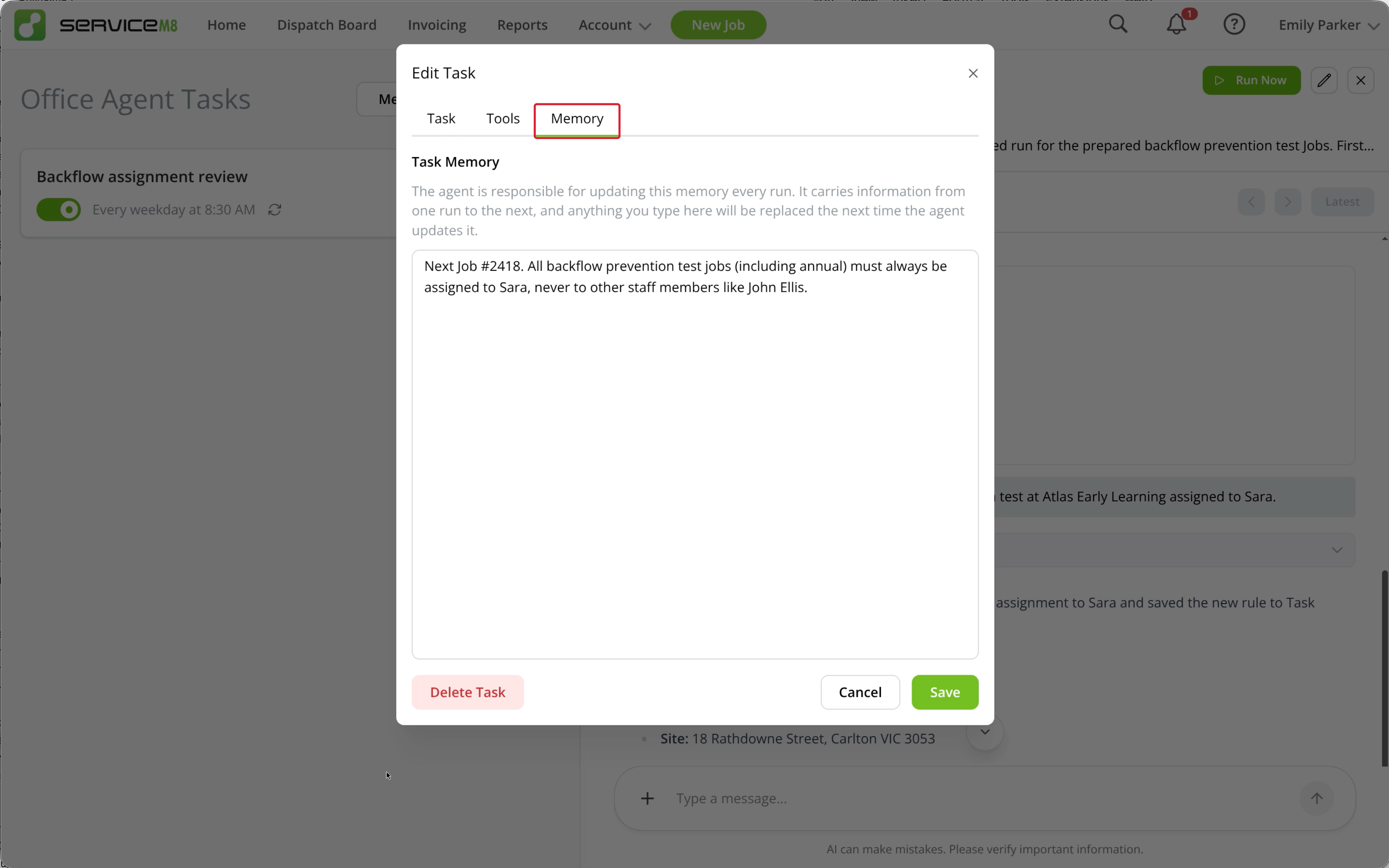
To review those rules, select the task, click the pencil button and open Memory.
-
Make any necessary changes and click Save. Office Agent may update this memory during later runs.
Task Memory carries rules and exceptions between runs of this task. Your shared Knowledge holds business policies and procedures; remembered preferences apply across conversations.
For a ready-made starting point, see How to use the Office Agent task library.