

Knowledge
How to use Knowledge Sections
Organise Knowledge and control which security roles can view or edit each Section.
Use Sections to organise Knowledge and choose which security roles can view or edit its content. Each Knowledge item belongs to one Section, or stays Unfiled. You can use the existing Sections or create your own.
Before you start
- Activate the Knowledge Add-on in Settings > ServiceM8 Add-ons.
- You need access to Settings > Knowledge Articles to manage Sections.
Create a Section
-
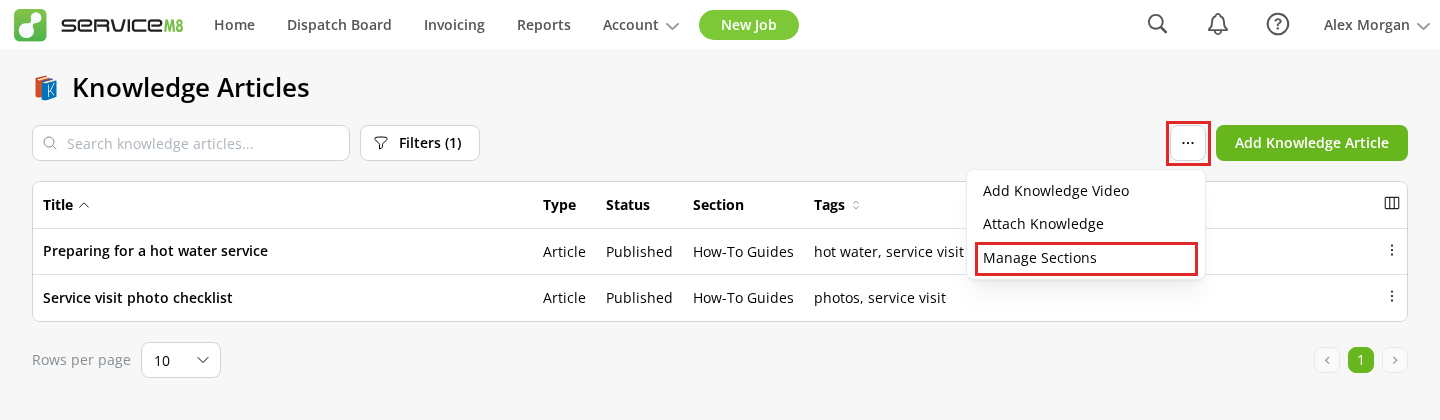
In the Online Dashboard, go to Settings > Knowledge Articles, then open More actions (…) > Manage Sections.
-
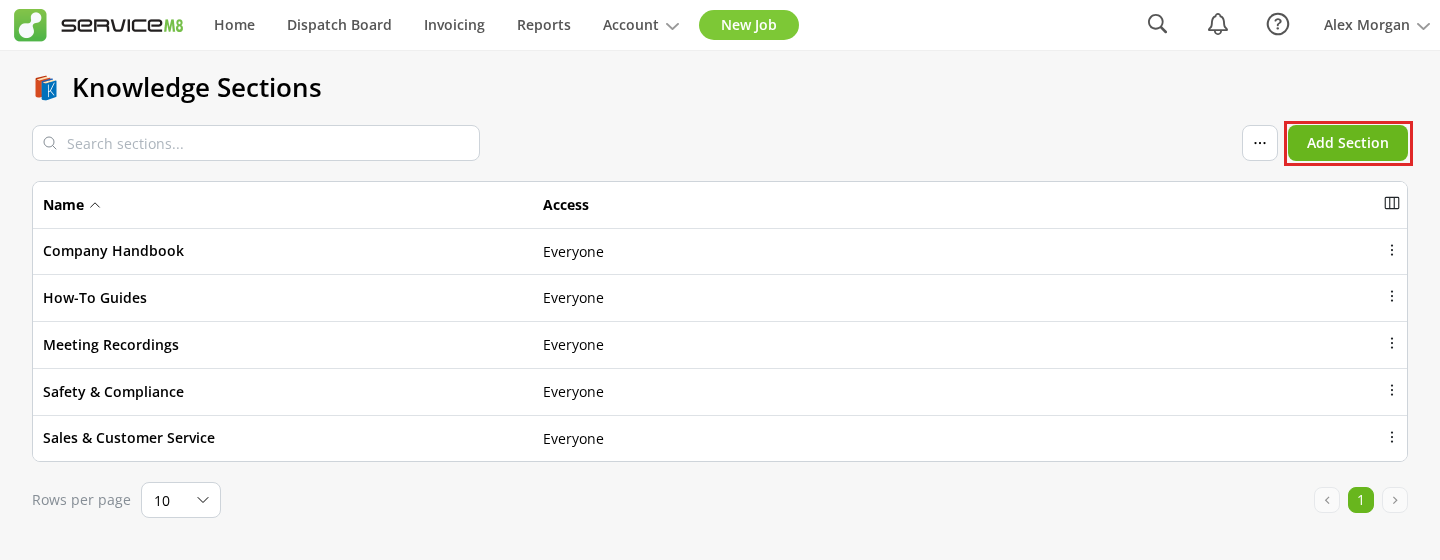
Click Add Section.
-
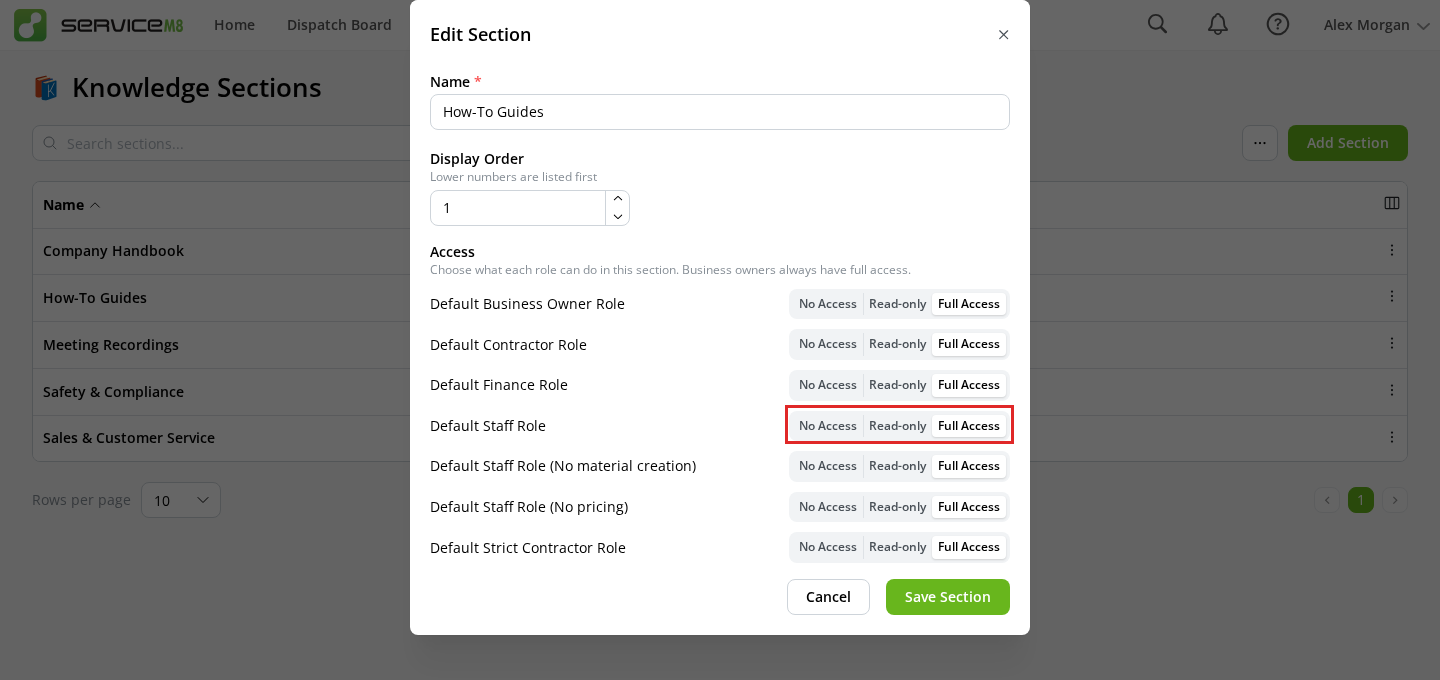
Enter a Name and set the Display Order. Lower numbers appear first.
-
Under Access, choose what each security role can do:
Access What the role allows No Access No access to content in the Section. Read-only Find and view content. Full Access Find, view, create and edit content. -
Click Save Section.
New Sections give every role Full Access by default. The Account Owner and staff with the Business Owner security role always have Full Access. If a staff member has several roles, the highest access granted by any role applies.
When every role has Full Access, roles you create later also receive Full Access. To restrict a Section to the Account Owner and Business Owners, set all listed roles to No Access.
Assign Knowledge to a Section
-
In Knowledge Articles, add or edit an article, video or PDF.
-
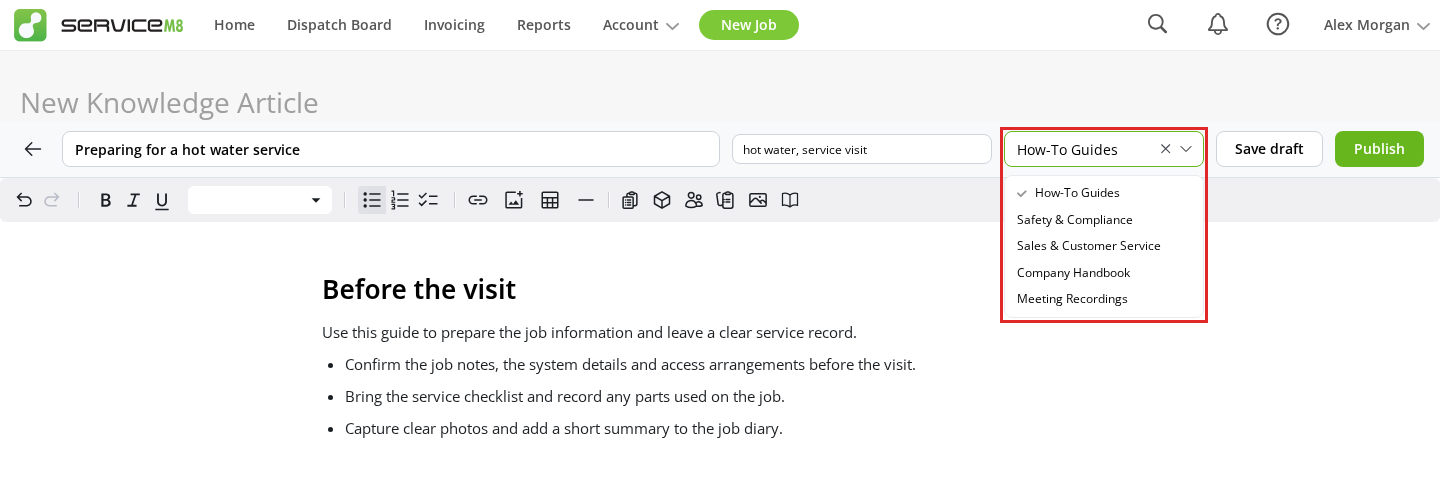
Select a Section in the editor.
-
Save your changes. In the full-screen editor, choose Save draft, Publish or Save changes, as appropriate.
You need Full Access to the destination Section. To move existing content, you also need Full Access to its current Section.
Knowledge without a Section is Unfiled. It remains available to staff who can otherwise access Knowledge. Clear the Section selection or choose No section to leave an item Unfiled.
Filter the Knowledge list
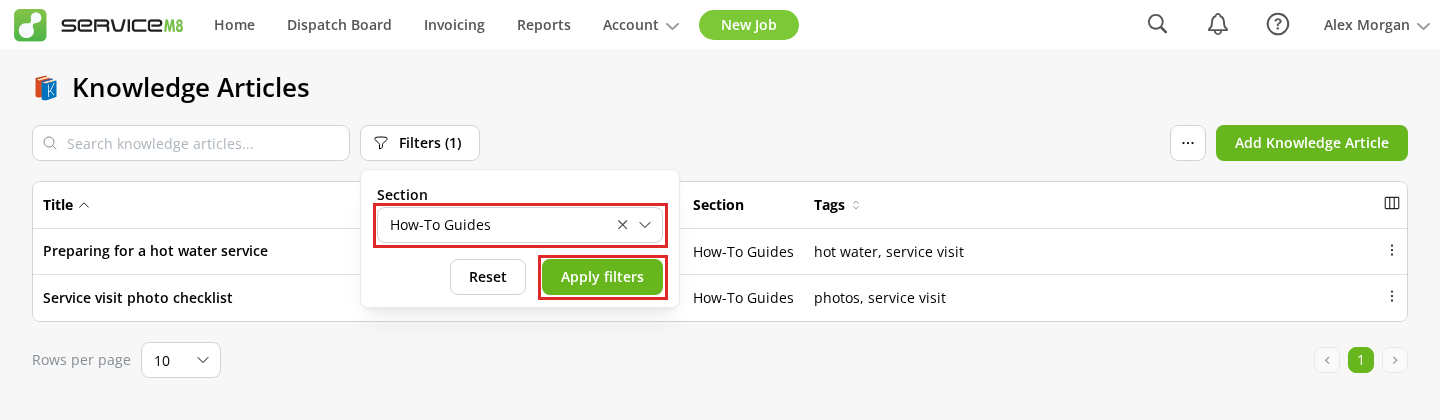
In Knowledge Articles, click Filters, choose a Section, then click Apply filters.
Sections organise access and browsing. Tags still determine when Knowledge is suggested for a job.
Edit or remove a Section
Go to Knowledge Articles > More actions (…) > Manage Sections. Open the Section’s row action menu (…), then click Edit to change its name, order or access. You need Full Access to the Section as well as access to Knowledge settings.
To remove a Section, open its row action menu (…), click Remove and confirm. Its Knowledge content is retained and moved to Unfiled, where that Section’s access restrictions no longer apply.
How Section access applies
Section access controls which content staff can find and open in Knowledge, search results and job suggestions. It also applies to future app syncs and Knowledge retrieved by ServiceM8 agents on their behalf.
Content already synced to a device is not automatically removed when you restrict its Section. Restricting a Section also does not revoke a Knowledge video’s direct media link if someone already has it.