

Bundles
How to Copy a Bundle
Learn how to copy a Bundle in ServiceM8.
With the Bundles Add-on, if you need to create a bundle very similar to an existing one, you can now open an existing bundle, tap “Make a Copy”, make your edits, and save as a new bundle.
To copy a Bundle in the Online Dashboard:
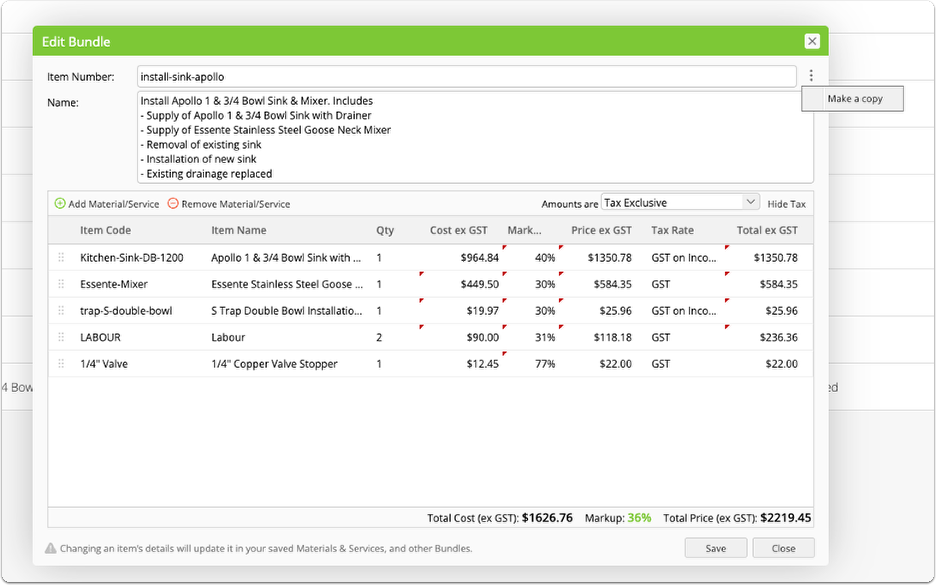
To copy a Bundle in the Online Dashboard, go to Settings > Materials & Services > Bundles, find & Edit the bundle you want to copy, click the three vertical dots > Make a Copy:
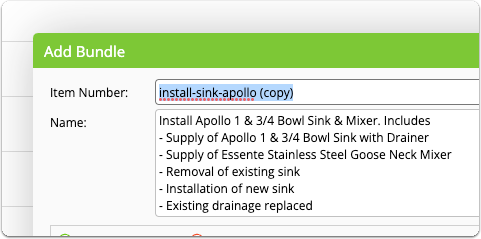
You can then update the bundles number/code so its easy to search and distinguish, make your changes, and Save:
To copy a Bundle in a Job Card Online:
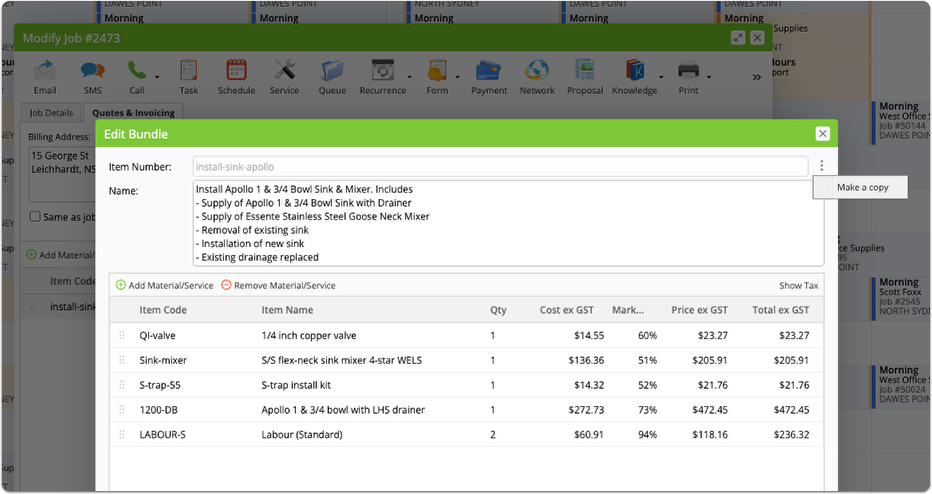
The same option is available when working with Bundles in a job card online. Simply open the bundle from the job card, and Make a Copy:
To copy a Bundle in the ServiceM8 App:
If you want to create a new bundle on the go in the ServiceM8 app, open the bundle in a job card, scroll to the bottom, and tap Make a Copy:
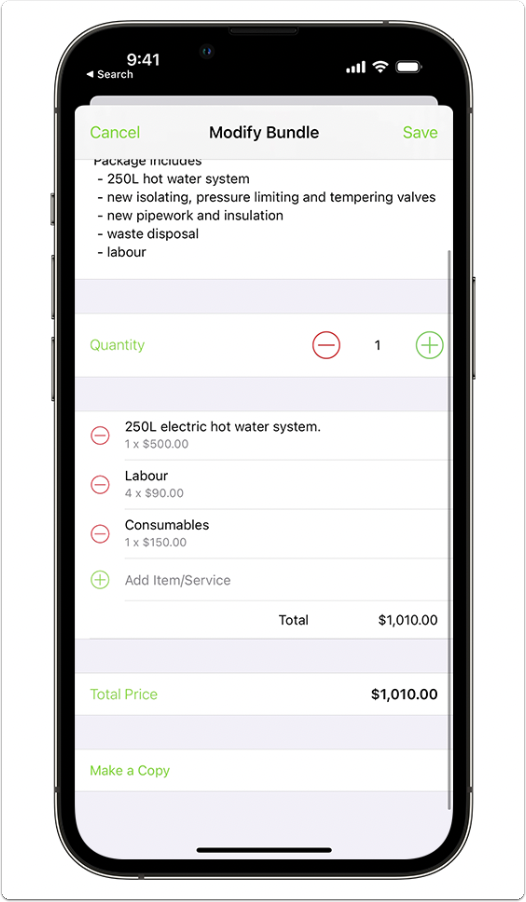
Update the bundles number/code, make your changes, and Save.