

Forms
How to view all questions in a Form
Switch between one question at a time and all visible Form questions in the ServiceM8 app.
When completing a Form in the ServiceM8 app, you can answer one question at a time or view all visible questions on one scrolling page.
Change your Form view
-
With a Form open, tap the list button at the top to show all questions.
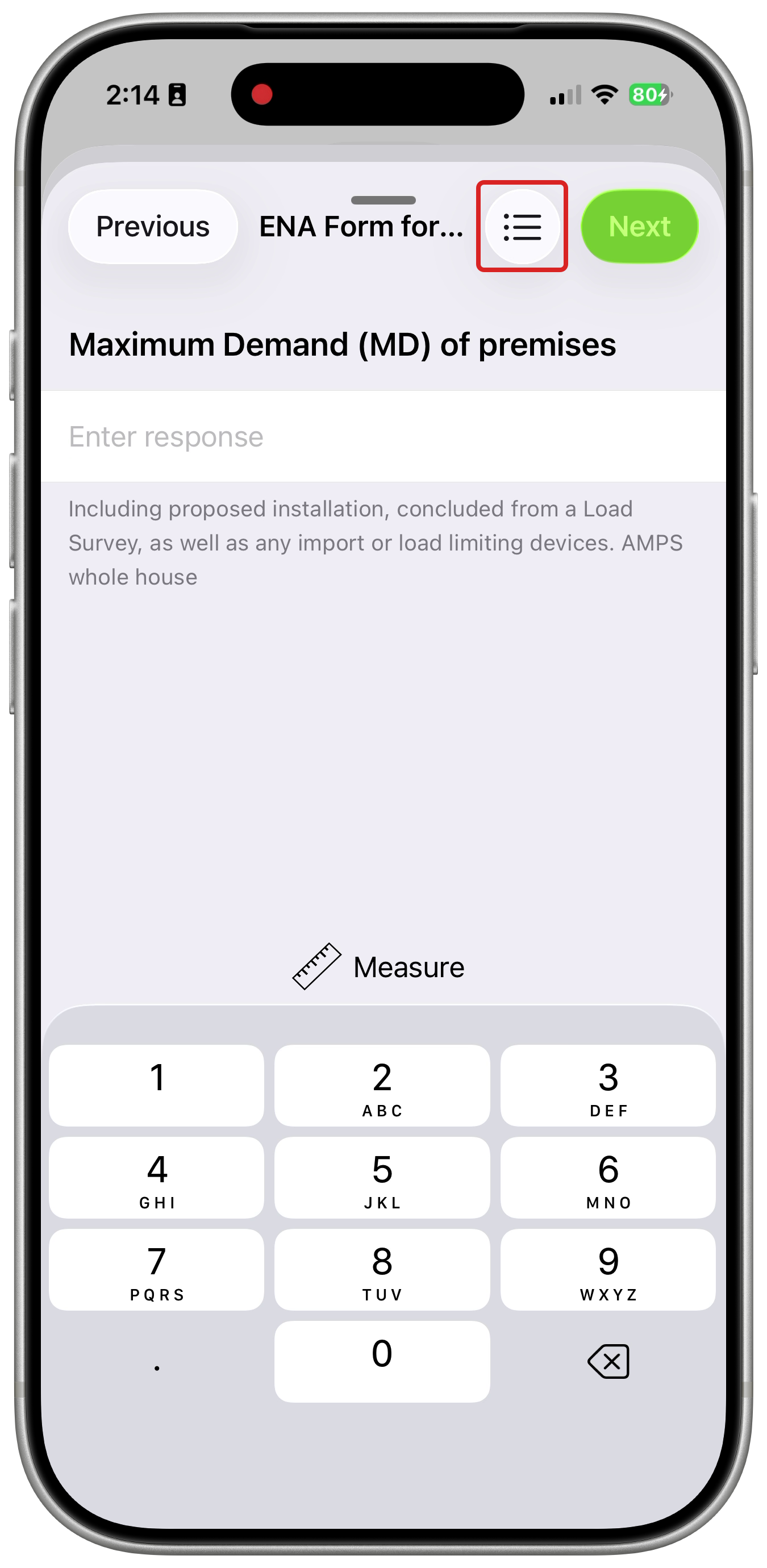
-
Scroll to the question you want to answer or review. To return to one question at a time, tap the stacked-card button beside Complete.
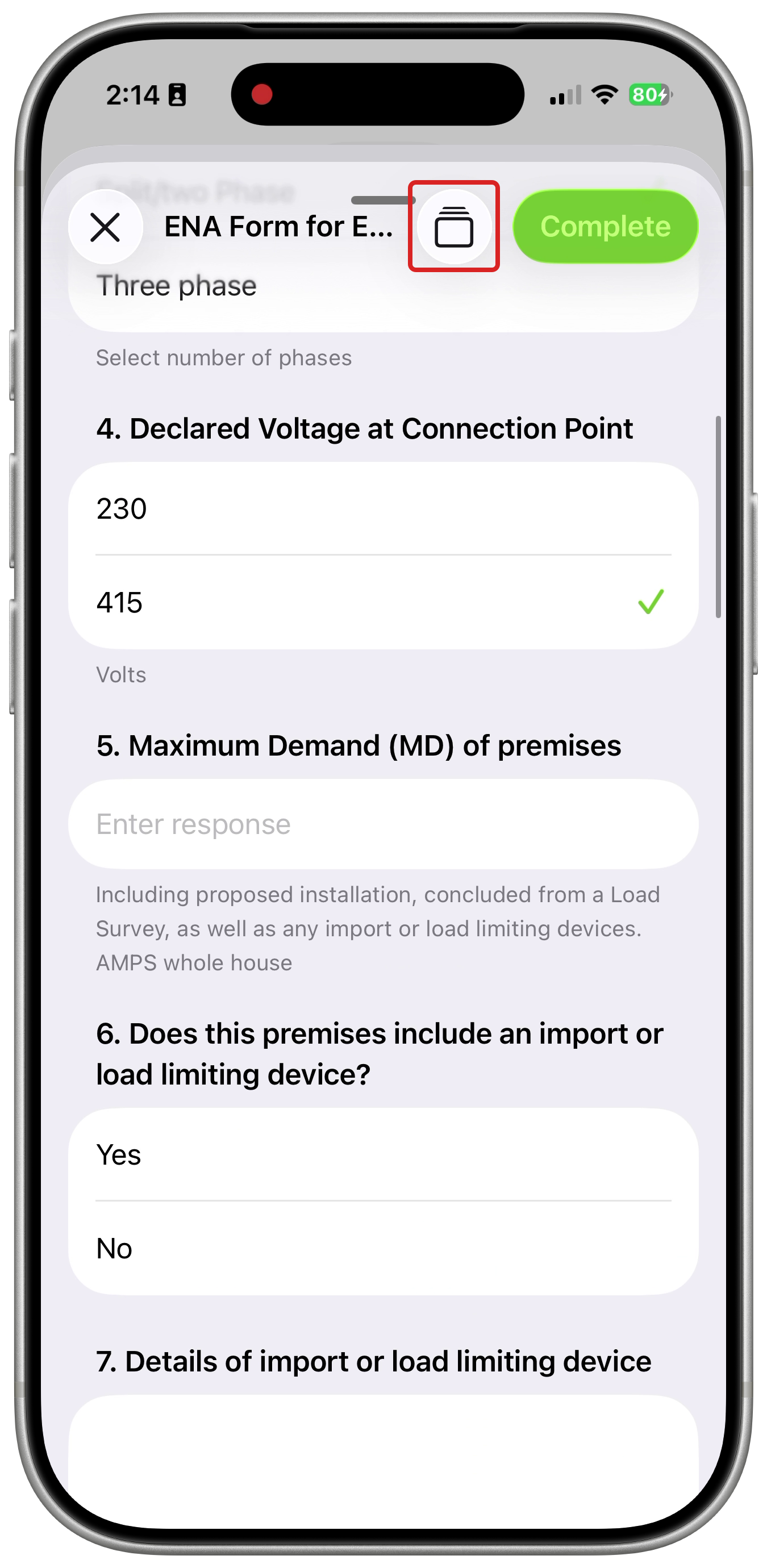
-
In all-questions view, tap Complete when you have finished. In one-question view, tap Next to move through the questions, then Save on the last question.
Switching views keeps the answers you have entered, including when you resume or edit a Form. The app remembers your selected view for subsequent Forms.
In all-questions view, required questions are marked Required. If you tap Complete with a required answer missing, the Form marks it and scrolls to the first unanswered required question.
Questions appear or disappear according to the Form’s conditions. When you tap Complete, only answers to visible questions are included.