

Knowledge
How to create a Knowledge article or video online
Create, save and publish Knowledge articles and videos in the Online Dashboard.
Before you start
- Activate the Knowledge Add-on in Settings > ServiceM8 Add-ons. If the add-on is not available, check your plan details.
- Your security role must allow access to Knowledge articles in Settings or from a Job card.
Create a Knowledge article or video
-
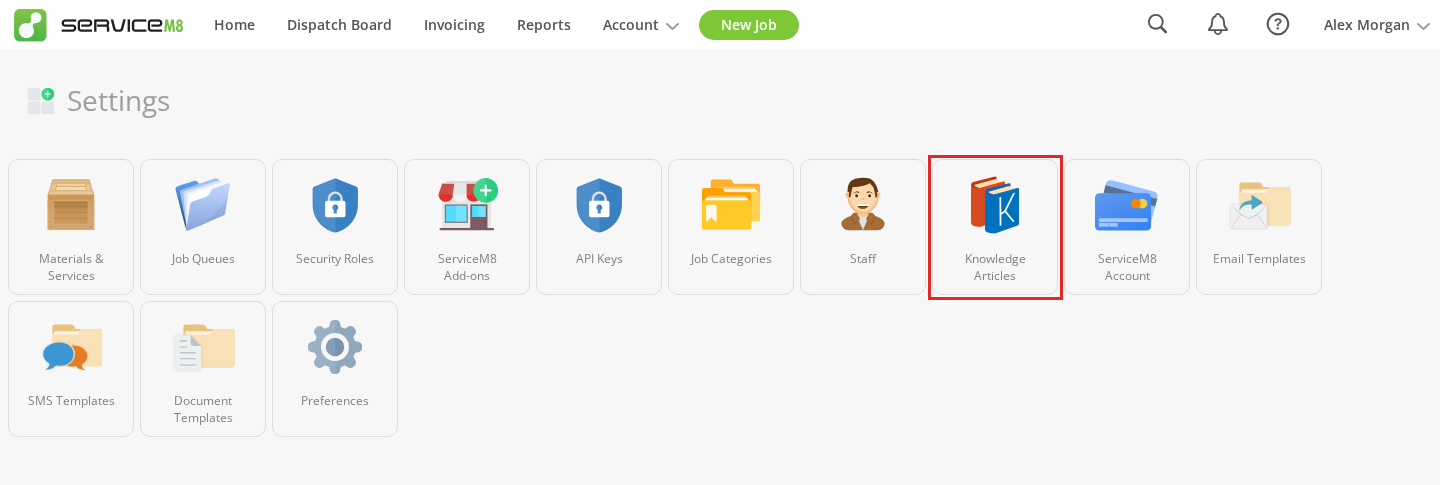
Go to Settings > Knowledge Articles.
-
Choose what to add:
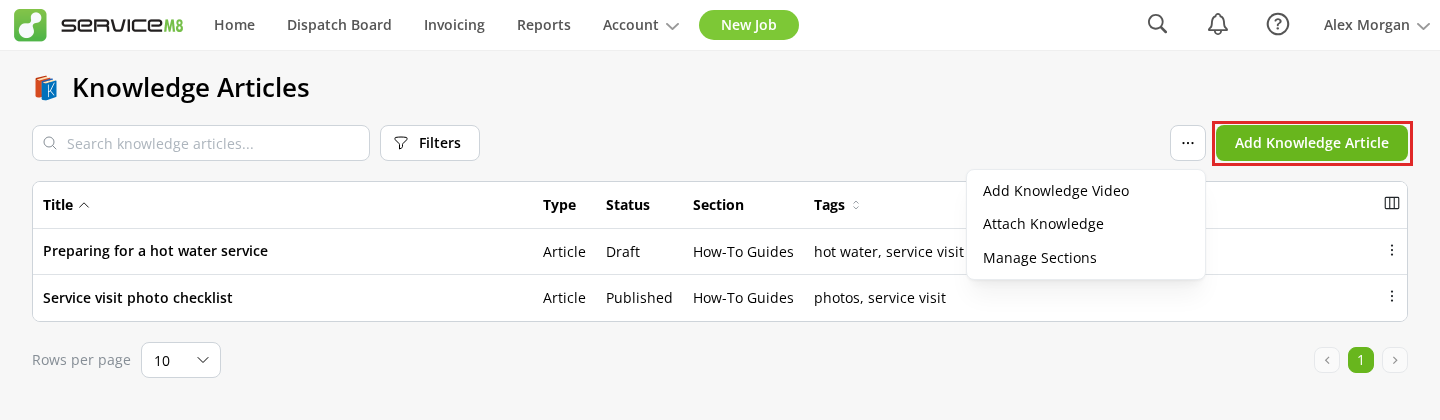
- For an article, click Add Knowledge Article.
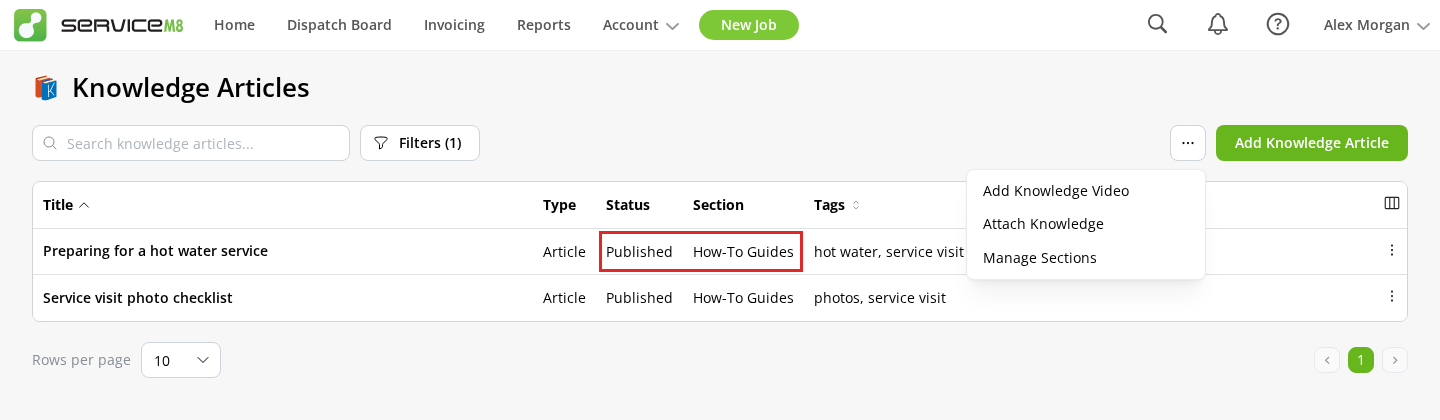
- For a video, click … beside Add Knowledge Article, then click Add Knowledge Video.
-
Add your content:
-
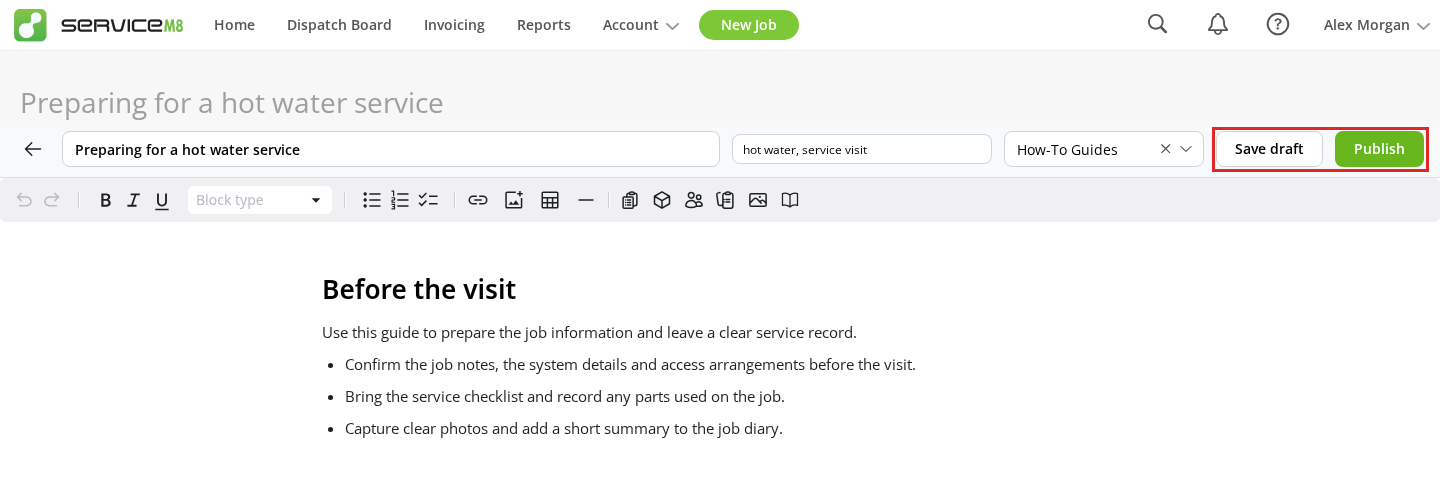
For an article, enter a title, add any tags, and write your article. Use the toolbar to add headings, lists, images, tables or links.
-
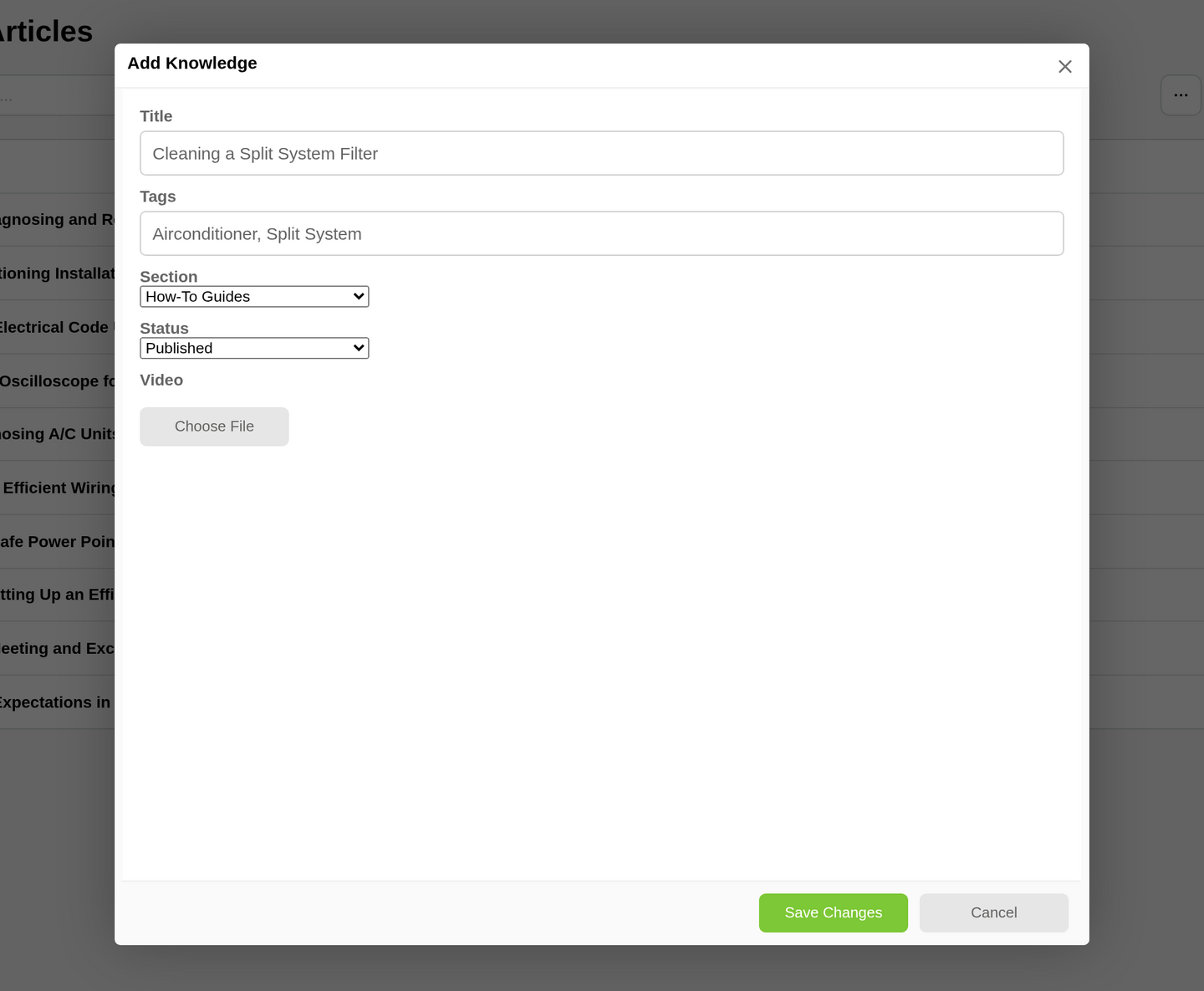
For a video, enter a title, add any tags, then choose the video file.
-
-
Save it:
-
For an article, click Save draft to finish later, or Publish to make the article available to staff who have access.
-
For a video, choose Draft or Published in Status, then click Save Changes. A new video can take a short time to process before staff can watch it.
ServiceM8 returns you to the Knowledge Articles list. The Status column shows Draft or Published.
-
To add Forms, Materials, Clients, Job Templates, job media or an article link, see How to embed ServiceM8 content in a Knowledge article.
Continue a draft or update a published article
-
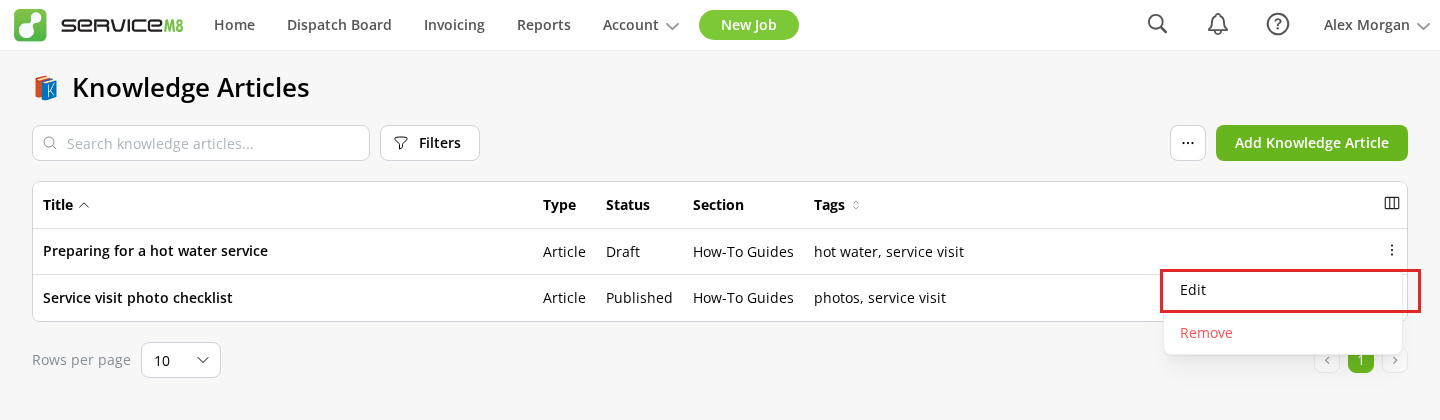
In Knowledge Articles, find the article, open its row action menu (…), then click Edit.
-
Make your changes.
-
Click Publish for a draft, or Save changes for an already published article. To keep working on a draft later, click Save draft.
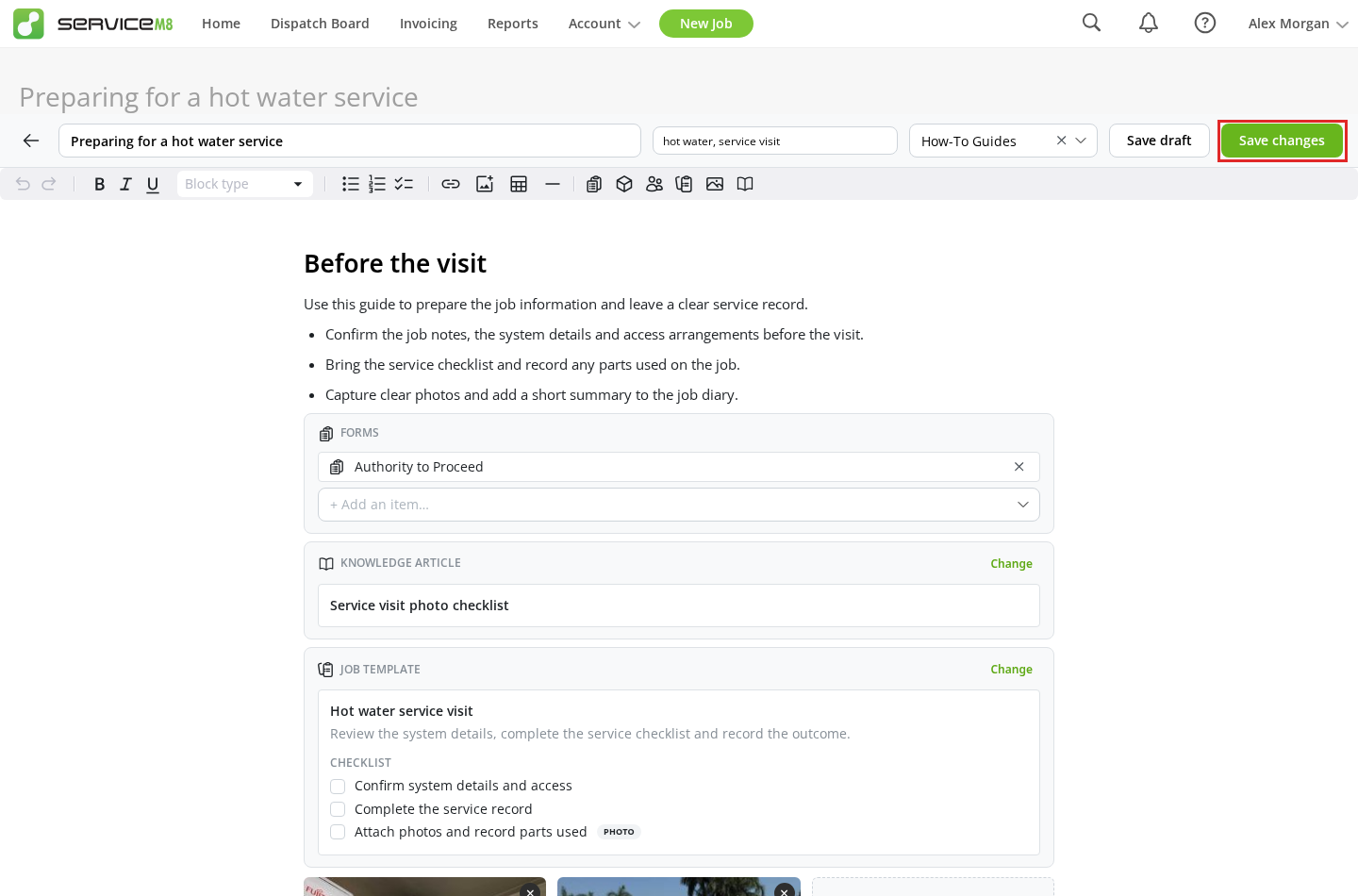
Drafts stay out of Knowledge searches and job recommendations and are unavailable in the app until published.