

Online Booking
How to add your ServiceM8 Online Booking link to your Facebook Page
Learn how to add your ServiceM8 Online Booking link to your Facebook Page in ServiceM8.
To direct prospective clients to your ServiceM8 Online Booking form from your Facebook Page, use Facebook’s “action button” feature. It requires two easy steps:
NOTE: The Services and Self-Serve Online Booking add-ons must be enabled to access ServiceM8 Online Booking. For more information about online booking, read this article.
Copying your ServiceM8 Online Booking link
To copy your ServiceM8 Online Booking link:
- Go to Settings > Self Serve Online Booking.
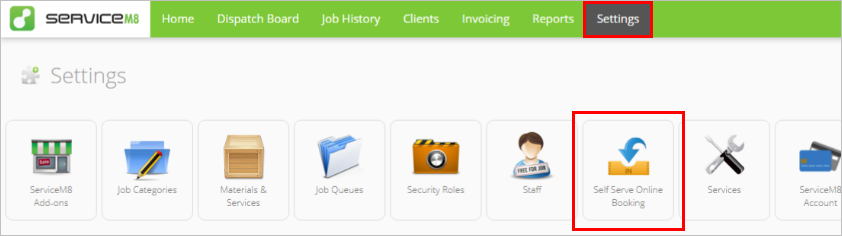

- Click on your ServiceM8 Online Booking link to select it.
- Right-click and click Copy.


Adding the link to an action button on Facebook
Now that you have your ServiceM8 Online Booking link copied, you need to paste it to an action button on your Facebook Page.
Refer to this Facebook help article for the most updated information about adding an action button to your Page.
When you create your action button in Facebook:
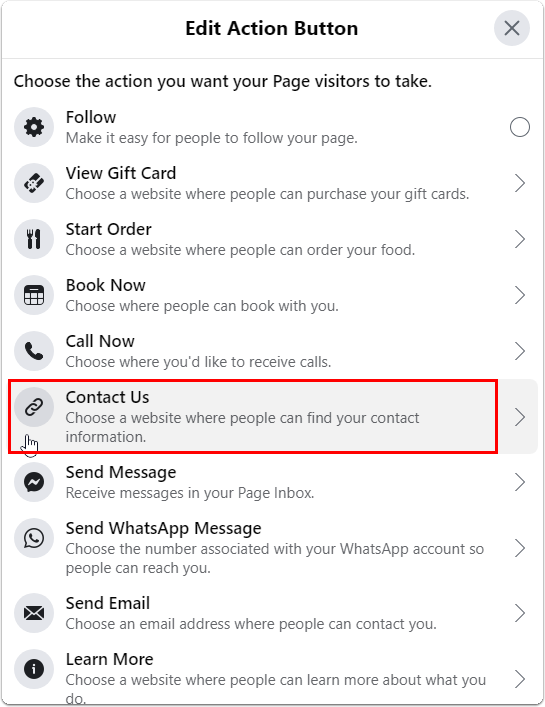
- Choose Contact Us as the action you want your Page visitors to take.

- Under Website, right-click and paste your ServiceM8 Online Booking link.
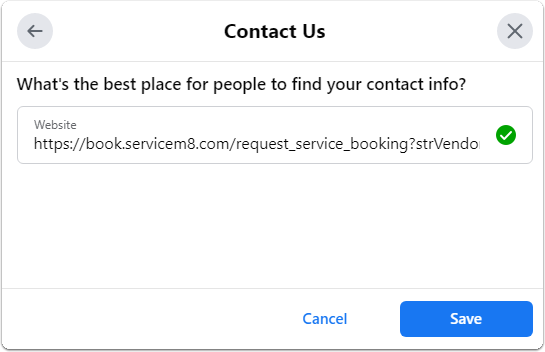

- Click Save.
Your prospective clients will now be directed to your ServiceM8 Online Booking Form when they click Contact Us from your Facebook Page.