

External Calendars
How to use the Calendar Import Add-on
Learn how to use the Calendar Import Add-on in ServiceM8.
With ServiceM8’s Calendar Import Add-on allows you to import staff member available/busy time from an external calendar and show it on the dispatch board.
Here’s how:
Go to Settings and click ServiceM8 Add-ons

Navigate or search for Calendar Import and switch it on to activate
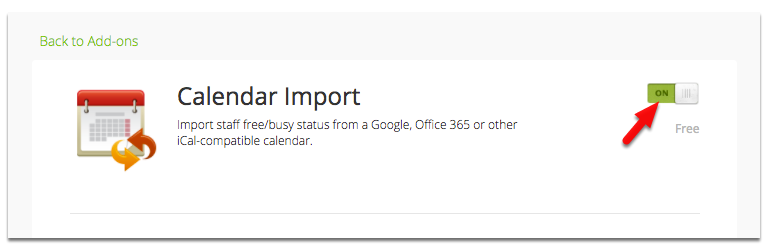
To import/sync a staff member’s external calendar, a special ‘iCal’ URL is required, which will be available in the settings area of the relevant calendar (e.g. Google, Office 365).
In this example, we are going to use Google Calendar’s iCal
Open your Google Calendar from computer

1.Tick to select a calendar you want to share and click Option
2. Then click Settings and sharing
In the Settings, select Access Permissions and tick ‘Make available to public’

Then select Integrate Calendar, and copy the iCal link
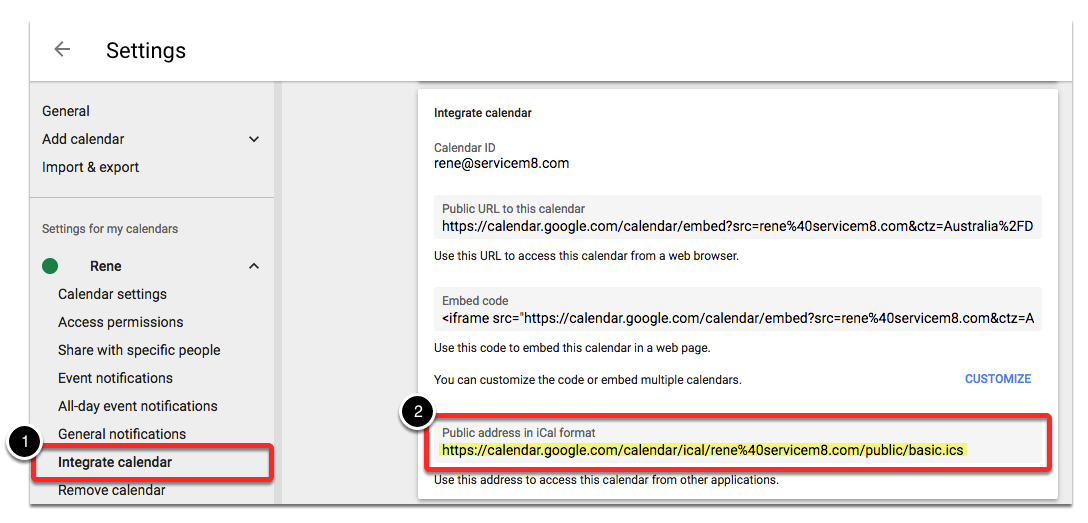
Now go back to ServiceM8 and go to Settings > Staff

In Staff Members tab, select a staff member and click Edit

Click Options and paste the “iCal” link into Import Free/Busy Time from Calendar URL field, then click Save Changes.

Staff member’s external calendar will show in the dispatch board

Times blocked out in a staff member’s external calendar will mark the staff member as “Busy” at that time in the dispatch board, and be taken into account by the new Booking Suggestions feature.
Note: Calendar and Staff Schedules update every 15 minutes after the import. Calendar syncs are 90 days forward, 30 days back.