

About add-ons
How to add Staff Leave
Learn how to add Staff Leave in ServiceM8.
The Staff Leave add-on makes it simple to manage when team members are unavailable — whether it’s for holidays, medical appointments, training, or part-time work arrangements. Leave entries are displayed in Staff Schedules, so it’s always clear who’s available.
To get started, go to Account > Features & Integrations, and activated the Staff Leave add-on, which is available on all ServiceM8 plans.
Staff leave can be added directly in the Staff Schedules view of the Dispatch Board, or in Account > Settings > Staff > Edit > Leave.
Please note:
- You can edit leave after it’s added, but cannot move it around on your schedule like a normal job booking — you can only edit leave via the process described here.
- Leave can only be added for one staff member at a time.
- Notes cannot be added to leave entries.
How to add or edit Staff Leave in the Dispatch Board
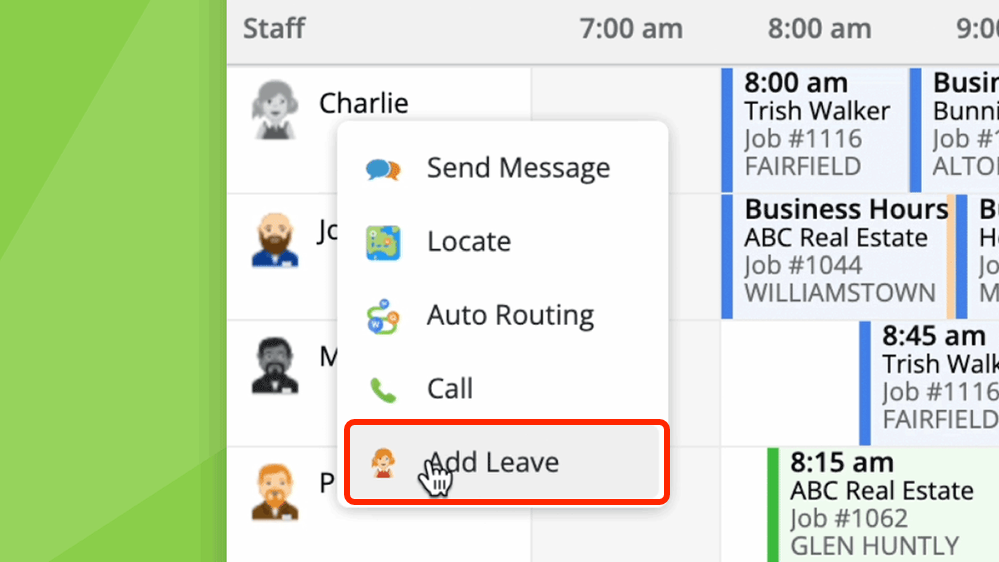
1. In the Staff Schedules view of the Dispatch Board, simply right-click a staff member in the left-hand pane and click ‘Add Leave’.
2. To add or edit leave, simply give it a clear name, and describe the time and date you want to block out.
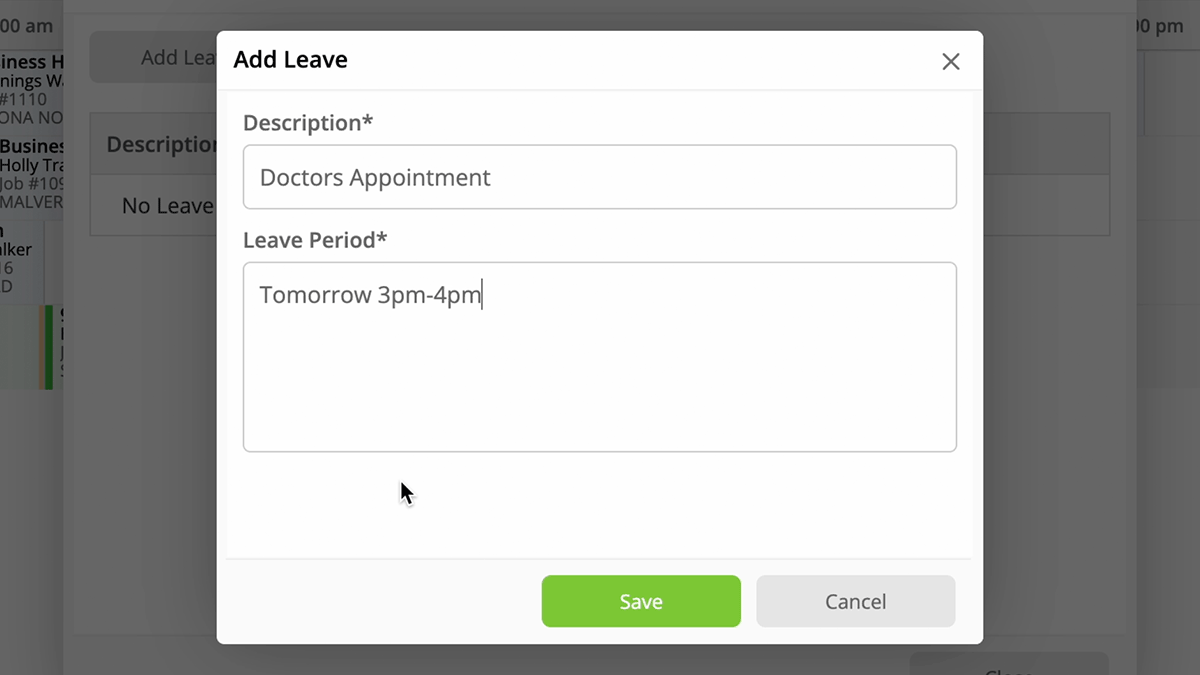
The new staff leave feature supports various timing patterns to suit your needs. For example:
- Single full day: “Friday 1/08/2025” or “Next Friday” or “September 1st”
- Multiple consecutive days: “Friday 1/08/2025 - Friday 29/08/2025”
- Partial day with specific hours: “Fri 1/08/2025 11:00 AM - 2:00 PM”
- Weekly recurring, ongoing: “Every Thursday and Friday” or “Every second Friday”
- Weekly recurring, until an end date: “Every Friday until 31/12/2025”
- Multiple days recurring, until an end date: “Every Mon, Wed, Fri 11:00 AM - 2:00 PM until 31/12/2025”
- Monthly patterns, ongoing: “First Mon of every month 11:00 AM - 2:00 PM”
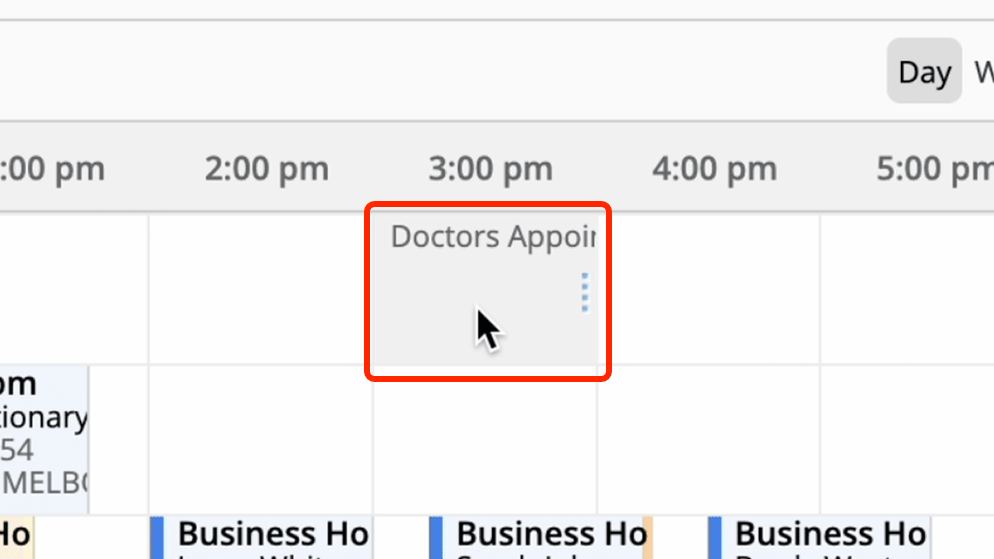
3. Once added, check the schedule and you’ll see the applicable time has been blocked out.
How to add or edit Staff Leave in Settings
1. To add or edit leave in your Settings, go to Account > Settings > Staff > Edit > Leave > Add Leave, and follow the same process as described above.

