

What is Passkey Authentication?
Passkeys are a new way to sign in to apps and websites, using fast and secure biometric technology such as Touch ID and Face ID. A passkey can be used as a substitute for a conventional email username + password login method, or an additional method of authentication. So, after entering your email & password, a passkey can be used as a second step of authentication, instead of using an authentication app like Google Authenticator, or a one-time SMS code.Why should I use Two-Step Authentication like Passkeys?
ServiceM8 is continuing to support new and innovative account security measures in line with online security best practice and industry partners. Your ServiceM8 account contains your clients’ personal information, and sensitive business data (including your invoicing and payment details), making it a target for criminals. This is why ServiceM8 includes Two-Step Authentication (2SA), offering an additional layer of security to your ServiceM8 account. ServiceM8 now supports another easy way to improve your business’s protection against cyber criminals, with Passkey support. Either Two-Step Authentication or Passkeys can be activated and used as a second step, after entering your email & password, to authenticate access to your ServiceM8 account. This significantly improves your business’s protection against cyber criminals and others seeking unauthorised access to your ServiceM8 account. We recommend that all ServiceM8 customers activate ServiceM8’s Two-Step Authentication.Minimum System Requirements for Passkeys
Before you start, below are some minimum software and hardware requirements to use Sign in with Passkey:- Desktop computer: desktop computers and/or laptops that runs at least Windows 10, macOS Ventura, or ChromeOS 109 (or later) AND have bluetooth connectivity.
- iPhone/iPad: iOS 16 (or later).
- Web browser: Chrome 109, Safari 16, or Edge 109 (or later).
- ServiceM8 app: the latest version of the ServiceM8 iOS app (11.0.10 or later)
- Screen lock: on all computers, iPhones & iPads
- iCloud Keychain: to store your Passkey, you’ll need to activate Keychain for your iCloud Account in your device’s Settings > Apple ID > iCloud > Passwords and Keychain.
- ServiceM8 Two-Step Authentication (2SA): you must activate ServiceM8’s standard 2SA feature, before you can switch over to using Sign in with Passkey (instead of the 6-digit code).
How to activate Two-Step Authentication
TIP: skip this step if you’ve already activated ServiceM8’s Two-Step Authentication feature. Two Step Authentication must first be activated on your ServiceM8 account, in order to save and use Passkeys. NOTE: activation of 2SA is a one-way process for the Account Owner. You can choose to activate 2SA for the Account Owner only, or All Staff. However, once you activate 2SA, there’s no option to deactivate it for the Account Owner. To enable 2SA:- In your Online Dashboard, go to Settings > ServiceM8 Account > Account Owner Settings > Two Step Authentication settings.
- Confirm your mobile/cell phone number.
- Enter the 6-digit code you should receive via push notification or SMS (text).
- If you haven’t already, set three Security Questions. These can be used as a backup when you don’t have access to your mobile phone.
- Choose whether to enable 2SA for the Account Owner only, OR All staff within the ServiceM8 account, then finalise the setup process.
How to activate Sign in with Passkey
TIP: you’ll need to activate ServiceM8’s Two Step Authentication (above) before you can use Passkeys. Once you’ve activated 2SA on your account, you can choose to switch to Passkey authentication. This means that after entering your email & password to log into ServiceM8, rather than waiting for an SMS/push notification code to arrive (i.e. the standard 2SA process), you can continue to Sign in with Passkey instead, using Face ID or Touch ID. When you have activated ServiceM8’s standard 2SA, and meet the minimum setup/system requirements for Sign in with Passkey, follow these steps to activate Passkeys on your ServiceM8 login: 1. Log out of the ServiceM8 iOS app, then sign back in. 2. Proceed to follow the standard 2SA process, and enter the 6-digit code you receive via push notification or SMS.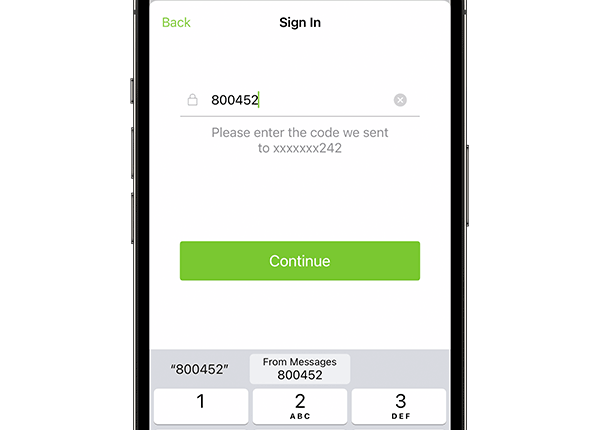
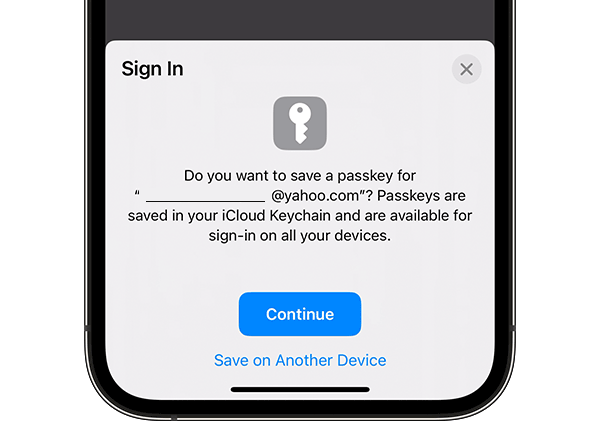
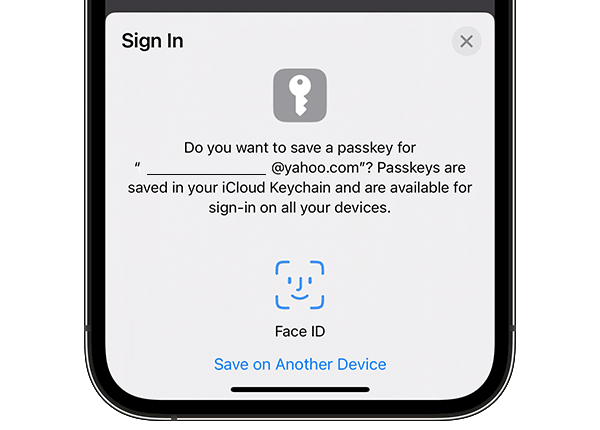
How to Sign in with Passkey — iOS App
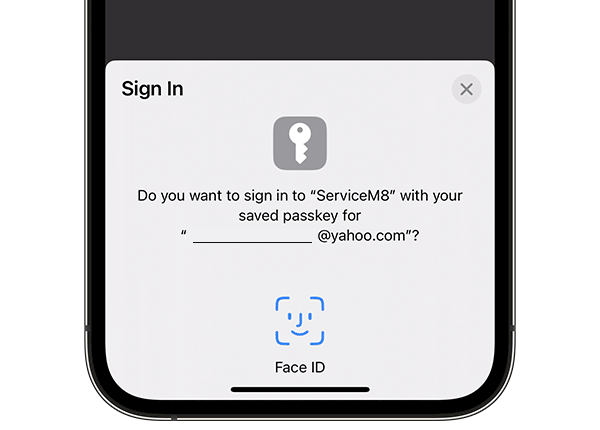
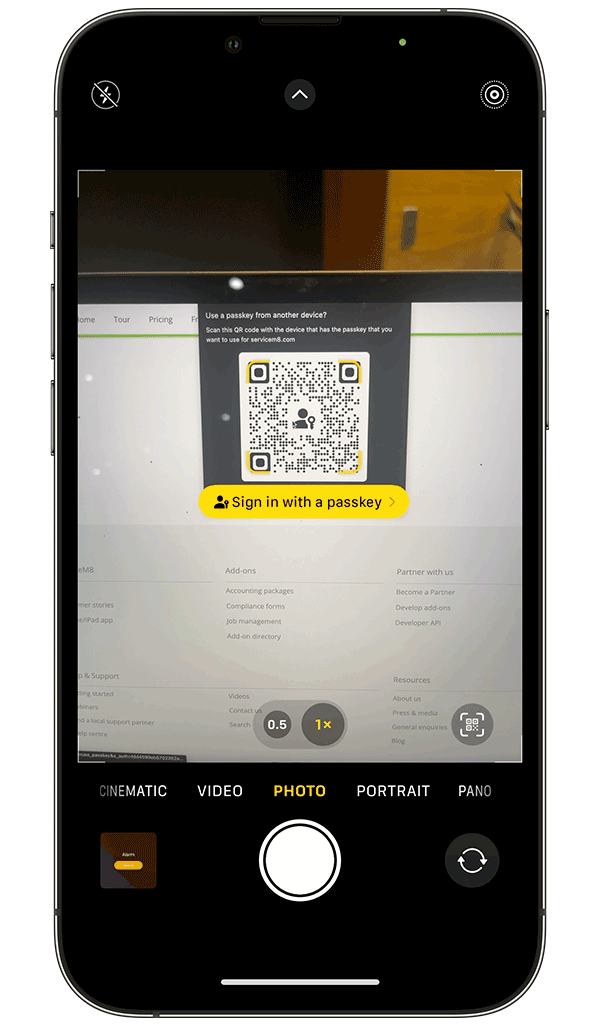
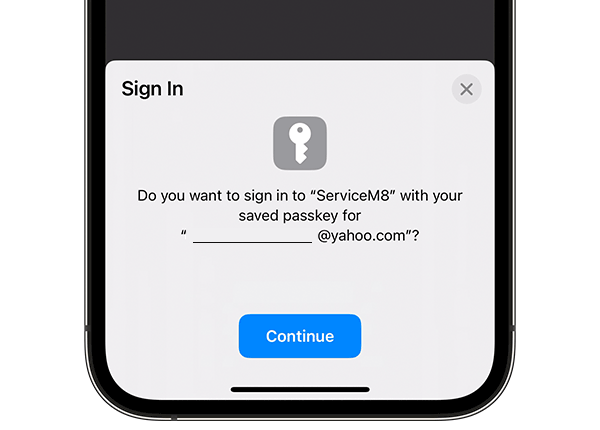
Once you’ve saved your ServiceM8 passkey, the next time you sign in to the ServiceM8 app, after entering your email and password, you’ll have the option to ‘Sign in to ServiceM8 with your saved passkey’ (instead of being prompted to enter a 6-digit code):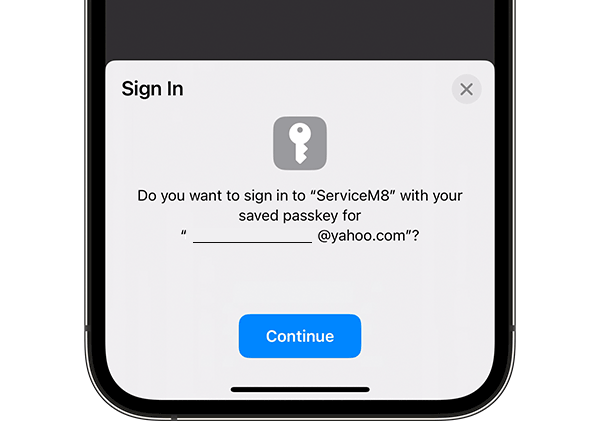
How to Sign in with Passkey — Desktop
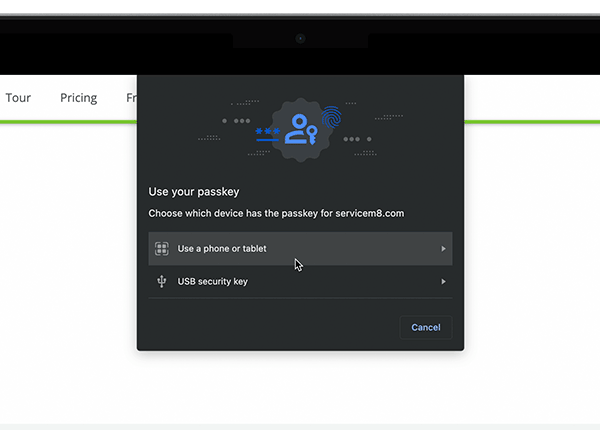
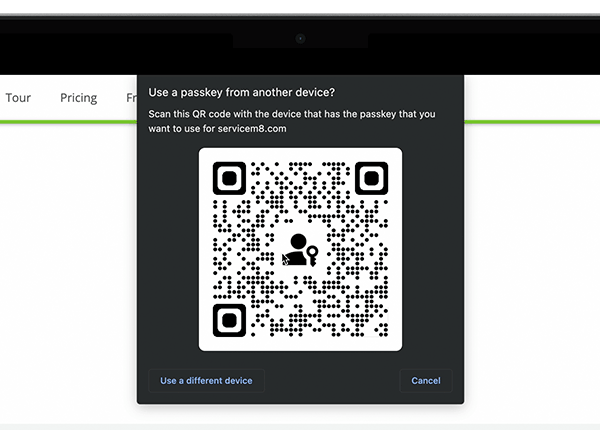
Once you’ve saved your ServiceM8 passkey, the next time you sign in to the Online Dashboard, after entering your email and password, you’ll have the option to ‘Sign in with Passkey’ (instead of being prompted to enter a 6-digit code):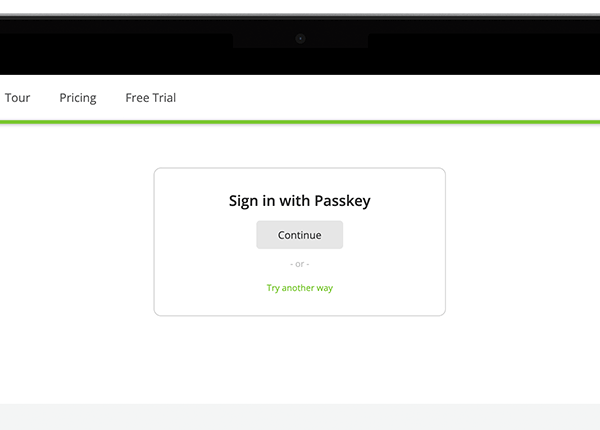
FAQs
What’s the difference between Two-Step Authentication and Passkeys? Two-Step Authentication (2SA) is a ServiceM8 add-on, and a great way to increase the security of your ServiceM8 account and protect it from online criminals. ServiceM8’s 2SA involves entering your email and password to log in, then waiting a moment for a SMS or push notification containing a one time, 6-digit code to your mobile device, which serves as a “second step” of authenticating access to your ServiceM8 account. So, even if a criminal manages to guess, discover or trick you into revealing your ServiceM8 login email and password, they’d still need immediate access to your mobile device/messages to gain access to your ServiceM8 account. This means 2SA makes your account much more secure. Learn more about ServiceM8’s Two-Step Authentication here. Passkeys is a new authentication standard to sign in to apps and websites, using fast and secure biometric technology such as Touch ID and Face ID. In this context, ServiceM8 has supported passkeys as an optional authentication method for use with ServiceM8’s Two-Step Authentication feature. So now, when you activate ServiceM8’s Two-Step Authentication, to log into your ServiceM8 account you can:- Use the standard 2SA process i.e. Enter your email & password, then the 6-digit code received via SMS or push notification; or
- Take the extra step of saving a passkey (once) for your ServiceM8 login i.e. Enter your email & password, then Sign in with Passkey.