

- “Amounts are” is set to “Tax Inclusive”
- An item has a unit price of $1.15 inc tax. The tax rate is 10%.
- A user changes “Amounts are” to “Tax Exclusive”
- ServiceM8 will attempt to calculate the ex-tax price, which results in the same total price.
- Ex-tax price = 1.045454545
- Now we need to round this to 2 decimal places. Ex-tax price = $1.05.
- Next we apply the 10% tax. Total price = 1.05 + 1.155
- Now we need to round that total price to 2 decimal places.
- The new total price is 1.15.
Setting Tax Inclusive vs Exclusive in the Legacy Job Card
In the Quotes & Invoicing tab of a job card, click ‘Show Tax’: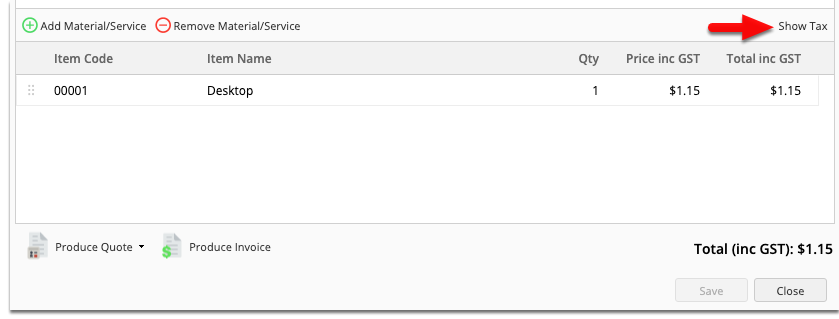
 Example: total invoice amount with “Tax Inclusive”
 Example: total invoice amount with “Tax Exclusive”
 PLEASE NOTE:
- This setting doesn’t just switch between showing the prices with/without tax — it does actually re-calculate the prices to maintain the total invoice amount. However due to rounding, the exact total price cannot always be maintained and depending on the exact amounts, sometimes it will differ.
- It is recommended that you do not regularly switch between tax inclusive and tax exclusive pricing. It’s best to select the method that matches how you price your jobs, and leave it that way.
- Toggling this setting won’t affect or change billing on existing jobs, however it will change the default inclusive/exclusive tax setting for new jobs.
- The “Amounts are” setting is a single setting shared by all staff in the account, and changing the setting will affect other staff logins.
Setting Tax Inclusive vs Exclusive in the Enhanced Job Card
With the new Enhanced Job Card (introduced September 2024), to switch the way you set this account-wide preference has moved to Account > Settings > Preferences > Invoicing > Set whether item prices include [GST]: