- Go to Settings > Siri & Search.
- Go to Listen for “Hey Siri” and tap the switch on (green position).
Enabling Siri Shortcuts on the ServiceM8 app
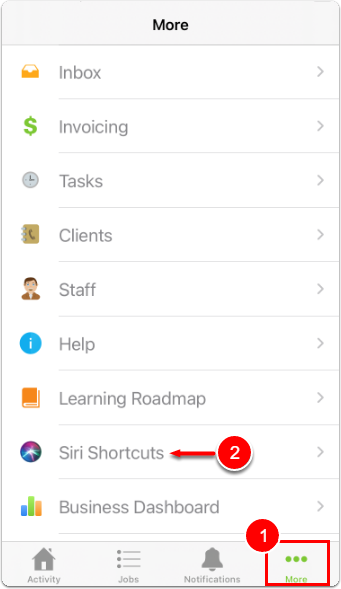
To enable Siri Shortcuts:- From your ServiceM8 app, tap More.
- Tap Siri Shortcuts.

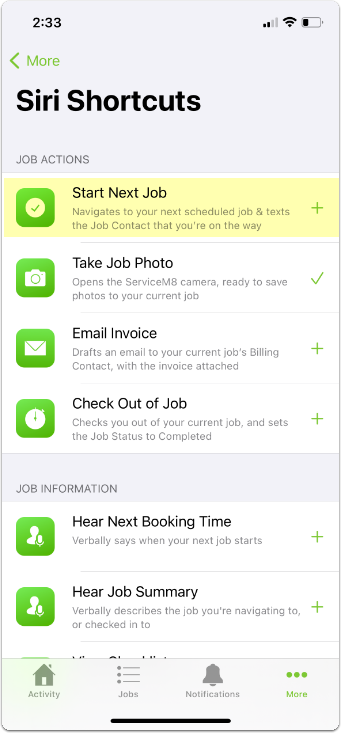
- Tap the shortcut, such as Start Next Job highlighted below, that you would like to enable. (Tasks with a checkmark are enabled. Tasks with a + sign are not yet enabled.)

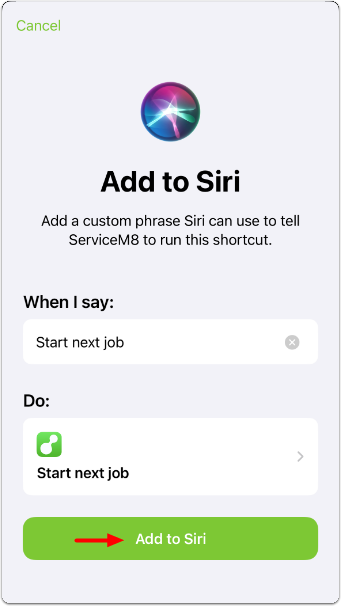
- In the Add to Siri window, tap Add to Siri.

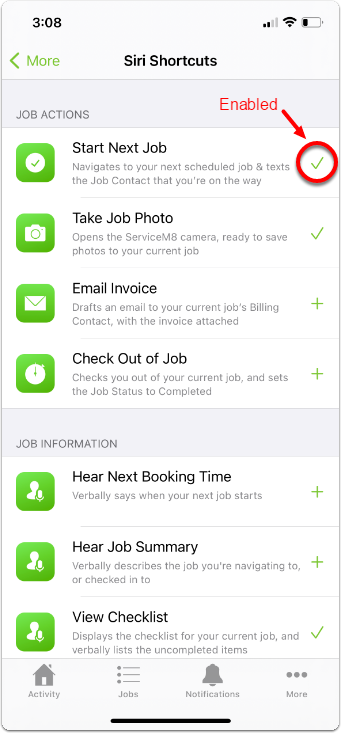

Siri Shortcuts available within the ServiceM8 app
Siri Shortcuts built into the ServiceM8 are divided into four types:Job Actions
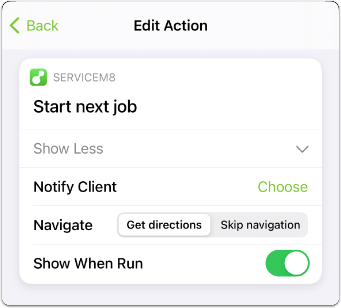
Job action shortcuts ask Siri to execute actions within ServiceM8 related to a specific job. START NEXT JOB

- Notify client, don’t notify client, or ask each time
- Get directions or skip navigation
- Show When Run on or off (displays ServiceM8 screens associated with tasks)







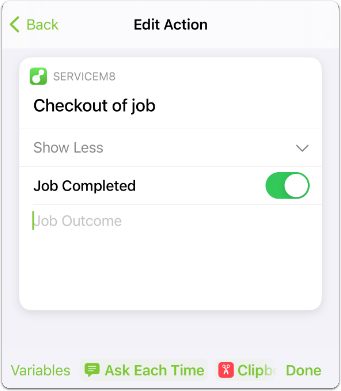
- Automatically mark the job as completed or not
- Populate the Job Outcome field with specific variables (static text, contents from clipboard, current date and time, shortcut input)

Job Information
Job Information shortcuts ask Siri to read out information related to a specific job. HEAR NEXT BOOKING TIME





Communication
Communication shortcuts make it easier for you to reach out to clients on current or upcoming jobs. CALL JOB CONTACT

- Call the job contact, the billing contact, or ask each time
- Relate this action to the current job or the next job
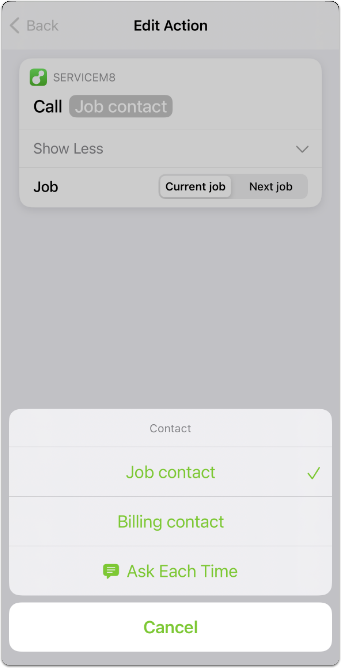





- Relate this action to the current job, the next job, or ask each time
- Show When Run on or off (displays ServiceM8 screens associated with tasks)


My Shift
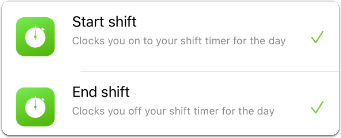
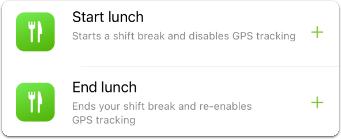
My Shift shortcuts are a convenient way to use Siri to verbally clock in and out of your shifts throughout the day. START SHIFT / END SHIFT (These shortcuts are grouped together because they have the same edit options and are related to the same task.)