

- entering their credit or debit card details; or
- if they use Apple Pay, Google Pay, or Microsoft Pay with the device they’re on, they will have the alternative option of paying this way:

Setting up Online Payment
In your Service Manager, open the service for which you’d like to accept deposits or full pre-payment. In the ‘Service Details’ view, ensure ‘Show pricing in Online Booking page’ is checked. This will make the ‘Online Payment’ settings appear in the left-hand menu: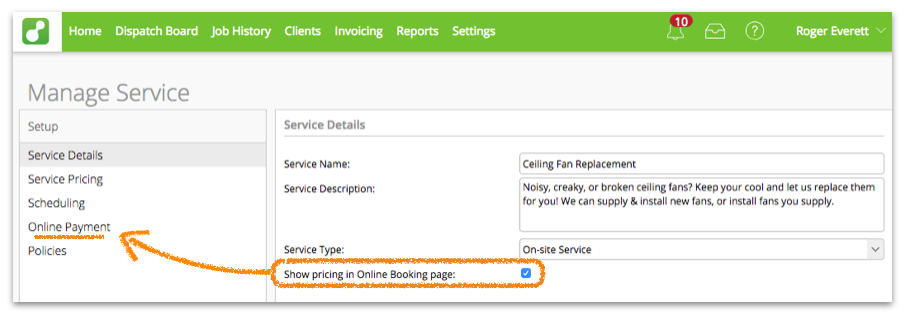 In the ‘Online Payment’ view, you can set whether to Collect Deposit or Collect Full Payment:
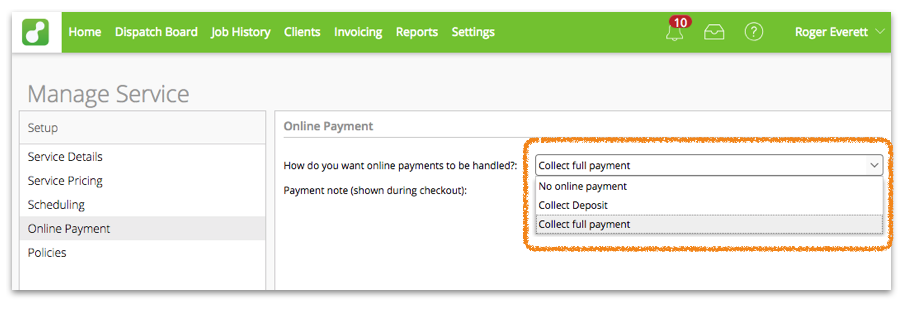 If you want to collect a deposit, you can choose to set a fixed amount, or collect a percentage of the total price:
 Click Publish and go through the Service Publishing wizard to publish or update your online booking page.