

Use Badge Follow Up Automation to automatically send follow up messages to your clients after completing a job. There’s so many ways this can be handy:
  • Request feedback soon after job completion
  • Prompt the client to book maintenance or related work
  • Remind clients of repeat visits that may be necessary (examples include annual pest inspections, air-conditioner cleaning, or equipment servicing)

Click the New Automation button
Click the New Automation button Unlike some other Automations, there are no pre-created Badge Automations. You can create one by clicking the New Automation button.

Select Badge Follow Up from the list

Select Badge Follow Up from the list

Choose how to send your follow up messages, and enter a badge name
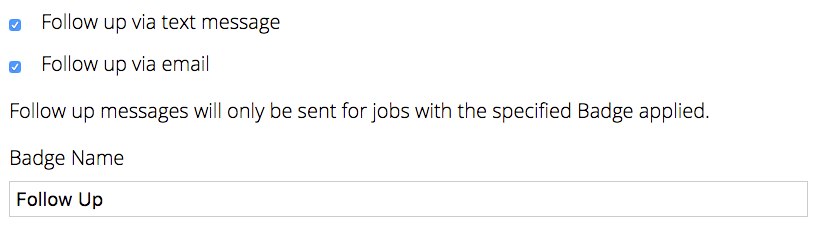
Choose how to send your follow up messages, and enter a badge name

Choose how long to wait before sending a follow up message
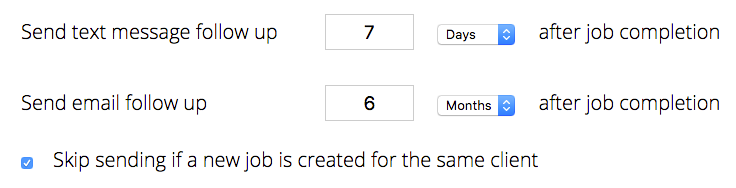
Choose how long to wait before sending a follow up message The “Skip sending if…” checkbox is perfect for follow-up messages which ask clients to book in a repeat visit. It allows you to automatically cancel the scheduled message if the client calls before the automated message and books a repeat visit themselves.

Configure the follow up message to be sent
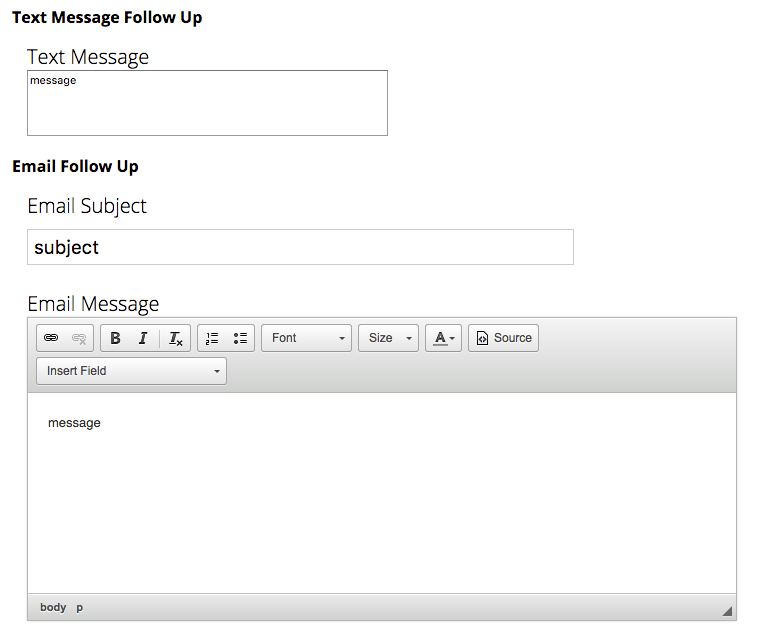
Configure the follow up message to be sent You can use all standard template fields in your messages.

Review your settings

Review your settings Each Badge Follow Up Automation will create a unique badge in your account. Simply apply the badge to a job, and the follow up message will be scheduled for the specified time after job completion.
Last modified on March 3, 2026
